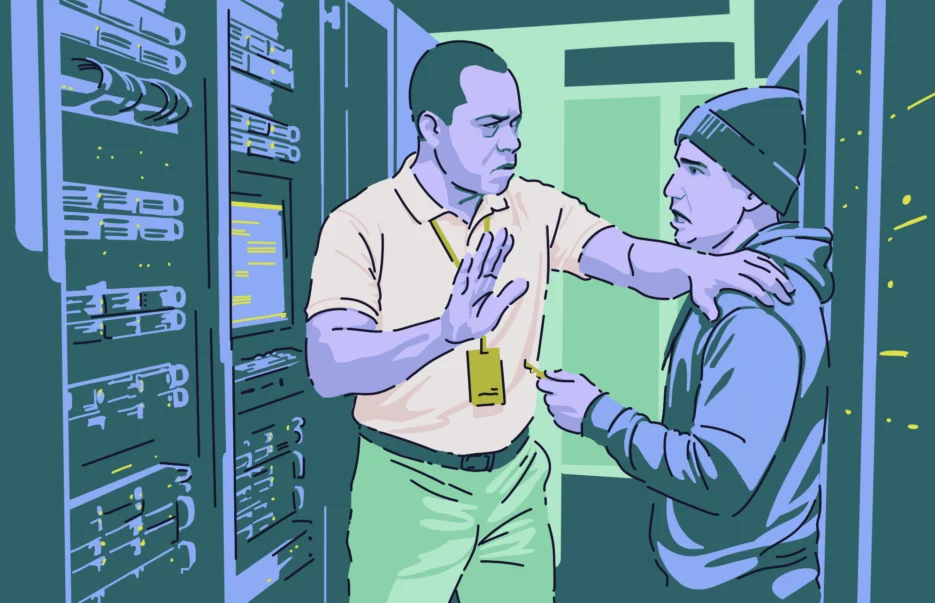
ClickFix attacks targeting Mac users have skyrocketed. This simple social engineering technique, where users are tricked into copying and pasting scripts into their Terminal to install malware themselves, appears to be getting out of control.
Responding to this increased wave of ClickFix attacks, which has been building momentum since 2024, Apple released a new feature that could dramatically reduce the number of users infected by malware using ClickFix.

Protect your Mac from ClickFix malware
The new Mac ClickFix warning feature could dramatically reduce breaches
In late March, tech media, including Bleeping Computer, Tom’s Guide, Apple Insider, and others, reported on a new Mac security feature. The feature, which Apple has not officially addressed in any press release, is a clever and highly effective way to put an end to ClickFix attacks on macOS.
According to reports, the feature only works as of today on macOS Tahoe 26.4. Hopefully, Apple will roll it out for all its OS versions.
As noted, reports show that ClickFix attacks are on the rise. ESET, for example, found a 500% increase in ClickFix attacks in the first half of 2025 report, while Microsoft’s 2025 Digital Defense report found that ClickFix techniques are used in 47% of all detected successful breaches, becoming the most common initial access method.
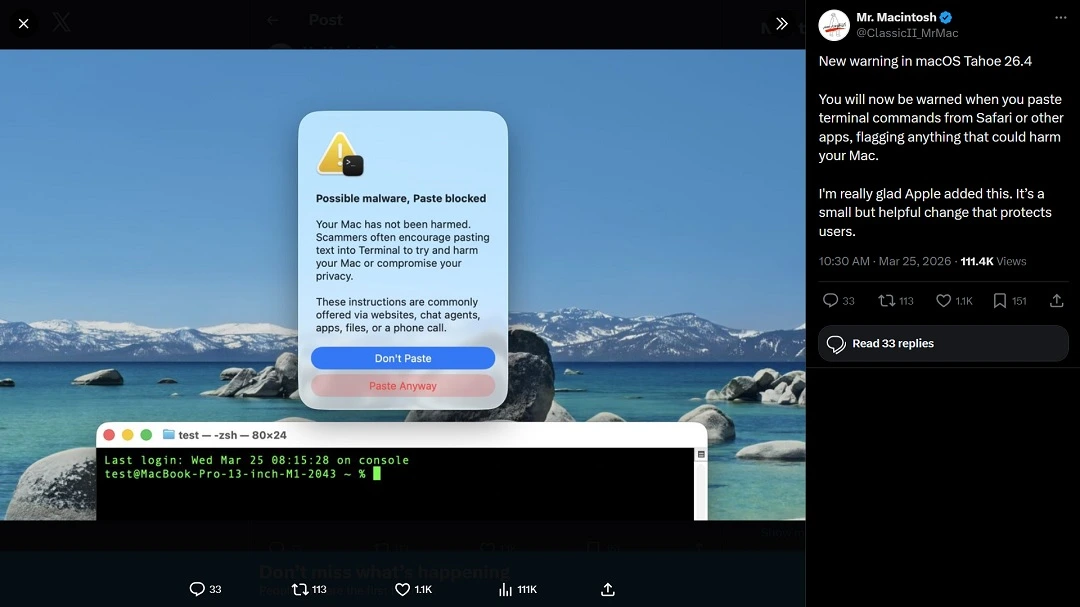
The New Mac ClicFix warning feature: A hoax or a live test?
The new Mac ClickFix warning feature was first brought to light by users on social media. While some tech reporters struggled to replicate the feature on their Macs, others managed to see the feature live in action.
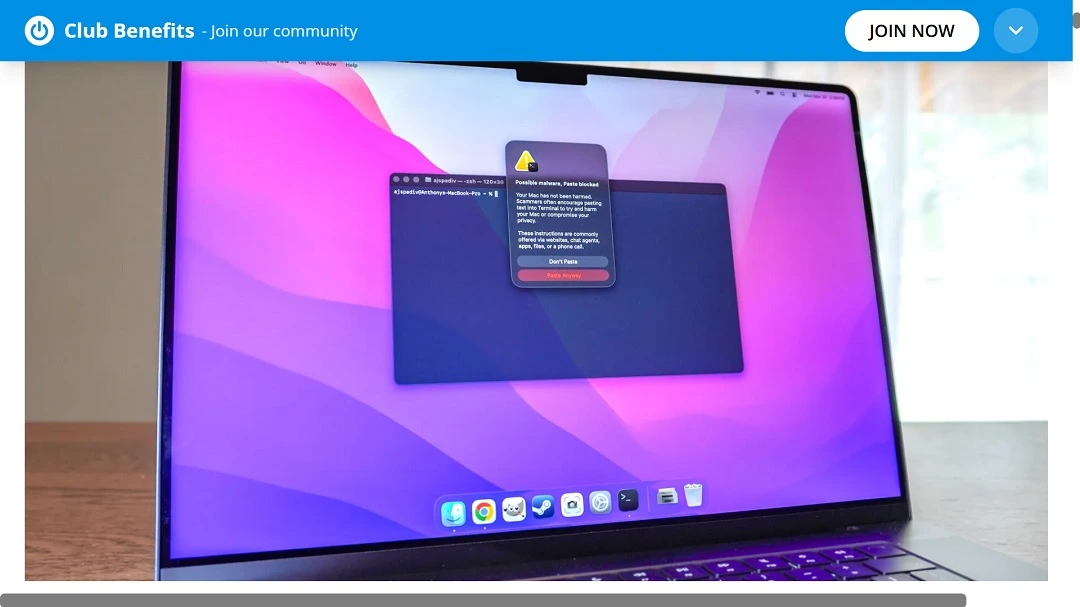
As mentioned, Apple has yet to officially comment on this feature. It is highly likely that Apple is silently testing and geo-scoping it before they roll it out to more users.
“ClickFix warning in macOS Tahoe 26.4 is targeted and experimental right now,” said Fergal Glynn, AI Security Advocate and Chief Marketing Officer at Mindgard. “This explains why Apple is yet to highlight it, and reviewers have a hard time triggering it.”
“Multiple independent users and outlets observed the same Terminal paste warning behavior in macOS Tahoe 26.4, which suggests this is a legitimate Apple-added protection,” Ran Geva, CEO at Lunar, a cybersecurity monitoring platform, told us. Lunar is powered by Webz.io, a cyber and dark web intelligence provider.
“However, Apple didn’t publicly document the feature, and it does not appear consistently, which explains why some journalists were unable to reproduce it,” said Geva.
The most likely explanation is that this is a selective, heuristic-based safeguard, not a universal prompt, Geva explained. “It likely triggers only under certain conditions, such as specific command patterns, clipboard sources, or risk signals,” he added.
“That would align with Apple’s broader approach to silent, incremental security hardening,” said Geva.
Experts agree that the inconsistency users are observing with this new Mac feature is not evidence of a hoax, but, as Geva said, more consistent with an early-stage or narrow-scoped protection that Apple has not formally announced (which is “classic Apple”).
How the new Mac ClickFix warning works, and why it could be a game-changer
While this new Mac feature is just a simple security warning pop-up, the significance and implications of it should not be underestimated. By securing a wedge on a key step of the ClickFix social engineering process, Apple could really help users avoid this type of cyberattack.
Here’s what it looks like if you come across a ClickFix attack on your Mac and the feature is available to you:
- You are directed to a fake site that contains ClickFix instructions.
- The site gives you instructions on how to download software or fix a broken issue on your Mac that does not exist.
- The instructions contain a script, and the site urges you to copy and paste it into your Terminal.
- Here is where things get interesting. When you copy and paste the script in your Mac Terminal, your system automatically triggers a ClickFix warning, informing you of possible malware and the risks of Terminal scripts.
According to screenshots shared online, like the one below, the feature even blocks the paste attribute, which should be enough of a deterrent to prevent you from running the script.
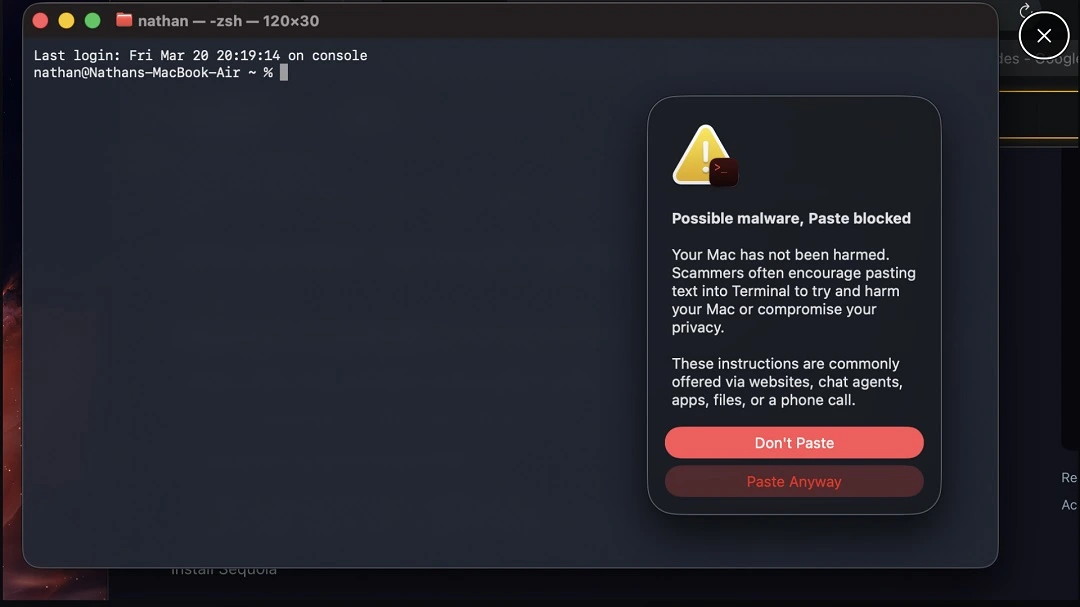
If the new warning were not there to stop it, pasting the malicious script in your Mac Terminal would automatically kickstart a cyberattack.
Is this warning enough to prevent users from falling for ClickFix attacks?
The ClickFix warning security system pop-up is a clever way to deal with ClickFix attacks, because instead of taking the long, technical route of finding a way to update Terminal so that it does not run malicious scripts, the warning inserts itself directly into the right place of an attack chain. Essentially, this closes the door on ClickFix attacks.
It is unlikely that most users would continue to attempt to paste a script after such a warning. Still, experts tell us, you should not let your guard down.
“The key shift is behavioral, not technical,” said Geva.
“From a broader perspective, this reflects a trend: Attackers are increasingly targeting human decision points rather than software vulnerabilities,” Geva explained. “Protections like this warning help, but user awareness remains critical.”
Attackers are increasingly targeting human decision points rather than software vulnerabilities.
Ran Geva, CEO at Lunar, a cybersecurity monitoring platform
“By inserting friction at the exact moment a user is about to paste a potentially dangerous command, Apple is targeting the attack at its weakest point,” he said.
Geva added that while the feature will stop a portion of attacks and help less technical users pause and reconsider, reducing compromises at scale, users should still be aware that criminals may adapt to this feature.
“Attackers can simply instruct users to ignore the warning or reframe it as a false positive,” said Geva.
Apple may have a hard time rolling out the ClickFix warning feature across all OS versions
If the goal is to provide this feature to all Mac users, Apple faces an uphill technical battle. Experts explain why.
“The interception of Terminal pastes is based on Tahoe-level security and input hooks that the older systems lack, so rolling out to all macOS is hard,” said Glynn. “Apple will need to backport the warning system, which means touching low-level components, aligning the rules per the OS version and enterprise policies, and avoiding breaking the admin scripts.”
Geva, on the other hand, noted that first, Apple needs to decide where this protection will live: inside Terminal itself, at the clipboard (pasteboard) level, or as part of a broader system security layer.
“Each option has different implications for coverage and compatibility,” he added.
There is also a significant backward compatibility issue, said Geva. “Apple supports multiple macOS generations simultaneously, and newer security mechanisms often depend on frameworks that don’t exist in older versions,” he said. “Backporting would require separate engineering and QA (quality assurance) across each supported release.”
Finally, there’s a false positive and a usability problem.
“Developers, IT admins, and power users routinely paste commands into Terminal. If the warning triggers too often, it risks becoming noise and being ignored or disabled,” said Geva.
To bring this feature to all macOS versions, Apple would have to go deeper into a full system OS level. Even then, the feature may not protect users of third-party Terminals or alternative workflows, said Geva.
This means it will take more than a flip of the switch from Apple’s security team to get the ClickFix warning feature operational on all macOS versions.
How to stay safe from ClickFix attacks
While we wait for this feature to become widely available (hopefully), Mac users can still take action to stay safe from ClickFix attacks. The following are some technical and online behavior tips and advice to help you do just that.
Get the Moonlock app and sit back while it flags anything suspicious
While the Moonlock antivirus app does not have a Terminal script checker, it will scan every file you interact with and check for malicious or suspicious behavior across your OS. If the app detects malware, it tells you what it is, why it’s dangerous, and what to do next.
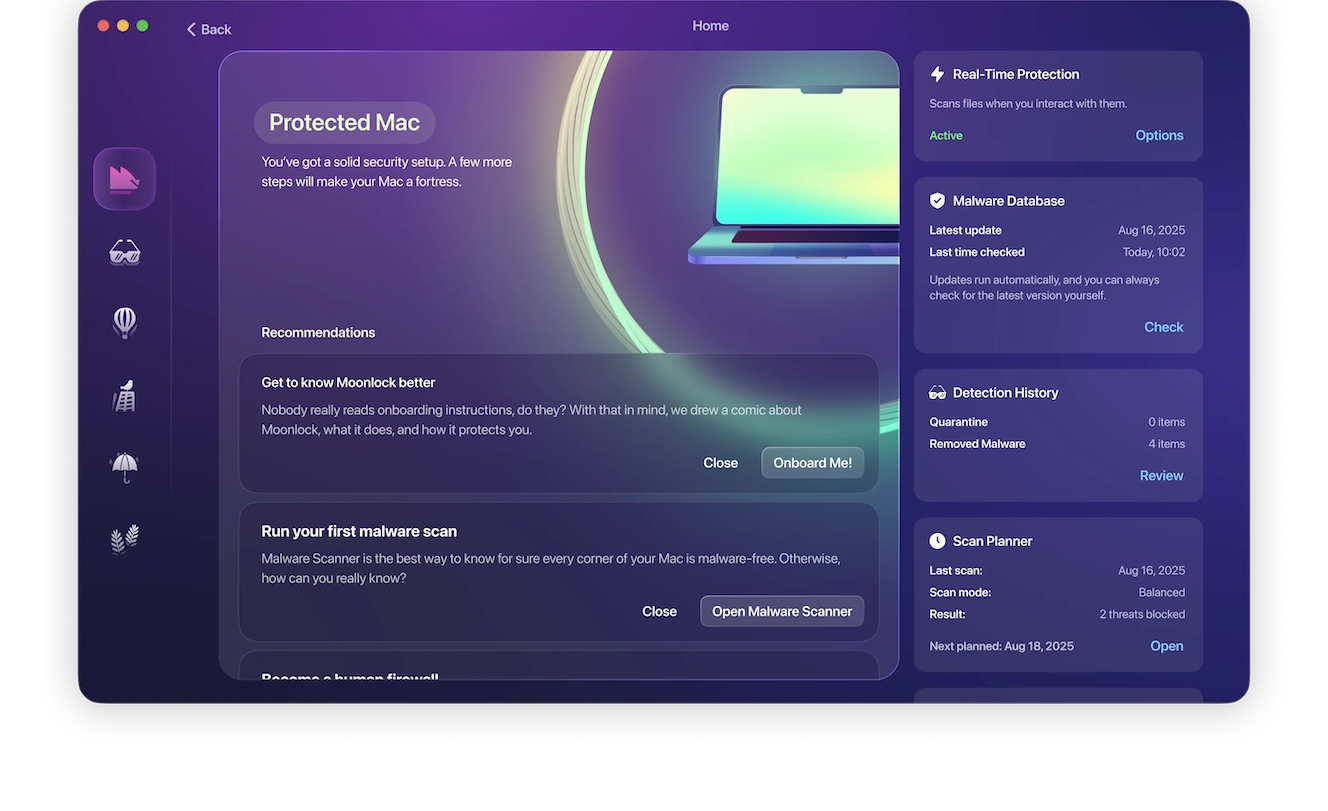
If you notice that your Mac is acting up, you can schedule a deep malware scan at your leisure. The Moonlock app, through Security Advisor, will also offer you advice on what works best against cyber threats and help you develop safer online habits.

Moonlock is free to try for 7 days, so get your free trial here and see it in action.
Don’t paste scripts into the Terminal
Unless you are a developer or a technical user accustomed to pasting scripts, and you know how to check them for legitimacy, the rule of thumb is to simply not paste any script you find online into your Terminal.
“Mac users should avoid pasting commands they do not understand, especially when websites, ads, or ‘support’ ask them to use them,” said Glynn. “Users should also beware of fake error pages or ‘AI helpers’ that jump into the Terminal, report prompts that look suspicious, and stay updated.”
Know how ClickFix techniques evolve
As experts noted in this report, every time a new security feature or security patch rolls out, cybercriminals get creative and find new ways to bypass them. Therefore, staying on top of cybersecurity news from time to time is a good way to stay on top of emerging ClickFix trends, while learning how the technique evolves.
Final thoughts
From time to time, clever, simple, yet highly effective security features hit the market in test mode. This feature from Apple is a prime example. And it is a welcome one indeed, as ClickFix is already one of the most popular techniques used by cybercriminals to target Macs. However, as experts warn, a single feature may not be enough to fix the entire “ClickFix situation.”
Building up your security tech stack with a trusted Mac anti-malware like the Moonlock app, while keeping up with cybersecurity Mac news from time to time, is a good option to keep on the table to seamlessly and continuously strengthen your security posture.
This is an independent publication, and it has not been authorized, sponsored, or otherwise approved by Apple Inc. Mac and macOS are trademarks of Apple Inc.