If you use Signal, WhatsApp, Messenger, and other similar apps, there is a risk that your messages can be accessed and read, even if you have deleted them. How? The answer lies in the Notification Center on your iPhone or Mac.
Apple recently released a security update to patch this loophole. In this report, we look into the update and how Apple’s Notification Center works, as well as why this issue affects all messaging apps and your Mac, and what you can do about it.

Test your security setup
Apple Notification Center is at the center of an FBI case, an Apple security patch, and your messages’ privacy
On April 22, Apple released a security patch for iPhones and iPads, which also affects other Apple devices, including your Mac. The patch is a fix for the vulnerability known as CVE-2026-28950. Apple said the vulnerability addressed the following issue: “Notifications marked for deletion could be unexpectedly retained on the device.”
The patch is linked to a recent US legal case in which the FBI managed to access and read the Signal messages of a suspect even after the messages had been deleted, as reported by 404 Media.
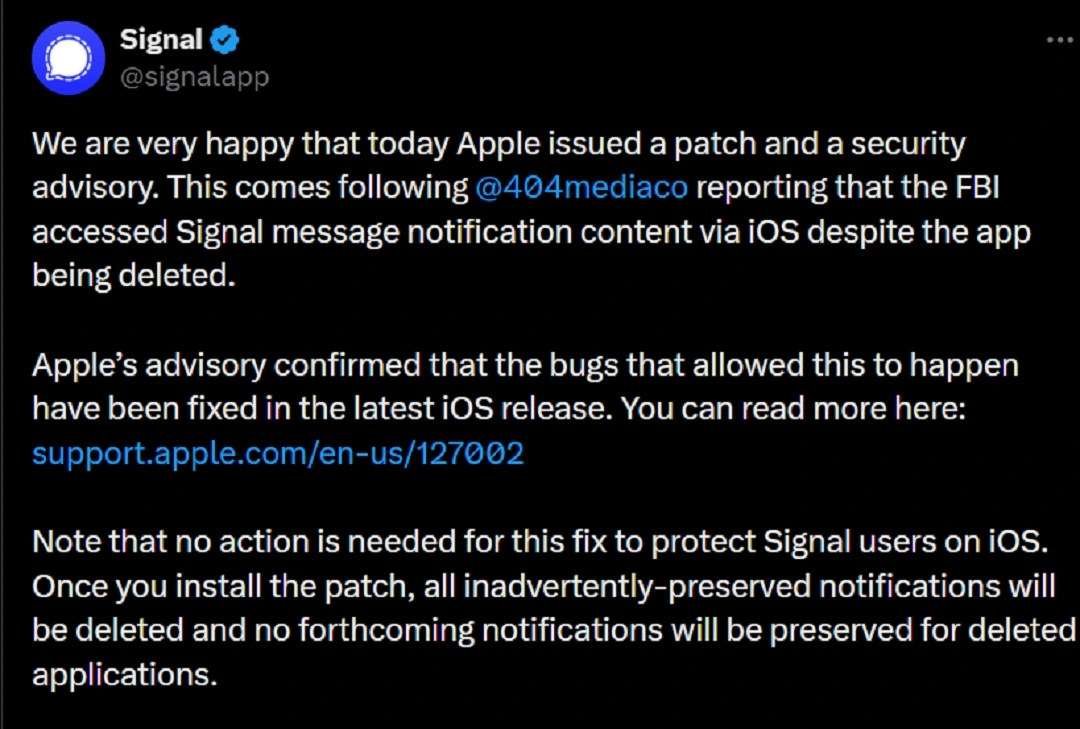
The FBI accessed Signal messages not through the Signal app itself, but through the iOS system, which, under specific conditions, stores Signal and other messaging apps’ messages with little protection using Apple’s Notification Center technologies.
How does Apple’s Notification Center work?
Every time you get a message on your iPhone and your Mac (when it is mirroring your iPhone) via Signal or other messaging apps, and the screen of your device is locked, by default, you get a push notification.
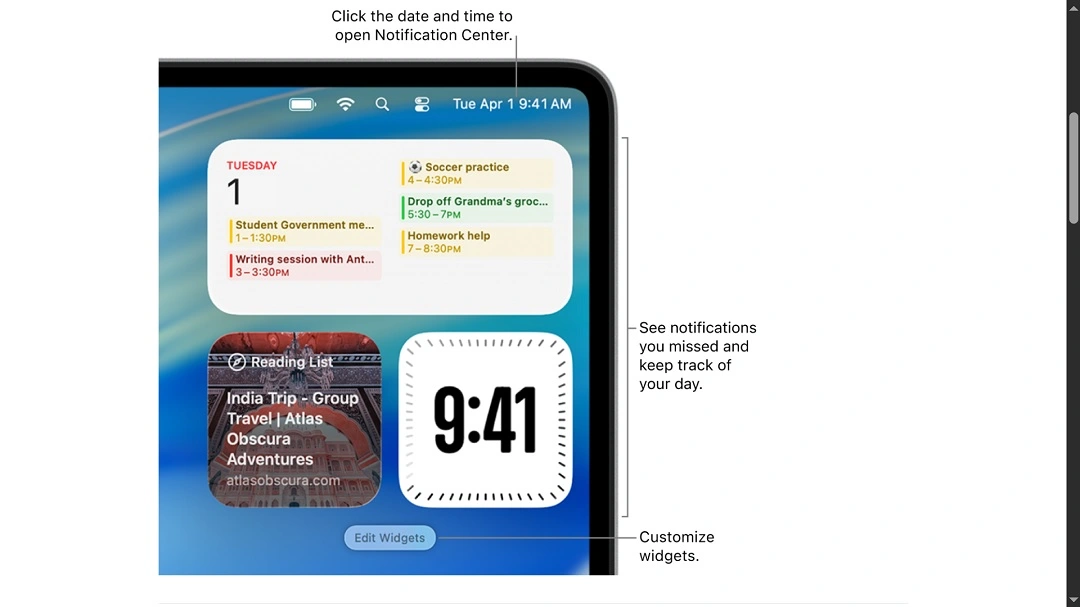
The iPhone saves the data of those push notifications on your device, specifically at the “PushStore” Database, located on your phone at: /private/var/mobile/Library/SpringBoard/PushStore/.
These notifications that Apple saves on the PushStore database are encrypted, but not with the same high-level encryption standard used by messaging apps like Signal or WhatsApp. The data can be accessed using specialized digital forensics tools only if your screen is unlocked or if someone knows your passcode and unlocks your screen.
What’s actually happening is that your iPhone or your Mac is extracting the data from messaging apps to create these notifications at your phone level. Therefore, the vulnerability is on your Apple device, not a problem with the messaging apps themselves.
The issue affects WhatsApp, Telegram, iMessage, social media app notifications, and even email notifications
Former JPL systems engineer, Dr. Katherine Chen, recently referred to the way this Apple tech works as a “push notification backdoor,” and warned that the problem affects all messaging apps on your phone, not just Signal.
“Text messages, email previews, DMs from social platforms, news alerts, purchase confirmations: All of it can persist in the notification database and be extracted with physical access to the device,” said Dr. Chen.
As mentioned, the problem with the privacy of your messages during screen lock push notifications is not a problem of the messaging app but of how the Notification Center works on your Apple devices. This means that the same risk applies not only to Signal but also to WhatsApp, Telegram, and other apps. The same notification rules apply, despite each app varying slightly in the way it works on your iPhone under the hood.
Mac users are also affected, even though it was an iOS patch. Here’s why.
While the loophole that allowed law enforcement agents to access deleted Signal messages is not found on the app side and is mostly on your iPhone, it also affects your Mac.
Mac users often mirror their iPhone device and get notifications on their Macs when their screen is locked. While the encryption and security of those notifications are stronger on your Mac, because your computer is part of the same ecosystem pipeline, a Notification Center privacy vulnerability affects it as well.
Mac users share the same messaging system as iPhones and mirror message content and notifications from your iPhone. Macs, just like iPhones, have a Notification Center. Again, these do not work exactly the same way, but they are intrinsically connected.
How to keep your iPhone and Mac Notification Center safe and private
There are several simple and highly effective things you can do to strengthen your privacy and mitigate the risks that exist at the Notification Center level.
Get the Moonlock app. It will flag and quarantine a threat trying to access your Notification Center.
Cracking your iPhone or hacking your Mac’s Notification Center to access and read your messages is no simple hack. Advanced digital forensics tools or sophisticated malware and high-level skills are needed to do this. The best defense against sophisticated hacks is good anti-malware that detects when someone is trying to do exactly that.
The Moonlock security app will run in the background and check everything you interact with for suspicious activity or malware signatures. This means that if someone is trying to jailbreak the Notification Center on your Mac, the Moonlock app will detect that activity. The app will flag the threat, notify you, and move it to Quarantine, where it is fully isolated. You can check Quarantine safely, at your own pace, to learn about the threats your Mac has encountered and remove them completely from your computer.
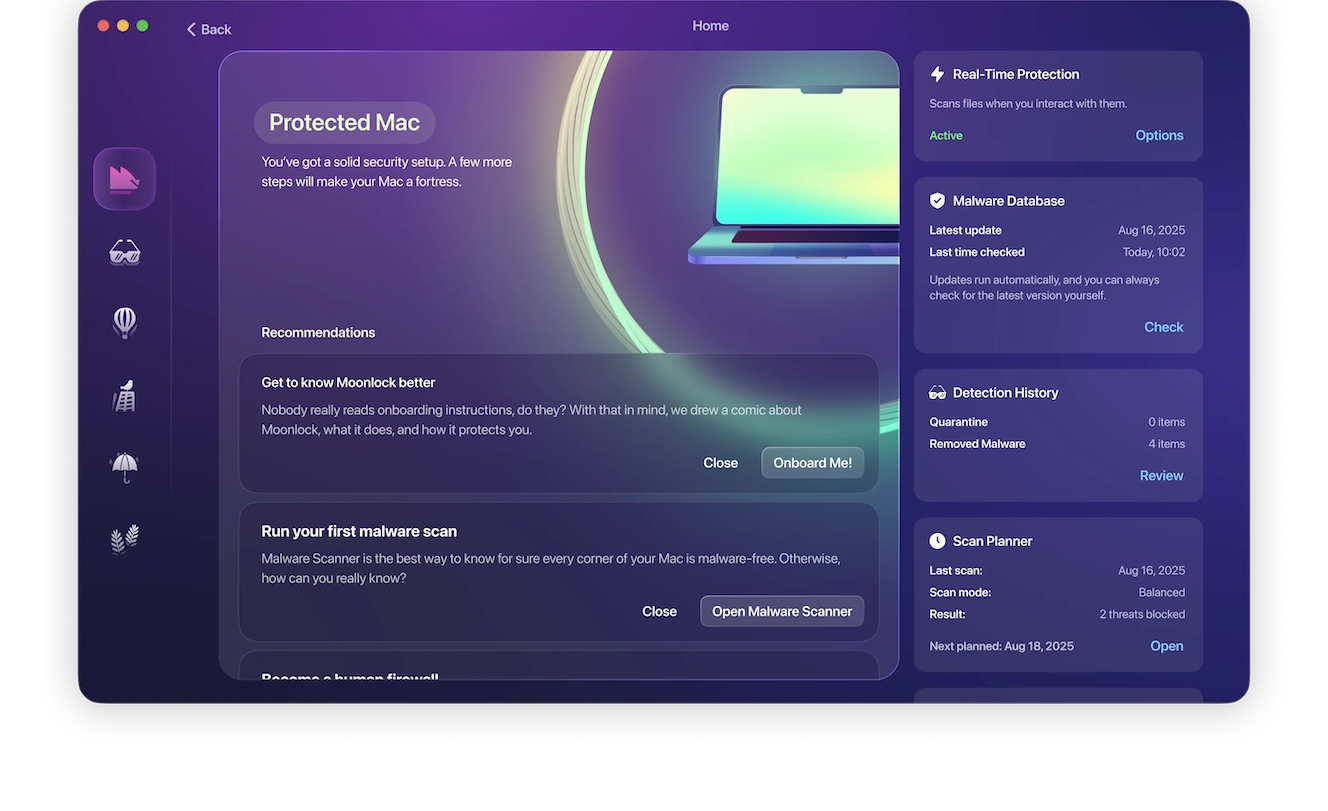
To help you build up your privacy, the Moonlock app can also scan your current Mac security and privacy settings and guide you on how to turn them up to the highest level in simple steps.
Besides its constantly updated malware databases, real-time monitoring, and scheduled deep malware scans, the Moonlock app also comes with a built-in VPN for secure browsing.
You can check out and test-drive Moonlock for free for 7 days.
Update your iPhone: Apple’s new security update offers a “fix”
Apple just released a security patch to fix the vulnerability in the Notification Center. With this fix, the messaging texts are not stored “indefinitely,” as before, and are meant to be deleted. Therefore, if you update your phone, you get Apple’s fix for this issue.
Turn off notifications on your iPhone and Mac when your screen is locked.
Deleting messages you get from Signal or other apps, or even removing an entire app from your iPhone, does not fix this problem. What you can do is change the settings on your Mac and your iPhone’s Notification Center.
Apple’s official guide says that to prevent notifications from appearing on your iPhone when your screen is locked, you should:
- Go to the Settings app on your iPhone.
- Tap Notifications, then tap an app below Notification Style.
- Scroll down, tap Show Previews, and select one of the following:
- Always
- When Unlocked
- Never
On your Mac, you can do a lot with Notification Center configurations, from turning notifications from an app completely off to managing what happens to notifications when your Mac is in Sleep mode or the screen is locked.
To change your Mac Notification Center settings, navigate to the Apple menu > System Settings, then click Notifications in the sidebar. (You may need to scroll down.)
Check out the official Apple guide on how to change Notification Center configurations on your Mac, “Notifications settings on Mac,” to learn more.
Final thoughts
The FBI-Signal case and Apple’s recent out-of-cycle security update represent an issue that goes beyond a single app. While tech loopholes that impact your privacy and security will likely always exist, knowing how the tech works and how configurations can be changed can help you build better privacy and have a stronger security posture.
This is an independent publication, and it has not been authorized, sponsored, or otherwise approved by Apple Inc. Mac is a trademark of Apple Inc. Signal is a trademark of the Signal Technology Foundation.