
A McAfee logo in your inbox can make a message feel safe before you even read it, and that’s exactly what scammers are counting on. McAfee is a legitimate antivirus company, but McAfee scam emails aren’t sent by the genuine company. These phishing messages are sent by scammers and are built to make you click, call, pay, or hand over private information.
Phishing remains one of the most reported forms of cybercrime, with APWG tracking more than 1.1 million phishing attacks in Q2 2025 alone. McAfee scam emails use tricks from the same playbook. Scammers send out fake renewal notices or invoices, as well as security warnings that pressure victims to act before they have a chance to check the details.
So, what is a McAfee scam email?
A McAfee scam email is a fake message that claims to be from McAfee. It usually looks familiar enough to appear passable, but it may make a vigilant user pause, especially if it appears to mention an account, a payment, or device protection.
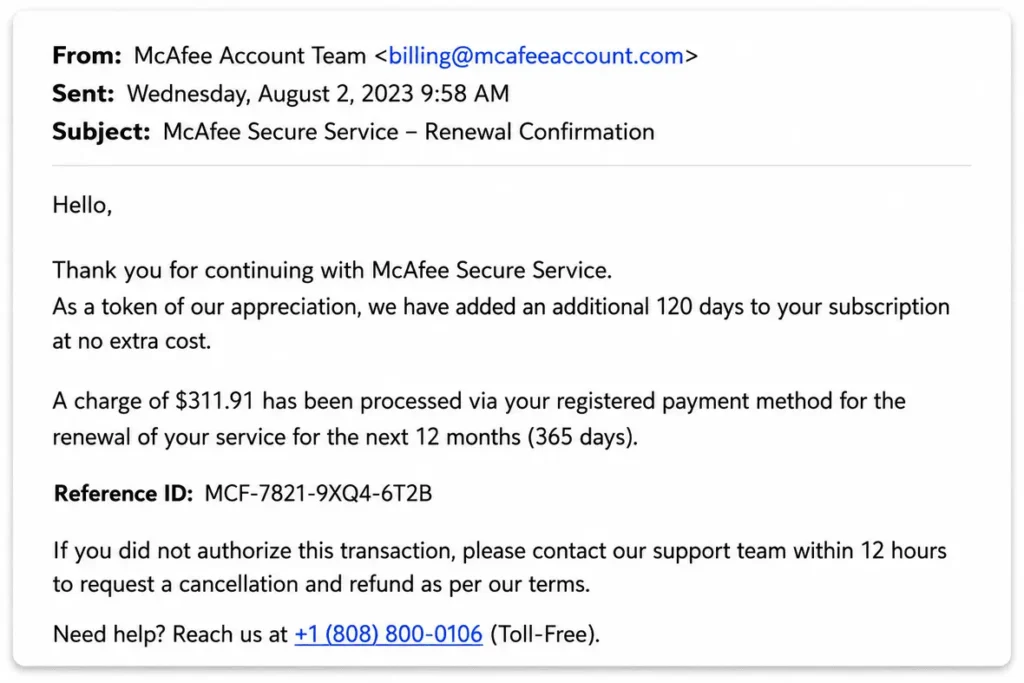
The scammer’s goal is to either get money or information. That could mean sending you to a fake login page, asking for payment details, pushing you to open an attachment, or convincing you to call a fake support number.
Why scammers impersonate McAfee
Scammers impersonate McAfee because most antivirus brands are already associated with fear of the unknown. If an email says your protection has expired, it can make you worry about malware.
Common reasons scammers use McAfee’s name include:
- To make their fake invoices look more believable
- To pressure users into clicking fake renewal or cancellation links
- To make malware pop-up warnings feel more official
- To route victims to fake tech support scenarios
Common types of McAfee scam emails
McAfee scam emails often look like billing notices, account alerts, or security warnings. Most try to evoke a single feeling: you need to act now.
Fake subscription renewal email scams
A McAfee email scam may claim that your antivirus subscription has expired or has renewed automatically; some versions use a large charge amount to make you panic, while others offer a steep discount to entice you if you renew the same day. In both cases, the email includes information that leads you away from the real McAfee and toward a fake payment page or a scammer-controlled support line.
Invoice and order confirmation scams
A McAfee invoice scam email will claim that you bought or renewed a product. As with a fake subscription renewal, the charge amount is often high enough to make you panic. The scammer wants you to dispute the charge through email instead of checking your real account.
Fake virus alert pop-ups or security warning emails
Some McAfee scams claim that your device has malware or that your protection has stopped working. These messages may look like browser alerts or security warnings, but a real scan of your device can’t be run by a random email or pop-up. Clicking the warning can send you to a fake cleanup tool, payment form, or download.
Refund scams asking for payment details
Refund scams will claim that McAfee owes you money or has charged you by mistake, and the message may ask you to confirm your bank details so that a refund can be processed. Providing those details would be a major mistake. In some instances, the scammer asks for remote access and pretends to help with the refund while trying to reach your financial accounts.
Fake compromised account warnings
Some scammer emails will state that your McAfee account has been flagged for suspicious activity. The link may open a fake login page designed to steal your username and password.
Tech support emails
Tech support scams ask you to call a number for help with billing, malware, or account access. Calling the number, however, connects you with a scammer who may ask for payment, remote access, or private information. McAfee says it will not require you to call a phone number from an email or text.
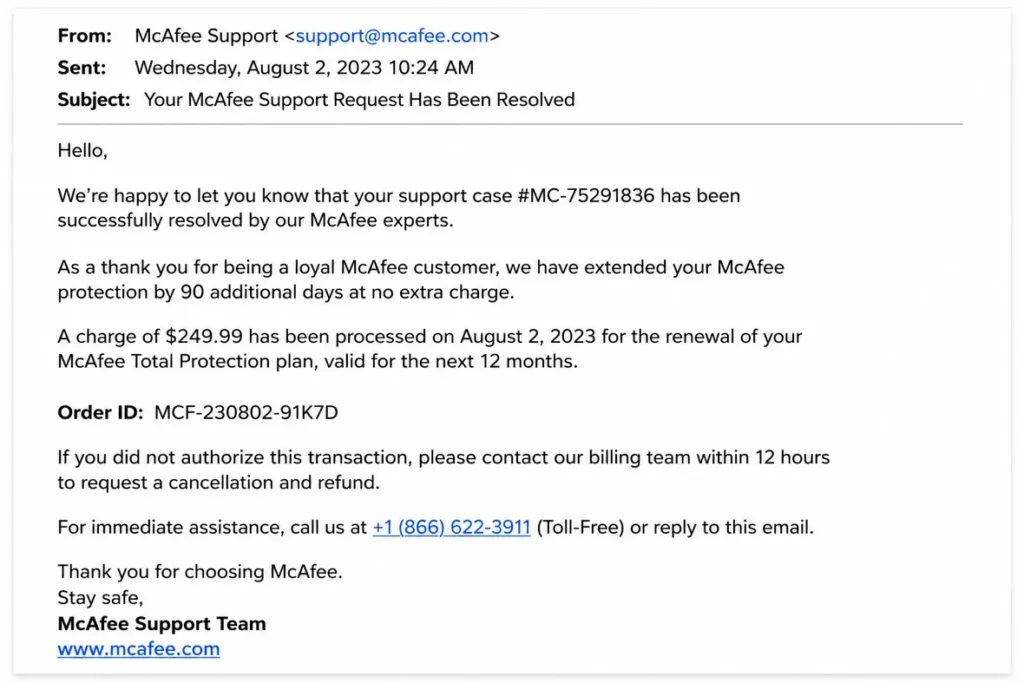
How to recognize a fake McAfee email
In the past, emails from scammers often featured unprofessional designs and bad grammar. Today, a McAfee phishing email can look almost identical to the real thing, especially now that scammers can use AI to write better messages.
Instead of judging by appearance or grammar alone, consider what the email wants you to do. Real account issues, for example, should be checked through McAfee’s official website, not through a link in an email. And a trustworthy company will never try to rush you into taking immediate action.
Moonlock’s Scam Detector can help Mac users take a second look before clicking. If a message seems convincing but feels off, Scam Detector can review the email content for you and help flag risky signs.
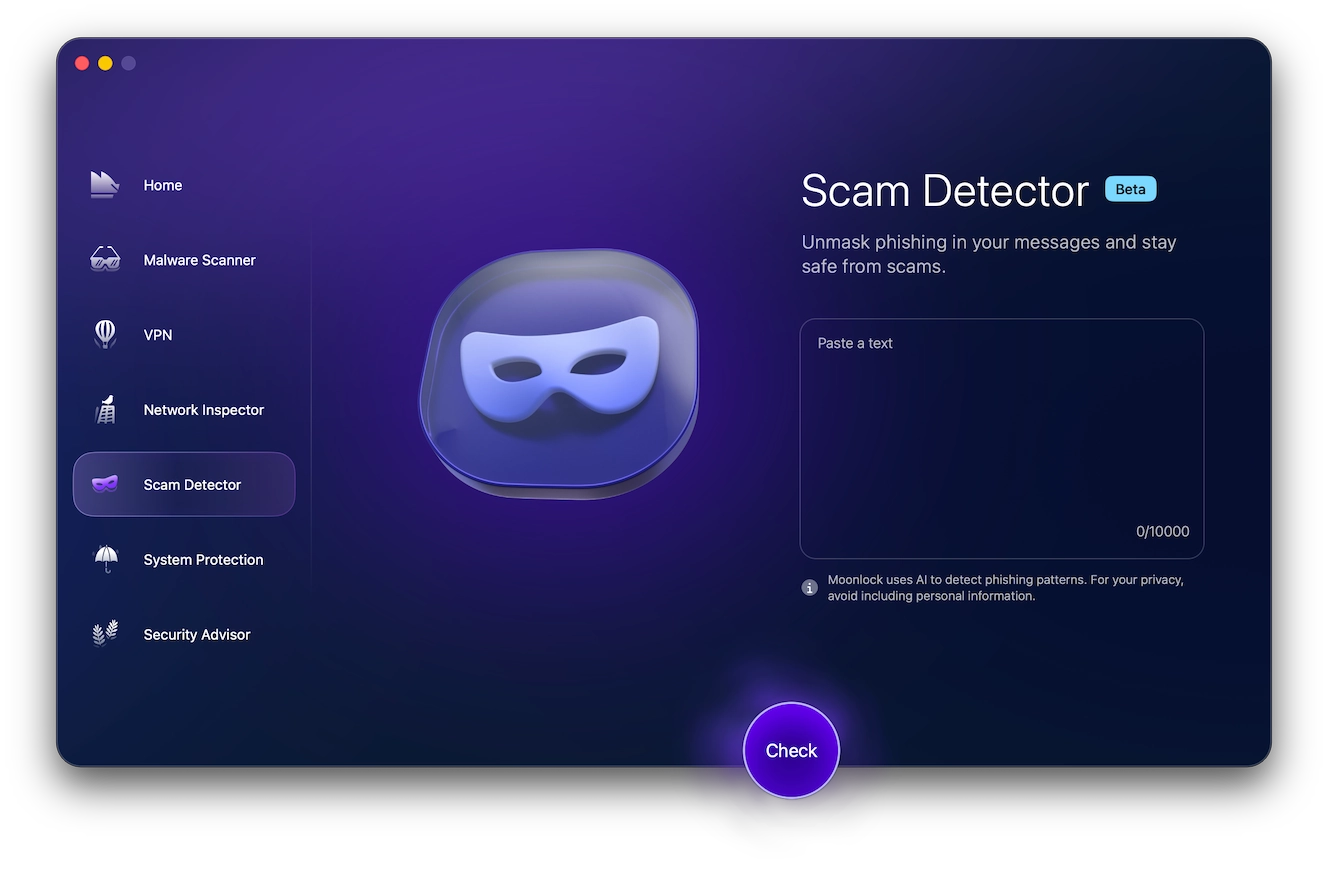
Here’s how to use Moonlock to check suspicious emails from McAfee:
- Start your Moonlock trial and open the Scam Detector.
- Paste the content of the suspicious email or message into the text box.
- Hit Check.
- Moonlock will scan the content of the message and return a report on the likelihood that the message is associated with a scam. Review these results before clicking any links.
- If the message looks risky, delete it and report it.
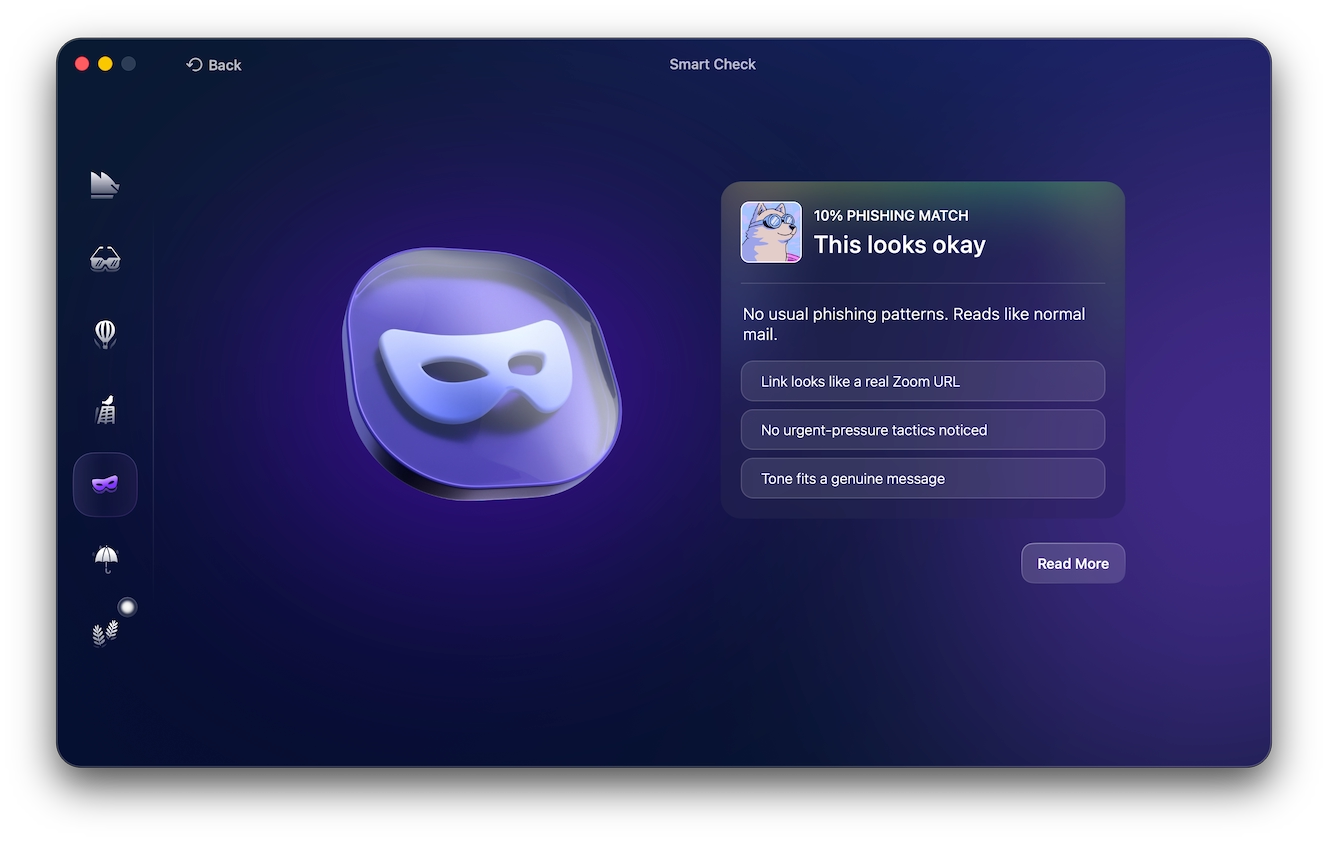
Moonlock’s Scam Detector works best when paired with careful habits. And while your best bet is to use a dedicated anti-malware solution, you can also be on the lookout for common telltale signs of the McAfee scams. Look for these red flags:
- The sender does not match a valid McAfee address.
- The email asks for passwords or bank details (or other private information).
- The message links lead to non-McAfee domains.
- The message includes an unexpected attachment.
- The email tells you to call a number to cancel or renew.
- The wording relies on panic or same-day deadlines.
- The logo or formatting looks low-quality.
Official McAfee email addresses
In response to these scams, McAfee has published a list of valid sender addresses for all of their services. Keep in mind that a matching sender is helpful, but it does not prove the message is safe. Sender details can be spoofed.
Valid McAfee senders include the following.
| Purpose | Valid McAfee sender address |
| Customer service requests | [email protected] |
| Login confirmations, passcodes, and receipts | [email protected] |
| Login confirmations | [email protected] |
| Login confirmations and passcodes | [email protected] or [email protected] |
| Product information | [email protected] |
| Product news | [email protected] |
| Product news | [email protected] |
| Product updates | [email protected] or [email protected] or [email protected] |
| Product download links | [email protected] or [email protected] |
| Scam-report response messages | [email protected] |
| Purchase completion messages | [email protected] |
| McAfee Mobile Security messages | [email protected] |
| Customer service articles | [email protected] |
| Identity theft protection messages | [email protected] |
| Feedback | [email protected] |
Tricks scammers use to make fake McAfee emails look real
Modern McAfee scams can be harder to spot because the old warning signs are less reliable. A polished email can still be fake. Here are some examples:
- Email spoofing: The sender name can be forged, making the email look like it came from McAfee even when the domain does not match.
- AI-generated text: Scammers can use AI to write smoother messages, so emails with clean grammar are no longer a reliable trust signal. This became a critical issue as large language models (LLMs) became widely accessible from 2023 through 2026 and evolved every year.
- Stolen branding: Fake emails may copy McAfee’s branding and style to make the message feel familiar.
- Personalized details: Some messages use your name, email address, location, or old breach data to make the scam feel specific to you.
What to do if a McAfee email looks fake or suspicious
Slow down before you interact with the message. A scam email usually depends on speed. Here are a few tips to keep in mind if you see a potential McAfee scam email:
- Do not click links or open attachments.
- Do not call phone numbers listed in the email.
- Type McAfee’s website into your browser.
- Check your real subscription or account status.
- Forward suspicious McAfee-branded emails to [email protected].
- Report the message through your email provider.
- Delete the email after reporting it.
- Block the sender if the address is clearly fake.
Immediate steps after falling for a McAfee scam
If you clicked, paid, shared details, or gave remote access, take action based on what happened:
- If you entered a new password or reused a password, change it on the real site.
- If you shared payment details, contact your bank or card issuer and, if you paid by card, ask about dispute options.
- If you gave remote access, disconnect from the internet and remove the remote-access app.
- If you opened an attachment, scan your device.
- If personal information was exposed, report identity theft through IdentityTheft.gov.
- If you lost money, report it to ReportFraud.ftc.gov or IC3.gov.
Moonlock’s Malware Scanner can help if you clicked a suspicious link, opened a file, or allowed a fake support agent onto your Mac.
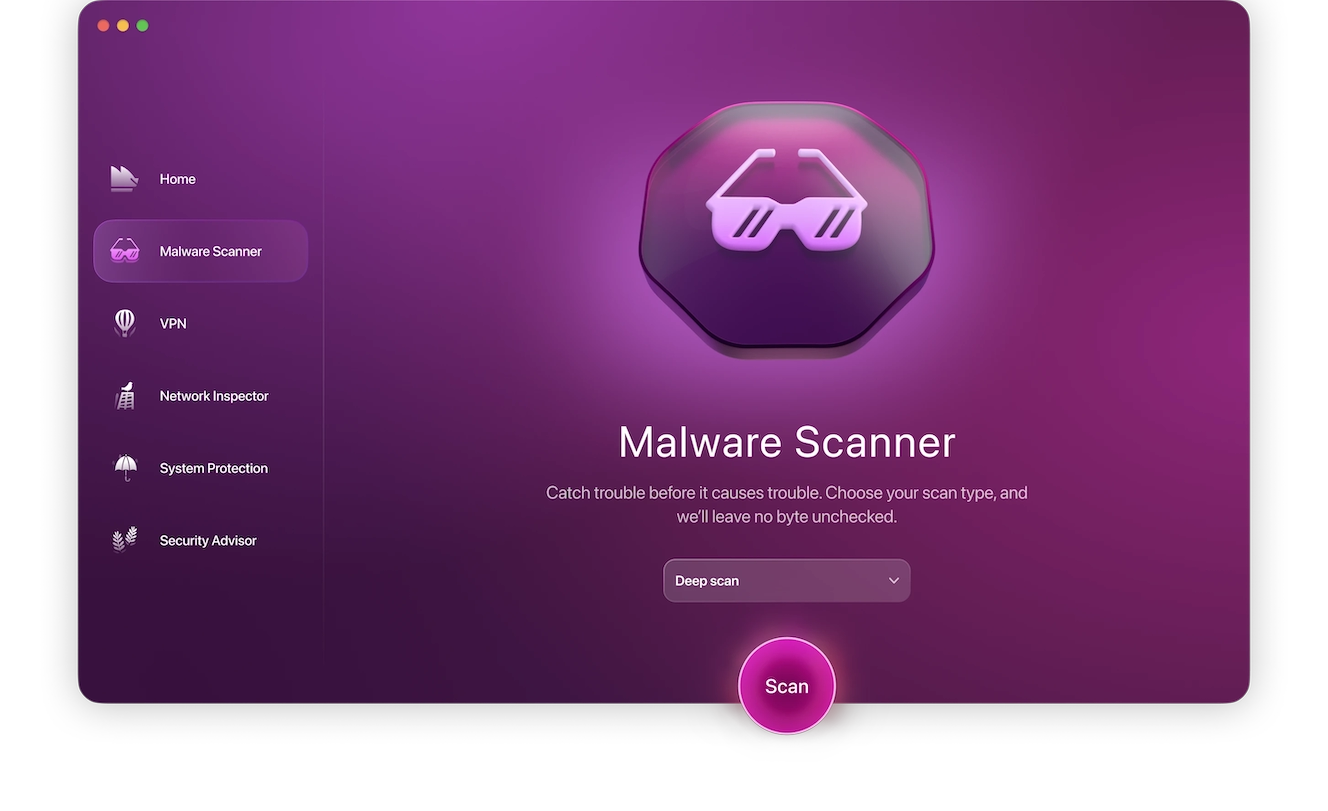
Here’s how to use it:
- Download Moonlock, available for free with a 7-day trial.
- Open the Malware Scanner tool in the left-hand menu (the sunglasses icon).
- Set your scan type (Deep, Moderate, or Fast).
- Hit Scan.
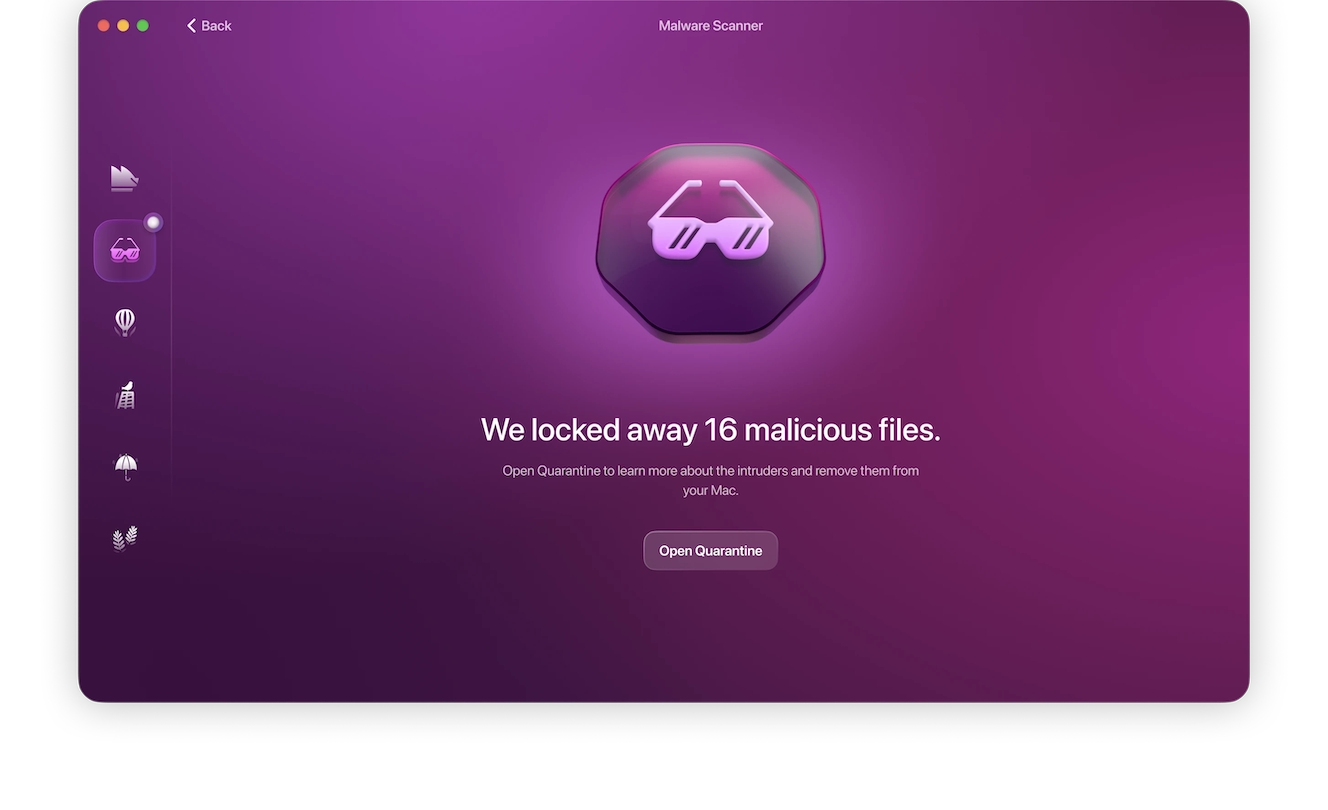
All threats detected in the scan will be moved to Quarantine, where you can delete them from your Mac on your own time.
FAQs about McAfee scam emails
These quick answers cover the most common questions people have after seeing a suspicious McAfee message.
Scammers send them in bulk. Your email may be on a spam list, exposed in a breach, or scraped from the web.
Usually, no. The bigger risk comes from clicking links, opening attachments, downloading files, or entering information on a phishing page.
Forward McAfee-branded scam emails to [email protected]. You can also report them through your email provider or at ReportFraud.ftc.gov.
Contact your bank or card issuer right away. Ask about reversing the charge, replacing the card, and monitoring for more fraud.
Usually, refund options depend on your bank or payment provider. McAfee does not control payments sent to scammers impersonating its brand.
Staying safe from phishing emails pretending to be McAfee
Learning how to stop McAfee scam emails starts with verifying unexpected security messages beyond email. Urgent McAfee renewal email notices, refund claims, invoices, and virus warnings should all be checked through a trusted source.
Here are a few guidelines:
- Check McAfee claims directly: Go to McAfee’s official website instead of using links from an email.
- Keep software updated: Browser, app, and system updates can help close security gaps that scammers try to exploit.
- Use multi-factor authentication: Add it to email and security accounts so a stolen password has less value.
- Avoid hard-to-reverse payments: Gift cards, crypto, wire transfers, and money orders are common scam payment methods.
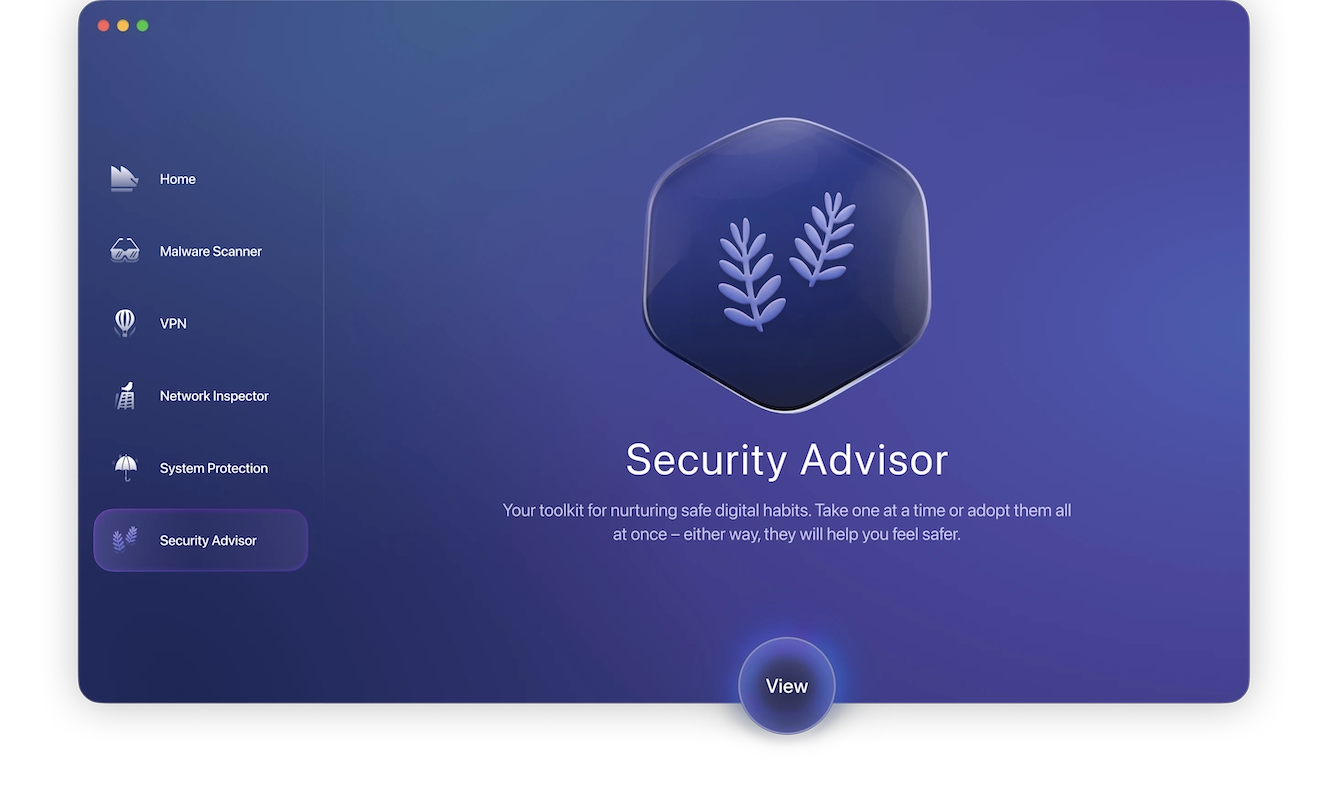
- Use the Moonlock Security Advisor: Review Mac settings that may affect your protection and make safer choices before a scam reaches your inbox.
A McAfee scam email borrows trust from a real security brand. When a message feels urgent, check the sender, inspect the link, avoid attachments, and verify the claim somewhere else.
This is an independent publication, and it has not been authorized, sponsored, or otherwise approved by McAfee, LLC. McAfee is a trademark of McAfee, LLC.