
As ClickFix attacks targeting Mac users become widely used by cybercriminals, Apple officially introduced a game-changing security feature. In this report, we explain how the feature works, why you shouldn’t ignore it, what ClickFix attacks are and look like, and how you can keep safe.
It’s official, your Mac has a ClickFix attack warning security feature
Apple recently confirmed that the new Terminal command warning feature is available on your Mac. The feature is enabled by default and is automatically triggered on your Mac when you try to copy and paste a script in your Terminal.
We reported on this Apple feature 3 months ago, on April 3, when users first spotted a new Terminal warning security feature pop-up on their Mac. The new tool appeared to be in testing mode and was not rolled out to all users back then.

Step up the ClickFix protection on your Mac
As mentioned, this is Apple’s response to the increased wave of ClickFix attacks targeting Mac users. You might see this built-in macOS notification warning pop-up in 2 possible scenarios:
- When you try to copy and paste Terminal scripts that Apple considers suspicious
- When you try to copy and paste Terminal scripts that Apple knows are malware
The first scenario gives you the option to paste the script anyway, something we do not recommend you do unless you are 100% sure it’s safe.
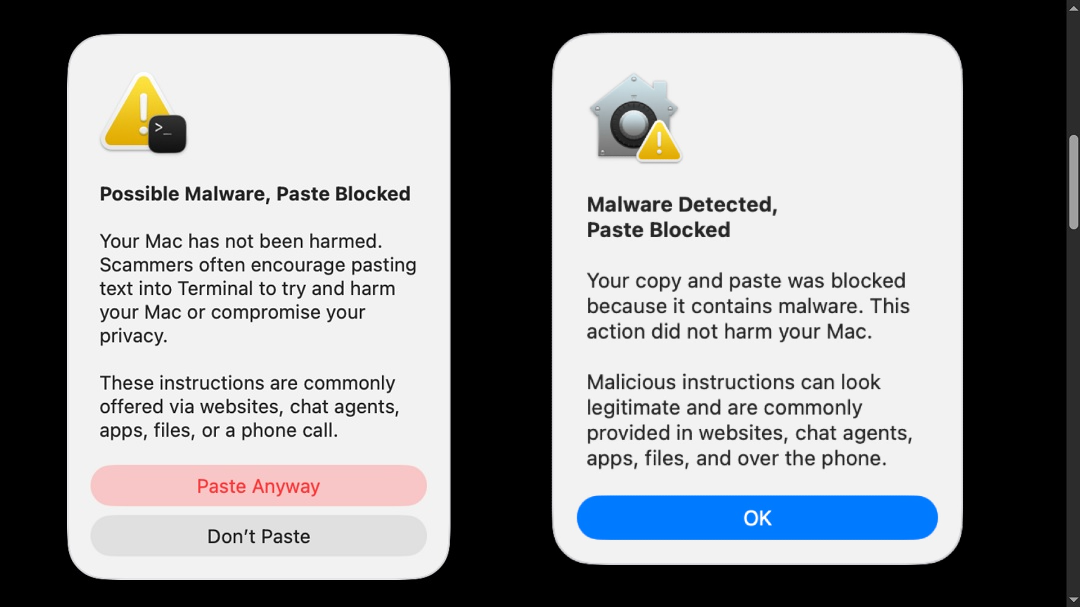
Getting this warning does not mean your Mac has been infected. What it means is that the script you encountered is being blocked by your Mac from running for safety reasons.
What is a ClickFix attack?
ClickFix attacks represent a type of social engineering that cybercriminals created to bypass your Mac’s built-in defenses. In this method of online deception, you are directed to a fake or malicious website, where a set of instructions guides you on how to copy and paste a Terminal script onto your Mac.
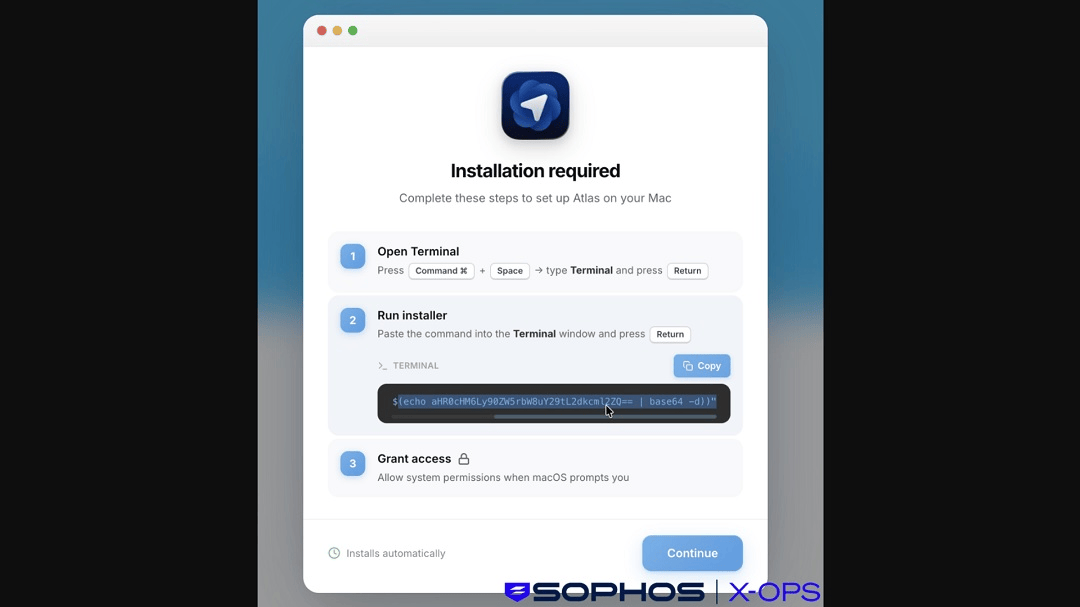
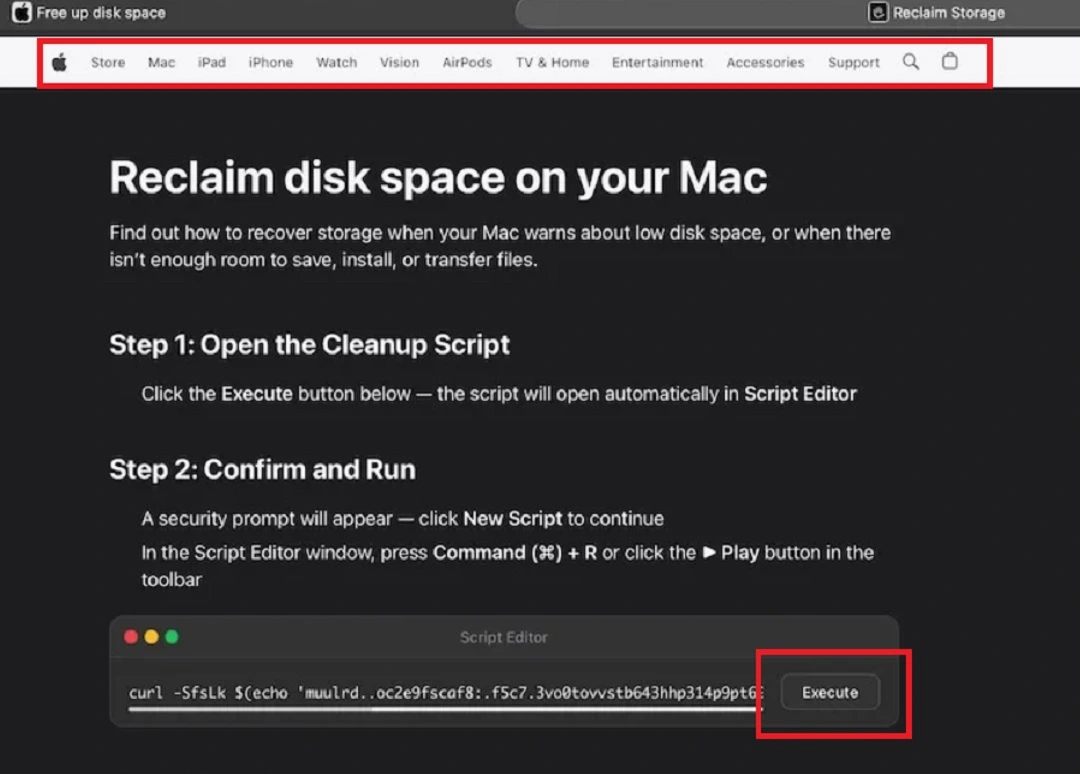
ClickFix attack lures vary from “run this script to clean your Mac disk,” “broken driver” fixes and updates, and “run this script” to download a popular piece of software.
Some new trends in ClickFix include fake sites that offer software or solutions and trick users into running ClickFix commands via the Sub Editor. These Sub Editor ClickFix attacks are more sophisticated. It is unclear if this Apple feature deals with this type of new ClickFix technique.
To learn more about Sub Editor ClickFix attacks and how they work, read our report, “New ClickFix attack bypasses Mac Terminal protections.”
What does a ClickFix cyberattack look like?
From the user’s point of view, here’s what a ClickFix attack looks like:
- You search online for a common Mac problem/solution or popular software download.
- A sponsored ad is among the top results. The problem is, it’s malicious.
- You click on the fake ad.
- You land on a site that looks legitimate. It may even be hosted on a shareable ChatGPT or Grok post, or it could contain logos spoofing Apple support to build up your trust.
- The page gives you a set of simple instructions to trick you into copying and pasting a malicious script into your Mac Terminal.
- You follow the instructions, and the scripts fetch a malicious payload hosted on an attacker-controlled server that kickstarts a cyberattack.
The type of cyberattacks that use ClickFix against Mac users usually infect your computer with AMOS or MacSync, 2 notorious stealers that aggressively go after your data and crypto wallets.
Why you shouldn’t ignore the new Apple Terminal command warning
While this new Apple feature gives users the option to ignore the warning for suspicious Terminal scripts and copy the script anyway, doing so implies a major risk.
In the world of IT and developers, copying and pasting Terminal scripts is a daily routine. If you work in those areas or in a similar capacity, you might consider this new warning a false positive. Nevertheless, pausing for a second and taking a closer look at the script to see if it’s Base64-encoded or appears as obfuscated gibberish to hide malicious payload fetchers is always a good idea.
If you do not work in IT or are a Mac developer, don’t ignore the warning. ClickFix attacks have become one of the most commonly used methods to breach your Mac. In fact, in its 2025 Digital Defense report, Microsoft notes that about half (47%) of all attacks used ClickFix as the initial access method, while ESET registered a 500% increase in ClickFix attacks from 2024 to 2025 alone.
Bottom line: Unless you are familiar with Terminal scripts, the safe option is not to run these on your Mac.
How to stay safe from ClickFix attacks
Besides knowing how ClickFix attacks work and what they look like, there are a couple of things you can do to stay safe from this popular cybercriminal technique.
Get Moonlock. It will block malware on your Mac even if it comes from Terminal scripts.
There are many ways that malware can slip past your Mac’s lines of defense; cybercriminals tricking you with ClickFix techniques is just one of them.
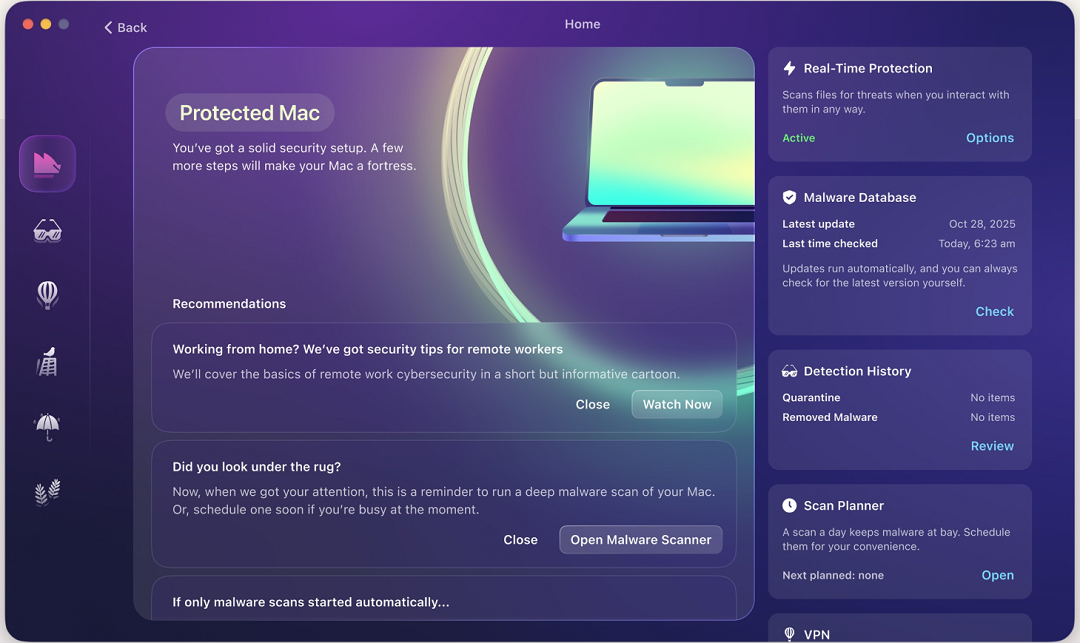
The Moonlock security app, built to offer multiple layers of protection, comes with Real-Time protection and a customizable Malware Scanner. Combined, these 2 features will leave no stone unturned and check every file you interact with for malware, even if it originates from Terminal scripts. The Moonlock app’s database is also constantly updated. This means you get protection against the latest threats even before any patches are issued.
You can check out and test-drive Moonlock for free for 7 days.
Learn more about ClickFix attacks
Being familiar with ClickFix attacks and knowing how they appear on your screen can go a long way in helping you prevent a problem before it’s too late. Additionally, learning more about ClickFix is vital for your cybersecurity because cybercriminals are constantly innovating these techniques. The ClickFix you know today may look very different from the ClickFix of tomorrow.
Download software and troubleshoot your Mac from official sites
The lures used in ClickFix attacks so far tend to fall into 2 broad categories: an IT Mac fix or troubleshoot for a common Mac problem, and popular software downloads (usually impersonating known brands, trending in hype such as AI tools).
To stay on the safe side, only download software and apps or troubleshoot your Mac from sites you have personally confirmed to be official.
Final thoughts
Is the new Apple Terminal command warning the silver bullet for ClickFix attacks? Should you consider your Mac completely immune to ClickFix now that it comes with it?
The answer is, unfortunately, no. But this warning is a strong step in the right direction. Learn more about your Mac’s security features, how cybercriminals operate, and how to elevate your cybersecurity posture to stay safe out in the wild.
This is an independent publication, and it has not been authorized, sponsored, or otherwise approved by Apple Inc. Mac and macOS are trademarks of Apple Inc.