


Docusign is used by more than 1 billion people and 1.7 million customers, and that familiarity makes it a useful disguise for scammers. A Docusign email can feel routine enough that you might click before you stop to question it.
Some Docusign scam emails are simple phishing attempts, while others abuse authentic Docusign tools, which can make them harder for filters and people to catch. APWG reported 971,181 phishing attacks in Q1 2026 (a figure that is up 13.8% from Q4 2025), and many Docusign scams now combine real-looking emails with fake support numbers.
So, what is a Docusign scam?
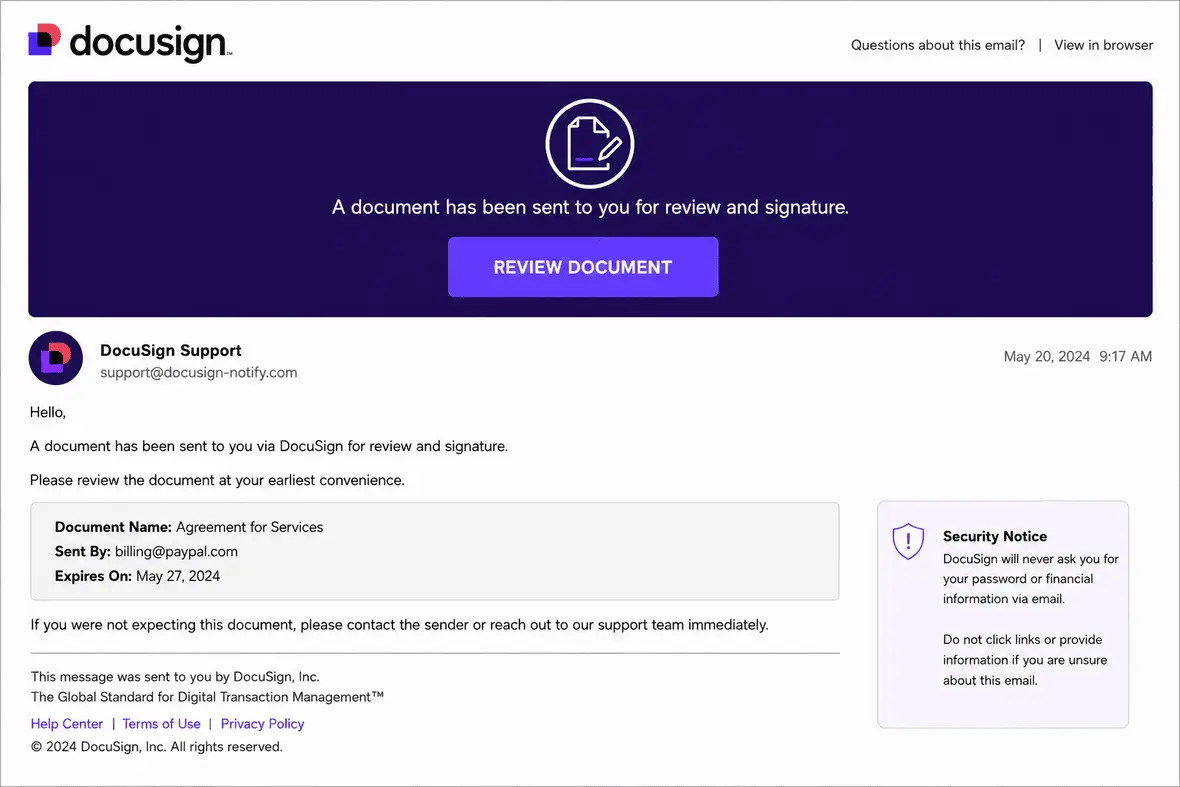
A Docusign scam is a phishing or fraud attempt that uses Docusign’s name, branding, email format, or platform features to make a malicious request look real. The message may ask you to sign a document, confirm a charge, or scan a QR code.
A fake Docusign email may try to steal your login details for Docusign, your email, Microsoft 365, Google Workspace, Apple ID, PayPal, or bank accounts. Other scams collect credit card numbers, payroll details, tax information, or identity documents.
More advanced attacks may install malware (including infostealers) that look for passwords and saved browser sessions, while the more business-focused scams may push fake invoices, ACH transfers, vendor payment changes, or OAuth consent approvals that give attackers access through a token rather than a password. RATs, or remote access trojans, can let an attacker control the device, watch activity, or use the machine as a foothold into other accounts.
How does a Docusign scam email trick victims?
People use Docusign for everything from contracts and HR forms to vendor paperwork and legal agreements, so a request to “review” or “sign” can feel normal in most circumstances.
Some fake Docusign emails are easy to catch because the sender or link looks wrong. Others are harder to detect because they use QR codes and workflow notifications sent through the real platform.
The classic Docusign phishing attempt: A fake button, a real-looking email
The classic Docusign phishing email looks like a signing request, it may mention a shared document or invoice. Inside, there is usually a “Review Document” or “View Document” button that appears to lead to Docusign.
Clicking the button, however, may open a fake login page for Docusign, Microsoft, Google, Apple, PayPal, or another account. If you enter your credentials, the attacker may use them to access your email, reset other accounts, monitor invoices, or send more phishing messages from your account.
API abuse: When the email really comes from Docusign’s servers
Some Docusign scams are trickier because the email can come through the real Docusign infrastructure. Attackers may create or compromise a Docusign account, use templates, or abuse Docusign APIs to send envelopes that look authentic.
The document, however, can still be fake. It may show a PayPal invoice, Norton renewal, or Microsoft subscription notice. Often, the goal is to make you call a number to cancel or dispute a charge.
A real Docusign sender is not enough. The document also has to make sense. If the 32-character security code check at docusign.com fails, or if it shows a document that clearly does not belong to you, treat the email as suspicious.
OAuth consent phishing
OAuth consent phishing does not always ask for a password. Instead, the victim is asked to approve a third-party app that claims to connect with Docusign. These pages may look real, but approving broad permissions may give the attacker access to email, files, or account data through an OAuth token.
QR code phishing, or quishing
Some Docusign email scams contain a QR code and a message that says the code is needed to open a payroll form, payment file, or secure document.
This tactic moves the victim from an email inbox to a phone, where link previews and company protections may be weaker. The QR code may lead to a fake login page or data-harvesting form. If the document was unexpected, do not scan the code.
The callback scam with Docusign
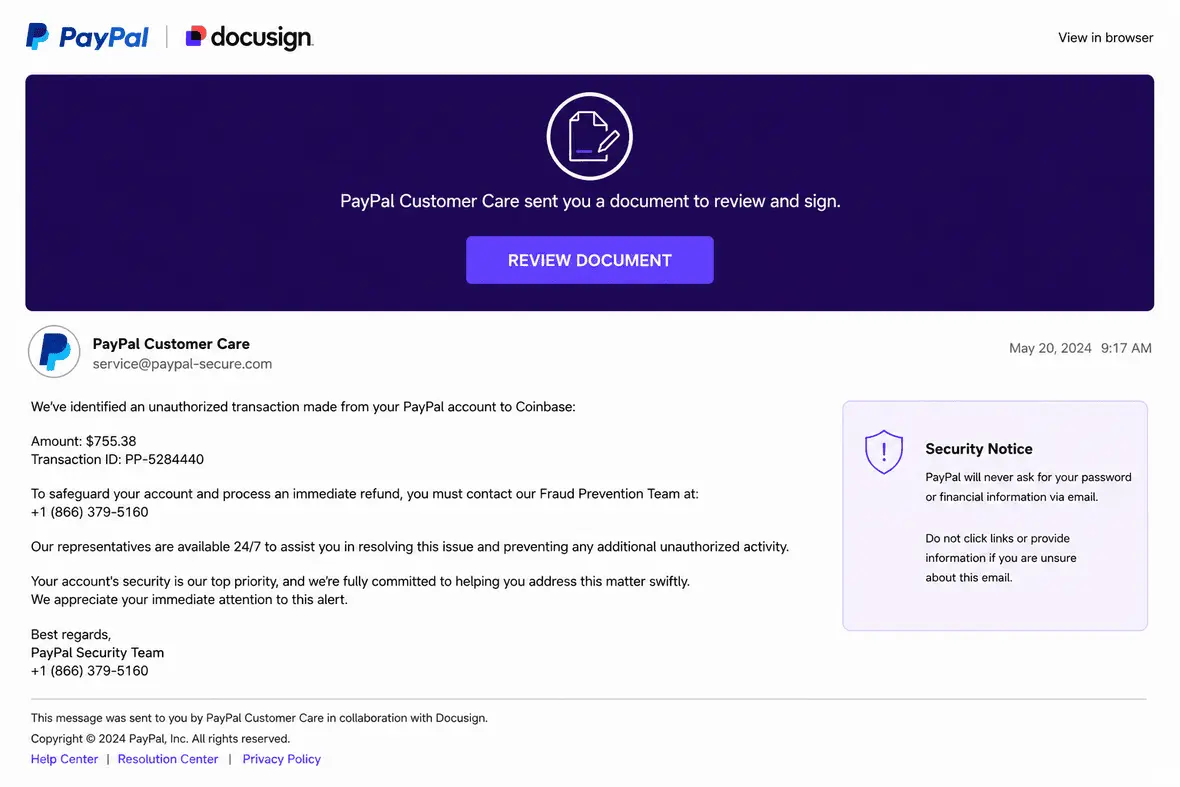
In a callback scam, the email is bait for a phone call. It may claim you were charged for a subscription or crypto transaction and list a number to call if the charge was unauthorized. That number leads to a scammer, who asks for details to gain access to the victim’s banking information and other accounts.
How can you tell if a Docusign email is real?
A real Docusign email should match a real situation. Were you expecting the document? Do you know the sender? Does the document title make sense? If not, slow down.
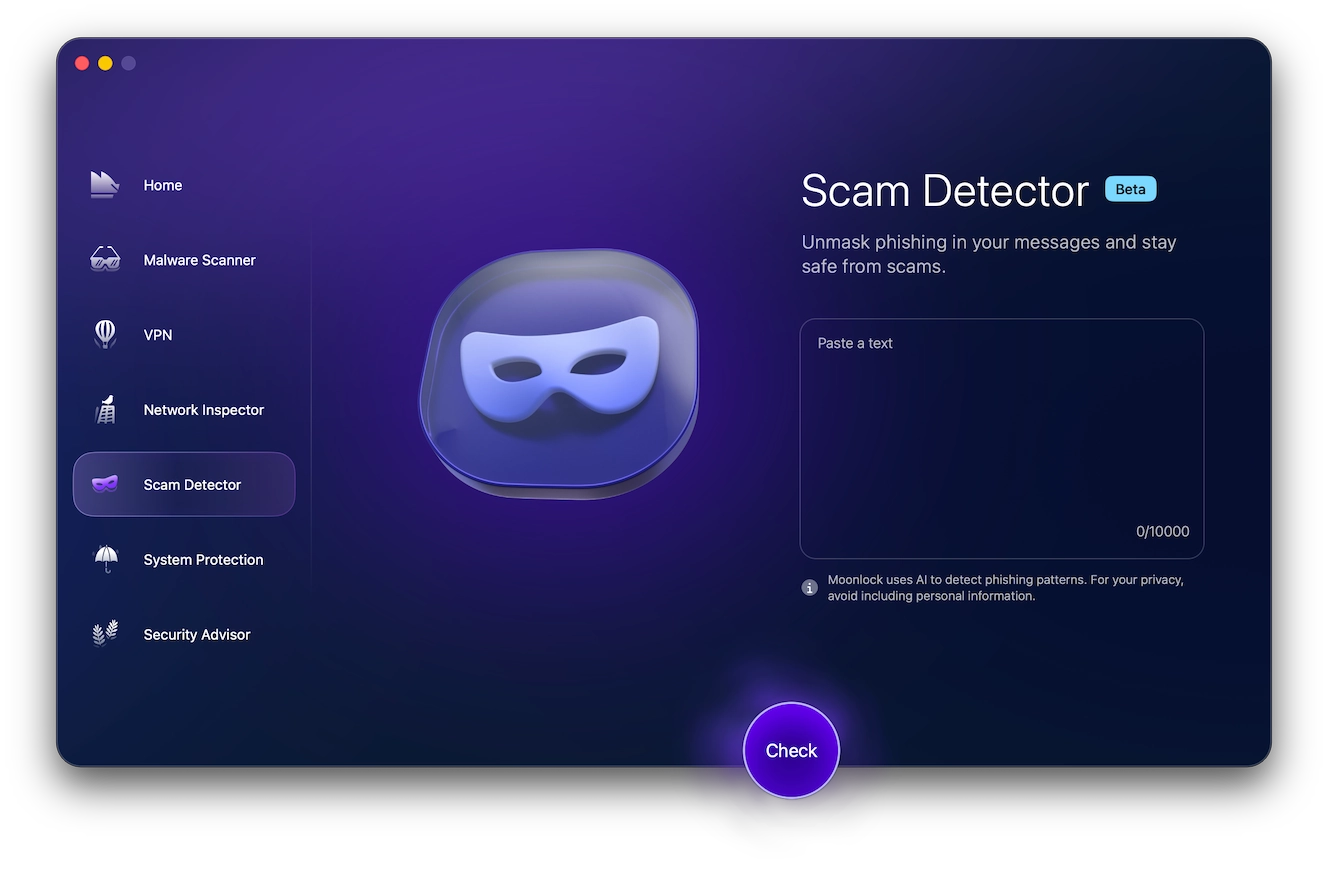
Moonlock’s Scam Detector can help when a Docusign email looks believable but feels off. It can be used before opening links, scanning QR codes, or calling numbers in messages about the enclosed issue.
So here’s how to check a suspicious Docusign message:
- Sign up for a free trial.
- Copy the email text or link you want to verify.
- Open Scam Detector and paste the content into the tool.
- Review the result before taking any action on the message.
A few seconds of checking can prevent account access issues or unauthorized charges down the line.
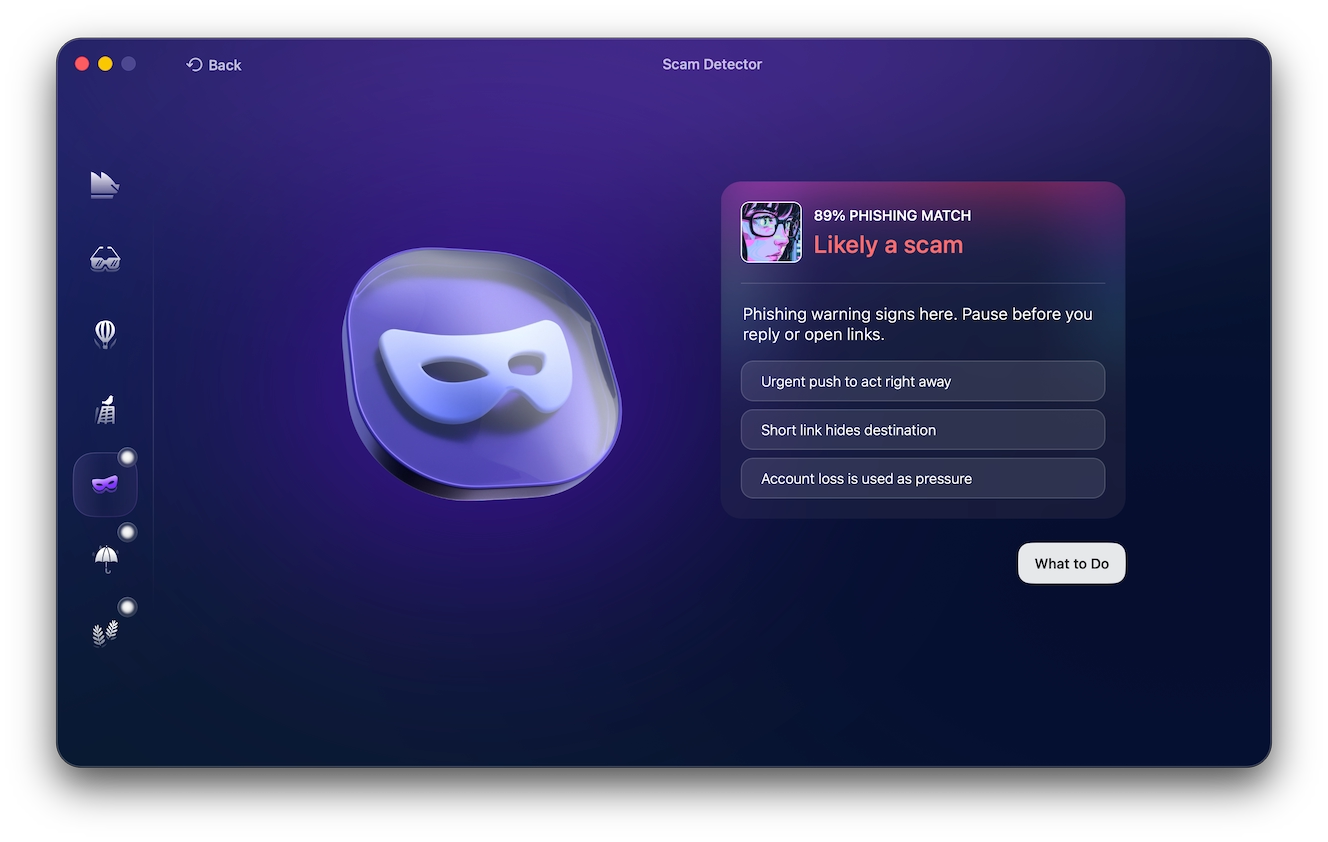
There are also several signs to look for in a genuine Docusign email:
- The document is expected, and the sender can be verified.
- The sender uses @docusign.com or @docusign.net.
- Signing links point to the Docusign website, often with docusign.net in the URL.
- The email includes a security code for direct access through Docusign.
- The request does not ask you to open an Office file, ZIP file, HTML file, or installer to sign.
- The message does not pressure you to call an unknown support number or share payment details.
Another factor that denotes a real Docusign email is that Docusign now styles its name with a lowercase “s.” Although older “DocuSign” references still exist online, treat mismatched branding as a warning sign.
How to verify a Docusign email in seconds
The safest way to verify a Docusign email is to use the security code instead of the email link. This lets you check the document through Docusign directly.
Here’s how to verify:
- When a Docusign email is unexpected, do not click the button, scan the QR code, call the listed number, or open attachments. Instead, scroll to the bottom of the email and find the security code. A Docusign security code is a long string of letters and numbers, such as EA66FBAC95CF4117A479D27AFB9A85F01.
- Open a new browser window and type “docusign.com.”
- Select Access Documents.
- Paste the security code and review the document there.
- If the code fails, the document was removed, or the document looks unrelated to you, stop and contact the sender through a known email address or phone number.
Common Docusign scam types
Most Docusign scams belong to the following themes:
- Fake invoice scam: The email claims you owe money or have already been charged. It may impersonate Norton, Geek Squad, Microsoft, or PayPal. The red flag is an unexpected invoice with a phone number to dispute the charge.
- PayPal or Coinbase scam: A Docusign PayPal scam may claim that an unauthorized payment was sent to Coinbase. It may include a transaction ID and fake support number. Check PayPal or Coinbase directly instead.
- Apple Pay receipt scam: This version looks like a billing receipt or subscription notice. The message may include an order number and a number to call. Apple Pay receipts should not arrive through Docusign.
- Crypto or Bitcoin alert scam: A Docusign Bitcoin scam may claim a transaction was processed or flagged. The message usually pushes you to call right away.
- HR or employment document scam: These scams impersonate recruiters or payroll teams with messages that may mention an NDA or benefits update. The goal is often to collect Social Security numbers, bank details, or login credentials.
- Government or licensing scam: These emails may pretend to come from a city office or licensing agency. The document may reference a permit, tax notice, or purchasing file and should be verified through the real agency website.
- Refund notification scam: A refund scam will claim you are owed money or need to approve a refund hold. It may impersonate a retailer or software company.
- McAfee or antivirus renewal scam: A Docusign/McAfee scam email may claim that a security subscription has been renewed. These work like Norton or Geek Squad invoice scams.
- Financial institution scam: These messages may pretend to be a bank, lender, vendor, or payment department and have subject lines that mention payment advice, transfer confirmation, disbursement, or remittance.
Steps to take after clicking a fake Docusign link
If you clicked a fake Docusign link, the level of risk depends on what happened next. The situation is more serious if you have entered a password, downloaded a file, scanned a QR code, approved an app, or called the number.
For individuals:
- Close the page and stop interacting with the email.
- Change exposed passwords (starting with email and financial accounts).
- Turn on MFA where available.
- Sign out of active sessions for email, Docusign, and cloud apps, and check your financial accounts for unfamiliar activity.
- Contact the bank or card issuer if you shared payment details.
- Check email forwarding rules and filters and save the email for reporting.
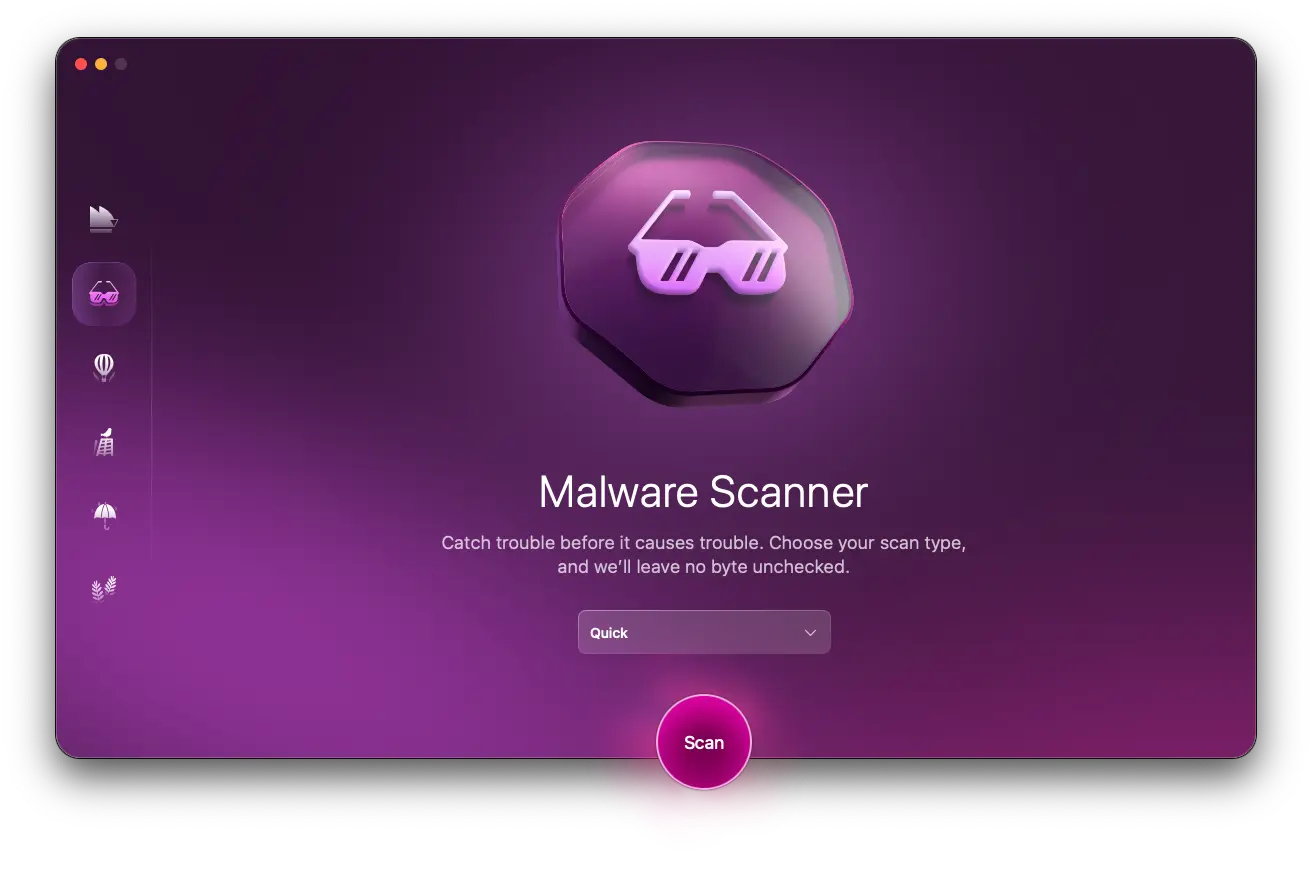
If you downloaded a file, installed an app, or gave someone remote access, run a malware scan with Moonlock’s Malware Scanner to check for malicious files and suspicious activity.
Here’s how to get started:
- Sign up for a free trial.
- Open the Moonlock app and go to Malware Scanner.
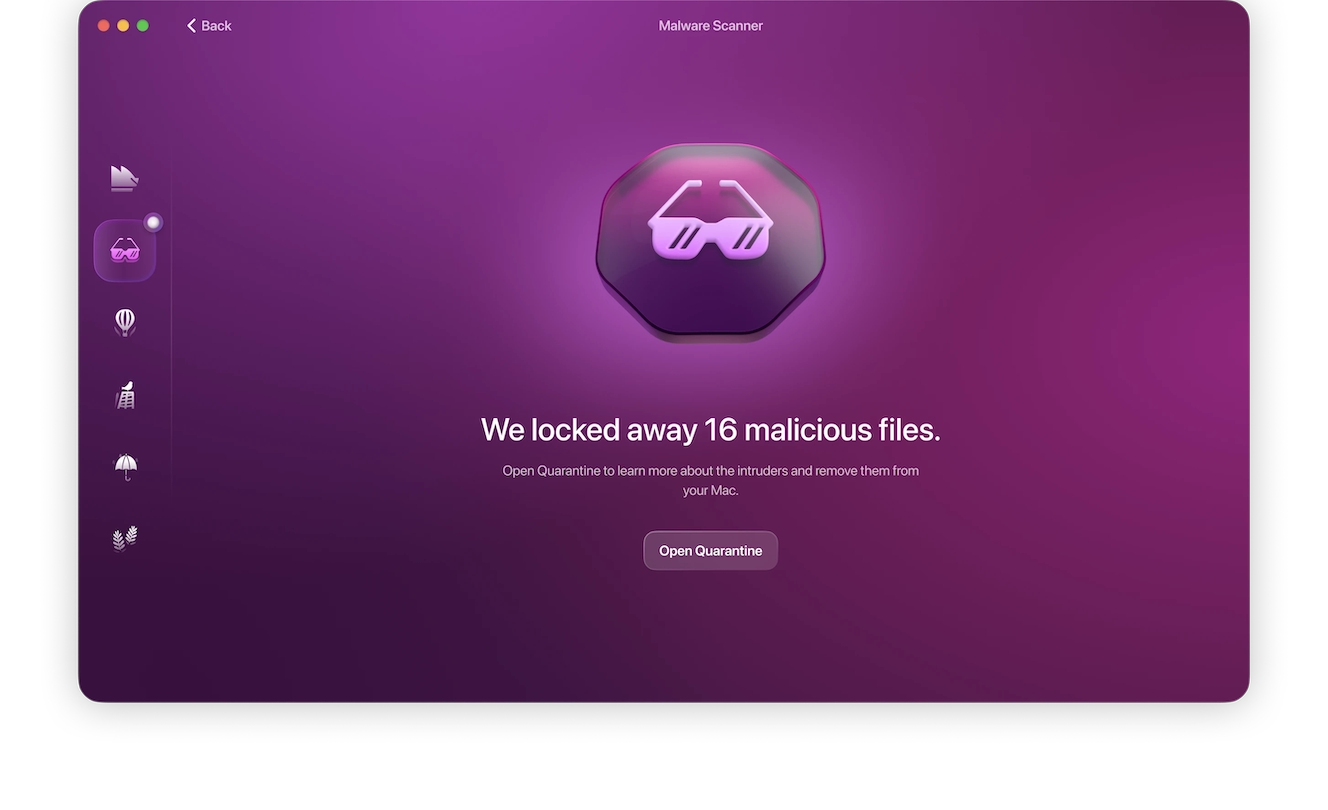
- Run the scan and review the results.
- If anything suspicious is found, follow the malware removal steps.
Catching malware early limits the damage — the sooner you scan, the less time anything malicious has to run.
For business users, report the incident to IT or security. They may need to reset your credentials, revoke sessions, remove suspicious OAuth permissions, review mailbox rules, check audit logs, isolate the device, and look for invoice or payment tampering.
How to report Docusign phishing emails or scams
If you received a fake Docusign email or found a fake Docusign website, report it before deleting it.
- Send suspicious Docusign emails or URLs to [email protected].
- If the email came through a real Docusign envelope, use “Report this email” in the footer when available.
- In the signing experience, use the 3-dot menu to select “Report Abuse” when available.
- Report the message to your email provider as phishing or spam.
- If it happened at work, send it to IT or security.
- If money or identity theft is involved, report it to the right agency, such as IC3, the FTC, or the FTC identity theft site in the US.
Docusign uses reported emails, URLs, and abuse reports to investigate suspicious activity. It may review malicious URLs, track phishing trends, enforce domain protections, work with security partners, and close abusive accounts when they are detected or reported. If a suspicious account is closed, envelopes sent from that account may no longer be accessible.
How to reduce your risk of Docusign scams
Unexpected Docusign emails should be treated as something to verify before you take action. The message should match a real sender and reason for signing.
For individuals:
- Use the security code method.
- Avoid QR codes in unsolicited Docusign emails.
- Do not call suspicious phone numbers listed.
- Use unique passwords and turn on MFA where available.
- Keep your Mac, browser, and apps all updated.
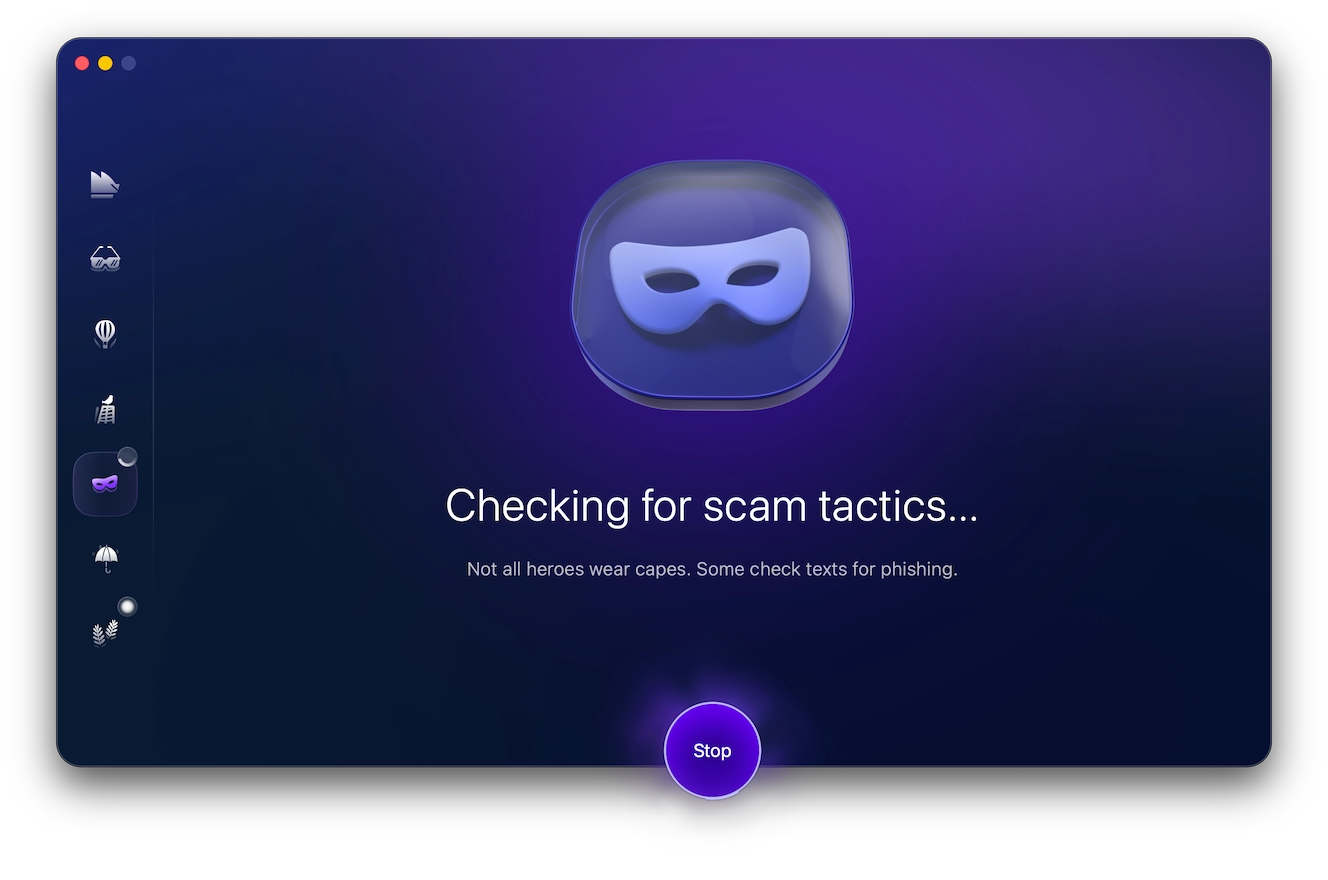
- Use Moonlock’s Scam Detector to review suspicious Docusign messages before clicking, scanning, or calling.
For business users, sender filtering is not enough because some scams abuse real platform features. Reduce that risk with a few internal rules:
- Train all teams to verify Docusign messages/documents and treat unexpected changes as high-risk messages.
- Review OAuth policies and require admin approval for app permissions.
- Use phishing-resistant MFA (where possible).
- Monitor suspicious mailbox rules and unusual account activity.
Overall, if a Docusign email feels unexpected, go directly to the Docusign website and use the security code to verify the request through a trusted channel before clicking.
This is an independent publication, and it has not been authorized, sponsored, or otherwise approved by Docusign, Inc. Docusign is a trademark of Docusign, Inc.