
Apple ships every Mac with built-in malware protection. You don’t install it, you don’t configure it, and you don’t see it running. This malware protection, known as XProtect, is one of several background security layers that quietly block known macOS threats before they can ever be executed.
If you’ve ever wondered what XProtect actually does, how effective it is, what its limits are, and how to run XProtect on Mac, this guide breaks it down in practical terms.
What is XProtect on Mac, and what is it used for?
XProtect is Apple’s signature-based malware detection system built directly into macOS. It operates as a set of malware definition rules and heuristics that the operating system uses to identify and block known malicious software.
Unlike traditional antivirus apps, XProtect doesn’t run visible scans, doesn’t provide alerts, and doesn’t expose a user interface. It’s embedded into macOS and is triggered automatically when you attempt to open or run downloaded files, apps, or installers.
Its core purpose is simple:
- Prevent execution of known malware
- Stop known malicious code paths during app launch
- Enforce security decisions silently at the system level
XProtect is not meant to be a full antivirus suite. It’s a baseline malware gatekeeper that operates in the background as part of Apple’s layered security model.
How Apple’s XProtect keeps macOS safe from malware
XProtect works by maintaining a set of malware signatures and behavior rules stored in system files. When you download or open an app or file, macOS checks it against those definitions.
If a match is found, the system will:
- Block the file from executing
- Display a warning or quarantine notice
- Move or remove the file automatically, in some cases
This process happens without user input. There is no “scan” button and no manual control.
Here are some of the key characteristics of how XProtect operates:
- Signature-based detection: It matches known malware fingerprints.
- Behavior-based rules: Some rules target malicious execution patterns, not just file hashes.
- Silent enforcement: macOS handles the block action automatically.
- System-level integration: It runs inside macOS security services, not as a standalone app.
XProtect also works alongside other macOS security components like Gatekeeper and System Integrity Protection (SIP) to reduce the attack surface.
Which malware types can XProtect detect?
XProtect focuses on detecting specific, known macOS malware families rather than providing broad, category-based antivirus coverage. It is not a generalized cross-platform antivirus engine.
The following are some of the common categories that XProject can detect:
- macOS trojans and backdoors: XProtect includes signatures for many known macOS trojans that install persistence agents or remote access backdoors.
- Info-stealers targeting macOS: Known credential stealers and spyware strains specific to macOS are included in its rule sets.
- Malicious installers and dropper packages: Some malware arrives bundled inside modified installers. XProtect flags known malicious packages.
- Adware families: Certain adware strains that abuse browser extensions or profile installs are covered.
- Known ransomware variants for macOS: XProtect contains rules for a small number of macOS ransomware families that have been observed in the wild.
Coverage is limited to malware Apple has already analyzed and added to its definitions. Unknown or new malware families are not detected until Apple updates the rule set.
What XProtect does not cover and how third-party tools fit in
XProtect is not a full cybersecurity platform and was never designed to be one.
Areas XProtect is not primarily designed to address include:
- Real-time monitoring of file system changes
- Full disk scanning on demand
- Network-level threat detection
- VPN or encrypted browsing protection
- Spyware traffic analysis
- Advanced phishing detection
- Behavior-based zero-day malware detection
- User-facing alerts and security guidance
- App permission abuse monitoring
- Security hygiene recommendations
This is where third-party tools can complement macOS security. A Mac-first antivirus like Moonlock focuses on filling these practical gaps.
Sign up for a 7-day trial of Moonlock to add:
- Real-time malware monitoring beyond known signatures
- Manual malware scanning of system folders and hidden locations
- Network inspection for suspicious outbound connections
- VPN encryption for browsing privacy
- System configuration hardening
- Security guidance for everyday protection habits

XProtect remains useful as a baseline blocker. Tools like Moonlock make sense when you want visibility, manual control, broader detection coverage, and network-level protection that Apple’s built-in tools don’t expose.
How XProtect receives and applies updates
XProtect updates are delivered silently by Apple through macOS background update services. You do not have to update it manually, and there is no App Store entry and no system preference toggle.
Here’s what happens behind the scenes:
- Apple pushes updated malware definitions via macOS security updates.
- The updates are installed automatically.
- No system restart is required.
- No user interaction is needed.
These updates include:
- New malware signatures
- Updated detection rules
- Expanded behavioral heuristics
The update mechanism runs independently of macOS version updates, which means XProtect can receive new definitions even if you are not using the latest macOS release.
Where is XProtect located on your Mac?
XProtect lives inside protected macOS system directories. You are not meant to modify or interact with it.
The primary files are stored here:
- /System/Library/CoreServices/XProtect.bundle
- /Library/Apple/System/Library/CoreServices/XProtect.bundle (newer macOS versions)
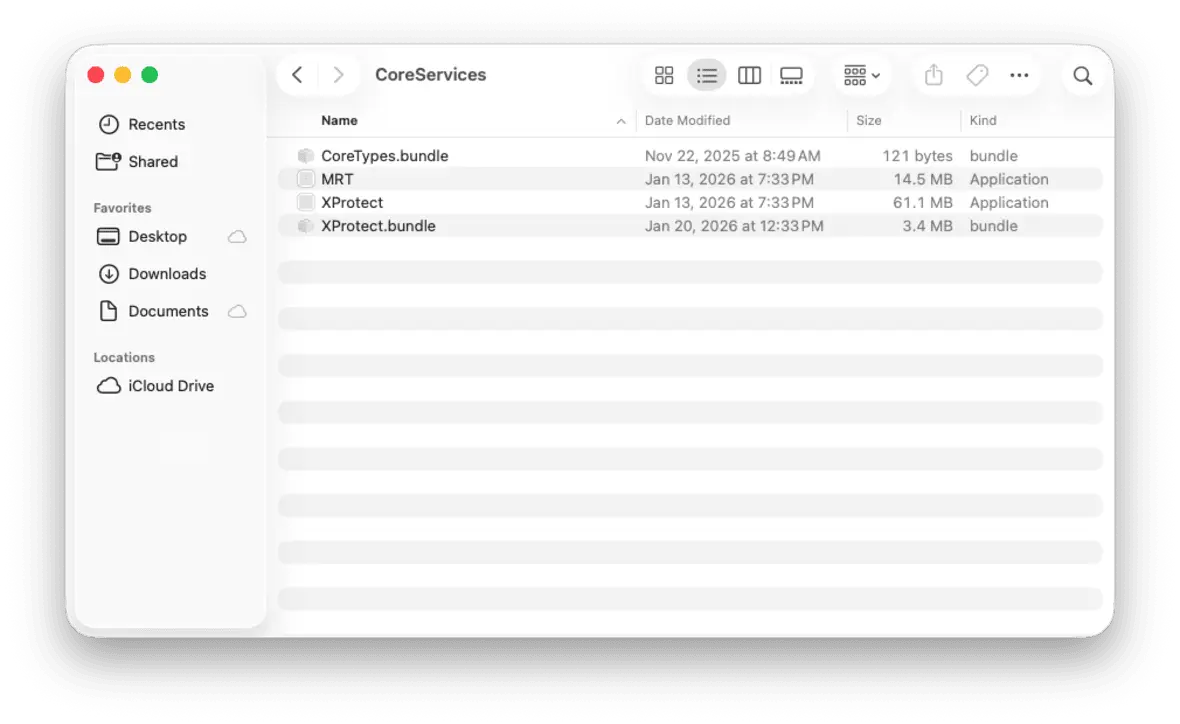
How to find the XProtect system files:
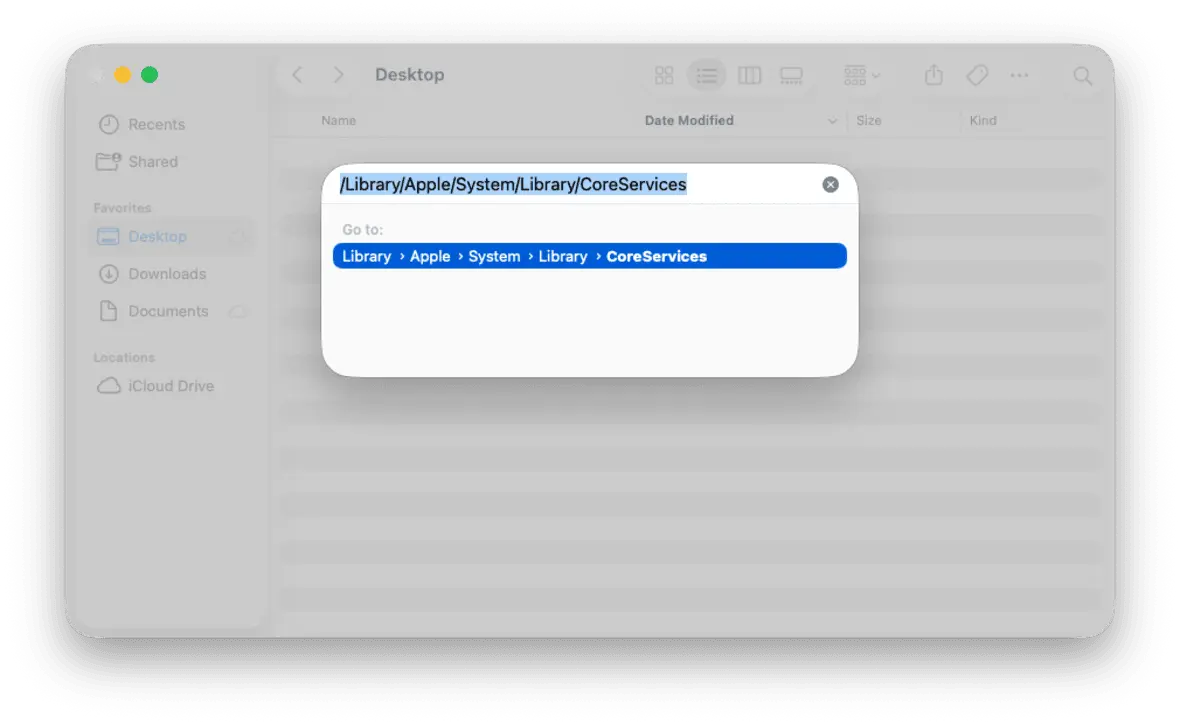
- Open Finder.
- Click Go in the top menu.
- Click Go to Folder.
- Paste: /System/Library/CoreServices/ or the alternative /Library/Apple/System/Library/CoreServices
- Look for XProtect.bundle
You can view these files, but you cannot safely modify or replace them.
Can users run or access XProtect directly?
The quick answer to this question is no. There is no user interface, no launchable app, and no manual scan command. XProtect runs automatically when macOS evaluates downloaded apps and files.
Below are a few common questions based on misconceptions about XProtect.
No. XProtect does not provide an on-demand or manual scan feature.
No. It has no UI, and it runs silently in the background.
No. macOS triggers it internally.
No. It is part of macOS.
XProtect is designed to be invisible and non-interactive.
How to check if XProtect is running and how to activate it
There is no explicit on/off switch for XProtect. If macOS is functioning normally, XProtect is active. That said, there is a way to verify that it is running as intended.
Here’s how to verify that XProtect is enabled:
- Open Terminal.
- Run: spctl –status
- This checks Gatekeeper, which works alongside XProtect.
- Run: defaults read /System/Library/CoreServices/XProtect.bundle/Contents/Info CFBundleShortVersionString
Alternatively, you can do the following:
- Hold down Option while clicking the Apple icon in the top left corner.
- Navigate to System Information > Software > Installations.
- Find XProtectPlistConfigData
- The Version number will be listed in a column to the right.
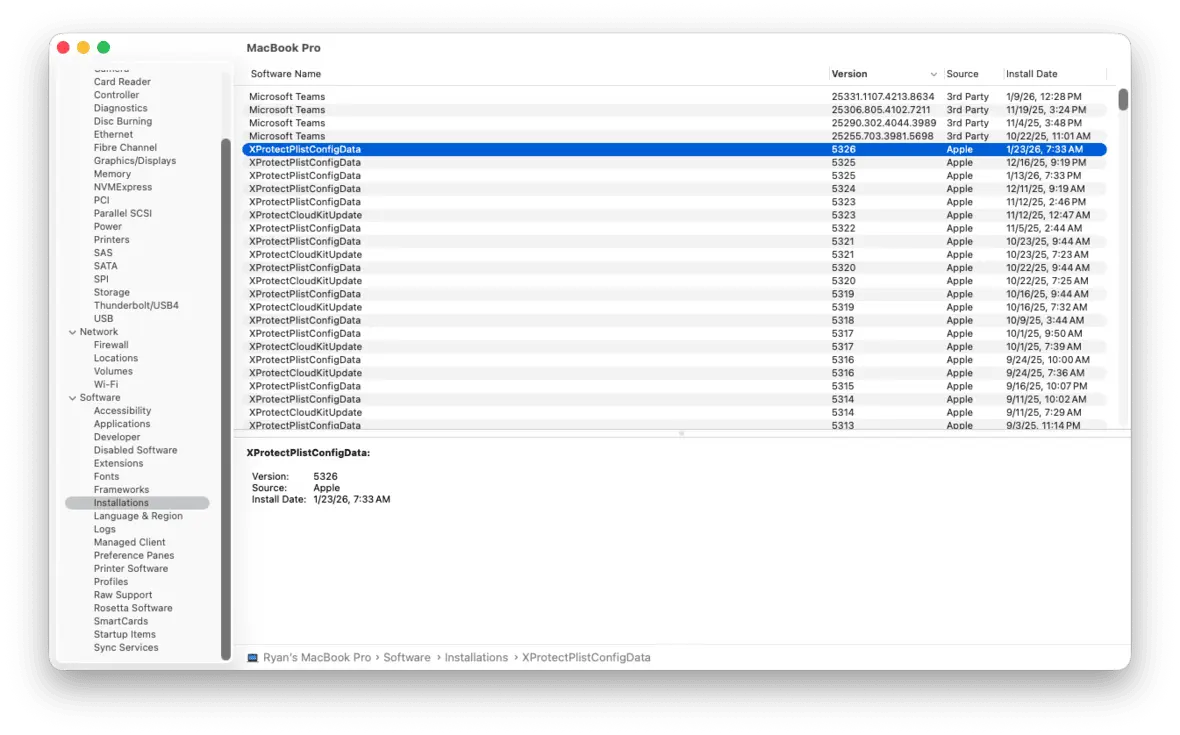
This shows the installed XProtect version, but you cannot manually enable it. It is always on unless the system has been deliberately modified.
If you suspect that XProtect is disabled:
- Make sure System Integrity Protection (SIP) is enabled.
- Make sure Gatekeeper is enabled.
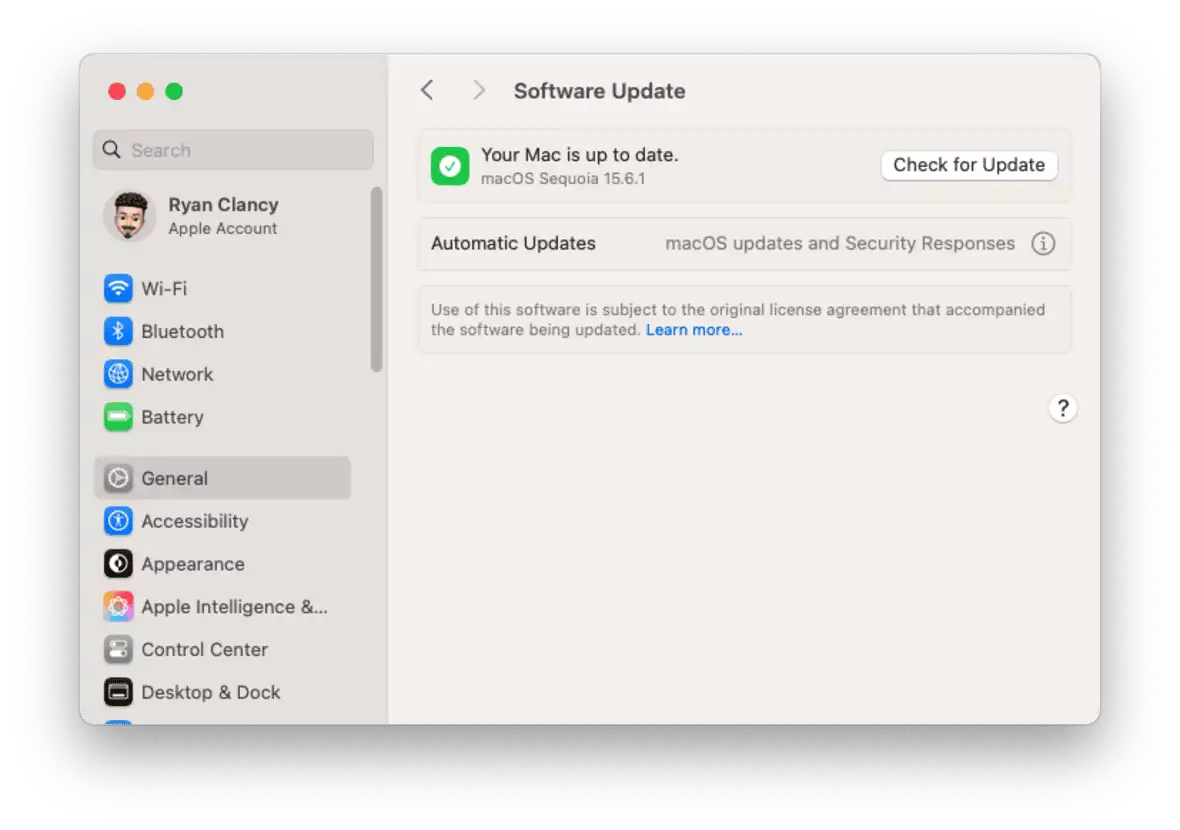
- Install the latest macOS security updates.
Is it possible to disable XProtect on macOS, and how can you do so?
Yes, but only by weakening macOS security protections. Disabling XProtect requires disabling System Integrity Protection (SIP), which is not recommended.
Here’s how to do this (though we strongly advise against it):
- Reboot into macOS Recovery.
- Open Terminal.
- Run: csrutil disable
- Reboot normally.
- Modify or replace XProtect system files.
Note that this process lowers your Mac’s security posture significantly and exposes the system to malware risks. There is no supported way to disable XProtect safely.
Notarization and other macOS security layers beyond XProtect
XProtect is only one layer in Apple’s security model.
Key built-in macOS security components include the following:
- Gatekeeper: Blocks unsigned or untrusted apps from launching
- Notarization: Requires developers to submit apps to Apple for malware checks before distribution
- System Integrity Protection (SIP): Prevents modification of critical system files
- App Sandbox: Restricts app access to system resources
- MRT (Malware Removal Tool): Removes certain known malware infections automatically
- TCC Permissions: Controls app access to files, camera, microphone, and network resources
Together, these layers reduce the risk of malware execution, persistence, and privilege escalation.
Practical tips to strengthen your Mac’s security
macOS security works best when its built-in layers are combined with basic hygiene and visibility tools. Here are a few critical steps to help keep your Mac safe.
Keep macOS and security updates enabled
Apple pushes XProtect updates silently. Disable automatic updates, and you fall behind on malware definitions.
Avoid bypassing Gatekeeper and SIP
Most real-world macOS infections happen after users override built-in protections.
Use a Mac-first antivirus for visibility and coverage
XProtect blocks known malware but gives you zero insight into what’s happening.
A Mac-native tool like Moonlock adds:
- Real-time malware protection
- Manual scanning for hidden threats
- Network traffic inspection
- VPN encryption
- System hardening tools
- Security guidance
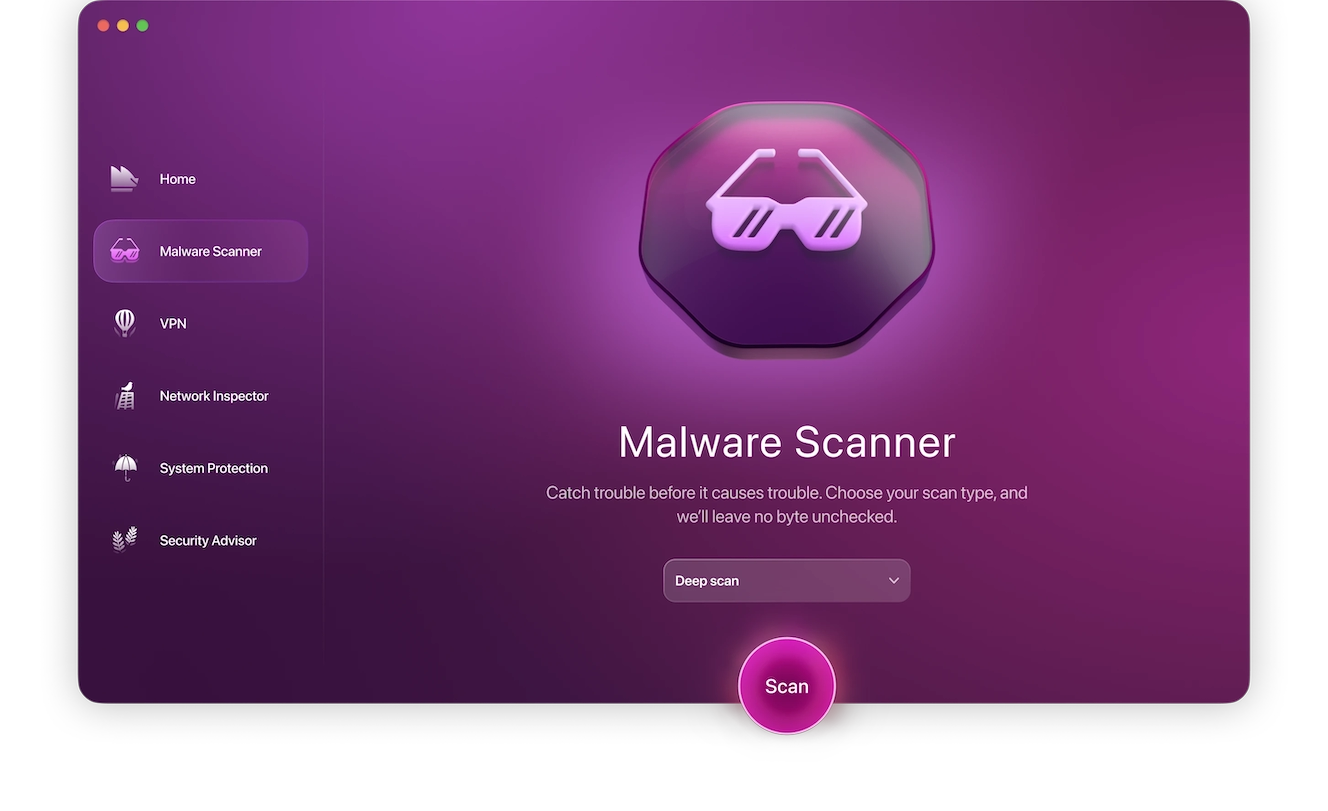
In short, Moonlock complements XProtect rather than replacing it.
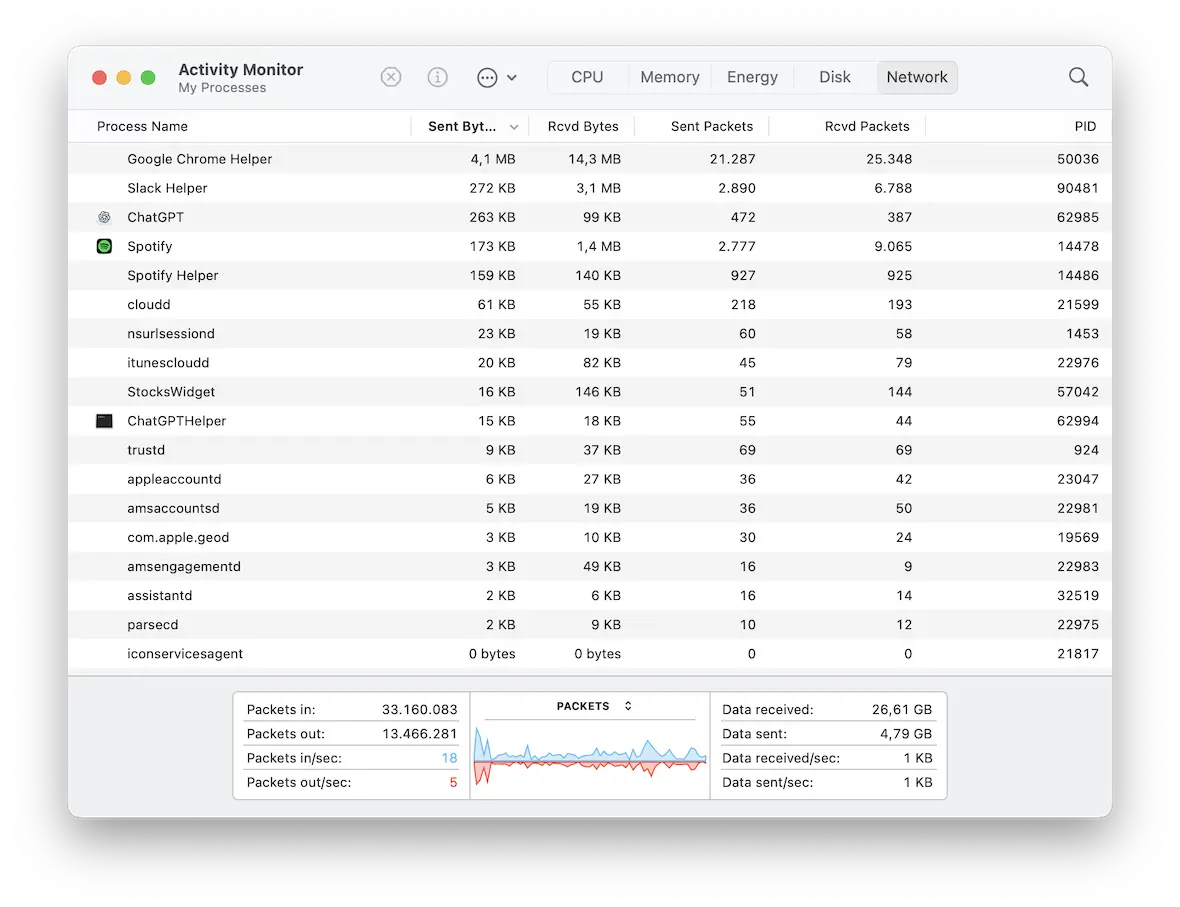
Monitor outbound network connections
Spyware often phones home, and Apple doesn’t expose this clearly to users. Thankfully, network inspection tools help surface suspicious traffic.
Lock down app permissions
It’s a good idea to limit which apps can access your files, camera, microphone, and network resources. XProtect blocks known malware automatically and runs silently in the background. It updates itself and requires no setup, but it isn’t a full security solution.
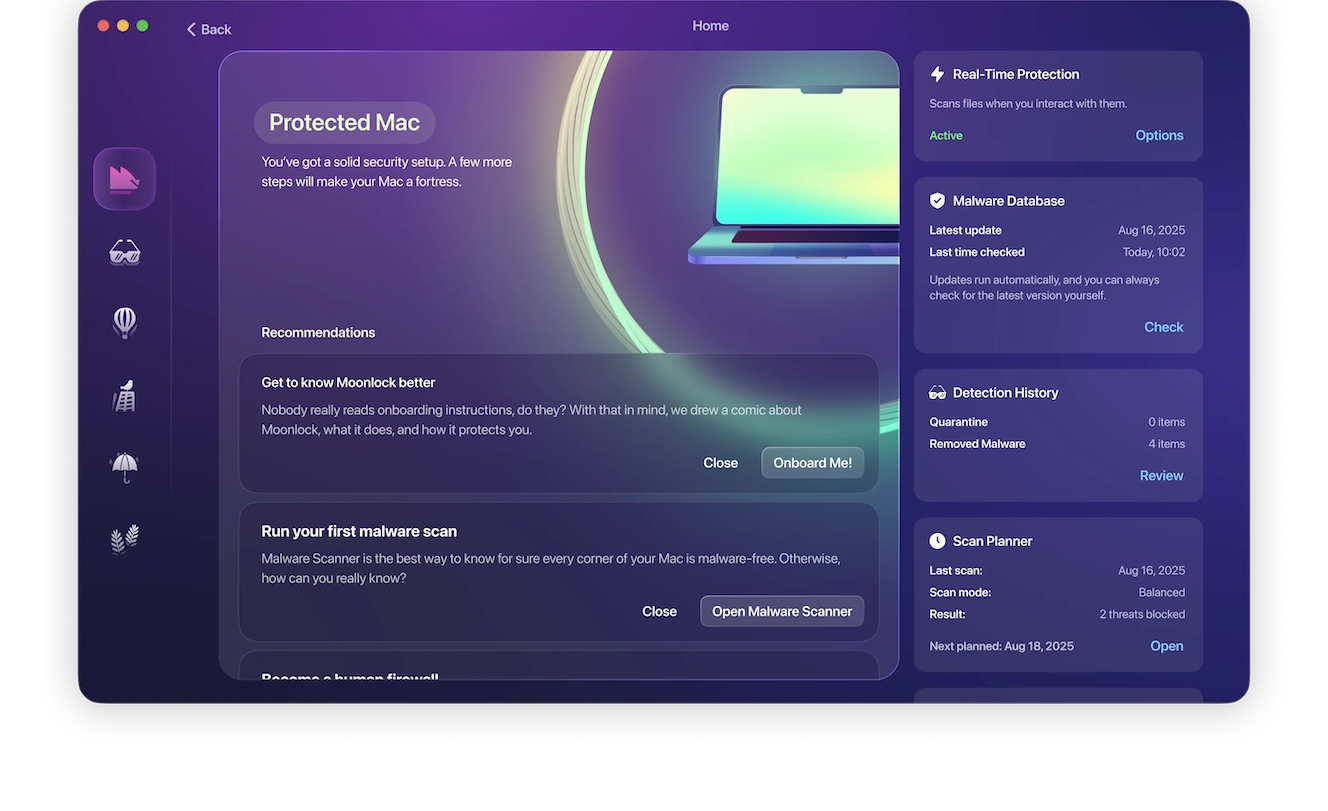
XProtect doesn’t scan your disk, monitor network traffic, or give you visibility into active threats. For users who want broader protection and more control, a Mac-first tool like Moonlock can complement Apple’s built-in defenses without replacing them. Try Moonlock to add real-time protection, network visibility, and privacy tools on top of macOS’s built-in security.
This is an independent publication, and it has not been authorized, sponsored, or otherwise approved by Apple Inc. Mac and macOS are trademarks of Apple Inc.