Picture this: You’re checking your email or texts, moving fast, and you click a link. A second later, it hits you: “I just clicked on a phishing link.” Whether the accident occurred on your Mac, through your email provider, or on your iPhone, the sinking feeling in the pit of your stomach that follows is real.
Attackers send an estimated 3.4 billion phishing links daily, so it’s not far-fetched that the suspicious link in your inbox is one of them. But simply clicking on a link is rarely enough to compromise your device. It’s sharing info or downloading files that will put your data and device at risk.
Phishing can be defined as a type of social engineering that involves attackers posing as well-known companies, services, or even individuals with whom you have some kind of acquaintance in order to persuade you to divulge personal details or to get you to take an action that could compromise your data or finances. In this article, we’ll cover what to do if you clicked on a phishing link.
How to tell if you’ve been phished and how to spot phishing links
Before you assume the worst, the first step is to determine whether, in fact, your click revealed anything. The following steps will help you evaluate the situation.
You landed on a login page and entered your credentials
The majority of phishing attacks are aimed at stealing your login information. The page might have appeared to be a login screen for Apple, Microsoft, or your bank, but the web address could have subtle differences, such as an added letter, a replaced character, or a new domain.
If you entered your password on a webpage that you now believe to be a fraudulent one, consider your credentials compromised. The same goes if you were redirected to a login page after scanning a QR code, an activity that is becoming more and more popular known as quishing.
A file downloaded to your Mac
If a file suddenly appears in your Downloads folder after clicking a suspicious link, treat it as a warning sign. On a Mac, malicious downloads often come as .dmg, .pkg, .zip, or .mobileconfig files, but attackers can also disguise threats inside documents, disk images, or fake update installers.
Cybercriminals frequently label these files as software updates, invoices, security alerts, or document previews to make them look legitimate. If you opened or installed the file, assume that your risk has increased, and scan your Mac immediately.
The next step is critical. Run a full system scan with Mac antivirus to start checking your Mac for malware immediately.

You were asked to install a configuration profile
There are phishing websites that tell you to add a configuration profile in System Settings. A profile has the ability to modify DNS settings, reroute your traffic across attacker-controlled servers, install malicious root certificates, or impose browser restrictions in such a way that you might find it difficult to reverse such changes.
On your Mac, go to System Settings (or System Preferences on older macOS versions), and go to General, then review Device Management or Profiles. Examine the list carefully and remove anything you don’t recognize.
You approved access to a third-party app
Not all phishing attacks steal your password. Some of them redirect you to a legitimate-looking permission screen and ask you to grant access to your account via an app.
Be sure to download applications only through reliable sources like the Mac App Store or trusted developers, and never give authorization to applications that you did not intentionally install.
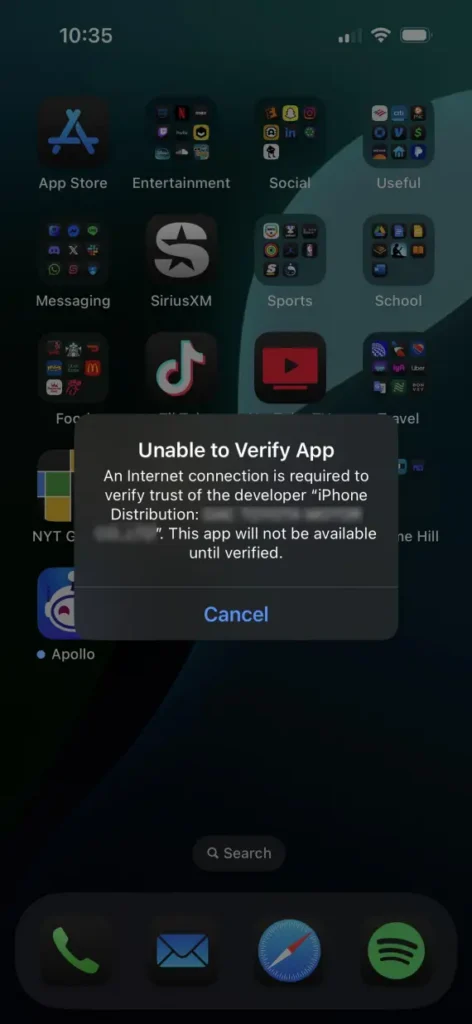
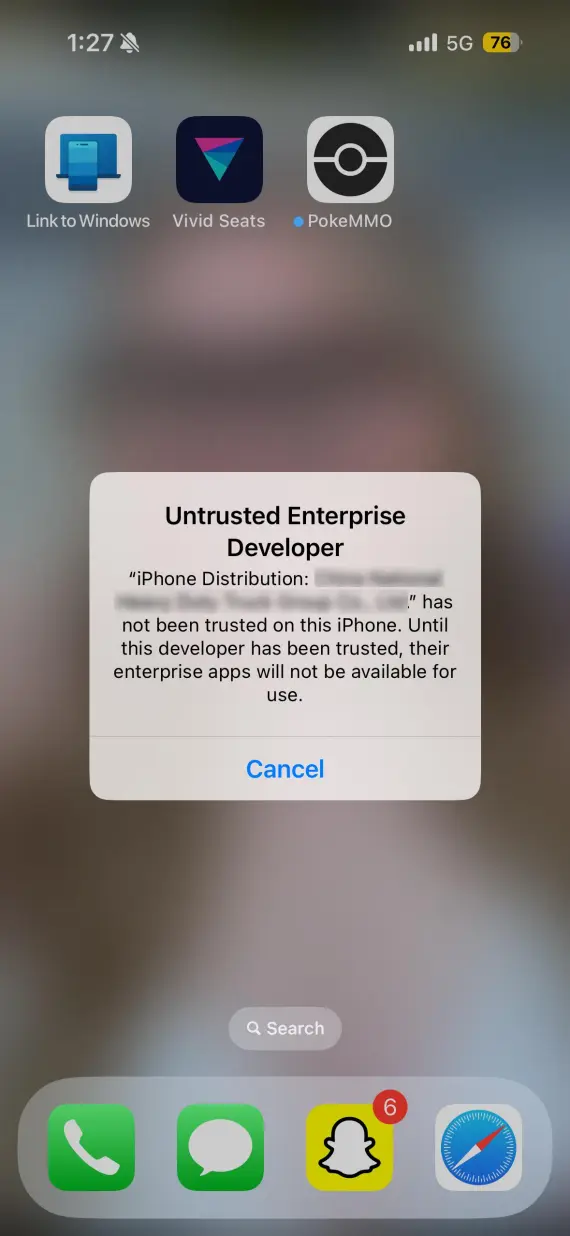
You’ll need to manually check and revoke access to potentially compromised accounts. Go to Google Account > Security > Third-party apps with account access, and remove anything you don’t trust or recognize.
For your Microsoft account, access permissions are under “App permissions.” For your Apple ID, go to Sign-in & Security > Apps Using Apple ID, and remove anything unfamiliar.
Your accounts or browser behave differently
Your first indication that something is wrong may be strange behavior. Watch for:
- Email notices to reset passwords you did not ask to be reset
- Login notifications in unrecognized locations
- Unexpected logouts
- New browser extensions
- Webpages that take you to other websites that you are not familiar with in Safari or Chrome
Active session tokens can also be stolen by modern phishing kits, which can provide temporary access to an account without re-entering credentials.
Signs that your Mac or iPhone may be compromised
Not all malware infections exhibit the same symptoms, but there are a few common signs that you should keep an eye out for on your iPhone and Mac, including:
- Battery draining unusually fast
- Apps or profiles you didn’t install popping up
- Random browser pop-ups or redirects
- Device running slow or hot
- Contacts you don’t recognize being added
- Camera or mic indicators activating unprompted
- Unfamiliar processes in Activity Monitor
How to verify a suspicious link before clicking
Before you click, there are a few signs you can check for to help protect you from potential malicious links.
Scan email or text for scam signs
Scammers are getting better at writing convincing phishing emails, especially with the help of generative AI. It’s no longer enough to look for typos or inconsistent fonts as signs of something suspicious.
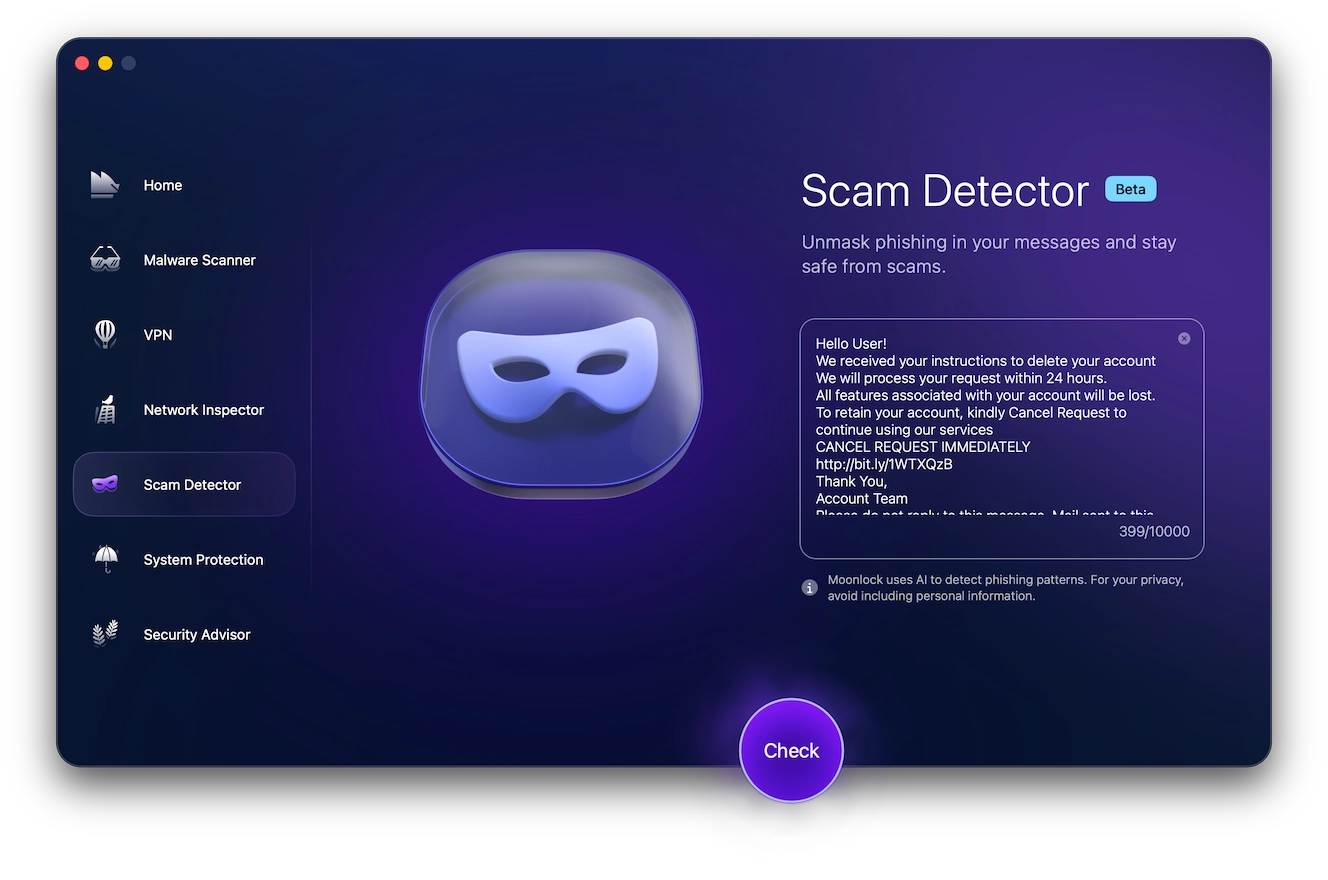
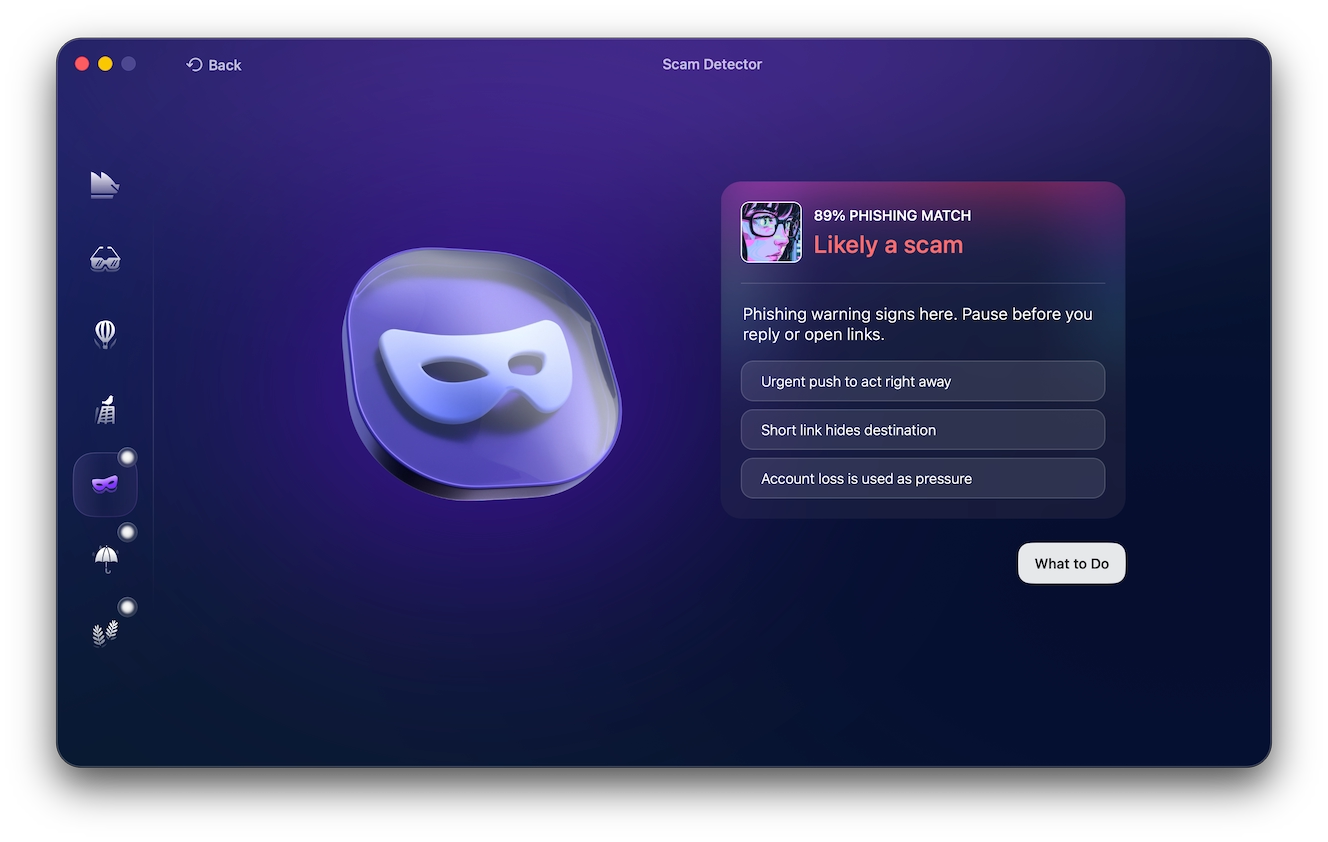
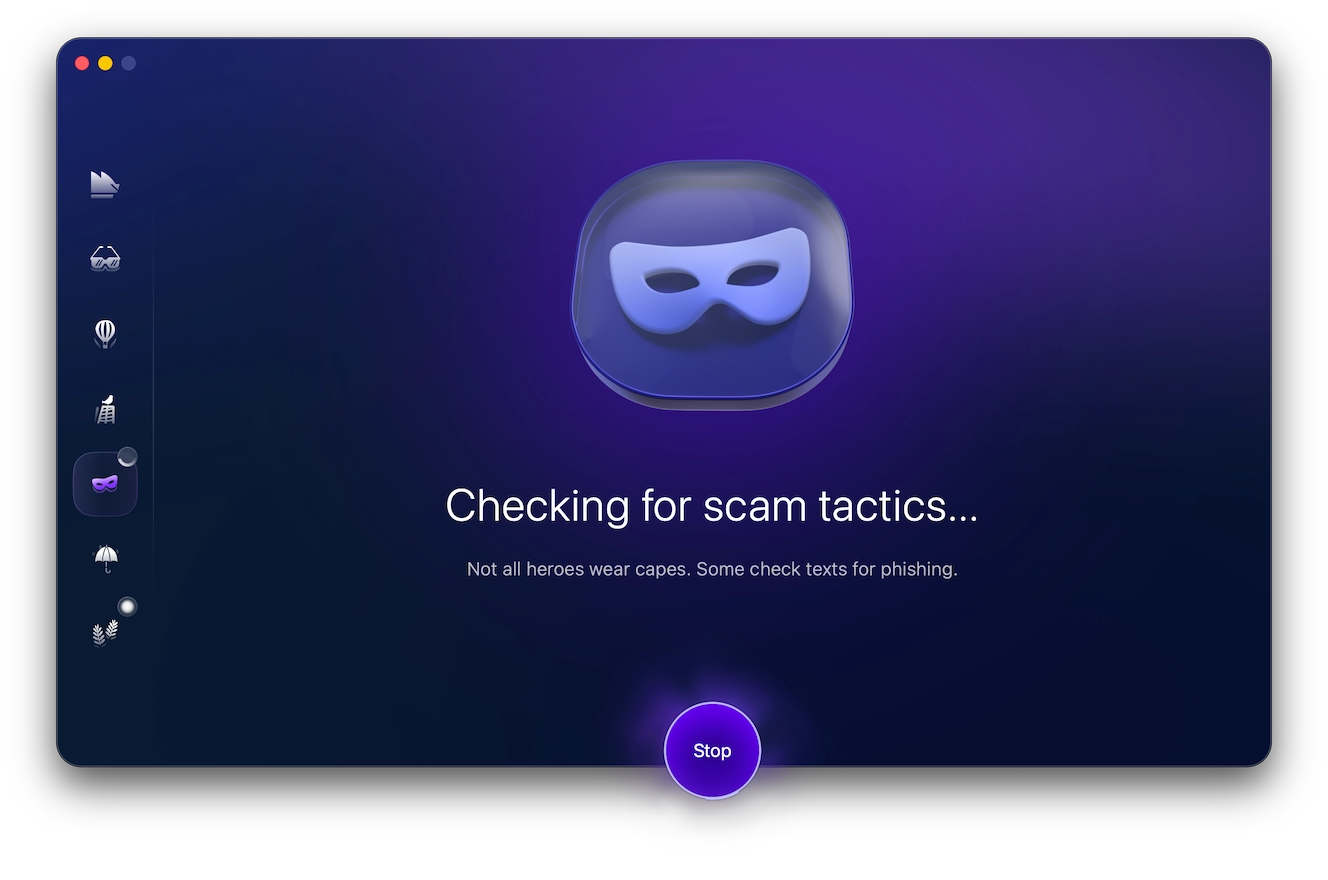
Sometimes, scams aren’t so obvious, and you need the help of a specialized tool like Scam Detector to analyze the message for phishing language or manufactured urgency, warning you before you click or engage with the sender. Here’s how to use it:
- Sign up for a 7-day free trial of Moonlock.
- Open Moonlock, then click on Scam Detector from the left-hand sidebar.
- Copy and paste the message into the detector.
- Click Check.
Moonlock will scan the text and give you a score on how likely the message is to be a phishing scam. It will then provide you with steps on what to do next to stay safe if it’s a scam.
Hover before clicking
Move the cursor over the link to check the whole URL and verify the destination before clicking.
Check the domain carefully
Attackers often use typosquatting by creating lookalike web addresses with small letter changes to make fake sites appear legitimate, a common phishing tactic. You can check whether the login page is real or not by trying to input incorrect credentials, as fake sites will likely accept anything you type. Also, check the URL or manually type it into the address bar to see whether it takes you to a different page.
Avoid logging in through email links
Rather than clicking on a link in an email or a text message, open a new browser and go to the official site. This will eliminate the possibility of going to a fraudulent login page.
Be cautious about urgency
Phishing messages usually generate a false sense of urgency to coerce you into acting without thinking.
When a message requires urgent action, pause and cross-examine the message to ensure that it is from the actual sender and is legitimate before clicking.
What really happens when you click a phishing link?
When you click on a phishing link, several things can happen behind the scenes, and not all of them are obvious. Here’s how it typically unfolds.
Redirect chains begin
The link takes you through several tracking domains before leading to the last malicious page. This assists the attackers in concealing the actual destination and evading detection.
A fake website loads
A majority of phishing attacks result in duplicated login sites that replicate Apple, Microsoft, Google, or banking websites near perfectly. Others now apply AI-generated layouts and dynamism to appear even more believable, a trend in the rise of AI-driven phishing and scam tactics.
Credential harvesting triggers instantly
If you enter your login details, the site records the information in real time. Most attackers automate the process and try to log in to accounts within minutes.
Session cookies may be stolen
More sophisticated phishing kits don’t just harvest passwords. They steal active session tokens from your browser that may enable temporary access to your accounts without requiring your credentials again.
Malware may download silently
Sometimes, just clicking on a link can be enough to trigger a drive-by download. Depending on the payload, this could infect your device with anything from annoying adware to spyware that records your activity or ransomware that encrypts your files and holds them for payment. There’s also the risk of infecting your device with a remote access trojan (RAT), which gives the attacker remote control of your Mac.
Drive-by scripts may run
Sometimes, all that’s required to start an attack is to visit a malicious website and then run the associated scripts that favor outdated web browsers or system weaknesses. This is much rarer on full versions of macOS. However, an unpatched system renders your system more vulnerable.
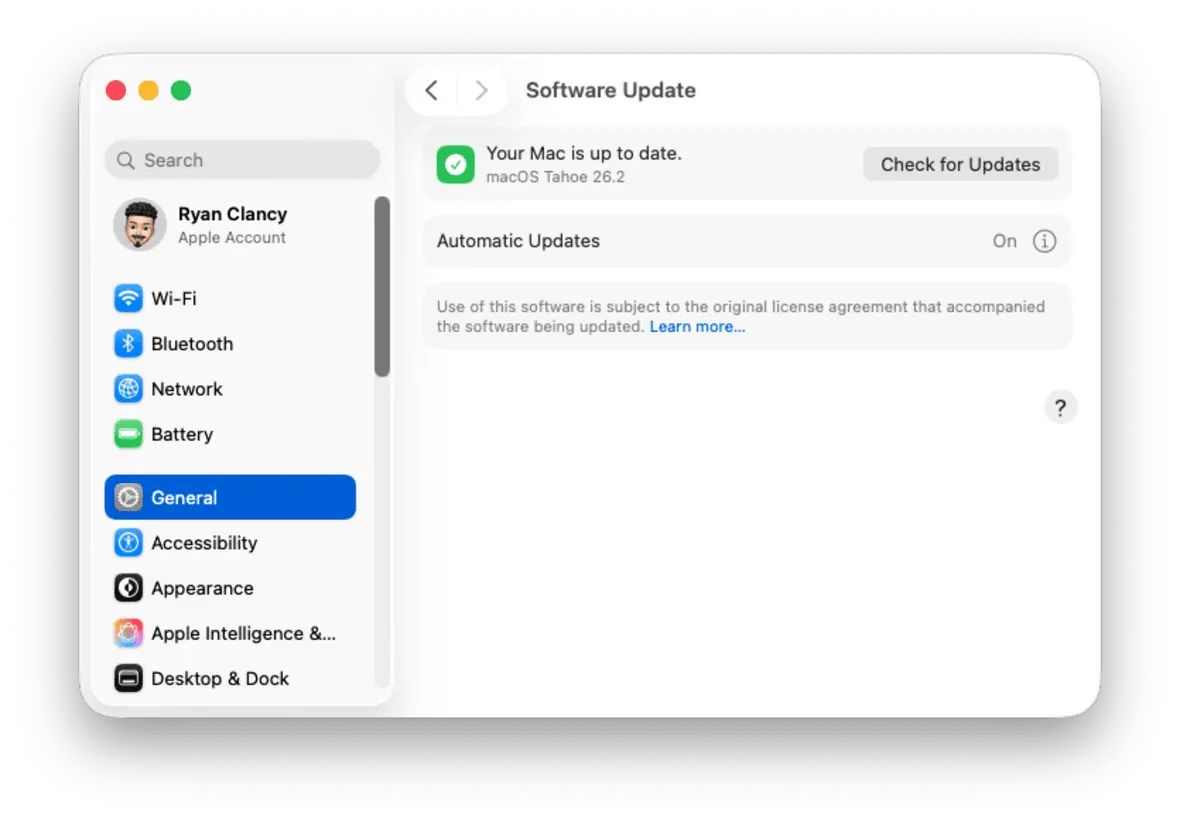
Keeping macOS and iOS updated significantly reduces this risk.
I clicked on a phishing link. What should I do now?
Step 1: Run a malware scan immediately
Stop interacting with the fake page and immediately close it. Cleaning your device of any potential malware comes first, as there’s no use resetting your passwords if your Mac is infected.
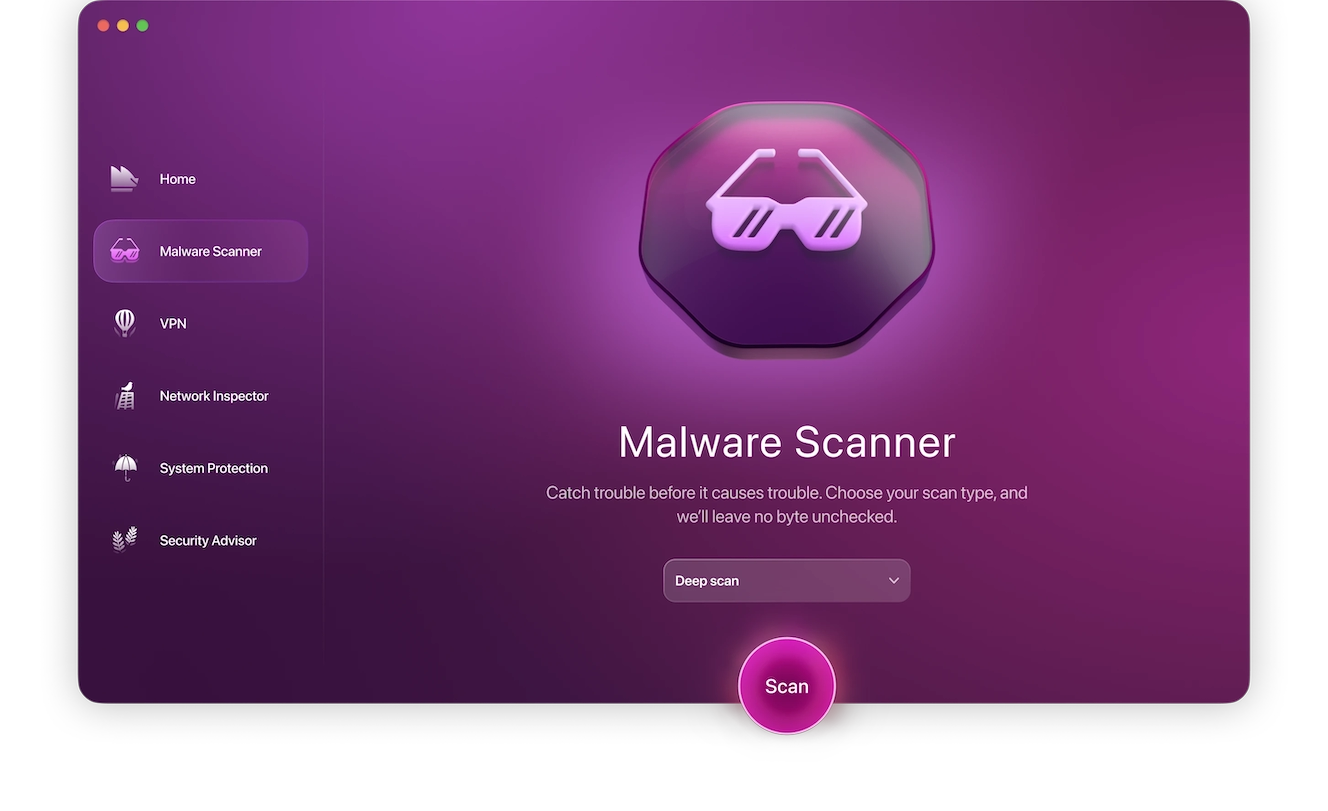
Sign up for a 7-day free trial of Moonlock and run a Deep malware scan to fully remove any malware from your device. Here’s how you do it:
- Open Moonlock, then click on Malware Scanner from the left.
- From the drop-down menu, click on Configure.
- In the new window, you’ll have the option to choose between a Quick, Balanced, or Deep scan. We recommend opting for a Deep Scan and enabling all optional file types.
- Once you’re happy with your choices, close the window. You only need to configure Moonlock once, and it will remember your preferences for all future scans.
- Click Scan.
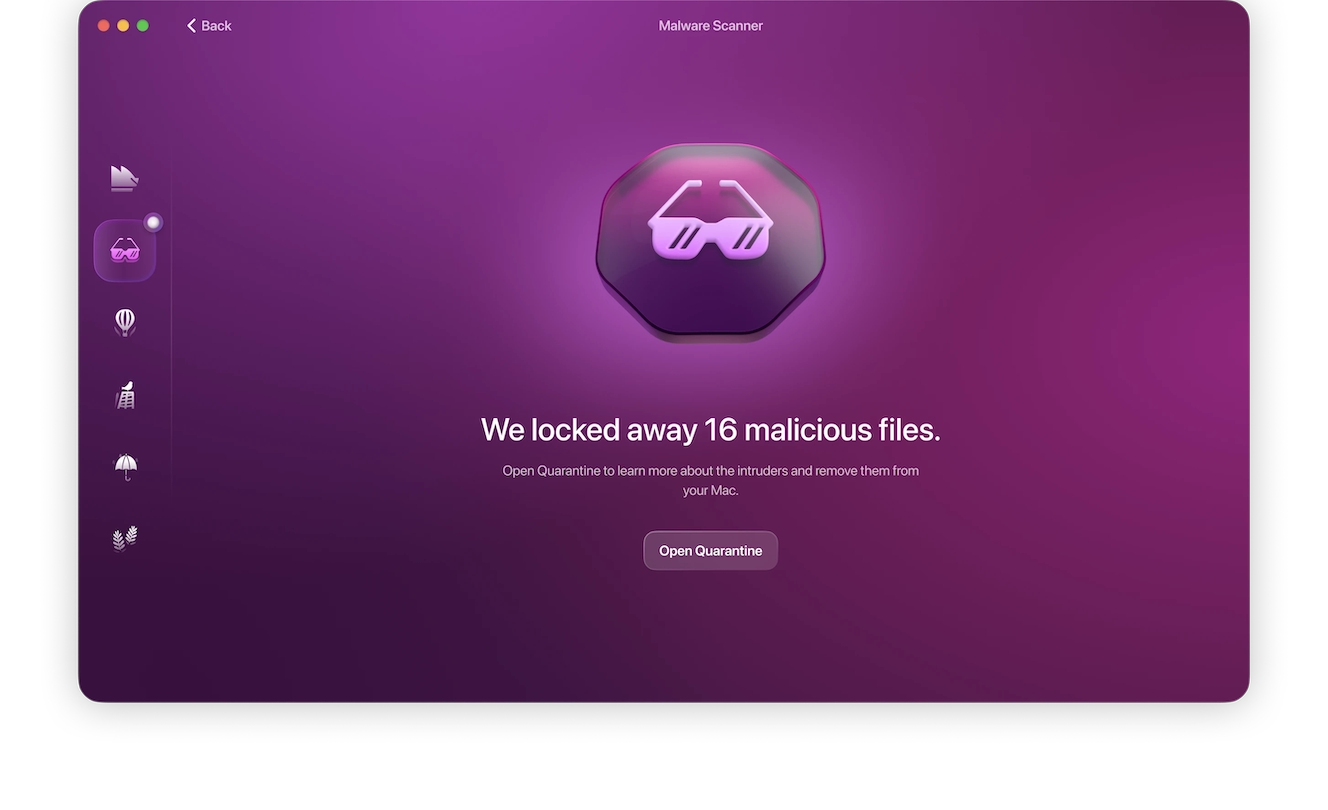
Once Moonlock scans and cleans your device of all malware and spyware, you can safely proceed to the next steps.
Step 2: Disconnect from the internet (if you installed something)
In case you have downloaded and installed a file, disconnect temporarily from Wi-Fi. This restricts outbound communication in case the malware is running. Reconnect to the internet after scanning and removing detected threats.
On a Mac, disconnect by navigating to System Settings > Network > Wi-Fi and toggling it off. On your iPhone, enable Airplane Mode from the Control Center.
Step 3: Change your passwords and enable 2FA/MFA
If you entered your credentials on the phishing page or suspect that the link downloaded a keylogger at some point in the past, you need to change your passwords and enable 2FA immediately. It’s important that you only do this after you’ve already cleaned your device, or you can do it from a separate device you trust. Do this to your:
- Compromised accounts
- Primary emails
- Apple ID
- Bank account
- Social media accounts
Keep an eye on notifications of repeat log-in attempts or password changes that you didn’t trigger, as they could be signs of someone trying to access your account.
Step 4: Use an authenticator app and password manager
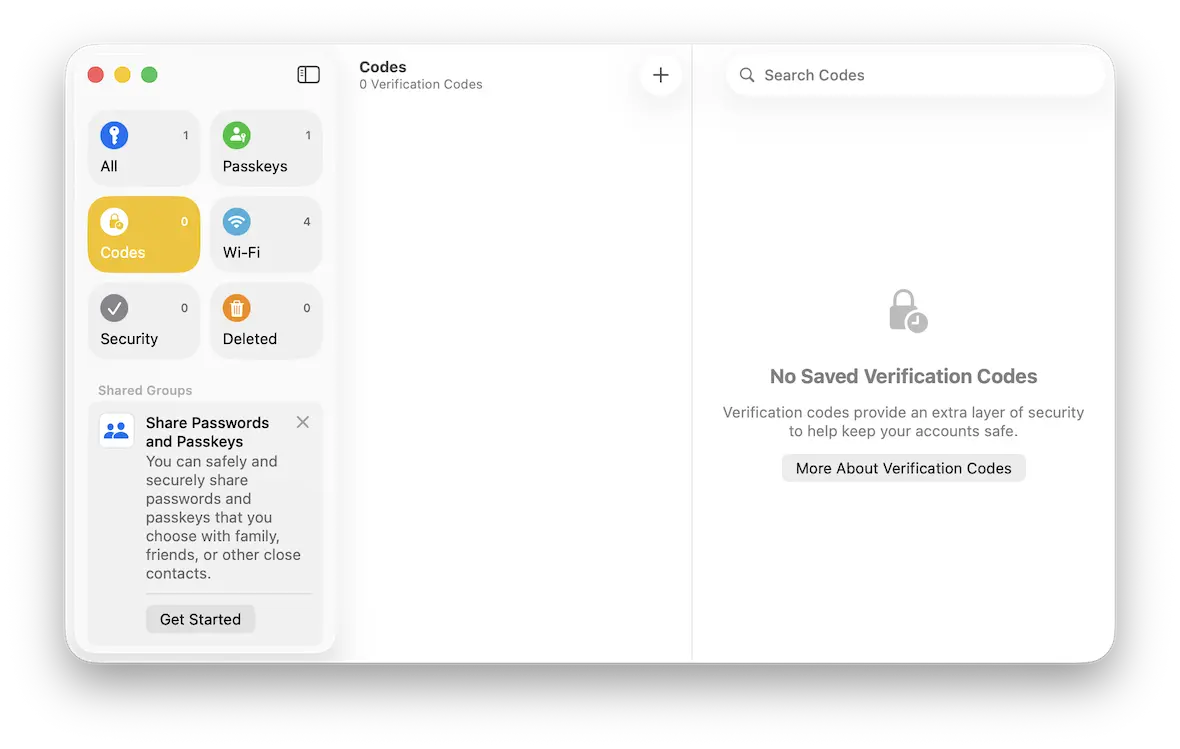
To avoid falling for a SIM swap scam, use an authenticator app instead of text messages to generate 2FA codes. Also, make sure you use a trusted password manager. That way, you can create strong and unique passwords for each account.
You can use the Passwords app on your Mac to create and sync your passwords between your Mac and iPhone. When possible, use a password manager to create and safely store unique passwords for each account.
Step 5: Monitor your accounts
Even if you acted immediately after clicking a potential phishing link, your accounts might still be compromised. Phishing attacks frequently result in delayed account compromise, so it can take time for the symptoms to arise.
Here are a few red flags:
- Unusual login alerts
- Password reset attempts
- New recovery email addresses
- Unrecognized financial transactions
Step 6: Report the phishing attempt
Reporting the phishing attempt, successful or not, helps prevent future attacks for everyone. Here’s what to do:
- Report the phishing email to your email service provider.
- Report Apple ID phishing attempts to [email protected]
- Contact your bank if any financial information was compromised.
- Report the phishing attempt to the FTC, FBI, or the IC3 through their official sites.
- Report the phishing attempt to the Anti-Phishing Working Group.
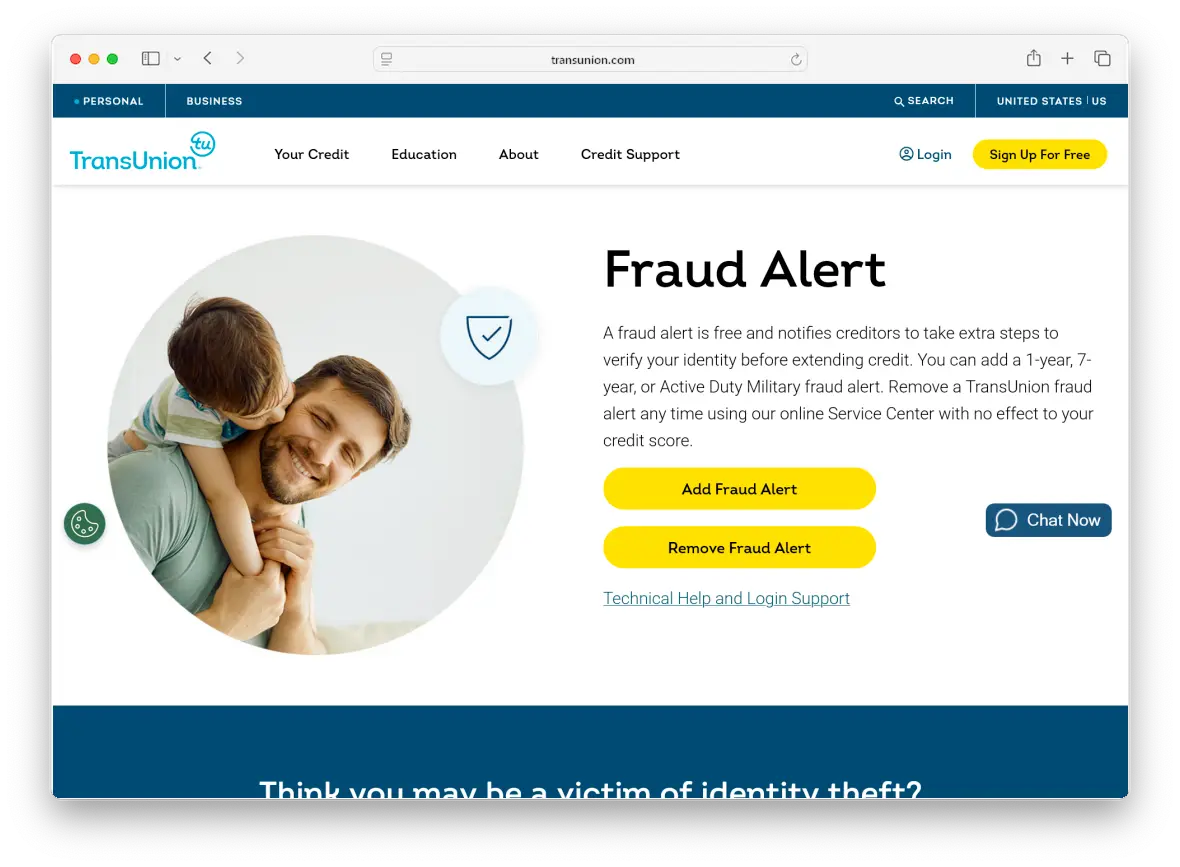
You can also set up a fraud alert or freeze your credit with credit reporting agencies like Equifax, Experian, or TransUnion.
Why do scammers spread phishing links?
Phishing isn’t random. It’s profitable. Attackers enjoy sending and spamming phishing links with the intention to:
- Steal login credentials
- Access financial accounts
- Commit identity theft
- Deploy ransomware
- Sell stolen information on the black markets
Some campaigns are mass-distributed. Others are very specific and personalized, referred to as spear phishing. Attackers rely on the data concerning your occupation, your social media presence, or recent communications to make the message sound legitimate. The objective is simple: make it urgent, so you click without thinking.
Where do phishing attacks happen most often?
Phishing isn’t just limited to emails. It happens in various channels:
- Email messages
- SMS and iMessage texts
- Social media direct messages
- Fake tech support pop-ups
- Search engine ads
- QR codes in public spaces
United States authorities have also cautioned users about advanced campaigns based on QR, such as an FBI warning about North Korean QR phishing. Always take a moment before clicking a link to ensure that it is legitimate.
Phishing FAQs: Everything you should know after clicking a phishing link
Once you have clicked a phishing link, the next essential action is to determine your real risk. We provide the answers to the most frequently asked questions.
Yes, especially if malware downloads or you enter credentials.
Nothing will normally occur; however, it is always a good idea to scan your device.
Immediately change the compromised passwords, turn on multi-factor authentication (MFA), and look through the recent logins to detect any unauthorized access.
Disconnect from the internet and scan your device for malware.
Perform a complete malware scan and delete any threats detected, then change your passwords.
iPhone infections caused by phishing links are uncommon. iOS requires explicit permissions before installing, typically only accepting apps installed from the App Store. So, simply clicking an infected link is unlikely to cause an infection, unless the device is jailbroken.
Still, take a look at your General settings to see if there are unknown configuration profiles and watch out for unusual login activities on your accounts.
Report it to your email provider, Apple, or the appropriate financial institution.
How to reduce your risk of phishing scams
A few good habits go a long way toward ensuring your online safety and protecting you from scams. When in doubt, don’t hesitate to use tools dedicated to detecting scams, like Scam Detector, included in your 7-day free trial of Moonlock.
Phishing is effective because it plays on human psychology and behavior. To reduce your exposure:
- Update macOS and iOS operating systems routinely.
- Always use strong and unique passwords with 8 characters or more.
- Enable multi-factor authentication (MFA).
- Do not use login links sent through spam email.
- Check related applications on a regular basis.
- Use real-time protection such as Moonlock antivirus.
Clicking a phishing link doesn’t automatically mean your Mac is compromised, but ignoring it might. The difference between a minor scare and a serious breach often comes down to how quickly you respond. Scan your system, secure your accounts, and assume exposure if you entered credentials. Phishing succeeds when it goes unchecked. Make sure yours doesn’t.
Phishing works by catching people off guard, not by being technically advanced. If you know the signs and take the time to think before you act on an email or text message, you can stay safe from all sorts of online scams.
This is an independent publication, and it has not been authorized, sponsored, or otherwise approved by Apple Inc. Mac and macOS are trademarks of Apple Inc.