

Phishing attacks are on the rise, with the Anti-Phishing Working Group (APWG) reporting a 10% increase and more than 425,000 attacks recorded in June of 2026 alone. And Dropbox phishing emails are just one way attackers target their victims.
With the familiar blue box branding, many Dropbox phishing emails look like legitimate notifications or account alerts, until you click on a link and get your Dropbox account stolen. So, how can you distinguish a genuine email from a Dropbox scam?
What does a Dropbox scam look like in practice?
There are 2 types of Dropbox scams. Scammers either impersonate Dropbox to send phishing links, or they use real Dropbox accounts to share malicious files. And with more than 700 million registered users, a small percentage of those accounts might belong to fraudulent individuals using Dropbox services to spread malicious files, spyware, and viruses.
Phishing attacks using Dropbox tend to be more common because they prey on people’s trust in the brand. After all, users already trust Dropbox with their personal files and information.
On the other hand, hackers may also exploit a flaw in Dropbox. This is less often a technology issue than it is a social one; attackers commonly employ sophisticated social engineering techniques to trick users into clicking on malicious links.
How Dropbox scams work
Dropbox phishing typically follows 1 of 2 methods:
- Fake emails: Scammers impersonate Dropbox and direct victims to fake login or payment pages. They copy Dropbox’s branding and general email layout in order to appear legitimate.
- Genuine notifications: These can be engineered to take users to Dropbox-hosted malicious files or links that lead to external phishing sites. They often evade spam or phishing filters because they’re generated by Dropbox itself and don’t come from a suspicious email address.
Attacks like this are far from rare. In 2023, Check Point identified 5,440 attacks in the first 2 weeks of September alone. The hackers used Dropbox to create fake login pages to steal email credentials and access personal Dropbox files.
11 common types of Dropbox scams
Dropbox scams take several forms. From phishing links and file-sharing invitations to credential theft, here are 11 of the most common tactics.
1. Fake “file shared with you” emails
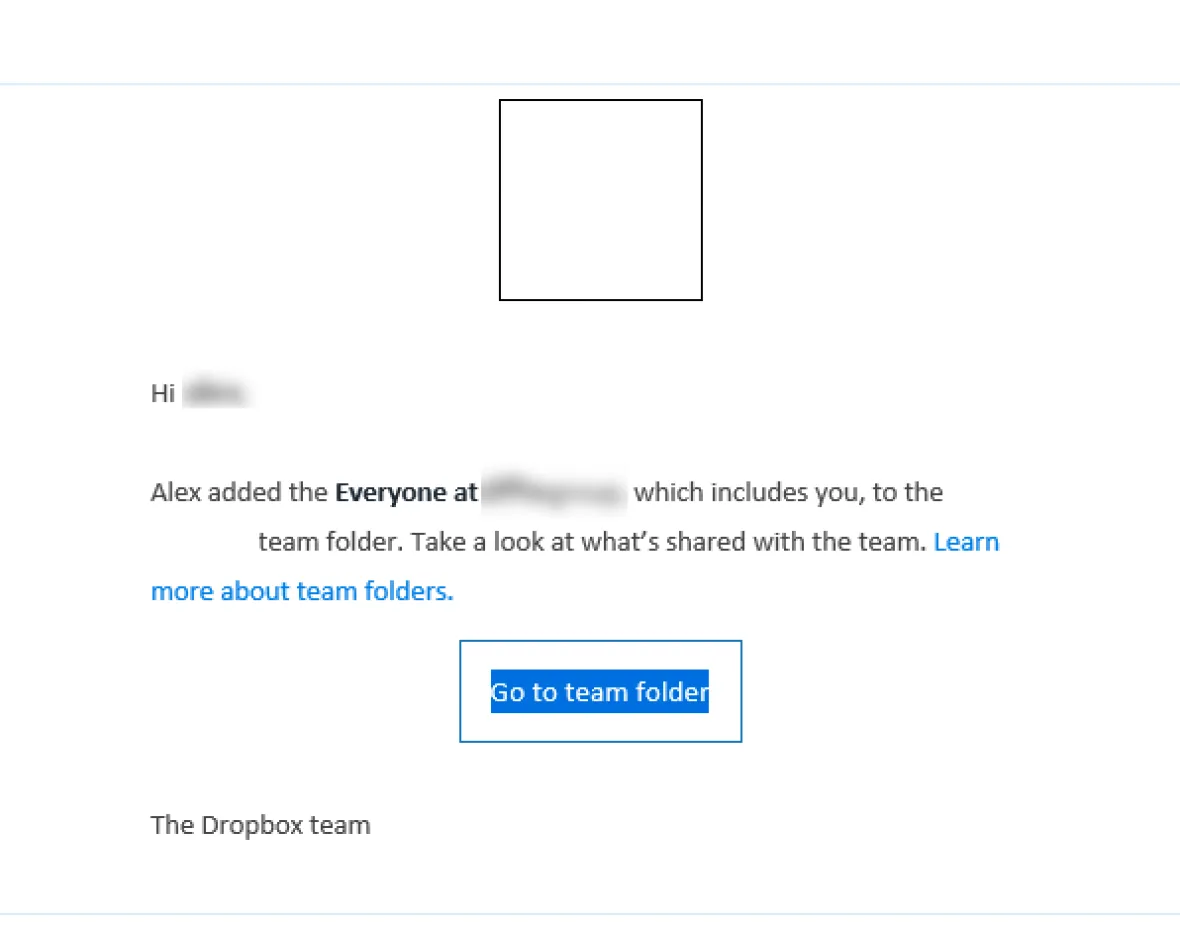
For example, you may receive a “John shared Invoice_2026.pdf with you” email that, at first glance, appears to come from Dropbox. This type of phishing email will usually link to a fake Dropbox/Microsoft sign-in page designed to steal your credentials.
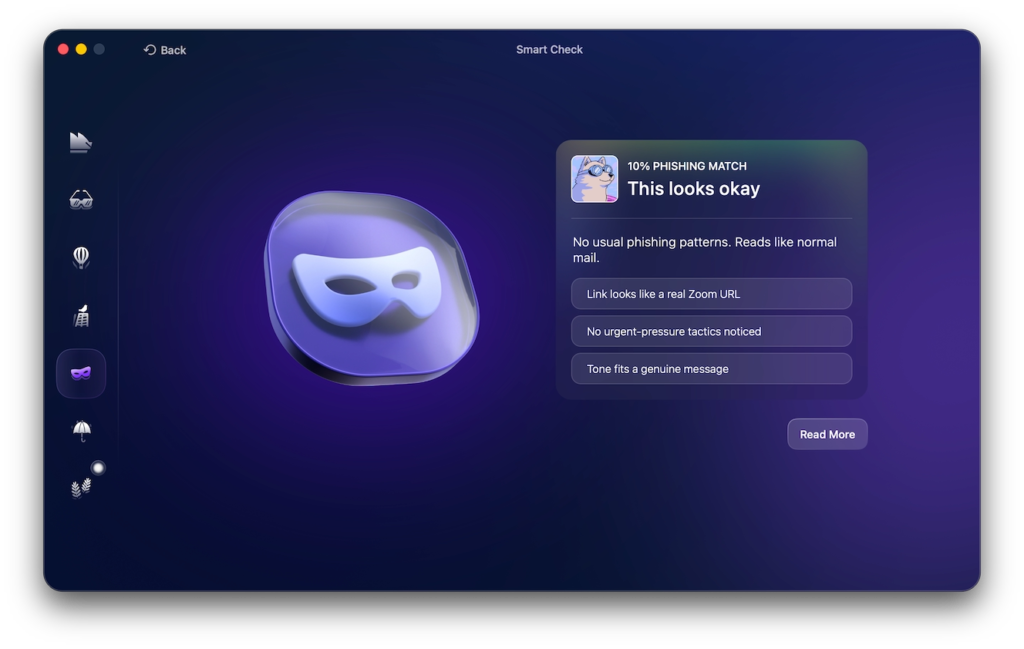
Not recognizing the sender’s details or receiving unsolicited files is a warning sign that warrants checking the sender-verification section. You can also use Moonlock’s Scam Detector to check the body of the email itself.
Sign up for a 7-day free trial of Moonlock, then copy and paste the suspicious email into the Scam Detector. Moonlock will scan the message for the typical signs of a scam, then present a phishing likelihood result, with a recommendation of whether you should trust this email or not.
2. Purchase order and invoice scams
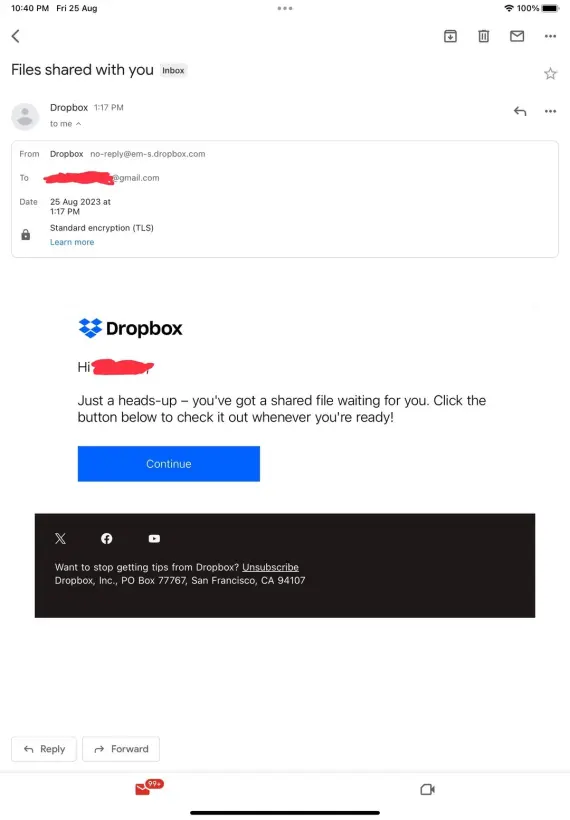
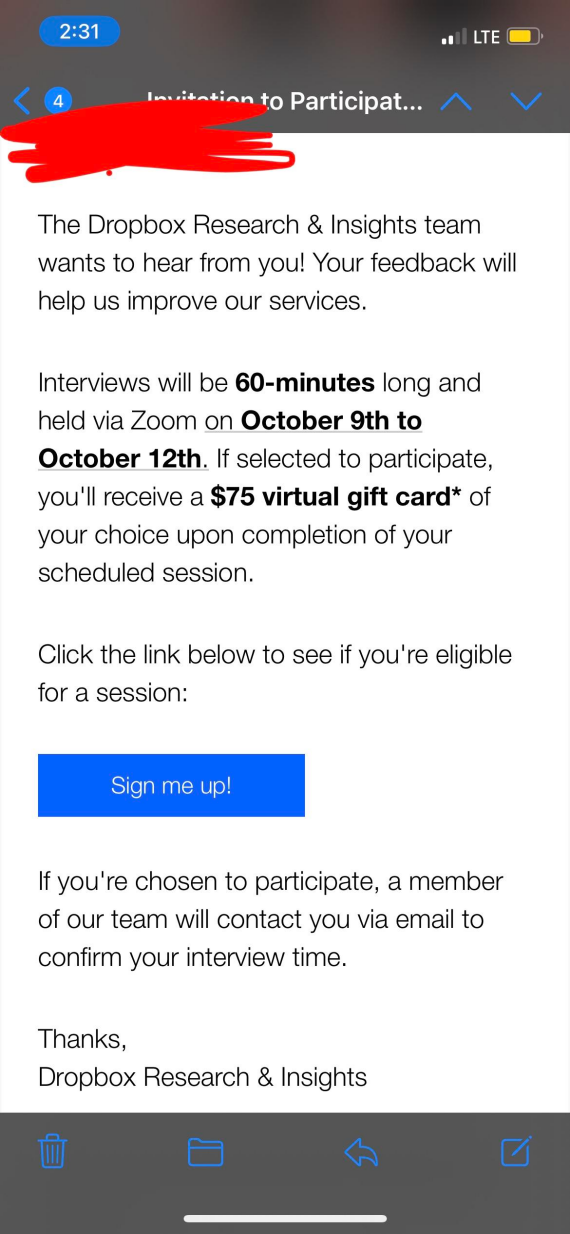
In July of 2026, researchers documented a widespread Dropbox phishing campaign featuring an XLSX purchase order marked as “Pending Approval.” Clicking “Open Document” or “Download” led users to the same credential-stealing phishing page. Another variant claimed a “Finance Department Invoice” and linked to a fake webmail login page.
For unexpected Dropbox emails about recent purchases or vendor orders, it’s best to always verify them directly through the vendor’s website, email, or phone number. Avoid clicking on any links or buttons in the body of the email itself.
3. HR, payroll, and benefits scams
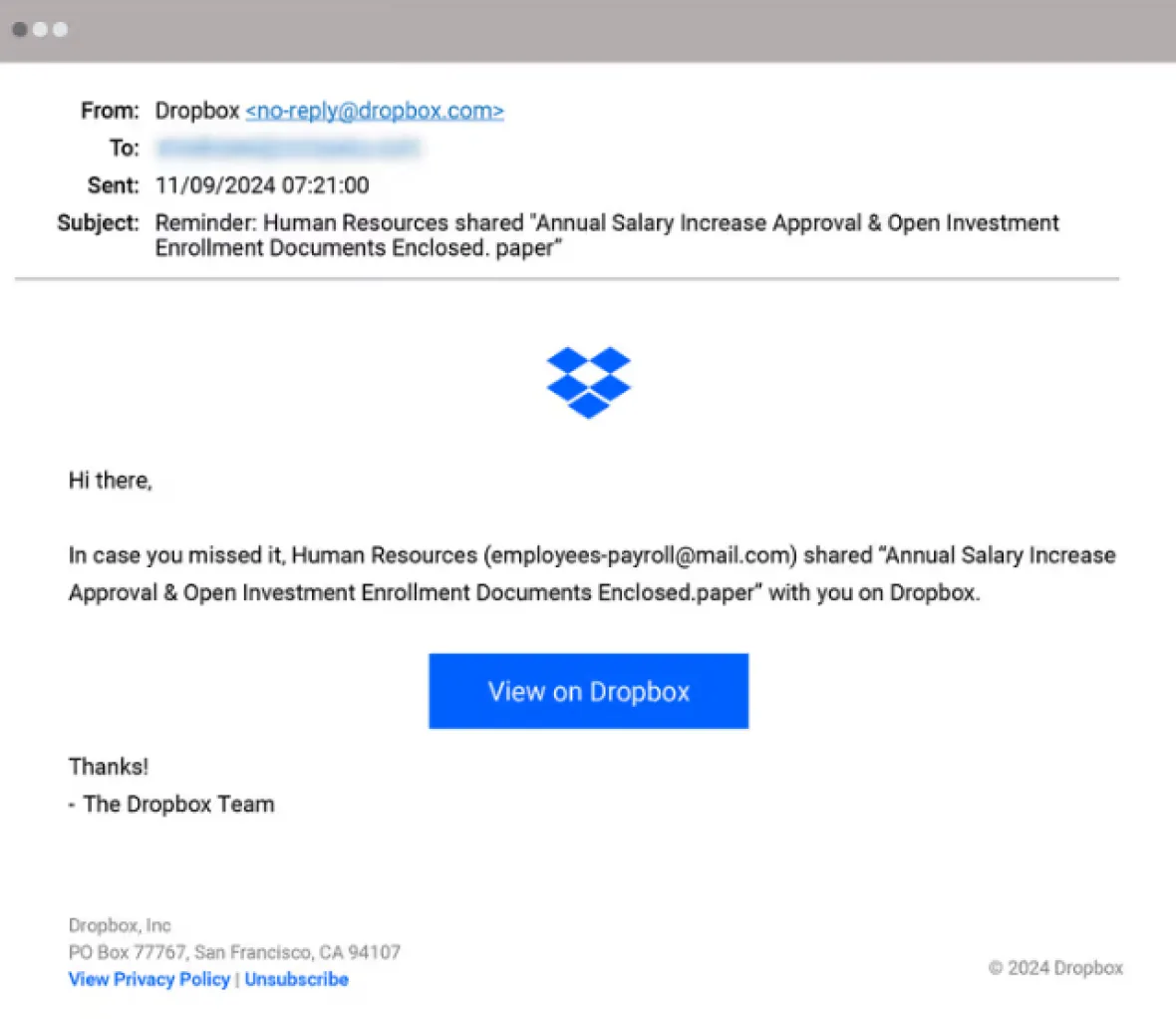
Emails or notifications appearing to be from “HR Employee Benefit (via Dropbox)” exploit the excitement of potential pay raises or benefits to get you to click without looking. In reality, the sender is a scammer.
Always check the sender’s full address and inspect the email for any inconsistencies in the layout, font, or branding.
4. Fake contracts and Dropbox Sign (HelloSign) scams
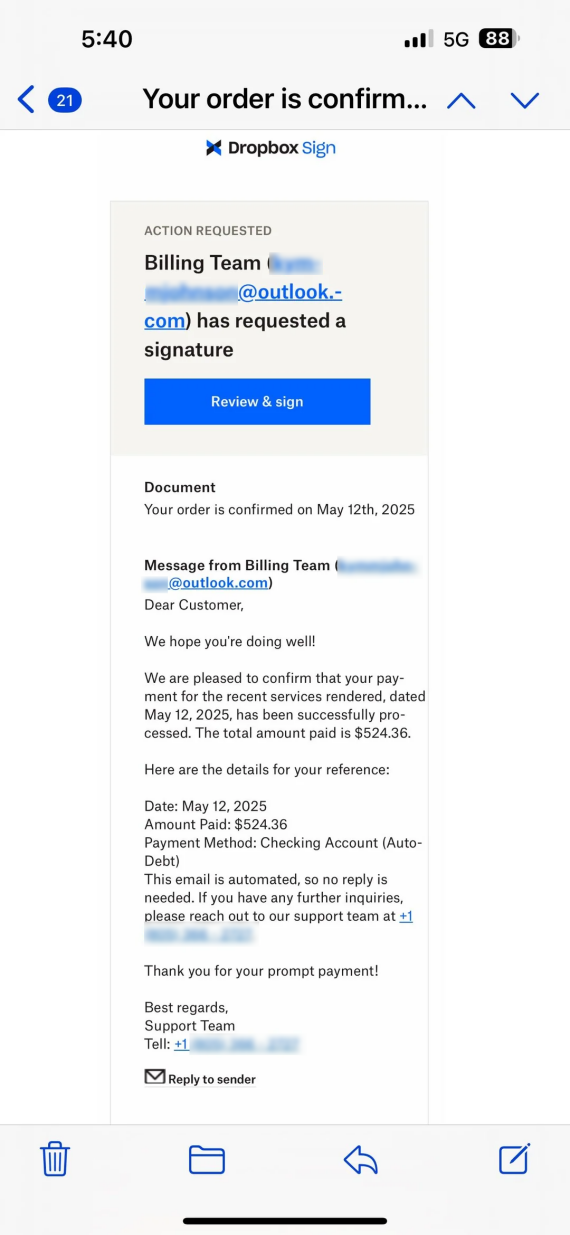
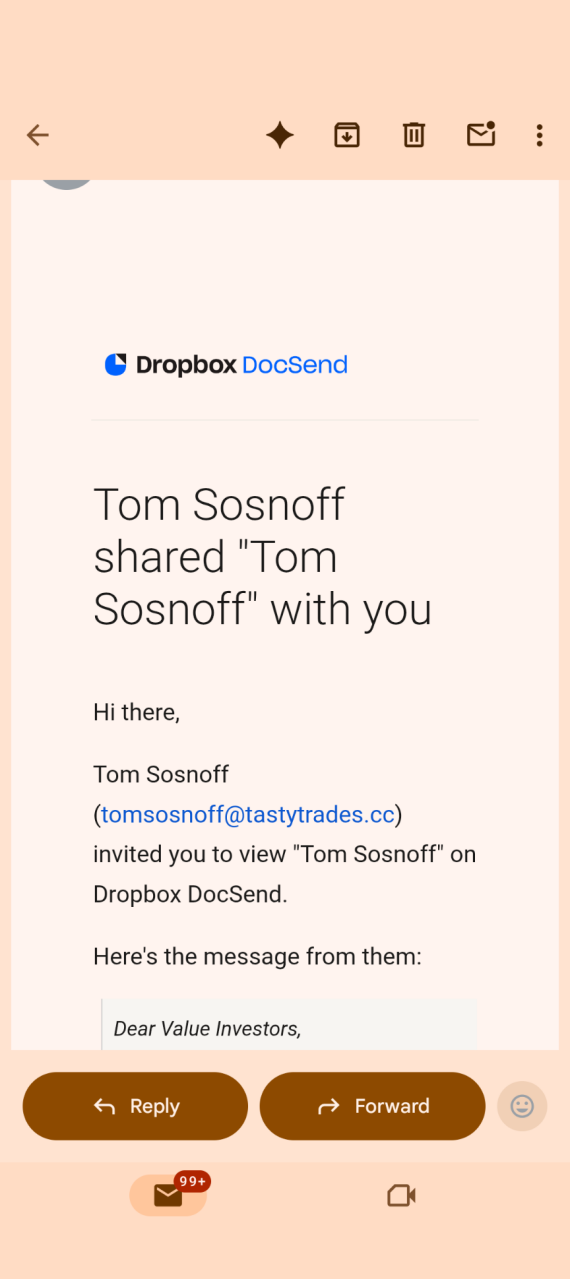
Some Dropbox scams exploit urgent contracts, where an email might request that you “review, sign, and return” an e-contract quickly. A recent September 2026 scam used “Eplicit-contracts.pdf” to redirect victims to a credential-stealing webpage.
One particular example is the Dropbox Sign scam, which uses signature requests from legitimate but attacker-controlled accounts. These don’t get flagged by Dropbox or your email client because [email protected] is considered an official sender.
Before proceeding with any contract, verify it through an existing conversation with the sender.
5. Fake storage-full, password, and account-suspension alerts
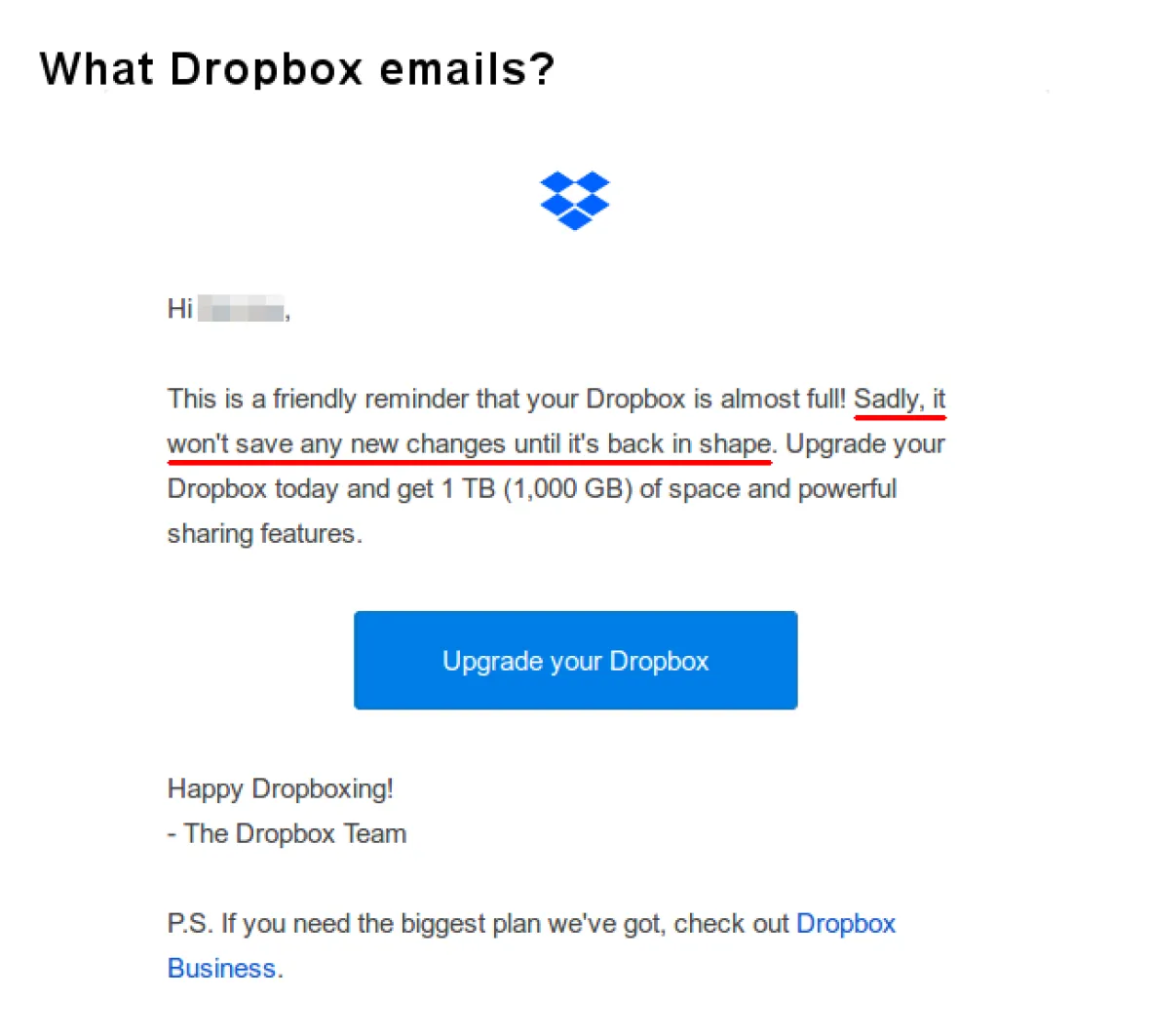
A Dropbox email scam may claim that your storage is almost full, your password has expired, or recent suspicious activity led Dropbox to lock your account for safety. They usually prompt you to click on a link as soon as possible, either to sign up for more storage or to verify your identity.
Verify any Dropbox alerts directly through the website or app, not through links in emails.
6. PDF attachments that lead to a fake Dropbox login
Forcepoint X-Labs uncovered a Dropbox phishing campaign in early 2026 that starts with a simple PDF attachment. Clicking on the attachment would take you to a cloud-hosted PDF instead of downloading it on your device, then to a fake Dropbox login page.
The attack didn’t use any malicious attachments directly in the email, which allowed it to evade antivirus detection while redirecting victims to a credential-stealing webpage.
7. Two-stage emails and compromised-contact scams
To maneuver around user suspicions, scams sometimes work in 2 steps, with the first being harmless. Some Dropbox scams begin with an introductory email such as a discount on an online store or a “Business Proposal.”
Once the first email passes, the second one arrives. This one includes a malicious email attachment or link. This is why it’s important to always verify unexpected files through a separate communication channel. Don’t trust anything blindly just because it passed basic sender checks by Dropbox.
8. Fake Dropbox support and billing phone numbers
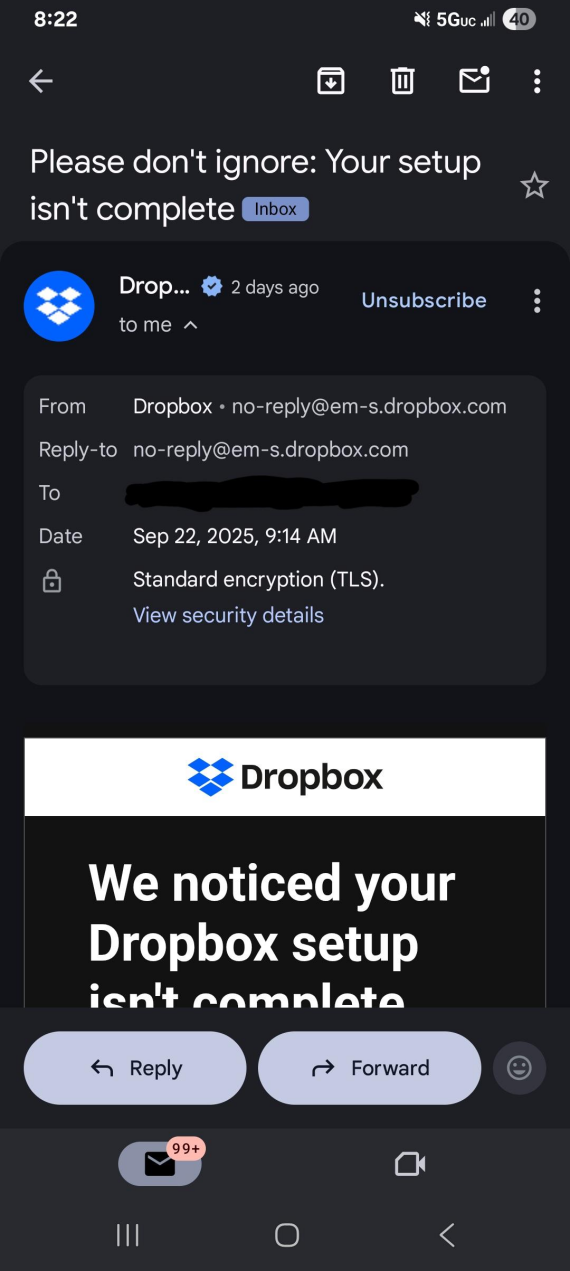
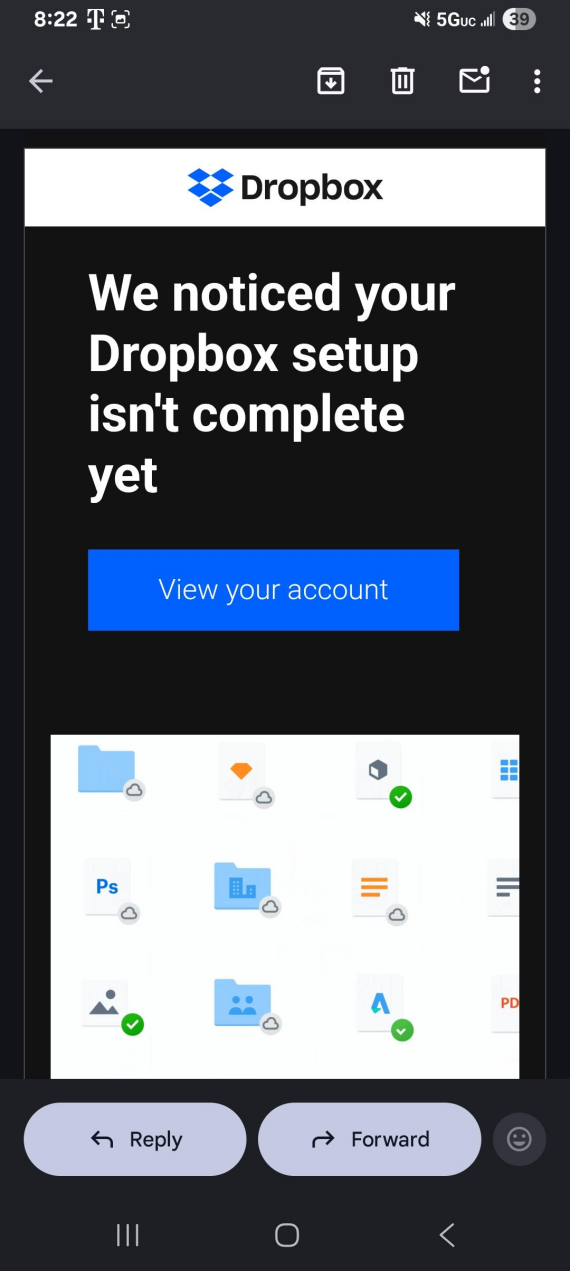
Fake emails about free trials almost ending, recurring subscriptions, or unexpected charges urge the victim to click on a link or call a fake customer support number to resolve. For Dropbox, they might claim that you’ve signed up for a paid plan when you haven’t.
For any claimed charge, always check the website or app directly for billing details. Calling the number in the email will lead you to a fake support agent who will request remote access to your device, personal information, or gift card payments.
9. Dropbox files that deliver malware
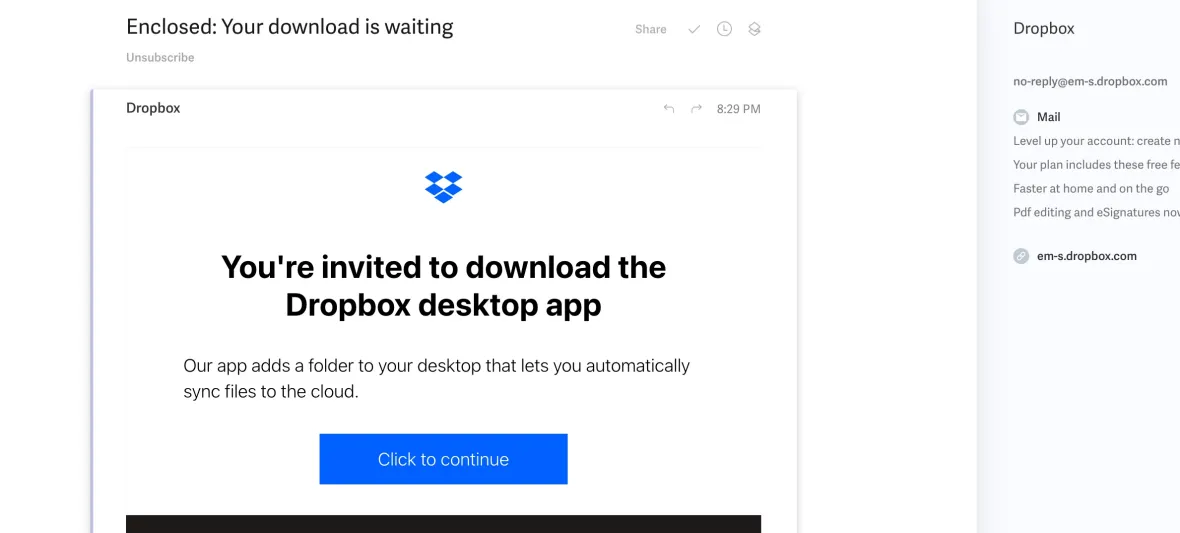
A Dropbox virus can be hidden in an otherwise legitimate-looking file shared through Dropbox. It might even be able to evade virus detection by not being sent as an email attachment. In some cases, fake “virus detected” alerts may even be the scam itself.
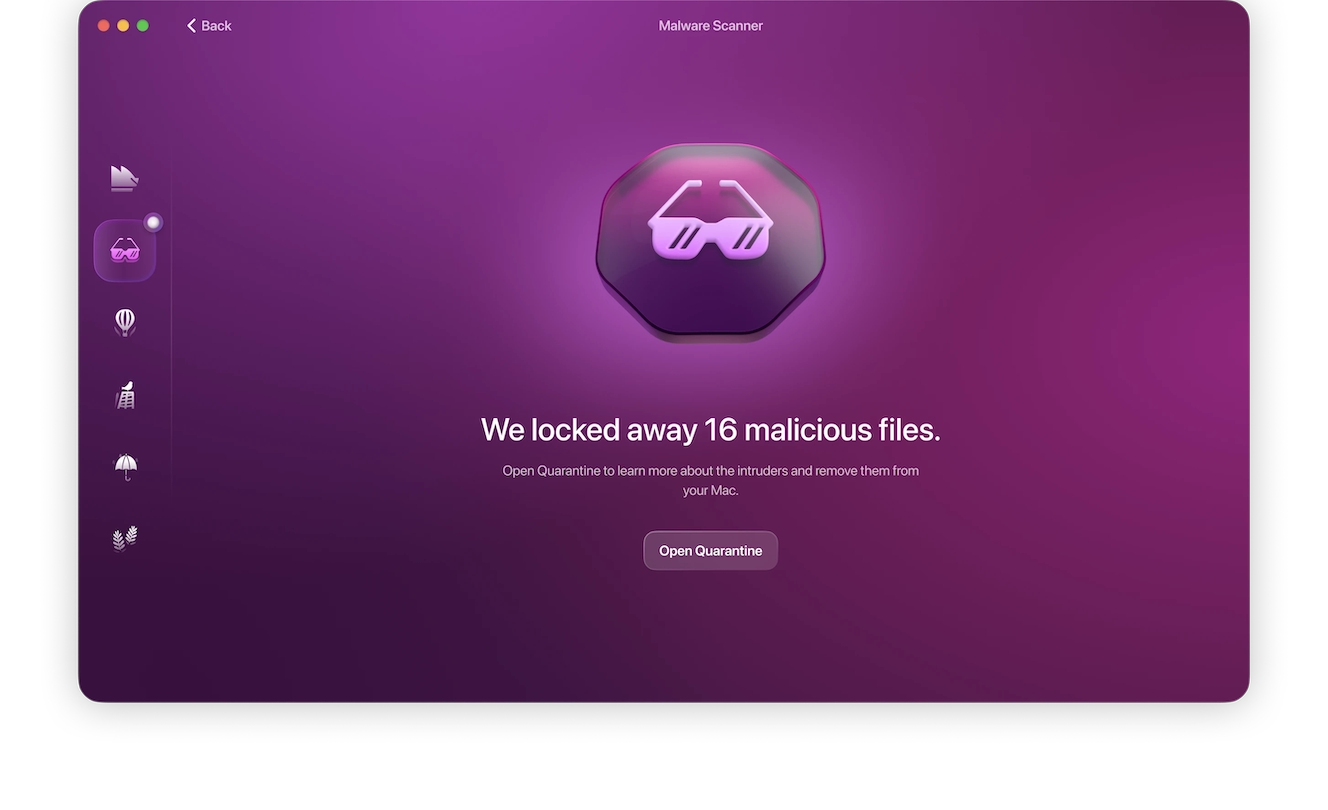
If you click on or download any Dropbox file on your Mac, immediately use Malware Scanner to check your device for malware.
By initiating a Deep Scan, Moonlock will sift through all the files on your Mac for threats. If it finds anything malicious, it’ll immediately isolate it in Quarantine to stop it from further damaging your device before fully and safely removing it.
10. Malicious apps asking for access to Dropbox (consent phishing)
A malicious third-party app or piece of software might request access to Dropbox files through a legitimate consent popup.
Never give apps access to more privileges than they strictly need to work, and regularly review Dropbox’s access permissions:
- Open Dropbox.com.
- Click your avatar in the bottom-left corner.
- Click Settings, then Apps.
- Click the arrow next to the app you want to disconnect.
- Click Disconnect.
11. Dropbox scams by text message and QR code
A Dropbox scam doesn’t always originate in your inbox. Many scammers use shortened links and QR codes printed or sent through SMS messages with urgent expiry warnings.
While Dropbox does send verification codes via SMS, billing updates and passwords are a different case and should always be checked directly on the website or app.
How to tell if an email is really from Dropbox
Check the domain and overall layout of the email before engaging with it. Simply seeing the Dropbox logo in the corner of the email isn’t enough to guarantee your safety.

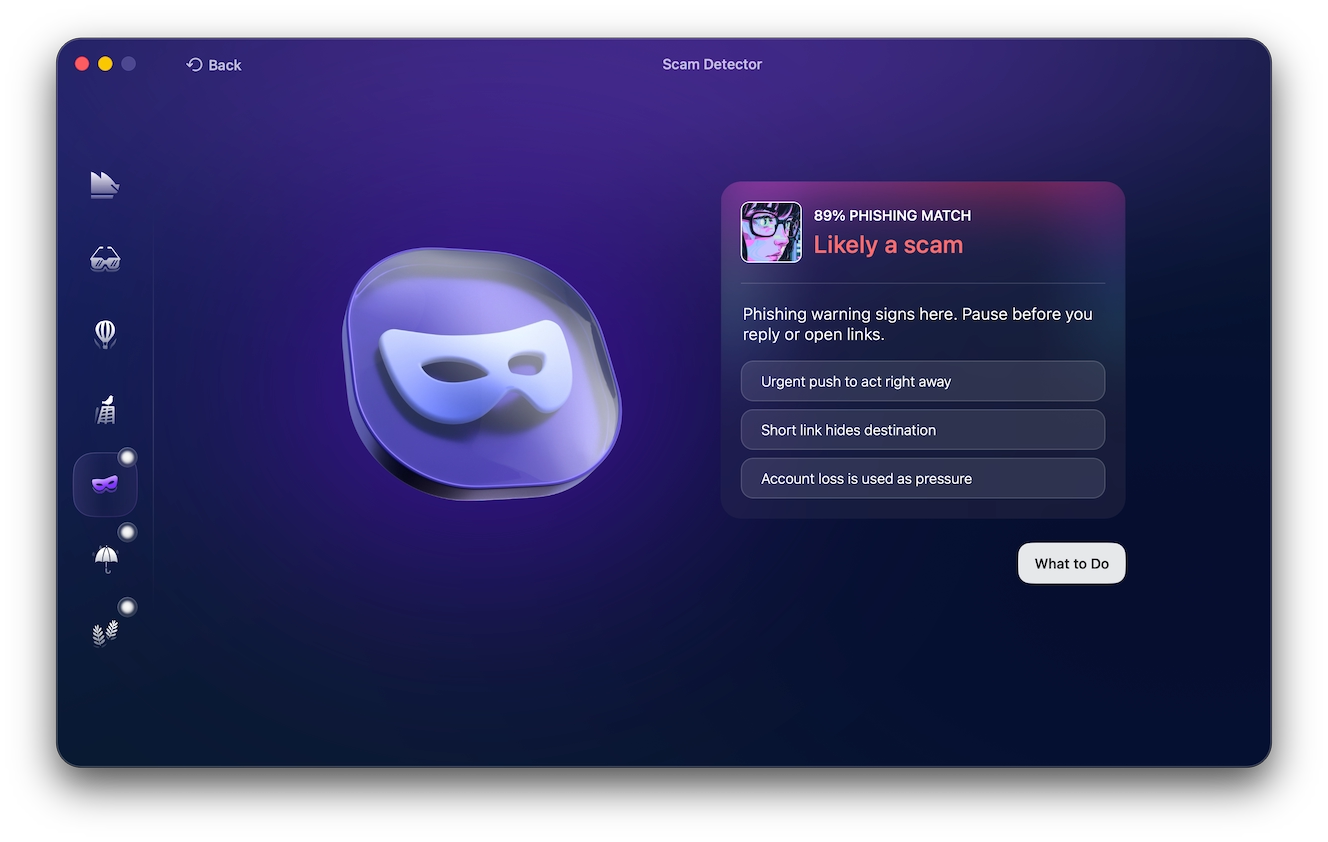
Scam Detector can help with identifying suspicious language and phishing tactics most commonly used in emails. Available with a 7-day free trial of Moonlock, install the app, then simply copy the body of the email into the detector and click Scan to obtain the analysis results.
If Scam Detector determines that the email has a high “phishing match,” you’ll have the option to click on “What to Do” to be presented with actionable advice on how to stay safe from scams.
To tell if a Dropbox email is genuine or not, follow these checks:
- Verify the sender domain: Only trust emails coming from Dropbox’s official domains like dropbox.com or dropboxmail.com.
- Watch out for impersonation: Sender emails can be forged, or attackers may use genuine Dropbox accounts to send legitimate notifications. Verify the sender yourself and don’t interact with any unsolicited requests.
- Dismissing unfamiliar notifications: Messages such as “Files shared with you,” even if they’re coming from official Dropbox domains, should be handled with extreme caution, as the files could be malicious.
- Verify requests in Dropbox: Check any billing, account updates, or account verification notifications directly through the Dropbox app or website, and not through email.
Red flags of the Dropbox scam
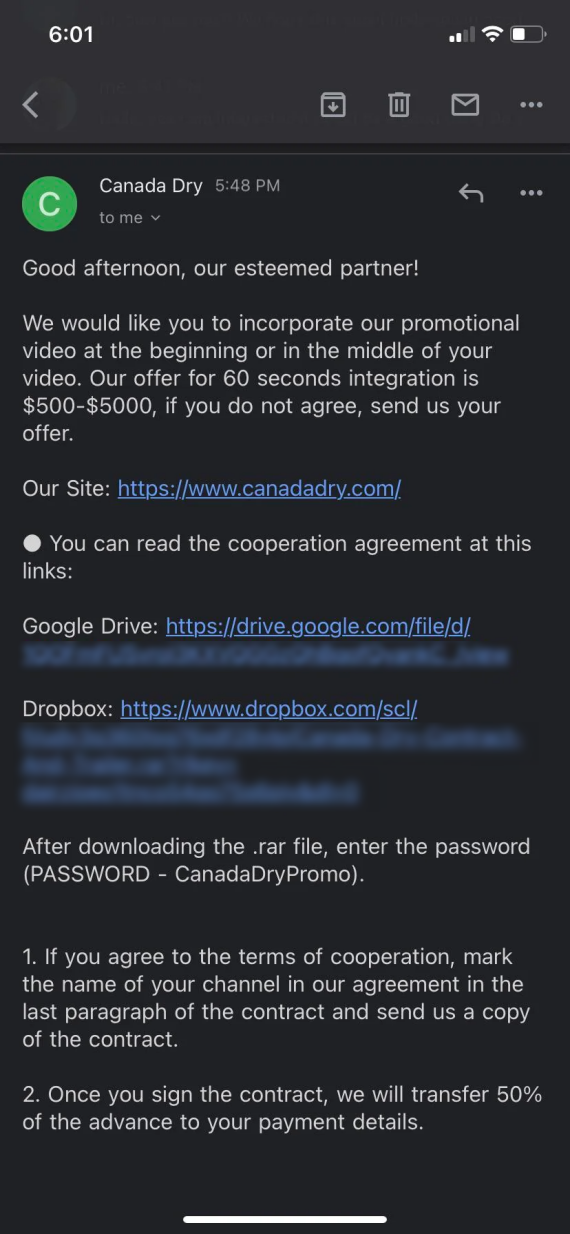
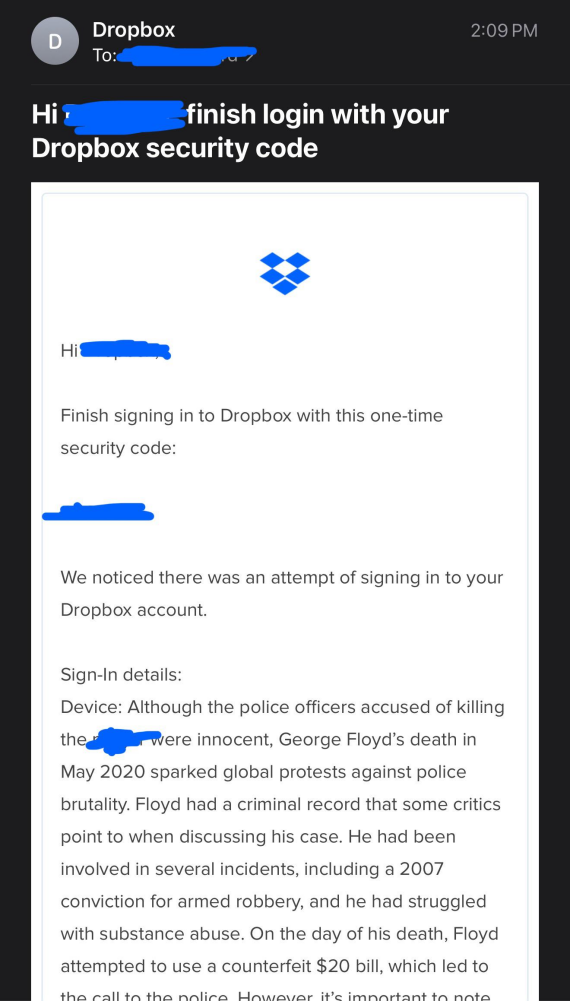
Here’s what to look out for when handling a Dropbox scam.
What legitimate Dropbox emails won’t ask:
- Share passwords: A message that states something like “Reply with your password to verify your identity” is credential theft.
- Share verification code: Never send your 2FA verification codes to someone claiming to be Dropbox customer support.
- Allow remote access: Refuse any request to “Install AnyDesk for support,” as this may lead to unauthorized access to your account.
- Unusual payments: Refuse any requests to pay with gift cards, crypto, or wire transfers for Dropbox premium plans.
- Disable security tools: Requesting that you “Turn off antivirus” before downloading an attachment or shared Dropbox file is a major red flag.
Warning signs of a Dropbox scam:
- Mismatched domains: A website like dropbox-login.com isn’t the real Dropbox.
- Unexpected attachments: Be wary of receiving an unsolicited ZIP or PDF file.
- Missing sender info: “Someone shared a file” with no identifiable contact details should be a red flag.
- Urgency: A notice such as “Link will expire in 30 minutes” is meant to pressure you into taking immediate action.
- Generic greetings: “Dear user” or “Dear customer,” with no context, can be a red flag.
How to check the sender in Gmail or Apple Mail to avoid Dropbox phishing
You can check a sender’s actual email by following the path:
- Gmail: Open the email and access the 3-dots menu, and select Show original. Check the From, Reply-To, and Return-Path addresses.
- Apple Mail: Select View > Message > Raw Source to inspect the email.
You should also check Authentication Results for SPF, DKIM, and DMARC failures to ensure that the email has passed the email client’s authentication checks.
You can follow Dropbox’s guide for checking emails in Yahoo and Outlook.
How to check a Dropbox share safely
Even if the Dropbox email looks legitimate at first glance, it’s important to check its safety before actually clicking it:
- The sender: Confirm that the email address or Dropbox account matches the person sending you the file.
- The link: Preview the URL to verify that it leads to Dropbox’s legitimate website. Look for any misspellings or weird characters.
- The file: Look for generic file names or unexpected formats like .exe instead of .pdf for a contract.
The Dropbox notification can only confirm the delivery of a file, not the safety of the file itself or the sender’s intent. Before downloading or opening a file from Dropbox, confirm it directly with the sender. Ask them through a separate channel whether they shared a file with you and what it includes.
Can opening a Dropbox email, link, or PDF infect a Mac?
Reading an email is generally safe and won’t trigger any viruses. Clicking on phishing links may lead to potential credential theft or drive-by downloads that can infect your Mac.
However, once you get into the territory of downloading attached PDF files and opening them, you risk infecting your device with malware. Macro-enabled documents and disguised executables can sometimes bypass Apple’s Gatekeeper technology.
Has Dropbox ever been hacked?
Yes. Dropbox has disclosed several data breaches over the years, with the April 2024 breach being the latest. In it, attackers breached Dropbox Sign, exposing the information of millions of customers.
Can a hacked Dropbox account send phishing emails?
Yes. If an attacker gains access to a Dropbox account, they can share malicious files with the person’s contacts without raising suspicion. These emails will even appear trustworthy, as they’re sent from Dropbox’s internal notification system.
What to do if a Dropbox scam email got a click or a password
Your next steps depend on whether you clicked a phishing link, downloaded an attachment, or entered credentials.
If a link was clicked but nothing was entered
Clicking a Dropbox phishing link doesn’t automatically compromise your account. Here’s what to do next:
- Close the page: Avoid any further interaction with the page or email.
- Check downloads: Delete any unexpected files or drive-by downloads without opening them.
- Scan your Mac: Check for malware or viruses.
- Verify your account: Check Dropbox directly for any recent activity.
If an email or Dropbox password was entered
Log out and change your account password immediately to avoid losing your account. Here’s how to do it:
- Log out: Log out of all active sessions to kick out potential intruders.
- Change your password: Update compromised credentials.
- Enable 2FA: Use a secure email or phone number to receive your 2FA codes.
- Check activity: Review file, account, and third-party app access history.
If a file was downloaded or opened
If you have downloaded or opened a file, your Mac may already be infected. Here’s how to proceed:
- Stop interacting: Don’t open or run any more downloaded files.
- Disconnect: Go offline if you suspect malware or a keylogger.
- Scan: Run a trusted antivirus scan.
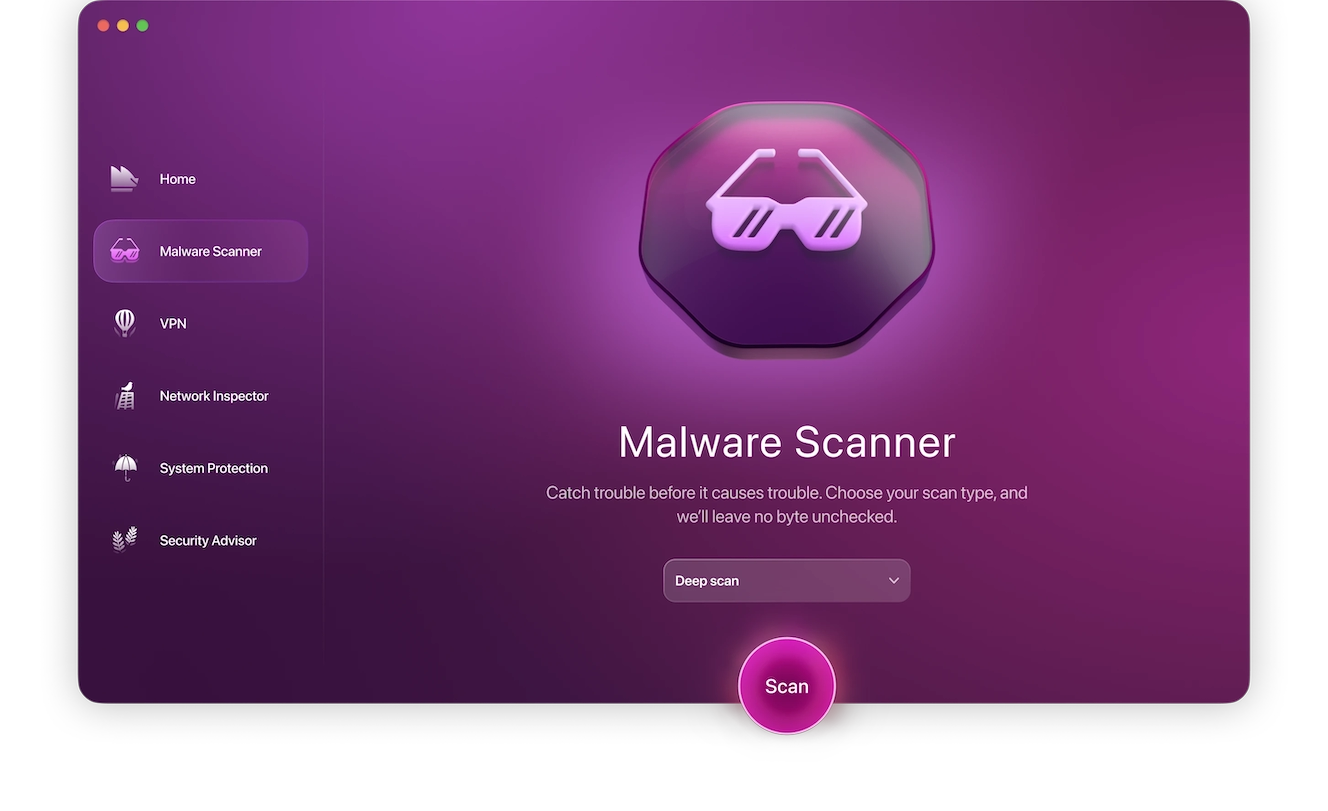
Use antivirus to scan your Mac for any lurking malware, spyware, or viruses as soon as possible to minimize damage. Here’s how to do it:
- Sign up for a 7-day free trial.
- Open Moonlock and click Malware Scanner from the left-hand sidebar.
- From the drop-down menu, select Deep for the scan type.
- Click Scan.
If Moonlock finds anything suspicious on your Mac, it will immediately neutralize it and remove it from your device.
If an app was given access to Dropbox
With access permissions, malicious apps can access your files without needing your password:
- Revoke access: Go to Dropbox > Settings > Apps > Disconnect.
- Review activity: Check your files and sharing history.
- Secure the account: Change your password and enable 2FA.
If money was sent or a phone number was called
Act quickly, and you might be able to get your money back:
- Contact your bank: Dispute the payment and block compromised cards.
- Stop contact: Block fraudulent emails or numbers.
- Remove access: Uninstall any remote access software.
- Report fraud: Notify Dropbox and local authorities.
How to report a Dropbox phishing email
Report suspicious emails claiming to be from Dropbox to Dropbox itself:
- Forward the email: Send the complete email to [email protected].
- Report malicious links: Include the full URL and how you received it.
- Report shared content: Use Dropbox’s abuse reporting form to report malicious files on their servers.
Dropbox email virus, phishing, billing, and download safety FAQs
Still unsure of whether a Dropbox notification is real or not? These answers should cover the most common concerns.
Yes, this is a legitimate Dropbox address. However, it can still be spoofed, so verify unexpected notifications via Dropbox directly.
You may receive a Dropbox email without an account if someone shared a file with you, but it could also be a Dropbox phishing email, so verify it with the sender before clicking.
Dropbox Transfer sends legitimate email invitations, but scammers can similarly fake or spoof the address. Always verify unexpected transfers with the sender before downloading.
Check all Dropbox charges directly in your billing settings. Dropbox offers different levels of customer support, including a phone number for some paid plans.
The official Dropbox app downloaded from the App Store is legitimate and safe. Avoid third-party installers, as those could contain malware.
How to protect a Dropbox account from scams or phishing
You can reduce your risk and exposure to Dropbox phishing scams by taking these precautions:
- Enable 2FA to protect against stolen passwords.
- Regularly review connected apps and remove unnecessary permissions.
- Verify sharing requests with the sender before downloading or opening files.
- Monitor account activity for suspicious sessions or devices.
- Keep your Dropbox app and operating system up to date.
Ultimately, you should always verify requests independently and always take an extra minute to look over the email before clicking, even if it threatens you with a short deadline.
Scammers using Dropbox go out of their way to make their emails and messages as convincing as possible. But staying alert and taking a cautious approach to anything that lands in your inbox can help protect your account and device from fraud.
This is an independent publication, and it has not been authorized, sponsored, or otherwise approved by Dropbox, Inc. Dropbox is a trademark of Dropbox, Inc.