
Some of the most dangerous cyber attacks aren’t highly sophisticated or particularly powerful. Instead, they target user psychology through social engineering, tricking you into performing an action that opens up your device to threats like malware. ClickFix attacks are a recent example of such tricks.
Attackers are now utilizing a variety of ClickFix social engineering techniques to slip malware past modern security tools. But what are ClickFix attacks? And what makes them so dangerous?
What is a “click to fix” attack, also known as ClickFix?
A ClickFix attack is a social engineering technique that tricks a user into running a malicious command under the guise of “fixing” a made-up problem with their device or account.
In many cases, a “click to fix” attack will prompt you to copy and paste a short script into your device’s Terminal to “verify you’re human” or to “accept cookies.” Messages like these often appear after receiving and interacting with a phishing email or visiting a compromised website. By following through with these instructions, you’re basically providing the key for an attacker to bypass all of your cybersecurity defenses.
ClickFix attacks aren’t a specific type of malware. Rather, the attacks are used to infect your device to deliver a range of threats, including adware, spyware, ransomware, and Trojans.
Why ClickFix attacks are even more dangerous than they appear
ClickFix attacks are particularly dangerous because they don’t work like average malware. Many of them are expertly disguised to look like harmless “verification” or “troubleshooting” notifications, sometimes mimicking authentic system alerts so closely that it’s hard to tell the difference.
There are many risks to ClickFix attacks, including:
- You bypass your macOS defenses yourself: Your Mac can’t do much to keep you safe if you willingly bypass its security tools to install malware on your device. By pasting and running commands in the Terminal, you allow malware to dodge browser sandboxing, warnings, and any automated blockers because the action was initiated by the device’s admin.
- Gaining admin access: The ClickFix attack might ask you to verify your identity by instructing you to run commands as the admin or sudo in order to manage access permissions. If this request is followed through, it grants the attacker access to admin-level permissions to install all sorts of malware and spyware.
- Quarantine and network tampering: Some commands might install different configuration profiles, such as proxies or VPNs, enabling them to intercept your web traffic. They can also tamper with your Mac’s security settings to weaken checks or remove quarantine flags, making it easier to install future malware with fewer prompts.
- Personal data theft: Some ClickFix attacks directly target your personal data, particularly browser cookies or session tokens, enabling them to gain access to saved passwords, autofills, confidential documents, or crypto wallets. In some instances, you might suffer a complete account takeover.
How to tell if ClickFix-related malware has already affected your device
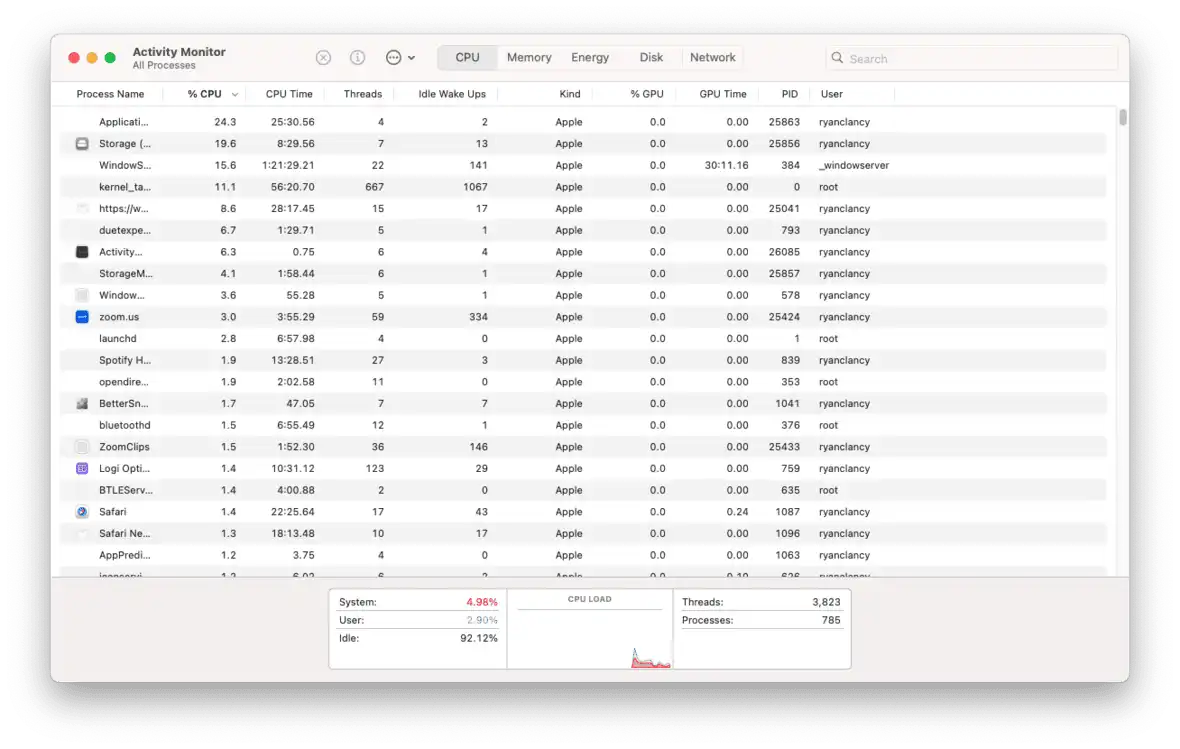
Malware you get from a ClickFix exploit isn’t necessarily different from malware you get any other way. While it’s not always possible to identify ClickFix-related malware yourself, there are a few signs that you can look out for, such as:
- Unusual CPU activity: Malicious scripts often work in the background, but they still consume your device’s resources. If your Mac is getting hot or the fan suddenly gets too loud, it might be a sign that your device has been infected.
- Browser changes: You might notice new browser extensions installed or changes to your homepage or your preferred search engine.
- Changes to your privacy and security configurations: A ClickFix attack will try to target your device’s built-in defenses, so you might notice changes to access permissions and firewall configurations.
- Frequent security alerts: Repeated prompts asking you to “allow network connection” to apps or binaries you don’t recognize might be a sign that a malicious third party is trying to gain access to your device.
Of course, it can be difficult to keep an eye out for all the signs of a potential ClickFix attack. You should instead try a made-for-Mac antivirus tool, like Moonlock, to detect suspicious activity on your device.
Typical ClickFix scenarios that users fall for
ClickFix attacks work because they prey on your sense of security and trust in the websites you visit. They seem legitimate and appear to be meant to help you solve a problem with your device or account.
Not to mention that attackers are getting creative, and there are many varieties of ClickFix attacks to look out for.
Fake CAPTCHA or “I’m not a robot” pop-ups
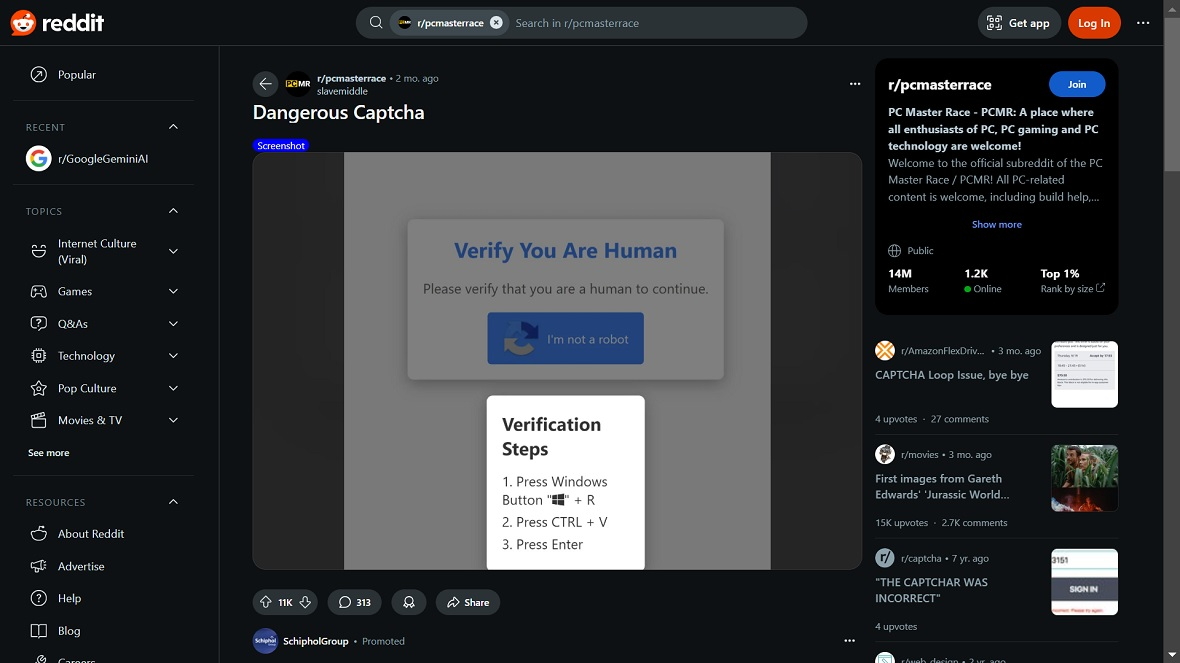
Instead of the usual “click on all pictures of a car” type of CAPTCHA, you may suddenly be asked to open your Terminal and paste a command or script into it. It might be labeled under “Verification text” or “Verification requires manual setup on macOS.” The pasted line is usually what downloads and runs the malware.
“Update available” pop-ups and messages
A compromised site might claim your Safari, Chrome, or Firefox browser is outdated, prompting you to click a button or a pop-up to update it. Be wary of any message or pop-up asking you to use your admin privileges to install something on your Mac, as this is the attackers’ way of bypassing your device’s security features.
Login or “locked out of account” error
Malware isn’t always the end goal of ClickFix attacks. Sometimes, they operate more like the classic tech support scam. You could get an alert regarding “suspicious activity,” a “syncing failure,” or an “account locked,” with the claim that you must run a command to reset your network and security settings.
You might unknowingly be tricked into setting up a proxy or VPN network to a malicious third-party, resulting in credential theft or account takeover.
Common places where ClickFix attacks appear
ClickFix attacks sneak up on you in places where you’re already expecting to solve a CAPTCHA to give access permissions, such as:
- Search results for “fix” queries: Through SEO and chatbot poisoning, attackers target people looking for solutions for their devices or accounts. These usually appear as ads or tech-support websites trying to seem helpful.
- Website pop-ups: These include ads, pop-ups, and cookie consent forums on compromised websites. Malicious actors now know that people click the “accept” button without really reading the prompt if it looks legitimate enough.
- ClickFix phishing emails: Emails about unsuccessful login attempts, unpaid invoices, or shared documents push a sense of urgency, making it more likely that a user will follow through on the ClickFix prompt.
How a ClickFix scam works, step by step
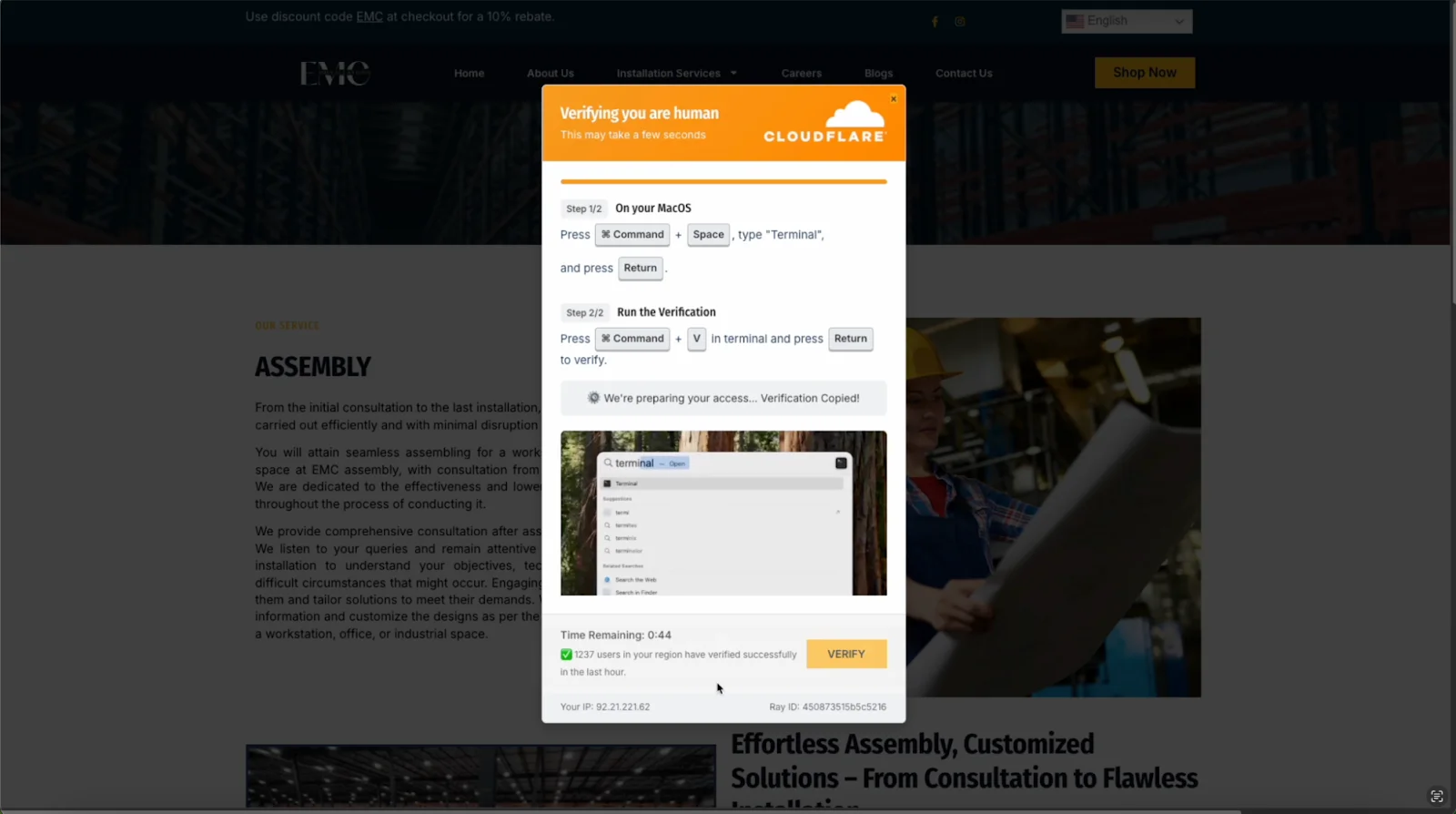
Step 1: Grab your attention
Whether it’s an email, a pop-up, or a CAPTCHA, the scam works by looking legitimate and urging you to take action immediately. You’ll likely get messages like “browser out of date” or “verify you’re human.”
Step 2: Get the first click
When you click “Verify” or “Fix,” the scam will walk you through copying and pasting a specific command into your Terminal. Usually, the copy occurs automatically when you click, so you don’t even see what you copied.
Step 3: Walk you through opening Terminal
You are now given step-by-step instructions on how to open Terminal, paste the text you copied, and run it. No other instructions are provided after that; as usual, that’s all a ClickFix scam needs you to do.
Step 4: Download and run the malware
Having bypassed your device’s firewall and security features by tricking you, the admin, into granting them access, the script uses built-in tools to connect with a remote server to install malware on your device. Some would even go out of their way to delete all traces of their presence to reduce suspicion.
Why ClickFix often bypasses traditional security tools
Typical malware is detected by your device’s security tools because it tries to exploit browser vulnerabilities and works in secret. ClickFix attacks, meanwhile, disguise themselves completely by having you install them through legitimate means.
Most security tools focus on blocking known malware or scripts that try to run without explicit permission. To your security system, ClickFix comes off as normal user activity.
How to remove ClickFix-related malware and unwanted files
Just because you’ve fallen victim to a sophisticated ClickFix attack doesn’t mean you’ve lost access to all your accounts and have to factory-reset your Mac. If you act quickly, you can still get rid of the unwanted files.
Scan your Mac for malware installed by ClickFix
While the process of getting malware on your device through ClickFix can’t be detected by security tools, the malware itself can. Your best bet is to have activity monitoring or regular scans enabled so that the malware is detected and deleted as soon as possible.
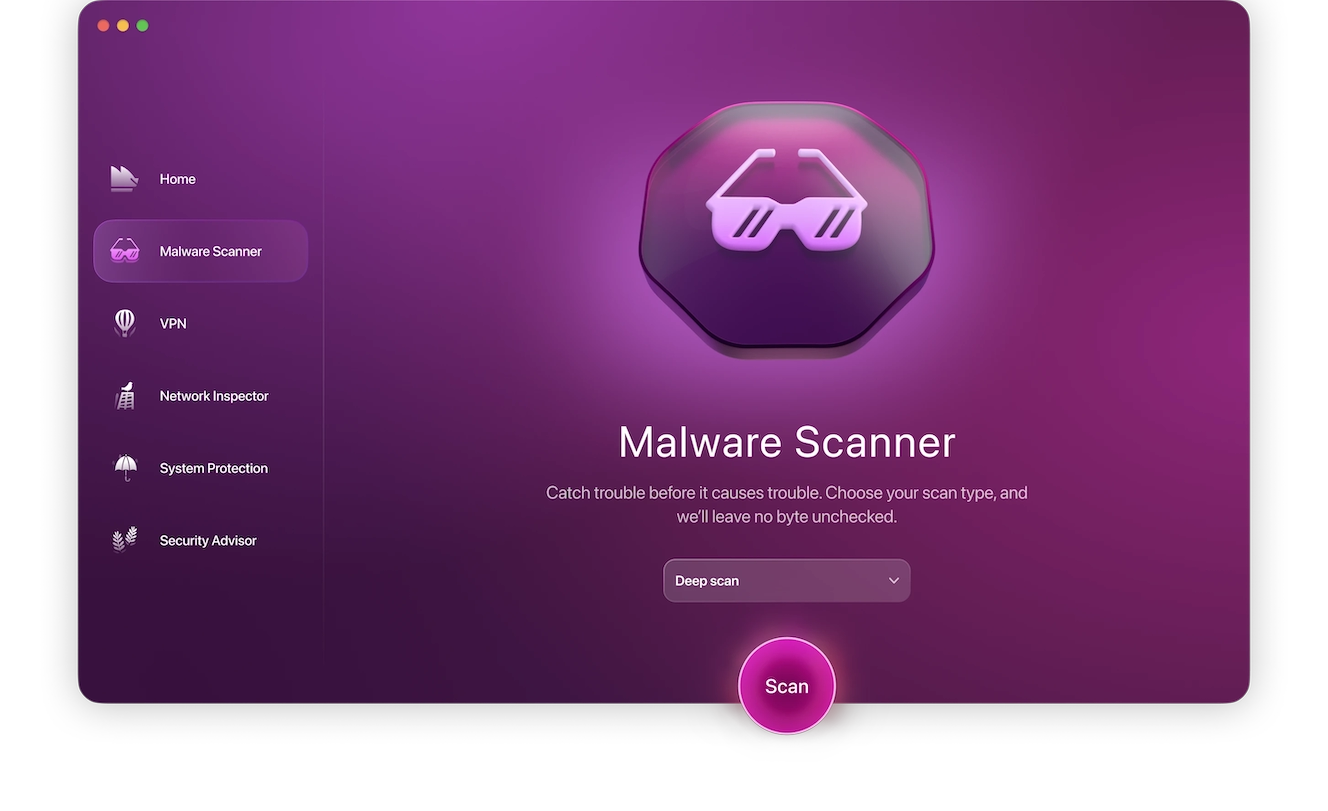
Sign up for a 7-day free trial of Moonlock and check your Mac for any malware or weakened security settings.
Here’s how you do it:
- Open Moonlock, then click on Malware Scanner on the left sidebar.
- From the drop-down menu, you can choose between Quick, Balance, or Deep scan. We recommend opting for a Deep scan.
- Click Scan.
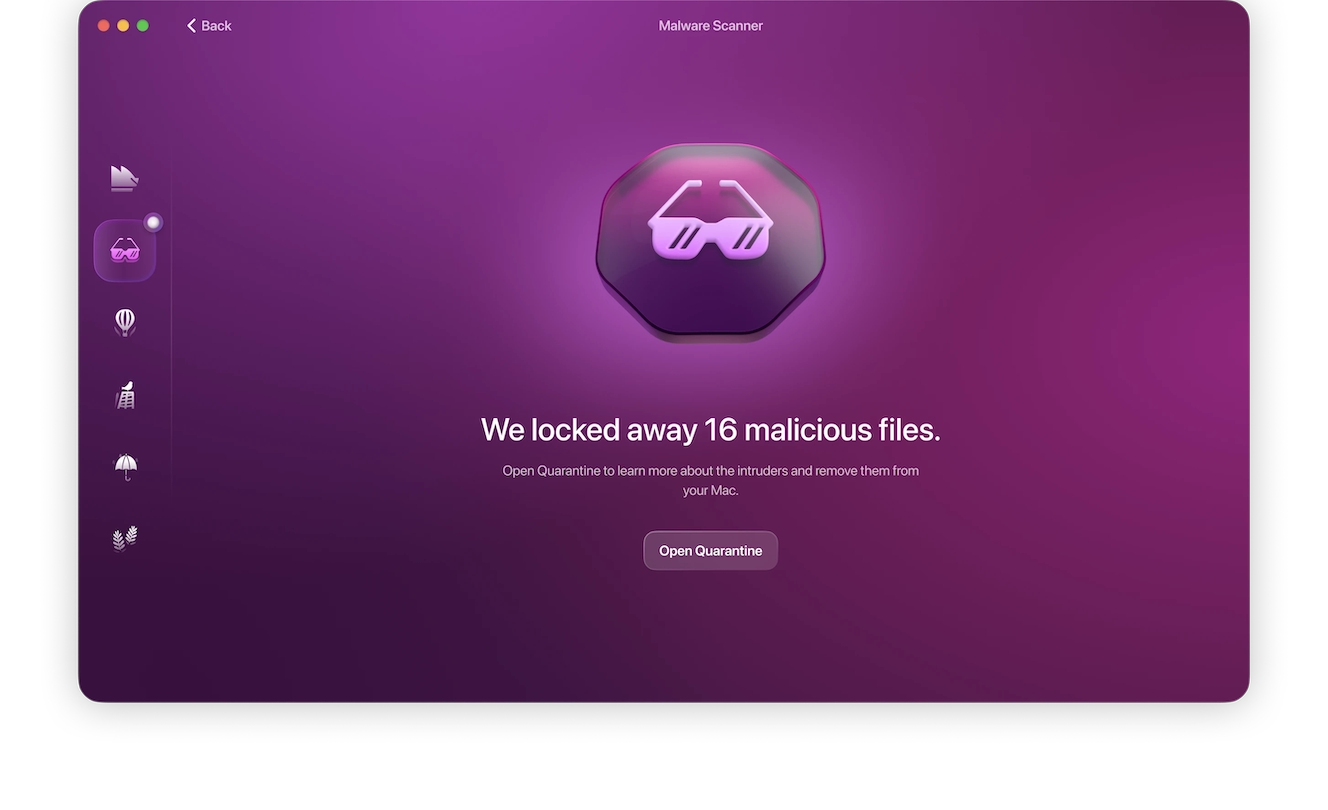
If the ClickFix attack has successfully installed malware on your device, Moonlock will scan through all your files, find it, and immediately isolate it in Quarantine to stop it from doing further damage. This allows you to safely and fully remove the malware from your device.
Manually reverse system changes
If you’ve downloaded anything harmful or made changes to the security and access permission settings as part of the ClickFix attack, it’s important that you retrace your steps and reverse the changes. Also, make sure you check the system settings for unknown profiles and remove unfamiliar Login Items.
How to avoid ClickFix and similar “click to fix” techniques
Our Moonlock Lab’s 2025 macOS threat report states that attackers are constantly coming up with new methods to exploit user vulnerabilities, but by staying alert and vigilant, you can protect yourself from ClickFix and similar “click to fix” and technical support scams.
Here’s what you can do:
- Don’t run Terminal commands you receive from unreliable sources.
- Only download apps and updates from reputable websites like the App Store or vendors’ official sites.
- Take a moment to double-check the source of a message or pop-up before acting on an “urgent” notification.
- Keep your OS and applications up-to-date and run regular anti-malware scans.
If something looks suspicious or too good to be true, it’s likely a scam. ClickFix attacks are designed to trick you, but you can avoid falling for them by working on your internet literacy and being suspicious of unexpected requests.
This is an independent publication, and it has not been authorized, sponsored, or otherwise approved by Apple Inc. Mac and macOS are trademarks of Apple Inc.