
While Macs are known for having some of the best security features straight out of the box, the idea that they are fully immune to malware infection is a myth. Strange behavior could be due to user error or a sophisticated method of attack, but it’s important to recognize the signs of your Mac being infected with malware as soon as possible. In this article, we cover how to tell if your Mac is infected and what to do about it.
What an infected Mac usually means for users
Whether it’s your personal Mac or one you use exclusively for work, an infected device usually means bad things for you. Depending on the type of malware infection, you could be putting your personal data, privacy, or device performance at great risk.
While some malware will silently steal your passwords and credit card information in the background, others might exploit your system’s resources to mine for cryptocurrency. In some instances, your accounts and personal files could fall victim to ransomware, or a malicious individual might impersonate your identity using all the information they gathered on you.
It’s also worth mentioning that the risks will only increase the longer you leave the infection to spread throughout your Mac.
Can a Mac be infected even if there are no clear signs?
Unfortunately, yes.
This is especially the case for spyware and infostealers, as they do the most damage the longer they stay on your Mac and can cause havoc while working silently in the background with little to no signs.
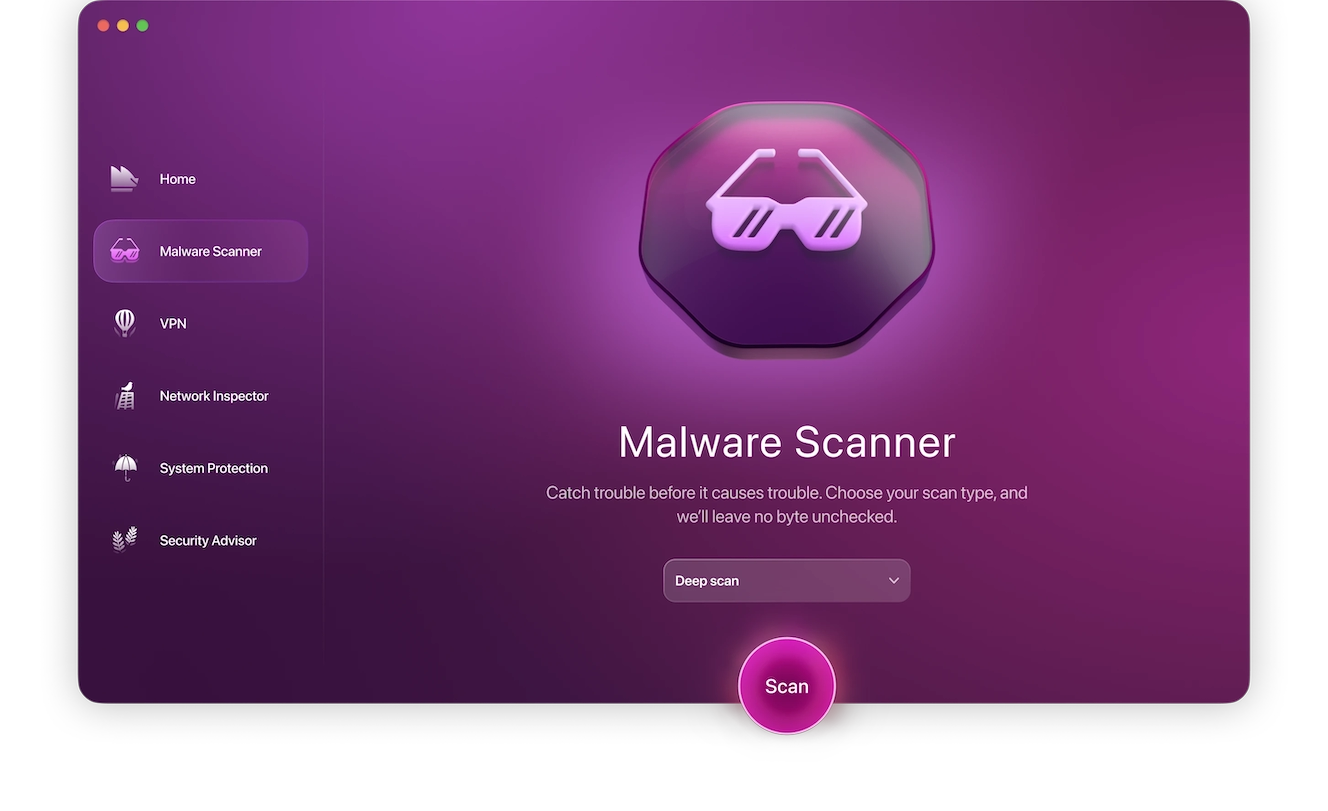
To make sure you don’t fall victim to such exploits, it’s important to use a reliable antivirus, like Moonlock, to constantly monitor your Mac for suspicious activity. Sign up for a 7-day free trial of Moonlock and run your first malware scan.
Symptoms that may indicate that your Mac is infected
Without running a thorough malware scan to find and remove malware, it’s tricky to tell for sure whether your system or macOS is infected, especially for system-related and performance symptoms that might just be caused by the device’s age or physical state.
That said, the presence of multiple signs is usually a reason for concern. Here are a few symptoms to watch out for.
1. Frequent system freezes or crashes
Malware running in the background might interfere with your device’s system, causing your Mac to freeze or restart unexpectedly. This is usually the case for poorly coded spyware or more intrusive adware.
2. Rapid battery drain
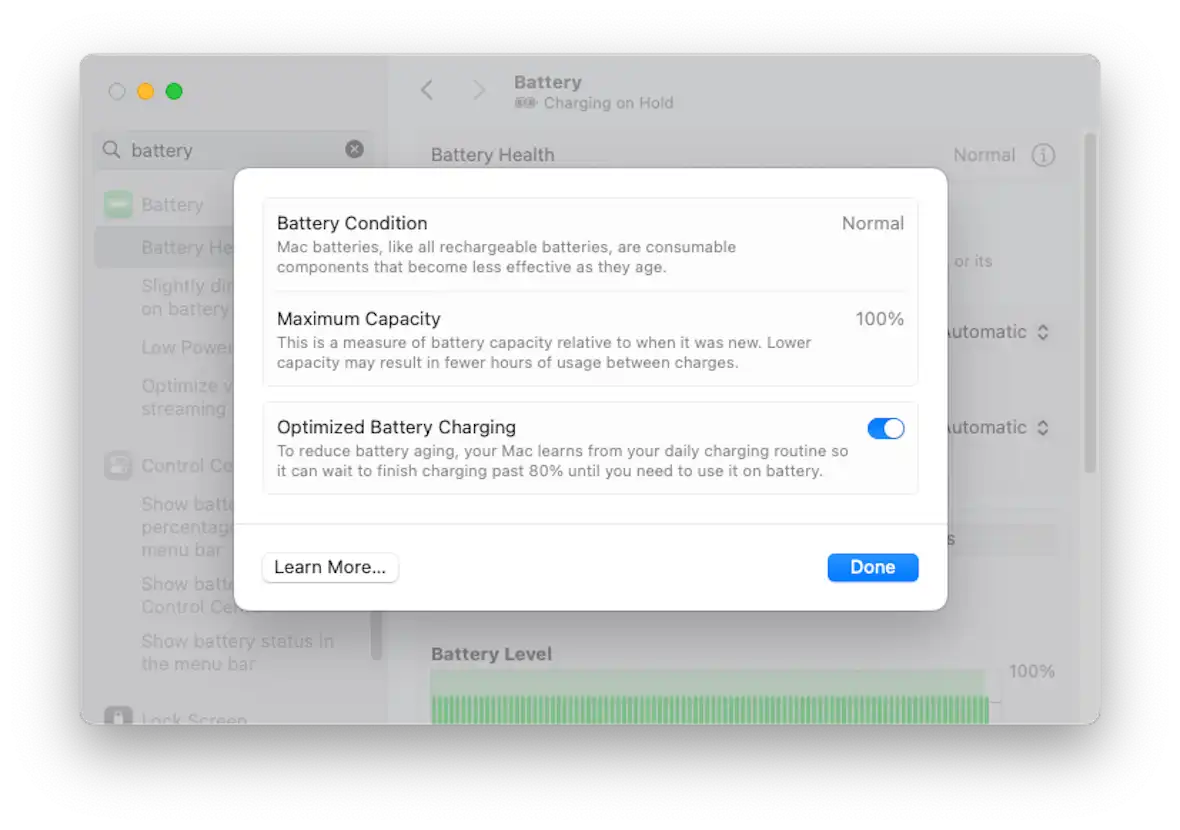
Your Mac’s battery life depends on the device’s age and the software you usually run, including those that run in the background. And since most malware runs in the background without alerting the user to its presence, you might notice your device running out of juice quicker than usual, even though your usage habits haven’t changed.
This is usually a sign of more resource-intensive types of malware, like cryptojackers.
3. Unfamiliar apps or processes running
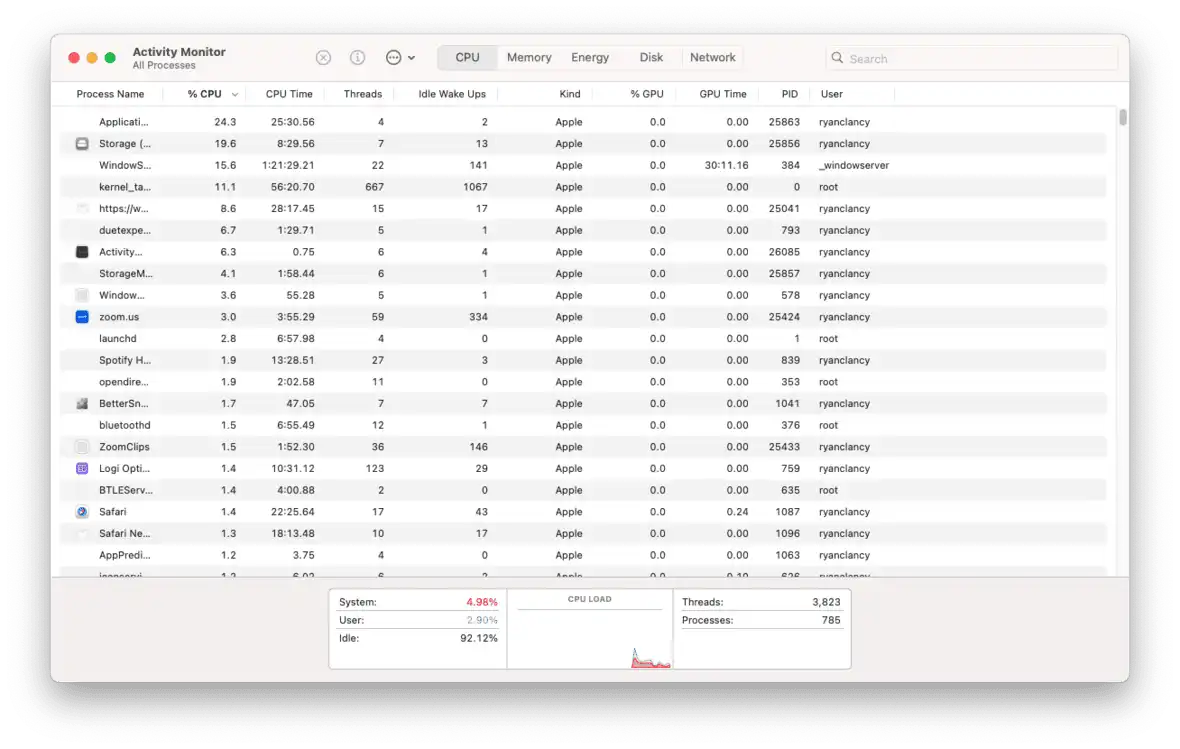
Sometimes, malware isn’t very good at staying hidden. You might notice unfamiliar items in Activity Monitor or apps you don’t recognize in your Applications folder. These could be trojans or backdoors that self-install when you click on a malicious link or download an infected file.
4. System slowdowns
Your Mac has limited computing resources that it dedicates to the apps and programs you run. So if there’s some malware consuming them in the background, you might start to notice your usual apps taking longer to launch or your device lagging more often.
Similar to battery drain, this is usually caused by resource-intensive malware like cryptojackers and botnet malware.
5. Overheating or running too loudly
While this might not be a reason for concern if you regularly run heavyweight software or video games, the same can’t be said if you’re a casual user. High CPU/GPU usage increases your Mac’s temperature and causes the internal fans to run faster to cool it down.
If you cannot identify the specific application you were using at the time when your device overheated, you may want to consider the possibility of a malware infection.
6. Pop-ups and fake system alerts
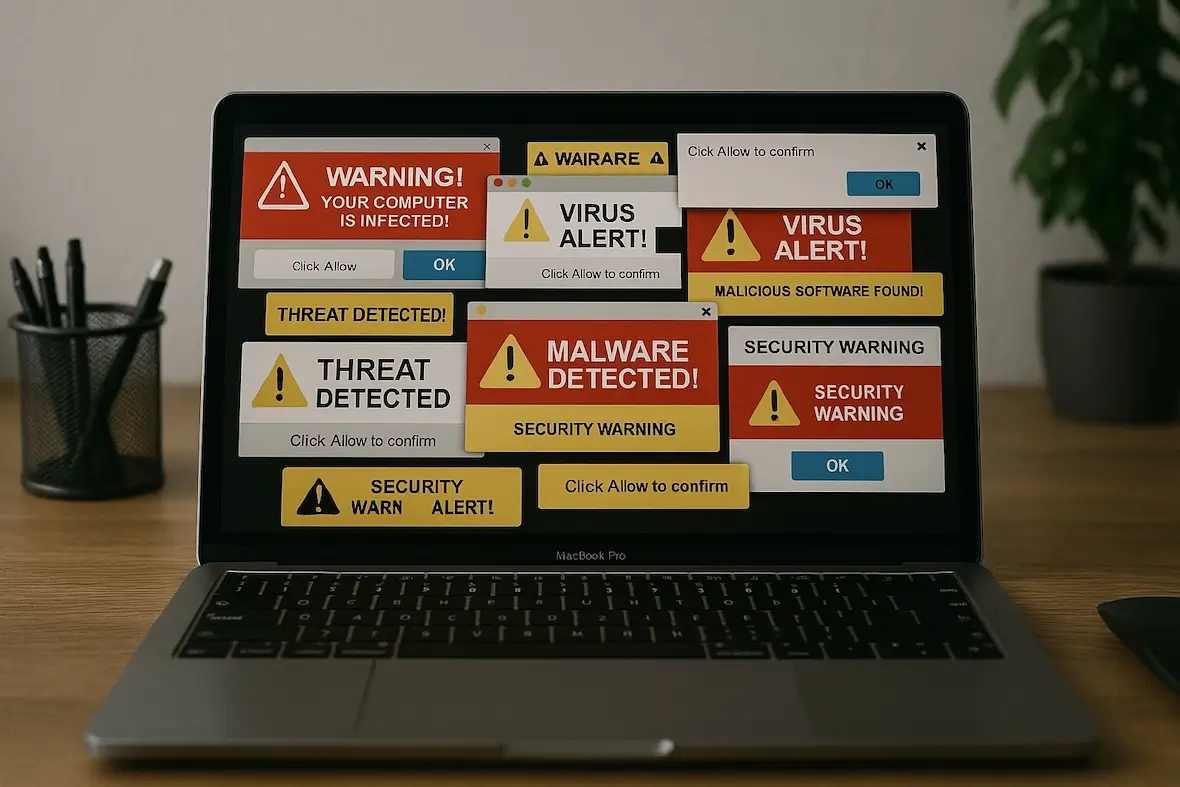
It’s normal to receive a pop-up or two or some notifications reminding you to update an application. However, frequent alerts with suspicious messaging like “Your Mac is infected,” “Sign up for an iPhone Giveaway,” or “Your screen is being observed” are signs you may have accidentally signed up for a spam newsletter or calendar, or your Mac has been infected with adware or scareware.
7. Increased network activity
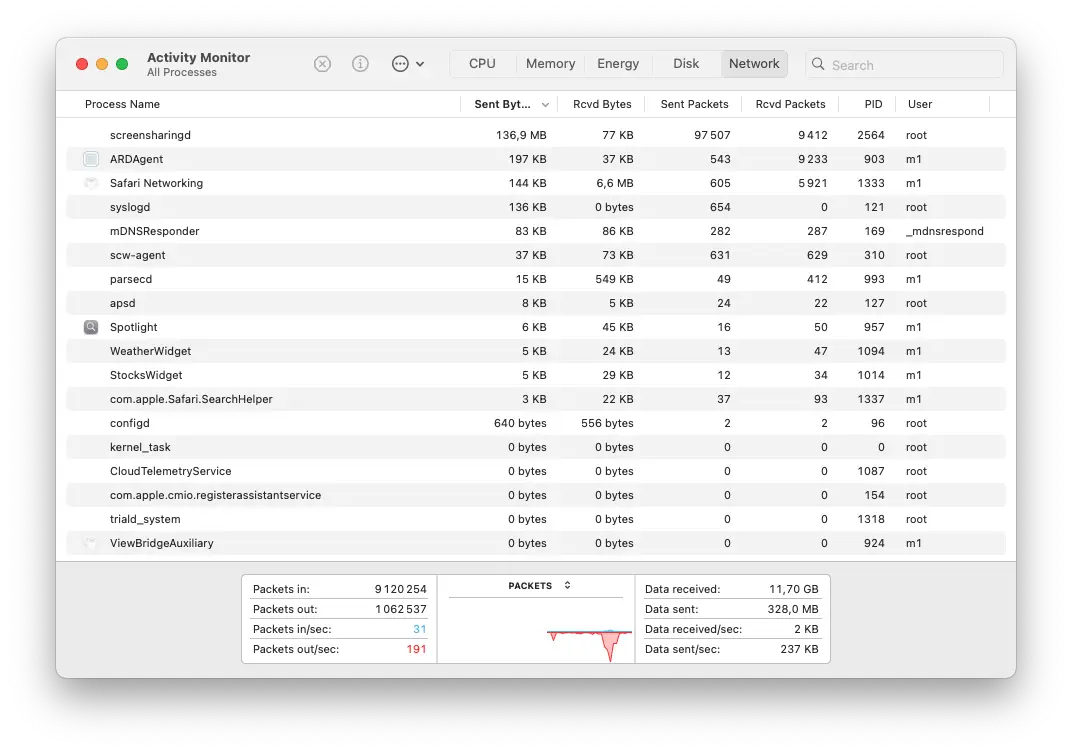
Many applications automatically back up your data or sync your account to a cloud server, but these processes are usually minimal and non-intrusive. However, if you start noticing spikes in data usage even while your Mac is idle, you could be dealing with spyware or infostealers siphoning away your data to some remote server.
8. Security settings changes
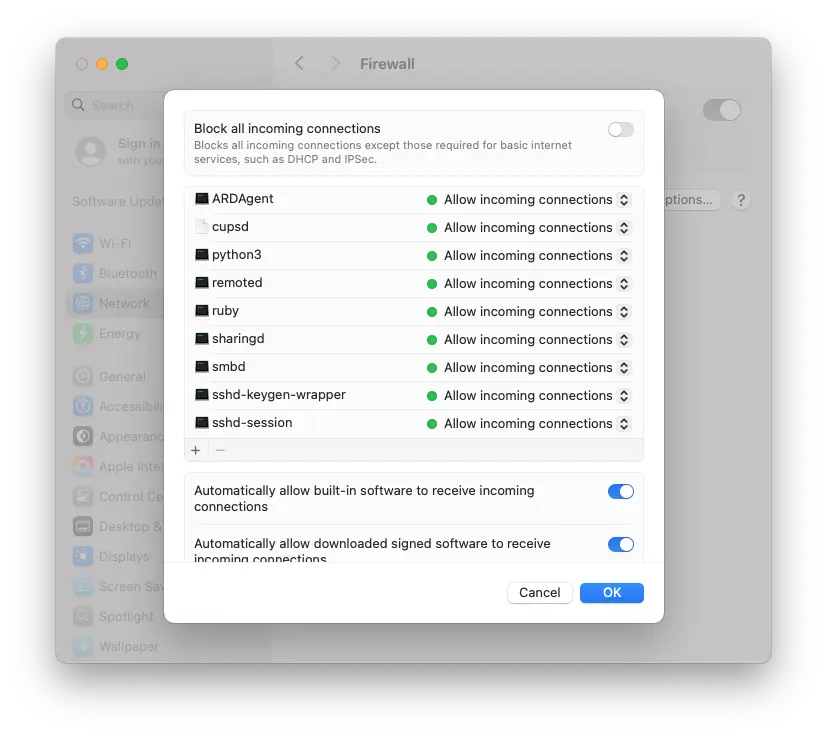
Some malware is only there to create a backdoor or vulnerability for more sophisticated and destructive attacks. They do this by quietly disabling your device’s built-in security features, such as your Firewall or privacy settings.
9. Repeated login and password change attempts
Receiving legitimate notifications that someone is trying to log into your account or change your password usually means someone has gained partial access to your credentials, like your email or username.
This isn’t always a sign that your Mac has been hacked, as your data could’ve been exposed through a data leak outside of your control. Either way, you should immediately change your passwords and enable 2FA if possible.
10. Files missing, altered, or encrypted
Not all ransomware immediately locks you out of your Mac the moment it’s installed. Some of them work slowly to avoid detection, even as they make changes to your device.
You might notice some of your files are being encrypted. At this point, you need to act quickly, as you can’t retrieve those files without the encryption key.
Browser behavior that should raise red flags about a Mac infection
Your browser is one application that’s often targeted by hackers because it contains data of your online activity, including your login credentials to many sensitive websites.
Keeping an eye on the health and behavior of your browser is one of the easiest ways to detect a Mac infection early. Left untreated, these can steal your login credentials and session cookies, giving the attackers access to your accounts and personal information.
11. Unexpected page redirects

You might notice your web searches being redirected through a different or unknown search engine even though you haven’t changed your browser’s default settings. By taking you to a fake search engine or website, the attackers can steal your login info or session cookies through malicious links or ads.
12. Suspicious or unknown browser extensions
Browser extensions can sometimes request access to your tabs or browsing history, so any malicious or compromised browser extension could pose a serious security and privacy risk.
If you notice that an unfamiliar extension has been added to your browser, remove it immediately, reset your browser, and run a system-wide malware scan.
13. Browser performance issues
Slow loading, freezing, or crashing can all be signs that something is wrong with your current browser. You might be using an outdated version of the software, or a poorly coded browser extension could be causing issues. However, this could also be a sign of malicious scripts or cryptominers running in the background every time you launch your browser.
When unusual Mac behavior is actually normal
Not all strange Mac behavior is caused by malware, so it’s important to be able to tell the difference between what’s normal and what is a cause for concern.
Here are some instances where you shouldn’t worry about a malware infection:
- Your Mac is overheating: Your Mac might be getting old, causing the system to struggle with loading heavier software. Your device’s vents could also be blocked with dust, preventing the internal fans from properly cooling the device.
- iCloud syncing: Increased network activity and battery drain could be due to scheduled backups, as backups involve the transfer of gigabytes of data to the cloud and use up a lot of system resources.
- Outdated applications: Older versions of apps or software tend to be less resource-efficient. They could also be incompatible with your current version of macOS. Make sure all your apps are up-to-date so you can eliminate performance issues and minimize the risks of security exploits.
- Background system maintenance: Your Mac regularly performs automated maintenance tasks, such as indexing and log cleanup, to keep your device optimized. Usually, these tasks are performed outside of your active hours when your Mac is idle, because they can slow down your device for a while.
How to handle signs that your Mac may be infected
Identifying the signs of a malware infection on your Mac isn’t enough. You need to take corrective action quickly to minimize damage to your device and personal files.
Use security software to clarify suspicious Mac behavior
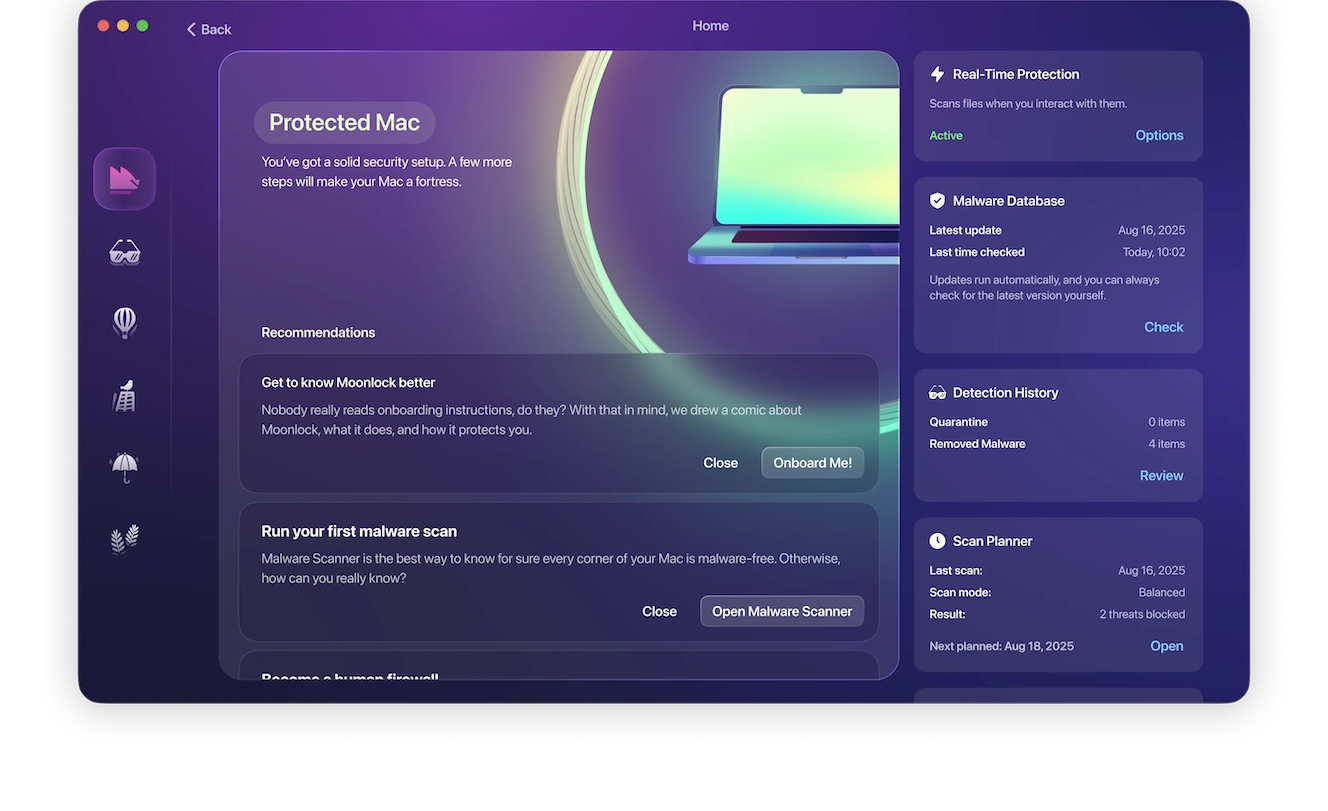
Try Moonlock for free as your go-to cybersecurity tool to notify you of any suspicious behavior on your Mac. You can schedule routine malware scans to run in the background and enable features such as Real-Time Monitoring to scan files for malware as soon as they hit your device.
Secure your most vulnerable accounts
Attackers most often target sensitive personal and financial information. As soon as you notice signs of a virus or malware, change the passwords to your personal social media accounts, your email, and any financial services you typically access on your Mac.
Check the logs for login attempts from various locations or any active sessions you don’t recognize, and immediately log out of all of them.
Locate and resolve the vulnerability
It’s important to know how your Mac got infected in the first place, whether it was a malicious link you clicked on or an outdated application. If you don’t resolve it, you might be targeted again by similar malware.
Staying alert to any suspicious behavior is key to maintaining the health and safety of your Mac. Even if a symptom turns out not to be an indication of a malware infection, understanding the reasons for it could help you improve your experience and extend the lifespan of your Mac.
This is an independent publication, and it has not been authorized, sponsored, or otherwise approved by Apple Inc. Mac and macOS are trademarks of Apple Inc.