



Among the many good reasons to avoid cracked software, free software, and apps from unknown developers is the increased risk of malware. An example of this is AdLoad, a piece of trojan horse malware.
This adware can sneak onto Mac machines and start leaving nasty surprises. Fortunately, it’s easy to detect and remove AdLoad from a Mac. Today, we’ll show you how to do it.
What is AdLoad?
While not a virus, AdLoad is one of the most widespread families of macOS adware. Adware is often categorized as trojan malware or a browser hijacker, and it typically comes bundled with free or cracked software. Throughout 2023, AdLoad remained one of the most common malware families targeting macOS.
As recently as May 2024, new variants were evading XProtect just days after Apple pushed 74 new detection rules. By February 2025, fresh AdLoad samples written in Python were going completely undetected by all 60+ antivirus engines on VirusTotal.
As soon as it’s downloaded, it silently installs itself in the background. Once on your device, AdLoad will start placing pop-up ads on your screen. And while this might sound more annoying than harmful, it doesn’t always stop at ads. It can redirect your web traffic to malicious phishing sites or download additional viruses and spyware that can steal your passwords and personal files.
Apple’s built-in XProtect can intercept AdLoad by scanning your Mac for known malware signatures, including known varieties of AdLoad. However, because AdLoad is polymorphic, some of its variants are still able to evade XProtect detection. It may also abuse Gatekeeper bypass techniques by disguising itself as a trusted app or using signed installers.
To close the gap, in 2022, Apple introduced XProtect Remediator, which takes a more proactive approach to malware detection. XProtect Remediator can remove AdLoad malware from your Mac, even if it has already executed after evading initial detection.
Is AdLoad adware actually dangerous?
AdLoad may seem more like a nuisance than anything, a few pop-up ads and browser redirects, at most.
Some variants in the AdLoad malware family can track your online activity, making it easier to target you with phishing attacks. Others go as far as to directly harvest your credentials, either by installing a keylogger on your Mac or through man-in-the-middle attacks, where the attacker reroutes your web traffic to their own servers.
AdLoad can also act as the gateway to other, more serious types of malware, like spyware and ransomware. For example, some variants of this adware have also been linked to proxy botnets, where they silently use multiple infected Macs to route third-party traffic. This means the attackers can use your device to spread scams and steal information.
Being polymorphic, AdLoad can evade detection by most traditional antimalware tools, such as XProtect, by constantly changing its code and signature at every replication. Without a recognizable malware signature, AdLoad can easily bypass your system’s defenses and begin executing and replicating in the background.
Signs your Mac is infected with AdLoad adware
Wondering if your Mac is infected with AdLoad? We’ve compiled a list of all the symptoms to look out for. Watch for any of the following on your MacBook:
- Soon after installing new software, your Mac begins to act strangely.
- Your Mac is slowing down considerably and even crashes.
- Your CPU and memory skyrocket to over 90%.
- Your Mac is overheating.
- Your browser is sluggish to the point of being unusable.
- Your browser homepage and search engine have been changed.
- Your web browsing gets redirected to suspicious-looking websites.
- Your Wi-Fi network is switching on and off.
If you recognize one or more of these symptoms, you could have malware of some kind, including the possibility of AdLoad malware.
How to remove AdLoad from Mac
It’s a simple process to remove AdLoad from your Mac. Follow our advice below, and soon, your device will be running smoothly again, as if nothing ever happened.
The fastest and most effective AdLoad removal method is Moonlock. This is a lightweight, powerful tool immediately detects and removes any kind of malware. It’s a hacker’s worst nightmare.
First, sign up for your free trial of Moonlock. Then, after installing the software and opening it, do the following to wave goodbye to AdLoad and send it packing:
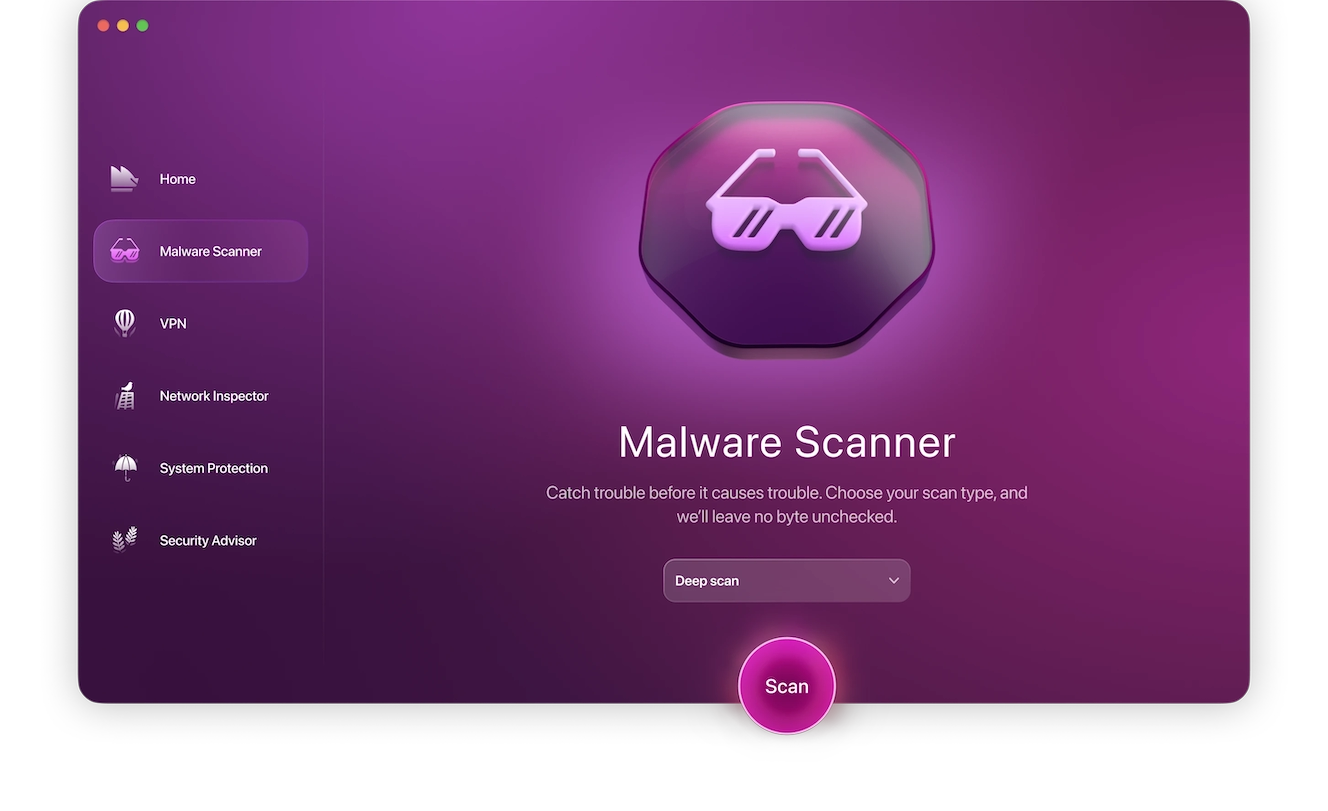
- Select Malware Scanner on the left. This is Moonlock’s malware detection and removal tool.
- To ensure an optimal scan, choose Deep mode. Also click on Configure and make sure that all the boxes are ticked in the scan settings.
- Once that’s done, click the Scan button to let Moonlock do what it does best. It will start to expertly and thoroughly search your Mac for all traces of AdLoad and other threats.
- When it’s found, Moonlock will de-arm and isolate it. In Quarantine, you will see AdLoad with a list of any other malware and associated files. Select them all and click Remove.
It may be worth running another scan to make sure everything is gone, as you can never be too careful.
How to manually remove AdLoad from your Mac
If you’d prefer not to use any specialized security software, you can still remove AdLoad malware from your Mac manually by checking some of the common places it could be hiding in:
- Delete suspicious apps: If you’ve recently downloaded anything from outside the App Store, remove it, as it could be infected.
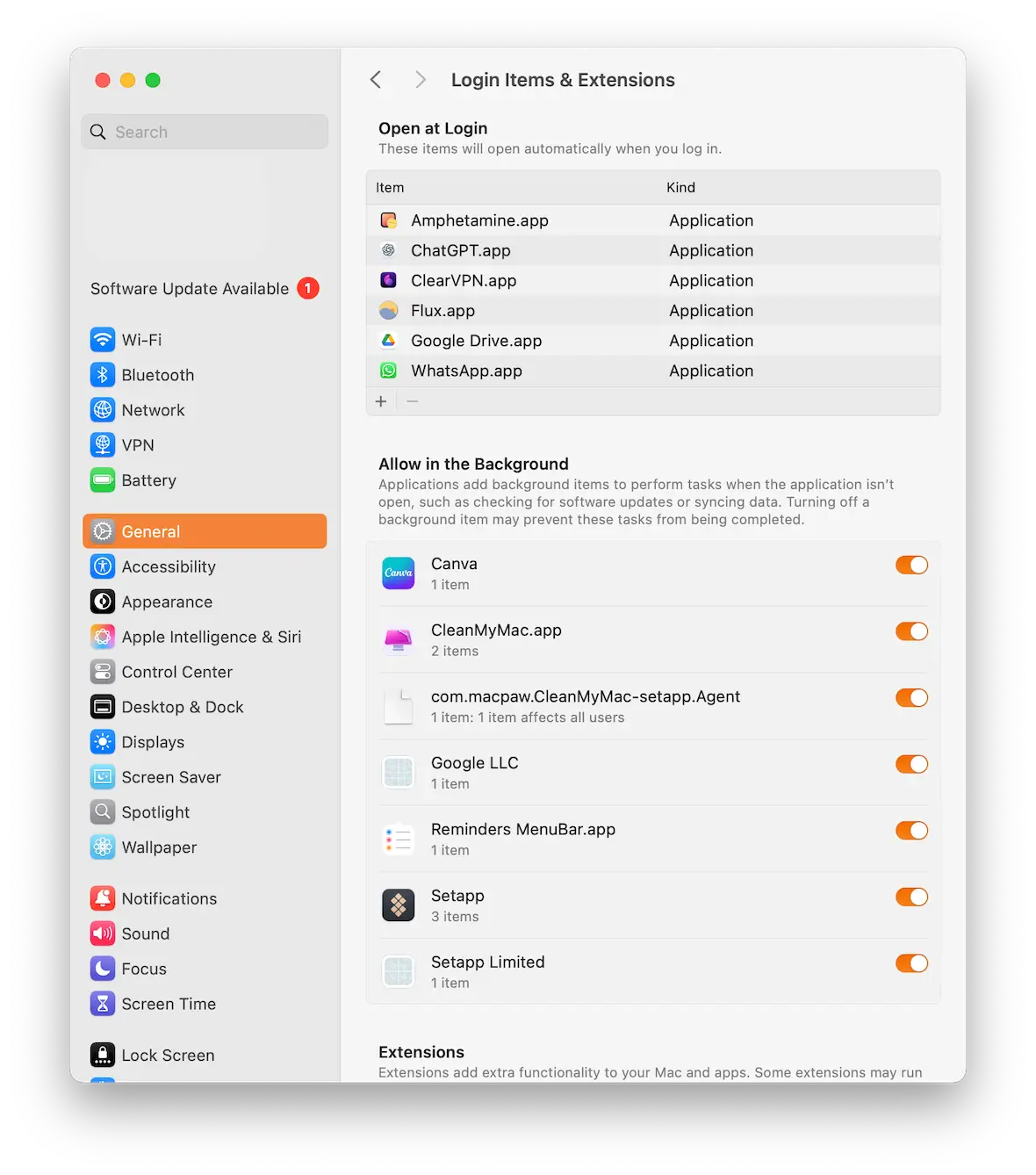
- Check Login Items: Go to System Settings > General > Login Items. Delete any unfamiliar entries.
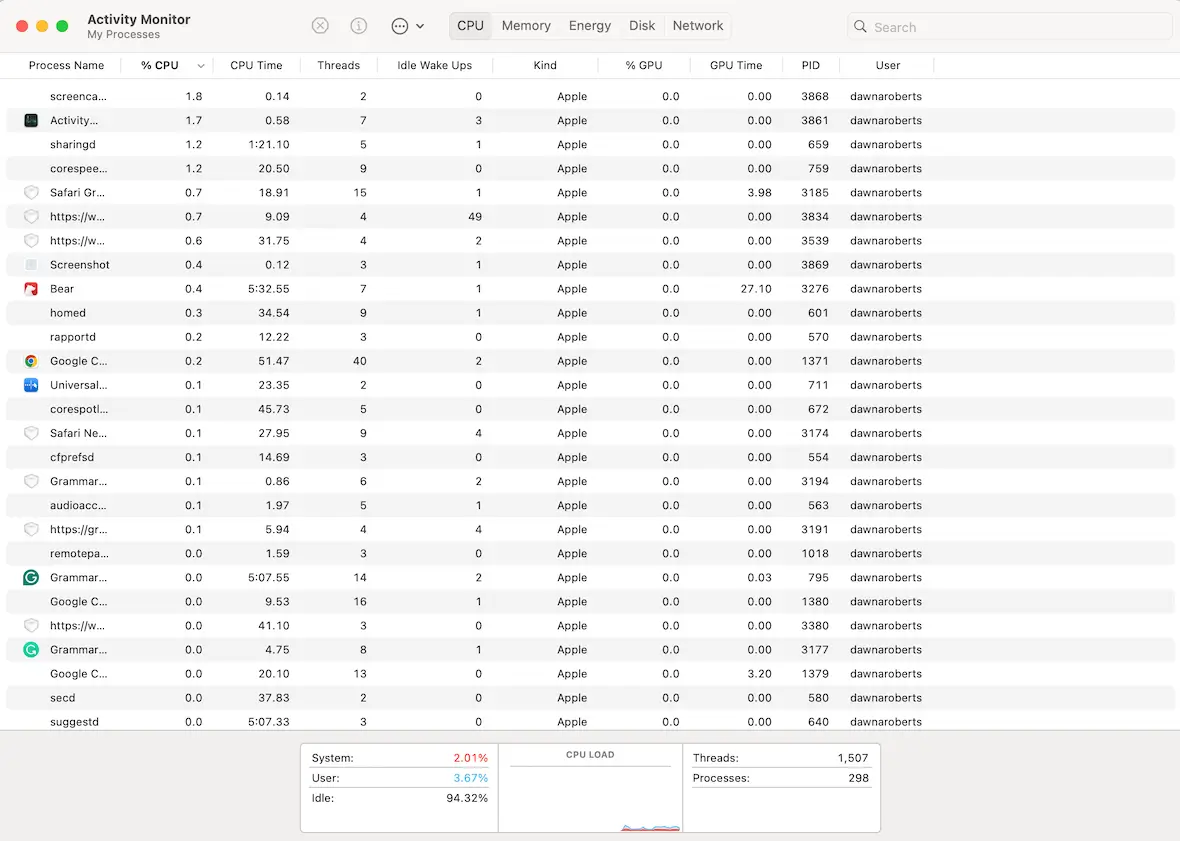
- Review Activity Monitor: Remove unusual processes that use a lot of CPU resources.
- Remove Launch Agents: Check the /LaunchAgents and /LaunchDaemons in your Library and delete any suspicious .plist files.
Other ways to get rid of AdLoad adware on your Mac
It is possible to remove AdLoad without the help of an anti-malware tool. However, since AdLoad is also a browser hijacker, you’ll need to do some tweaks to remove the malware from your Mac manually.
How to remove AdLoad adware from Safari
To get rid of the AdLoad from Safari:
- Reset your homepage and search engine.
- Review your browser security settings.
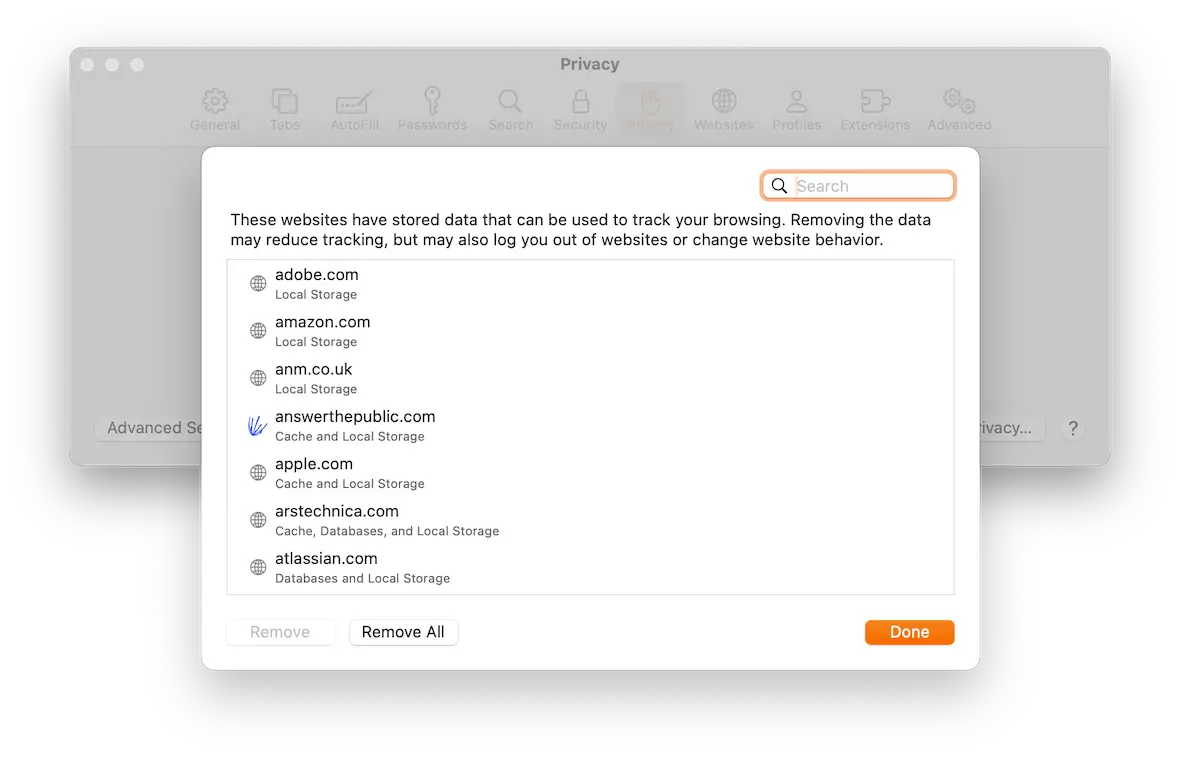
- Delete your cache, cookies, and other browser files.
- Review the pages set to open when the browser starts.
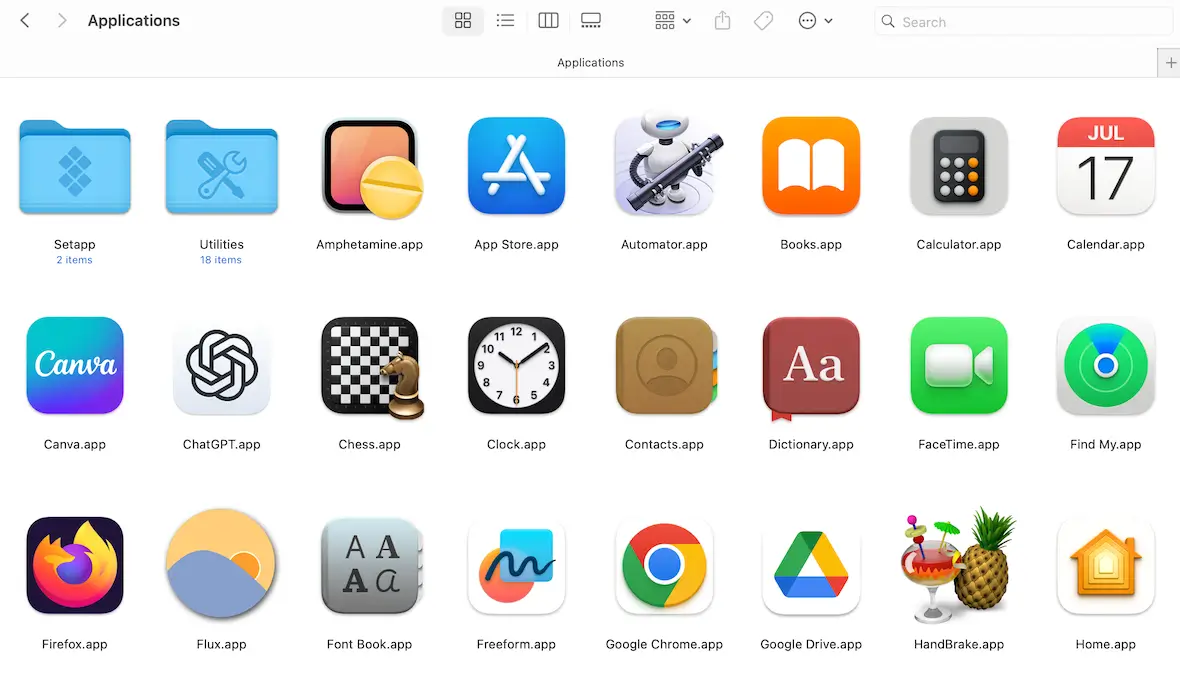
- Look in your Applications folder and delete any suspicious software. Also, delete any “legitimate” software that you suspect may have carried trojan malware.
Steps to clean AdLoad adware from Chrome
To remove AdLoad malware from Chrome, here’s what you need to do:
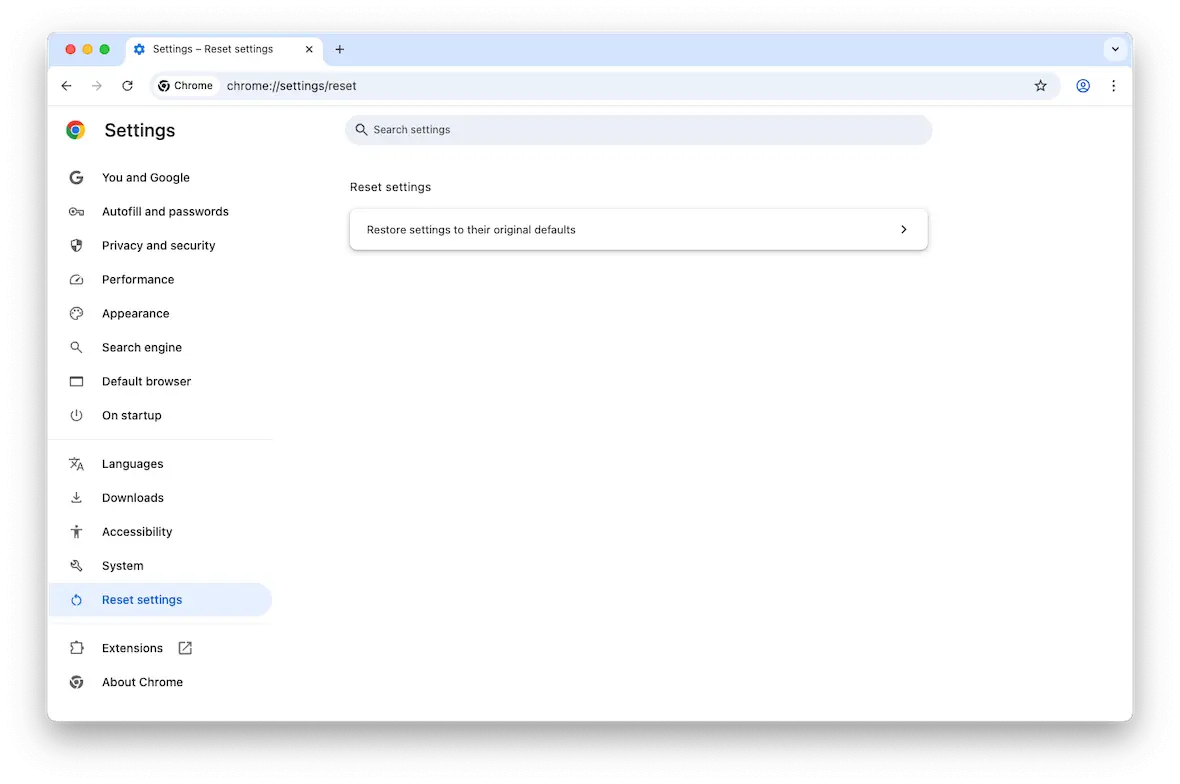
- Open Chrome, click on the 3 vertical dots icon in the top-right corner, then click Settings.
- From the left side menu, select “Reset settings, then “Restore settings to their original defaults.”
- In the pop-up window, click the blue button labeled “Reset settings.”
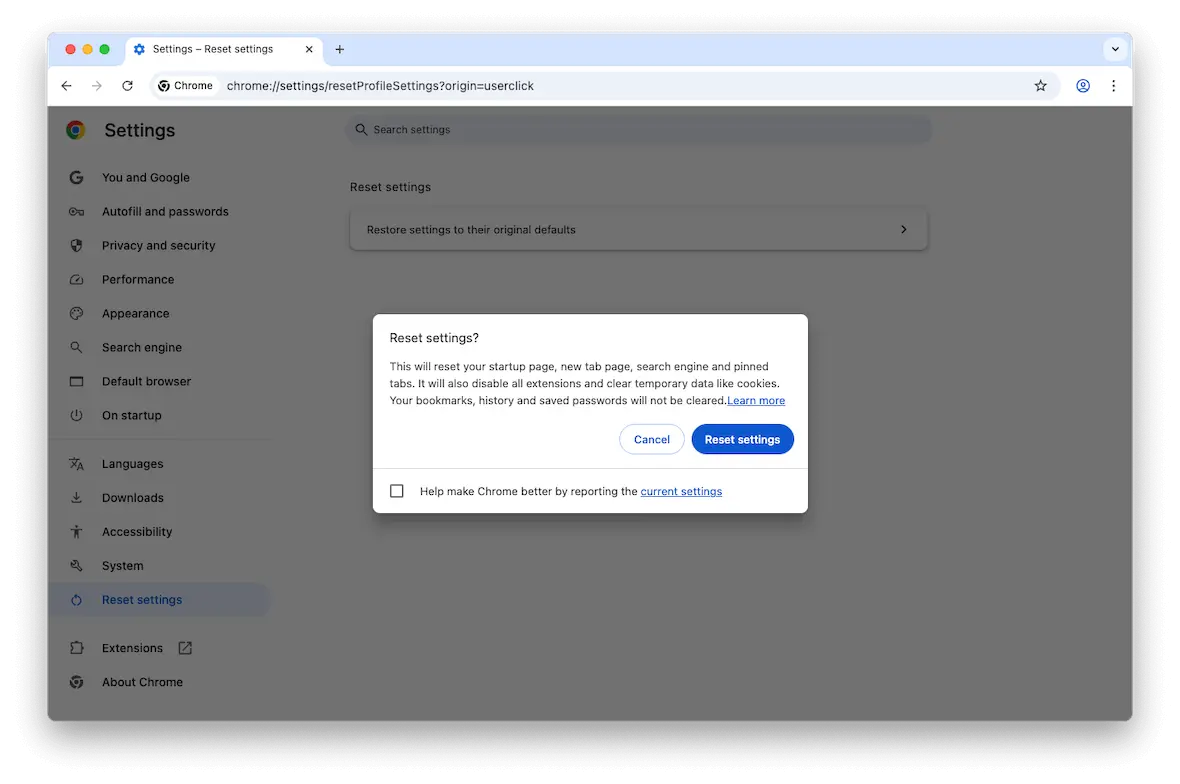
This will return your Chrome browser to its initial configuration and will delete any malware that was there.
Get rid of AdLoad adware in Firefox
The process of removing AdLoad adware in Firefox is similar. Here’s what you need to do:
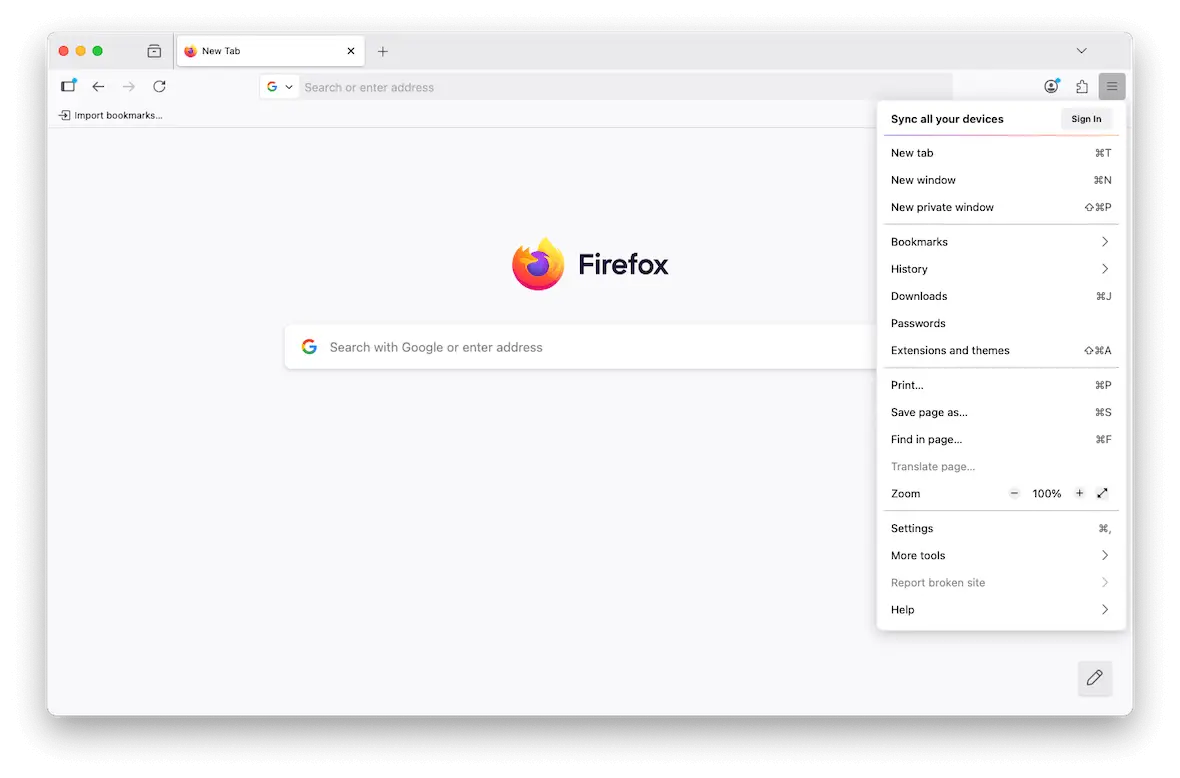
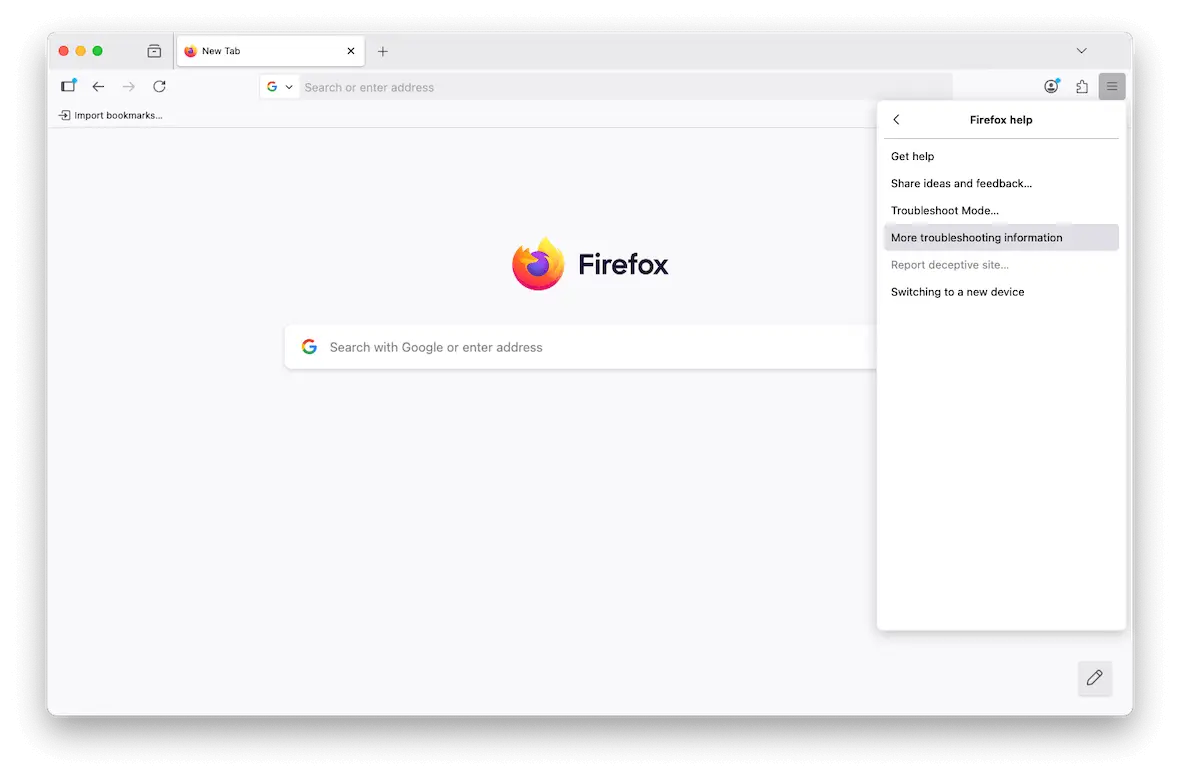
- Open Firefox, then click on the 3 horizontal lines icon in the top-right corner of the browser. Click Help.
- In the next drop-down menu, select “More troubleshooting information.”
- A new window will open. Click Refresh Firefox… and confirm your choice in the pop-up window.
How does AdLoad malware infect your Mac?
Once AdLoad is gone, you need to determine the point of entry to ensure that an infection doesn’t happen again. Here are a few ways it could have gotten onto your machine:
- Bundled with other software as a trojan horse
- Fake software updates – including the infamous Adobe Flash “update”
- Malicious websites and malware-infected ads
- Email links and attachments
- Malicious browser extensions and add-ons
- Unpatched vulnerabilities in your operating system or other apps
Frequent AdLoad variant names you might encounter
AdLoad isn’t a single adware threat. It refers to a large family of adware that targets macOS devices and often spreads under different names. This makes instances of Adload harder to identify, even if you see suspicious items listed in Activity Monitor.
Some of the more common names include:
- GlanceHonest: Aggressive ad injection and pop-ups
- CommonRemote: Unwanted ads and altered search results
- ActivityConsole: Hides through system processes mimicry
- DataSearch: Browser hijacking and activity tracking
- SearchQuest: Browser redirection
The names will change with almost every variant. So instead of memorizing them all, it’s best to learn to detect naming patterns, like “SearchDaemon,” “Lookup,” or “Results,” that are used to make processes seem harmless in the Activity Monitor.
In addition to suspicious names, you’ll also want to keep an eye out for high CPU usage or unknown background processes, as these can be strong indicators of infection.
How to avoid an AdLoad malware infection on your Mac
Once the AdLoad malware has been nuked and you’ve eliminated the point of entry, it’s time to take proactive measures to prevent AdLoad from making a return performance.
Think before clicking web links or downloading attachments
If your mom or your partner sends you a link, it’s probably safe to assume that they have no nefarious intentions and that the link is safe to click. But if a stranger or someone you barely know sends you a link, you’re better safe than sorry. Don’t click it. There’s no way of telling where it really leads.
Install very little outside the Mac App Store

Downloading your software only from the Mac App Store will significantly cut down on the chance of trojan horse malware. All apps in the App Store are strictly vetted and scanned by Apple, unlike a lot of third-party software that avoid strict controls.
Limit your downloads to the App Store as often as possible, and you’ll do well.
Don’t click on pop-up ads or software updaters
For the most part, legitimate software won’t bombard you with large pop-ups or annoying messages on your monitor.
If you get a message on your screen telling you that a piece of software needs to be updated, don’t click it. Instead, go directly to the app’s settings and check for updates there. Download any updates that are available.
Keep your operating system updated
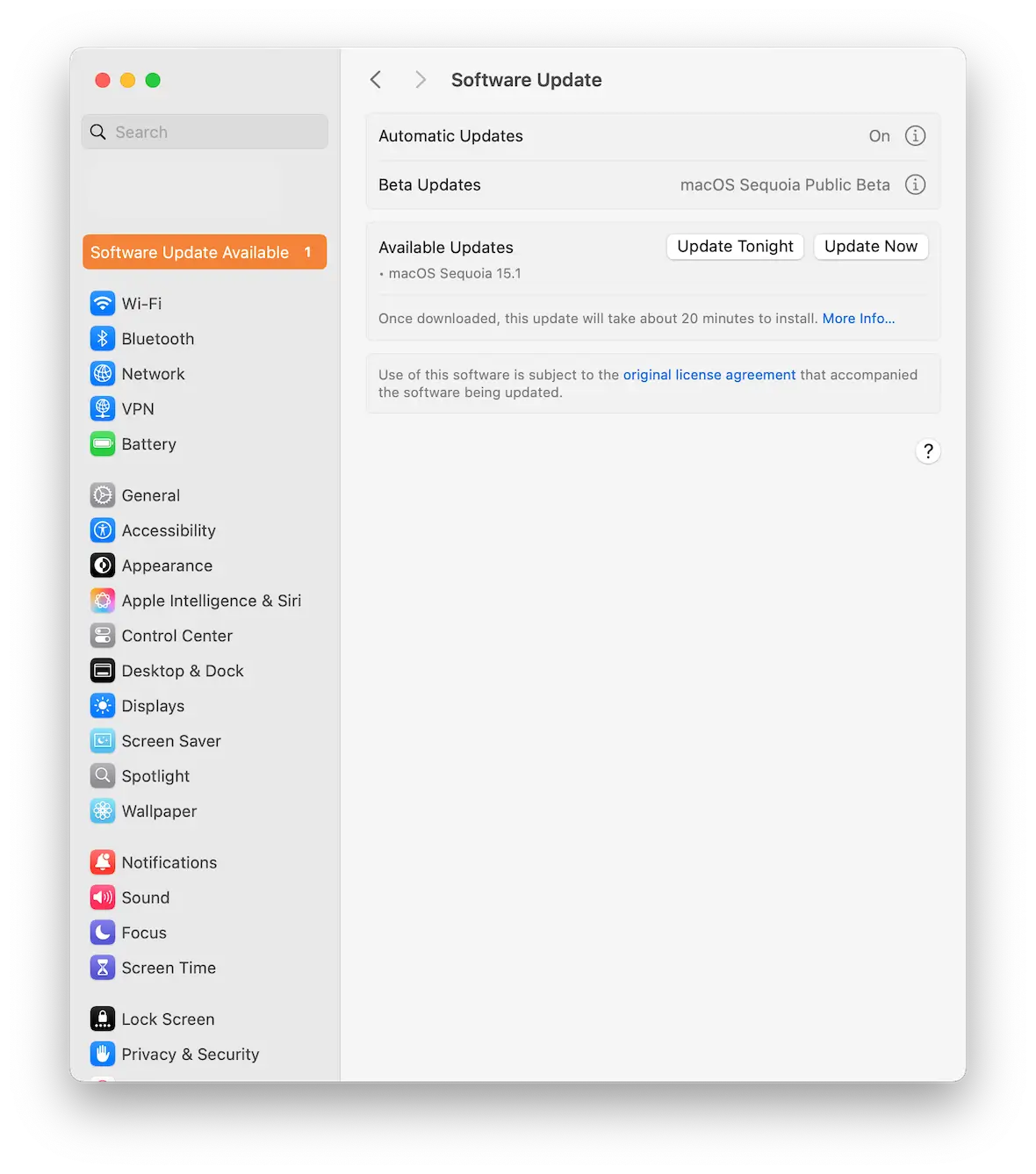
Apple is very good at pushing out regular security updates, but they don’t install them for you. That’s your job.
You can enable auto-updates on macOS or, every couple of days, go to System Settings > General > Software Update to see if any updates are waiting. If so, install them sooner rather than later.
Never sideload browser extensions
Finally, official browser extensions are vetted and monitored. Anything installed outside that environment, however — also known as “sideloaded” extensions — will bypass certain security controls and potentially add malware onto your machine. Always download from official sources.
With malware incidents only getting worse, it’s more important than ever to prevent these attacks from happening in the first place. AdLoad malware is just one example of this.
Stay vigilant, know what to look for, and act fast if a malware infection happens to you. A bit of paranoia isn’t always a bad thing.
This is an independent publication, and it has not been authorized, sponsored, or otherwise approved by Apple Inc. Mac and macOS are trademarks of Apple Inc.