


Cybercriminals often target routers because they know it’s the last thing checked for viruses and malware. In a recent 2026 campaign, over 14,000 routers were attacked in a global campaign, with the attackers turning them into botnets.
Router malware isn’t limited to your internet connection. In addition to compromising your network and enabling DNS hijacking, it can also steal your data and remotely control your device, using it for malicious attacks. In this guide, we’ll explain how a router can get infected, how to identify router virus symptoms, and what to do if you think your router has been infected.
Can a router get infected with a virus or other malware?
Yes, like any other part of your device or network, a router can get infected with malware.
Router infections are less common than computer infections, but they’re just as dangerous and can silently compromise your entire network, spreading to other devices connected to the same router. The malware can secretly change DNS settings and redirect web traffic, enabling attackers to spy on your online activity.
Threats such as VPNFilter in 2018, which infected over 500,000 routers worldwide, and Mozi, a botnet malware used for large-scale DDoS attacks, are just 2 examples of recent router infections. In some cases, the attackers are targeting your device directly, often exploiting outdated firmware and weak passwords to get in. That’s why performing regular malware checks is essential.
How to tell if your router has a virus: Common symptoms
Here’s a quick list of common router virus symptoms. Do you recognize any of the following?
- Your internet speed has slowed down to a crawl. Check with your internet service provider (ISP) first to see if they have any speed issues. If the issue is local to you, your router might be to blame.
- Your Wi-Fi is constantly being disconnected. Frequent drops can indicate unauthorized activity or malware that’s interfering with the router’s operation.
- You’re being redirected to websites that you didn’t ask to visit. This may indicate DNS hijacking, where the attacker redirects web traffic to malicious and phishing pages.
- You’re getting a large number of pop-up ads. Unexpected ads across your device and browser may indicate an issue with your network rather than your device.
- You’re unable to download antivirus updates. Malware can sometimes block security tools from updating or accessing servers for scans.
- Your DNS settings, router password, and firewall settings have been changed. These unauthorized changes can allow attackers control over your network.
- Your router starts acting strangely, such as rebooting or overheating. This might indicate hidden background processes.
- Your data usage is spiking. This could indicate that your device is part of a botnet engaged in a distributed denial-of-service (DDoS) attack.
- Unknown devices appearing on your network, like a smart TV, phone, or computer that you don’t recognize.
- Your router admin logins stop working or get locked following repeated failed login attempts.
- Unexpected browser changes, like extensions you don’t recognize or changes in browser settings.
- Router settings change without permission, like DNS servers, firewall rules, or port-forwarding.
How common is router malware, and should you be concerned?
Router malware is a rapidly growing problem. According to Forescout’s 2026 Riskiest Connected Devices report, routers have surpassed computers to account for one-third of the most critical vulnerabilities in organizational networks, with the average router or switch carrying nearly 32 known vulnerabilities.
Here are some of the most infamous examples of recent router malware incidents:
- Mirai (2016) infected 100,000+ routers and IoT devices.
- VPNFilter (2018), a particularly nasty one, affected 500,000 routers worldwide. They were capable of spying and destroying hardware.
- Mozi (2020-2022) infected routers to use them for large-scale DDoS attacks.
- Chalubo (2023), in what was probably the worst router malware attack ever, made 600,000+ small office and home routers inoperable in the United States.
- TheMoon (2025) infected thousands of end-of-life routers and created a botnet used for malicious proxy activity.
- KadNap (2026) compromised countless ASUS routers and turned infected devices into stealth proxy networks for criminal operations.
Fortunately, the risk is higher if you’re using an older router with outdated firmware or a weak (or missing) password. However, newer router models aren’t completely immune, as malware can still emerge over time.
How to check your router for malware
There are certain things you need to do to check your router for malware. Every router model differs somewhat, but the tips we cover here apply across the board.
Log in to your router settings
Logging in to your router can reveal whether your credentials, DNS settings, or router configurations were changed without your knowledge, as it can be hard to tell from the outside.
Log in to your router settings. If you don’t already know your router IP address, try one of the following:
- 192.168.1.1
- 192.168.0.1
- 192.168.100.1
If these don’t work, do the following:
- Do a web search for the router name, such as “[name of brand] router address login.”
- Some routers, like Deutsche Telekom, have specific domains you need to visit.
- Look at the box or any documentation that came with the router.
- Contact your ISP and ask for the router login.
Once you have the address, log in. If you don’t know the password, the default password is usually listed on the back of your router. If the defaults fail and you’ve never changed the logins yourself, this might indicate unauthorized access or previous tampering.
If you’ve changed your password and have since forgotten it, you can reset the router. Normally, this involves holding a Reset button at the back of the router to reset it to its factory settings. The router’s login is the entry point for checking your DNS settings and reviewing activity logs, allowing you to verify the router configurations below.
Check your router’s DNS settings
DNS settings determine where and how your router sends website requests when you connect to the internet. Automatic DNS uses your ISP’s standard settings, while manual DNS lets you choose a specific provider.
You might be familiar with manual DNS entries like Google DNS (8.8.8.8) or OpenDNS, which are both legitimate configurations. If you notice a DNS server that you don’t recognize, this might indicate some malicious tampering. If you find one, switch back to automatic DNS or use a trusted provider.
Review your router’s activity log
You can usually find activity logs in your router’s web dashboard under Logs, Security, or Administrator. If your router comes with a management app, the logs might be available in its menu. Once you find the activity logs, here’s what to look out for:
- Repeated failed login attempts: This may indicate a brute-force attack, even if it was a failed one.
- Traffic spikes at unusual hours: Traffic spikes could indicate botnet activity, using your router without your permission.
- Unfamiliar connected devices: Unknown users or devices might be attackers accessing your router remotely.
- Unexpected configuration changes: This can suggest an attacker modified the router settings when they gained access.
Check the following router settings
Once you’ve logged in, check the following:
- Connected devices: Are there any unknown devices attached, like IoT devices or phones? If so, disconnect them.
- Port forwarding/virtual servers: Check for any suspicious entries here. If you see any, remove them.
- Remote management/remote administration: If this is enabled, disable it.
- UPnP: This automatically opens ports for local devices. Disable it if unused because malware can abuse it.
- Guest networks: An unknown or unused network can be exploited by attackers if left unattended for long.
How do you remove malware from your router?
To remove malware from your router, first disconnect the router from the power and shut it down. The fastest way to do this is to simply pull the power cord. Leave it off for a minimum of 5 minutes, then reconnect it and let it boot up again.
Now, change the password. Look for any settings that may have been changed (referenced above). Change them back.
Run a router-specific malware scan
Unlike on-device malware scans, a router-specific scan checks the device itself for malware. For that, you need specialized tools like F-Secure Router Check and GRC ShieldsUP! to help you find unprotected ports or suspicious activity on your router.
Open your tool of choice and follow the prompts, letting it analyze your network configuration. If the scan doesn’t find any problems but your router virus symptoms continue, you might need to further inspect your router for issues.
Run a power cycle and a password change. There’s no need to do a full factory reset unless none of the settings can be trusted or the virus symptoms continue after scanning. Here’s what to do:
- Disconnect router power for 5 minutes, reconnect, then set a strong admin password that’s different from the default and the old one.
- Restore trusted settings and enable WPA2/WPA3 encryption for web traffic.
- For persistent infections, you may need to factory reset the router.
Unlike VPNFilter, which survives some settings resets, Switcher Trojan typically relies on DNS manipulation and can be removed with a factory reset.
Scan every connected device
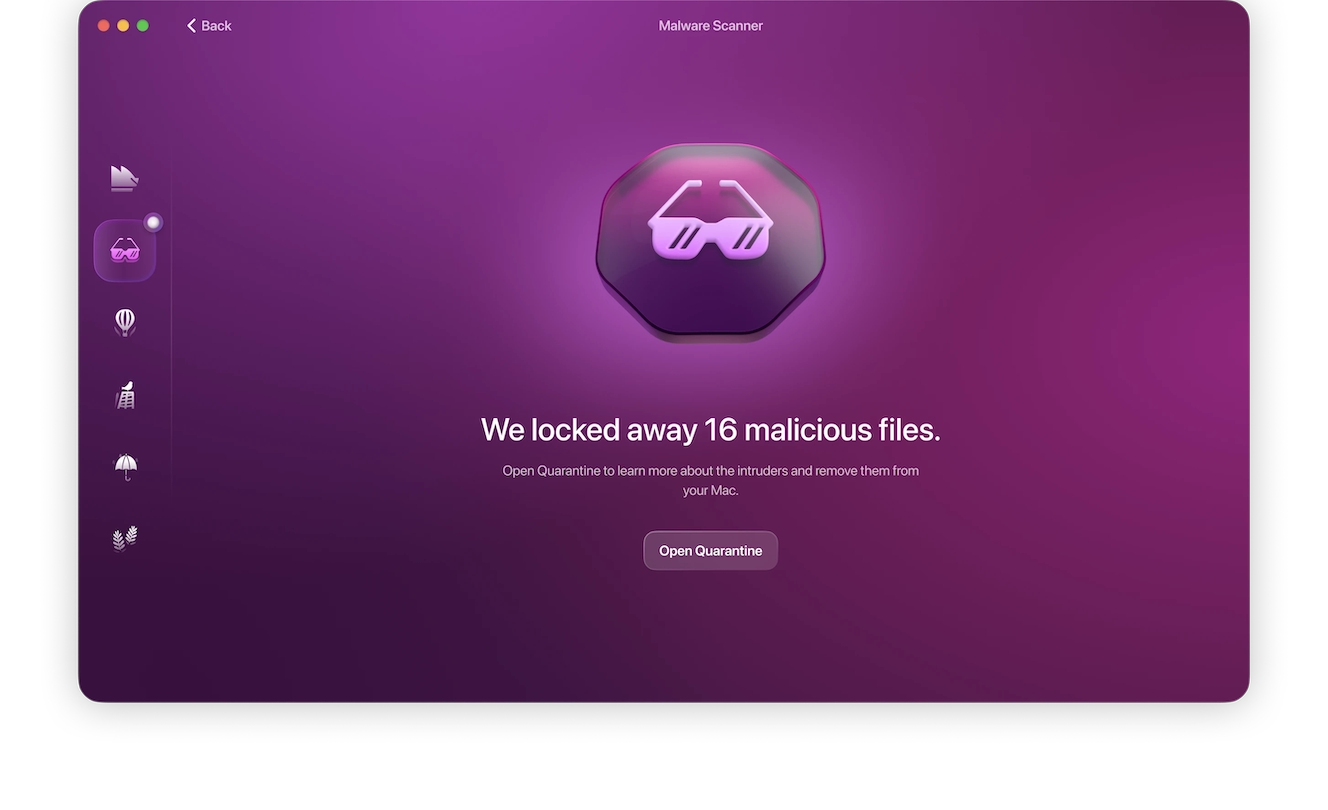
Even if the router itself is clean, the connected devices might still be infected. You’ll need to individually scan every device connected to the router during the suspected infection window. Use Moonlock antivirus to scan your Macs for malware. Note that, just like most consumer antimalware solutions, the app can’t scan the router firmware directly.
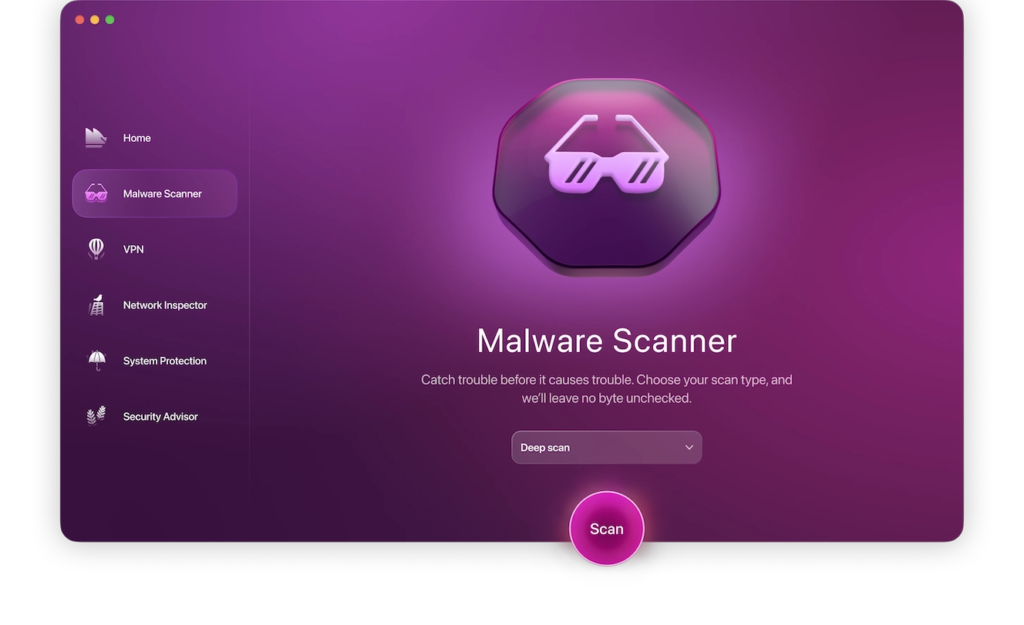
Here’s how you use antivirus to scan your Mac for malware:
- Sign up for a free Moonlock trial
- Open Moonlock, then navigate to the Malware Scanner tab on the left-hand sidebar.
- From the drop-down menu, select between Deep, Balanced, or Quick scan.
- Click Scan and see if there is any malware installed.
How did my router get infected with malware?
So, how does malware get into your router in the first place? Well, it can be due to the following:
- Compromised updates: You should always download firmware updates from the router manufacturer’s official website. If you download them from anywhere else, they may be compromised by router malware. DNS hijacking can cause unwanted website redirects by changing your router’s DNS settings, forcing it to communicate with malicious servers. It’s just one type of several related attacks, similar to man-in-the-middle attacks and DNS filtering.
- Unpatched security vulnerabilities: Security vulnerabilities can expose your router to attacks. Be sure to download and install all new updates.
- Weak and default passwords: Many people don’t bother to change the default router password that was set at the factory. Others use weak and predictable passwords that attackers can easily guess. This doesn’t directly cause malware infections, but it can allow attackers to break into the router, which may later lead to malware being installed.
Using public Wi-Fi puts you at increased risk of router malware. Keep everything up-to-date with the right encryption protocols, and your risk is greatly minimized.
Router malware and network security FAQs
Learn how router malware works and how to detect and fix it to protect your home network.
Take care to scan your router at least once every couple of months, or anytime you notice any suspicious activity, as well as after firmware updates.
Modems are less frequently targeted than routers, but compromised firmware and connected devices can still create security risks and vulnerabilities.
Yes, malware can move between devices and routers, using weak passwords or compromised network settings.
No. A router reset will only affect your router. Scan all connected devices separately for malware if you suspect an infected router.
How to strengthen your network’s malware protection
Even if you are using the latest router model, the latest firmware, and a strong password that is a combination of uppercase letters, lowercase letters, and bird noises, you should still be careful. Complacency is never good.
Fun through these security checks on a regular basis to prevent malware attacks and run a network virus scanner.
Improve your network security with Moonlock
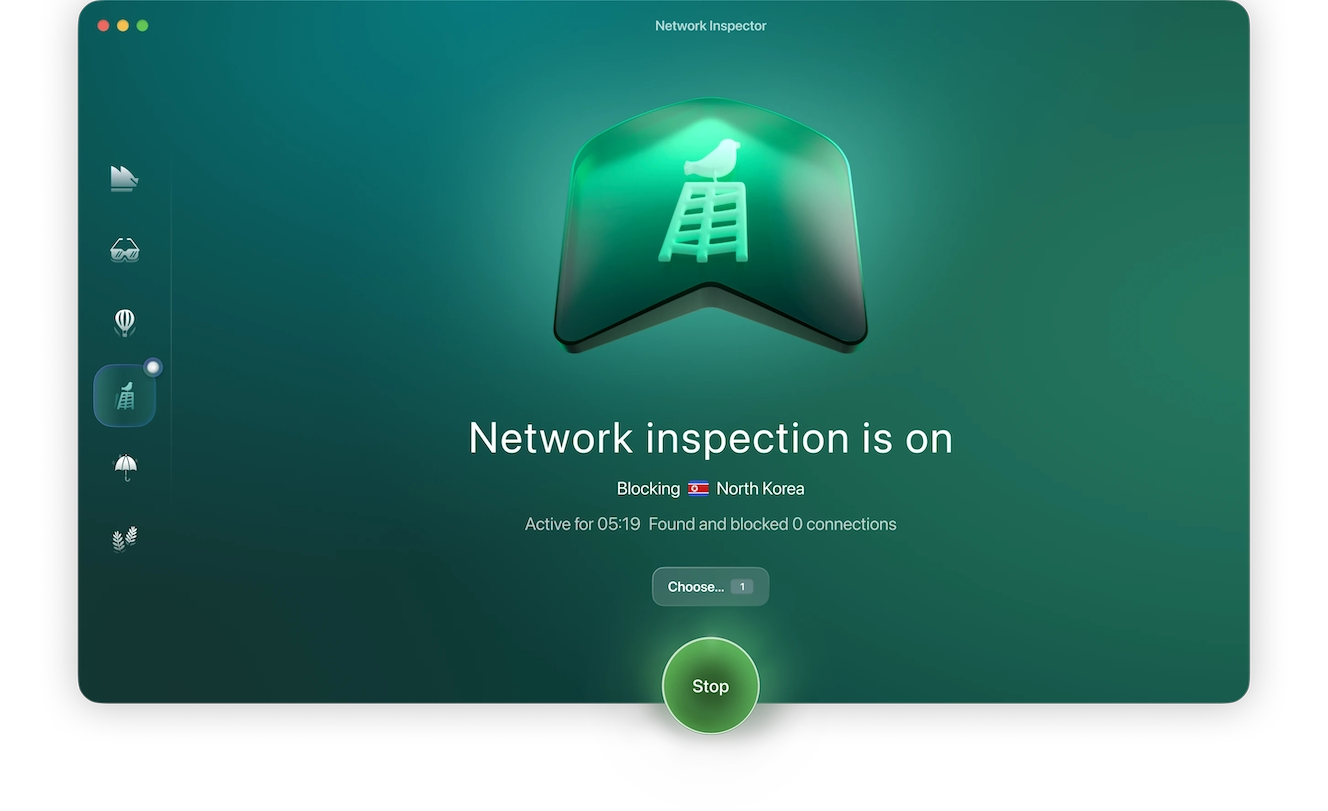
Firewalls filter incoming and outgoing traffic within a network and block suspicious connections. With Moonlock‘s Network Inspector, you can analyze your traffic, restrict connections from countries associated with malicious activity, and see which websites are collecting and sending your information.
Although this might seem like overkill, remember that hackers often use computers and routers belonging to unsuspecting citizens to launch high-scale attacks.
Network Inspector will help you:
- Restrict connections from high-risk countries
- Block suspicious inbound and outbound traffic
- Limit traffic to networks you are familiar with and trust
- Block servers from accessing your data
- Monitor which apps send your data overseas
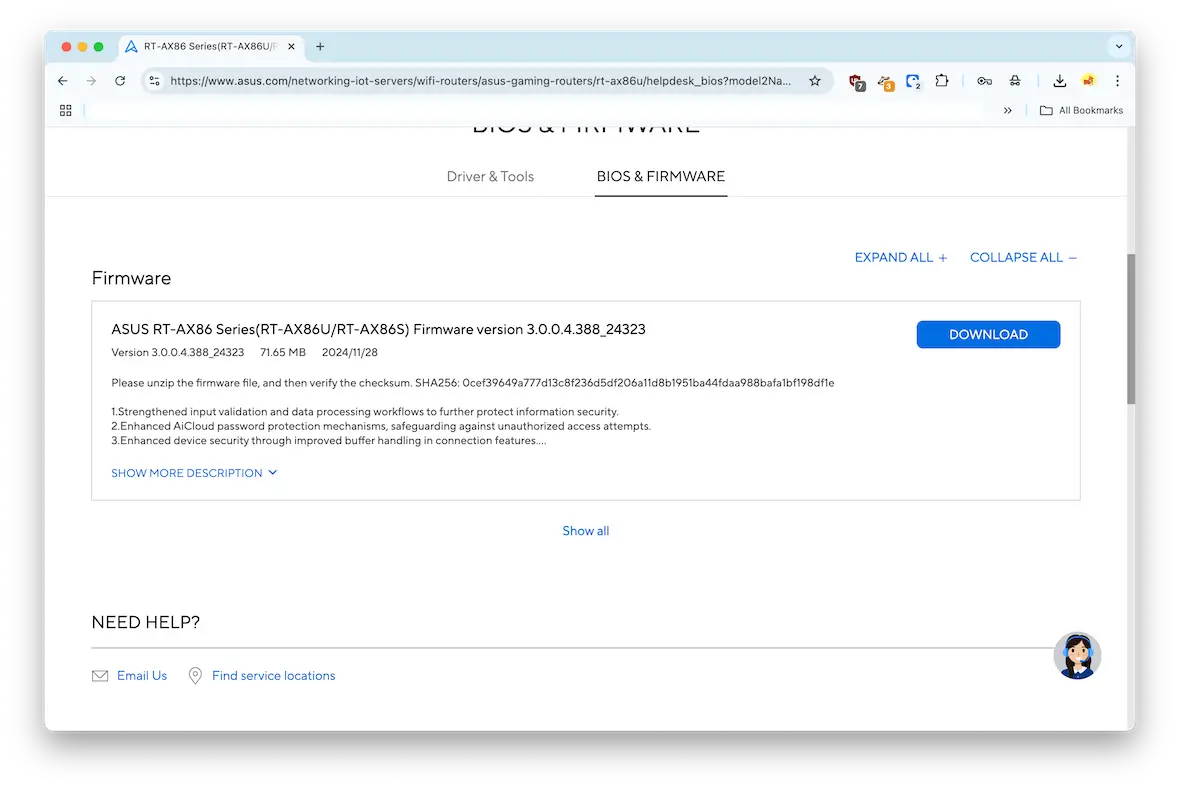
See if your router has new firmware
Firmware is the name given to router software updates. Your router should have a firmware section with available updates. If you see any, install them right away.
Some routers will install the firmware automatically. See if your router offers this setting.
Another option is to download the firmware from the router manufacturer’s website.
Change the default login credentials
When you buy a new router, the factory will often set the username and password to something such as admin/admin or admin/password. If you don’t change them, hackers can easily get into your network.
Change the username and password or network security key. Ideally, these details should be changed once a month through the router settings.
Change the name of your router
If someone wants to attack you personally, putting your name on your Wi-Fi network removes the guesswork for them. Instead, name your network something that keeps your identity anonymous, or you can keep the one given to it at the factory.
Upgrade your encryption
For the most protection, your encryption should ideally be WPA3 or WPA2, which is the most secure. If it’s WEP or WPA1, upgrade them immediately. You can do this in your router settings, usually with just a couple of clicks.
Use WireShark to check for suspicious web traffic
This is rather advanced, so it’s only for people who know what to look for. WireShark is a free network monitoring tool that you can use to see who is on your network. It’s a good option for determining if there is potentially unwanted traffic on your network.
Make your Wi-Fi network invisible
If you don’t want anyone outside to see your Wi-Fi network, go into the router settings and disable SSID broadcasting. A hacker can’t attack what they can’t see!
Use a VPN on public Wi-Fi
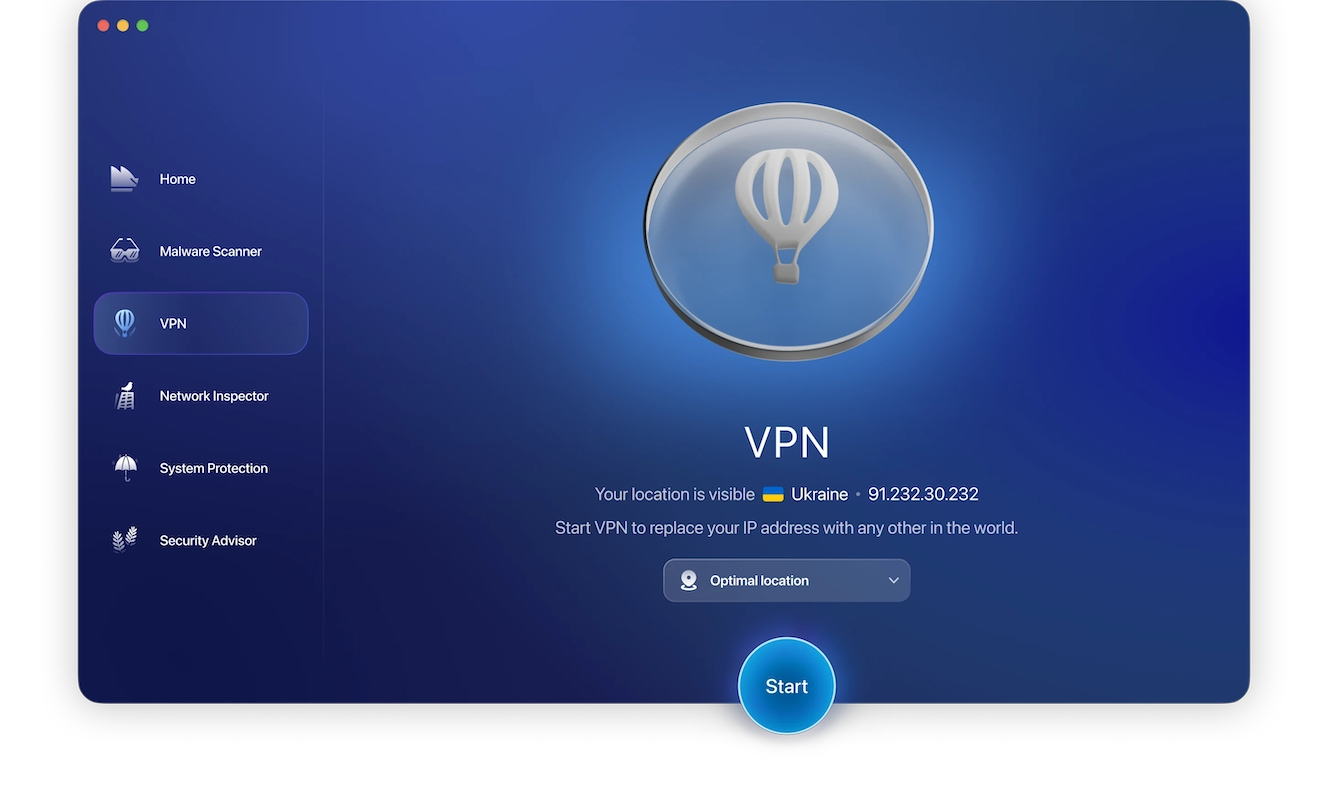
A VPN can encrypt your internet traffic and mask your IP address, reducing the risk of exposure on unsecured networks. Always use a VPN when connecting to public Wi-Fi or untrusted networks. Click Start on the VPN tab in the Moonlock security app, and keep it active while browsing the web.
When you suspect a virus or other malware may be on your network or MacBook, it can be easy to overlook the router as the source of the problem. But this is your gateway to the internet. Therefore, it’s a major target for hackers. Include your router in your security checks. You may find something in there you didn’t expect.
This is an independent publication, and it has not been authorized, sponsored, or otherwise approved by Apple Inc. Mac, MacBook, and iPhone are trademarks of Apple Inc.