
If your Mac suddenly redirects searches, changes your homepage, or pushes you through unfamiliar search engines, there’s a good chance Search Alpha malware is involved. Often labeled as the “Search Alpha browser hijacker,” this threat quietly takes over your browser settings and reroutes your traffic through ad-driven networks.
Despite how subtle it looks, Search Alpha is not harmless. It’s part of a wider class of macOS threats designed to manipulate browsing behavior, collect data, and expose users to further malware. This guide breaks down exactly what Search Alpha is, why it appears, the risks it creates, and (most importantly) how to get rid of Search Alpha on Mac properly.
What Search Alpha malware is and what kind of threat it poses
Search Alpha is a browser hijacker commonly classified as adware-based malware. It embeds itself into your browser, alters default search engines, injects redirects, and monetizes your traffic through affiliate networks.
From a technical standpoint, Search Alpha works by:
- Installing configuration profiles or browser extensions without clear consent
- Modifying search engine preferences, homepage URLs, and new tab behavior
- Intercepting queries and rerouting them through tracking and ad networks
- Persisting via launch agents, hidden files, and profile payloads
While it may present itself as a “search tool” or “helper extension,” its real function is traffic manipulation. That’s why many security tools classify it as the “Search Alpha Mac virus” or “Search Alpha malware” rather than a simple nuisance.
Why Search Alpha appears on your Mac
Search Alpha rarely arrives on its own. It’s almost always bundled with or injected into other software.
Common infection vectors include:
- Compromised browser extensions: Some extensions update into hijackers after the initial install. This is why users often say, “I didn’t install anything,” because technically, they didn’t. The problem hitched a ride.
- Bundled installers: Free apps, video converters, PDF tools, and cracked software often package Search Alpha as an “optional” component, usually pre-checked.
- Fake updates and download portals: Sites claiming that you need to “update Flash Player” or “fix Safari issues” are classic delivery mechanisms.
- Malicious ads (malvertising): Clicking aggressive pop-ups or fake download buttons can trigger silent installation.
Is Search Alpha malware or just an unwanted app?
This is where confusion sets in.
Search Alpha sits in the gray zone between:
- PUP (potentially unwanted program)
- Adware
- Malware
From a security perspective, the classification doesn’t matter. The behavior does.
Search Alpha can:
- Alter system and browser settings without clear consent
- Track activity and monetize user behavior
- Resist removal through persistence mechanisms
These behaviors cross the line into malware territory, regardless of how Search Alpha brands itself.
So no, this is not “just an annoying toolbar.” It’s a browser hijacker with persistence logic, and it should be treated as a real threat.
The hidden risks behind Search Alpha browser redirects
Search Alpha isn’t just redirecting you for ads. The risks go much deeper.
Key dangers include:
- Data tracking and profiling: Your search queries, browsing habits, IP address, and device info can be collected and sold.
- Exposure to secondary malware: Redirect chains often land on fake antivirus pages, phishing sites, tech support scams, and exploit kits.
- Credential harvesting: Some redirects are designed to mimic login pages and steal credentials.
- System stability issues: Background processes and injected scripts can degrade performance and cause crashes.
This is the point where many users finally seek a solution for Search Alpha removal or ways to remove Search Alpha because their Mac no longer feels safe or stable. When this happens, using a dedicated Mac malware protection tool like Moonlock becomes critical.
Common signs that Search Alpha is active on your Mac
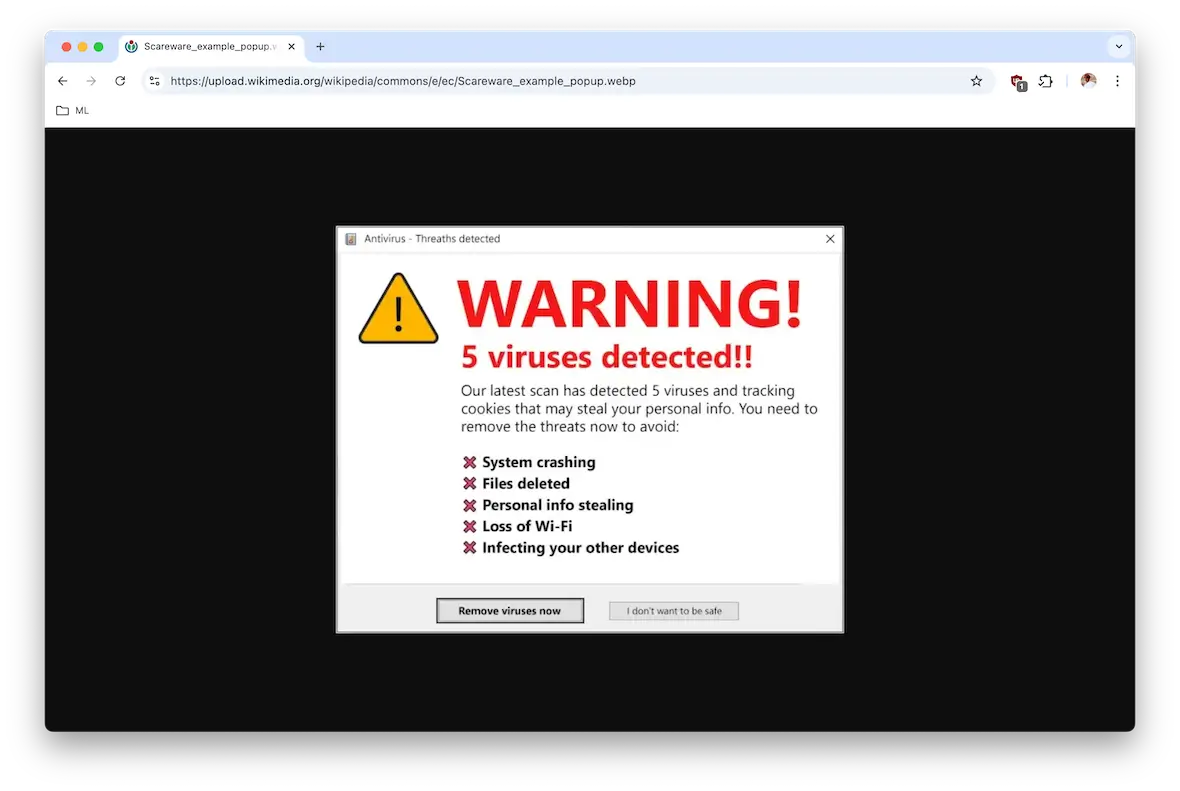
If you’re seeing any of the following, assume Search Alpha is present.
- Your default search engine keeps changing: You set Google or DuckDuckGo as your default search engine, but it resets to something else after a restart.
- You’re redirected through unfamiliar domains: Searches bounce through multiple URLs before landing on a result.
- Pop-ups and injected ads appear on legitimate sites: This indicates script injection at the browser level.
- New tabs open with unknown search pages: Especially pages branded vaguely or without a clear company identity.
- You can’t remove a browser extension: If an extension reappears after deletion, persistence is active.
- Your Mac feels slower during browsing sessions: Background processes are often running silently.
- A configuration profile appears in System Settings: This is a classic hijacker persistence technique.
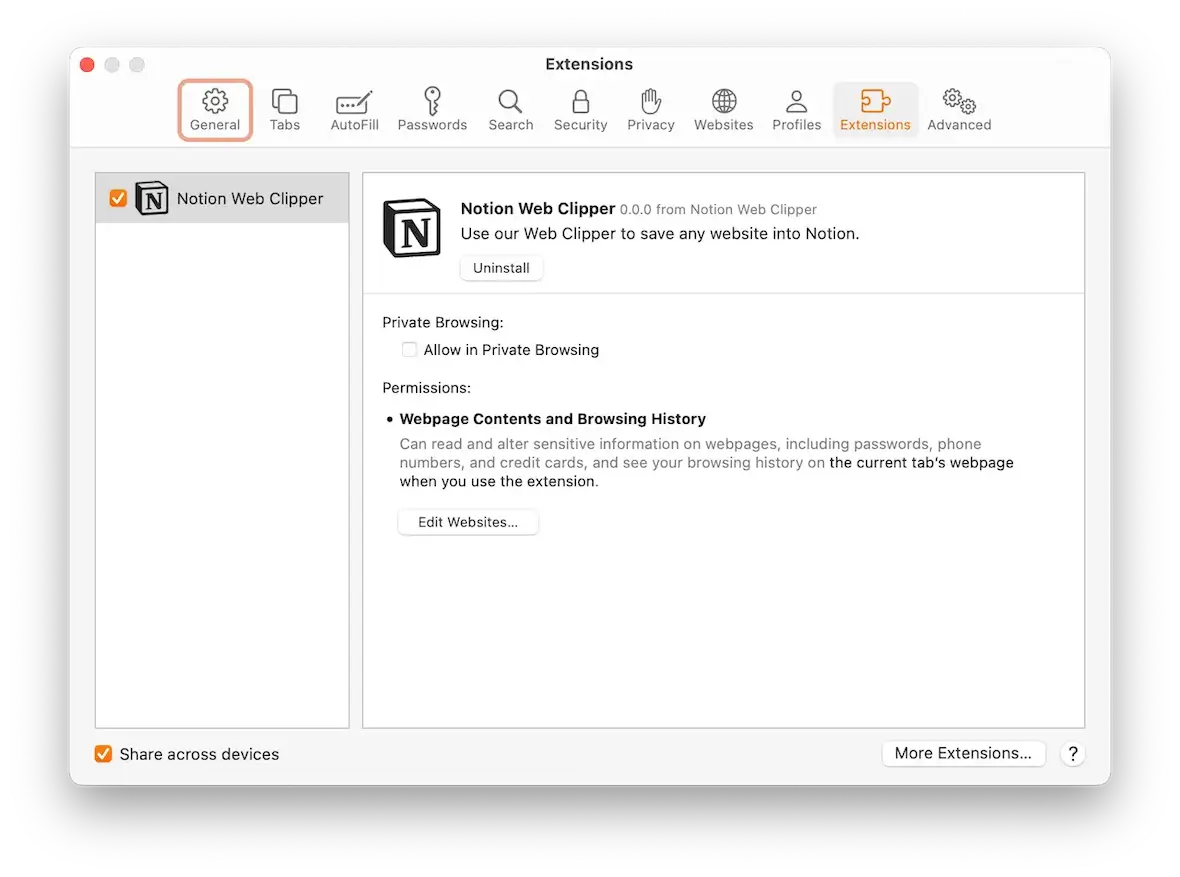
How to remove Search Alpha from Mac
You can attempt a manual removal process, but given how Search Alpha embeds itself, the fastest and cleanest method is automated detection and removal.
Run a malware scan on your Mac
The safest route is to use a tool built specifically for macOS threats.
Moonlock is designed to detect:
- Browser hijackers
- Adware
- Trojans
- Other macOS malware
You can start your free Moonlock trial here.
Removal steps:
- Download and install Moonlock.
- Run a full system scan.
- Review detected threats.
- Remove all Search Alpha-related items (and everything else).
- Restart your Mac.
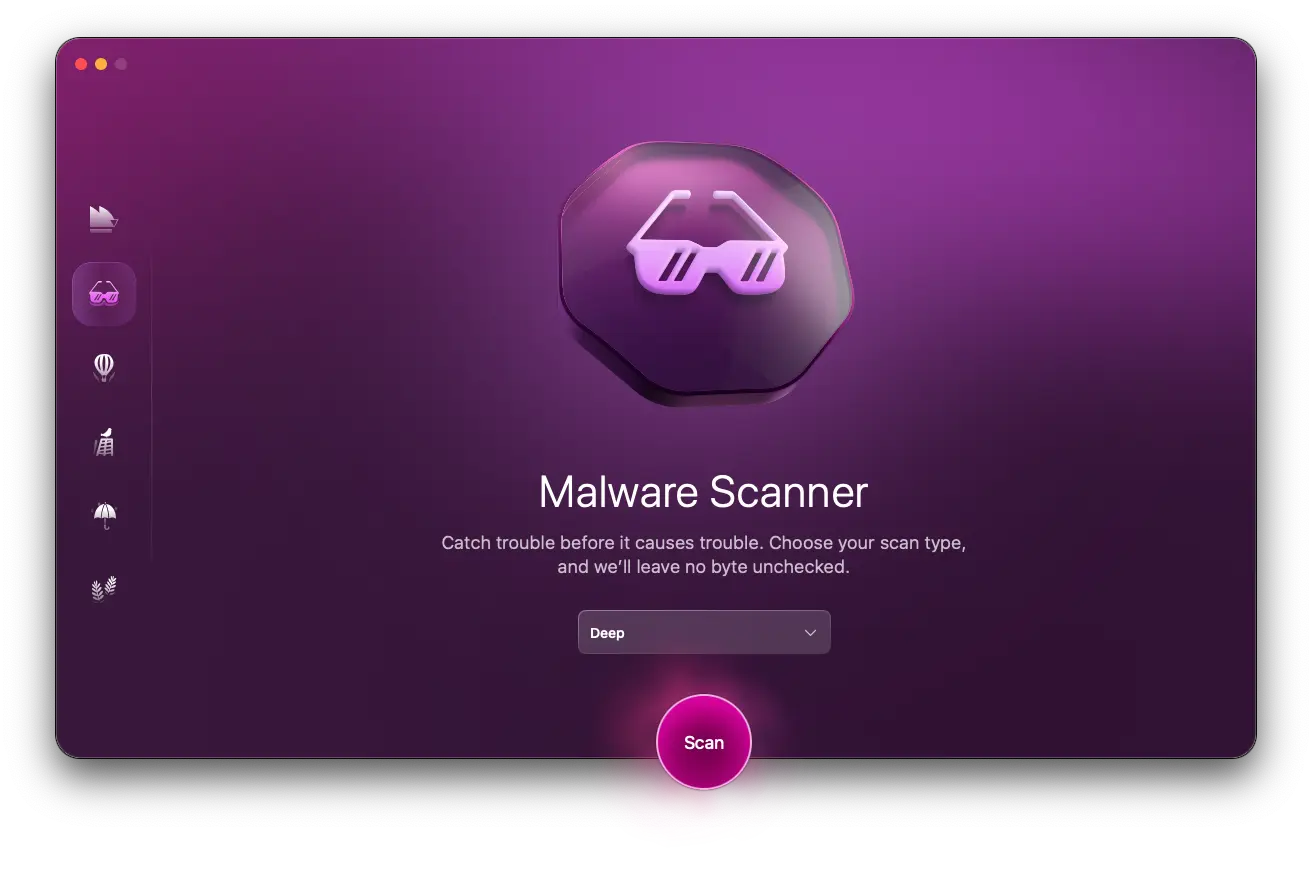
This process will handle:
- Hidden files
- Launch agents
- Profiles
- Malicious extensions
- Background processes
Get rid of Search Alpha in different browsers
Even after system cleanup, you should reset each browser. Here’s how.
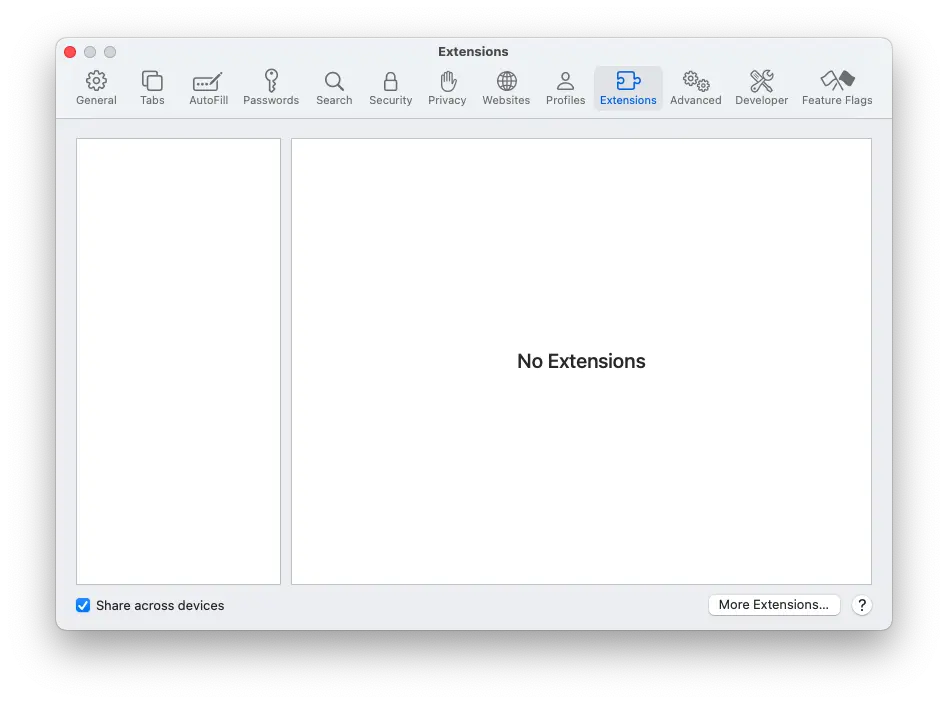
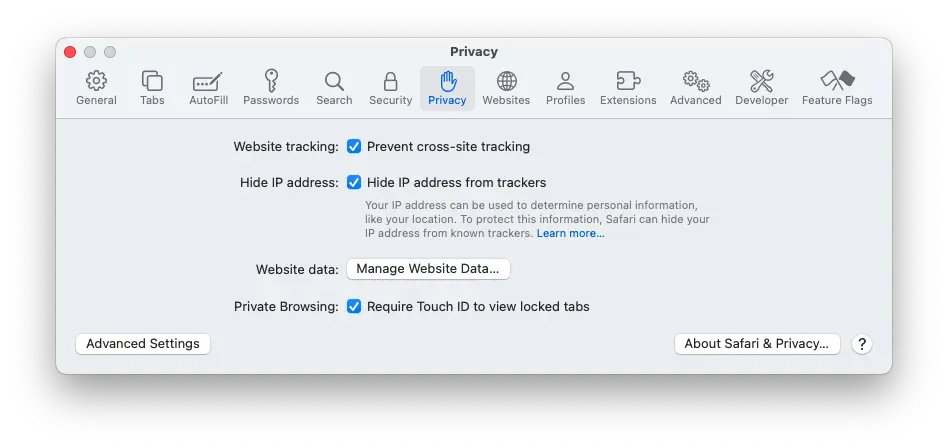
Safari
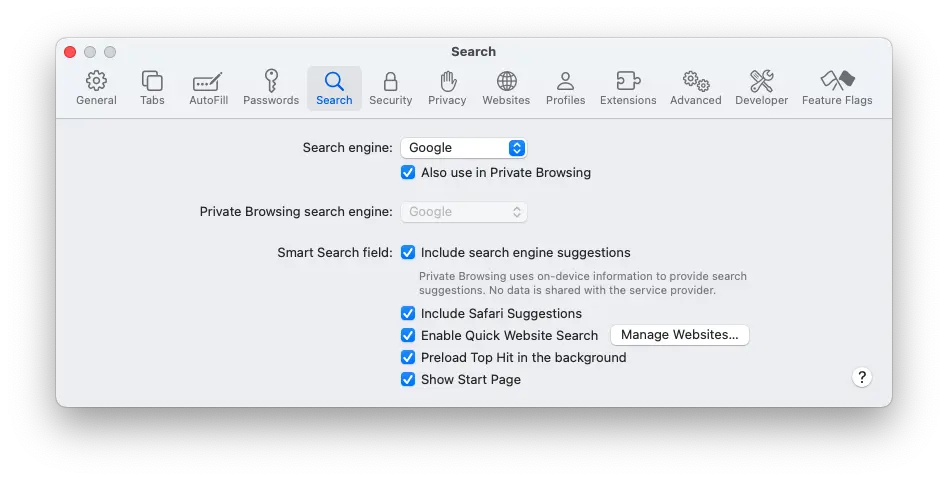
- Go to Safari > Settings > Extensions.
- Remove any unfamiliar extensions.
- Go to Search and reset your default search engine.
- Open the Privacy settings.
- Clear website data.
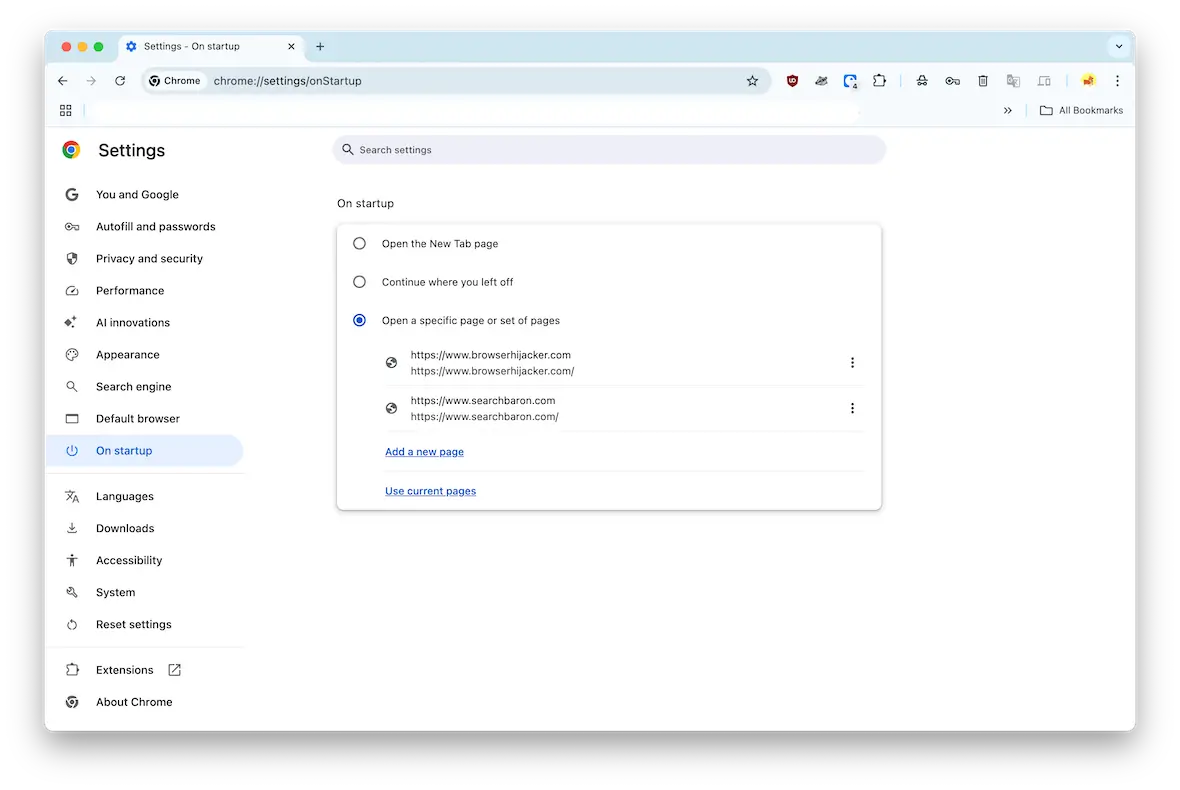
Chrome
- Open chrome://extensions.
- Remove unknown or suspicious extensions.
- Go to Settings > Search engine and reset defaults.
- Under Advanced > Reset and clean up, reset settings.
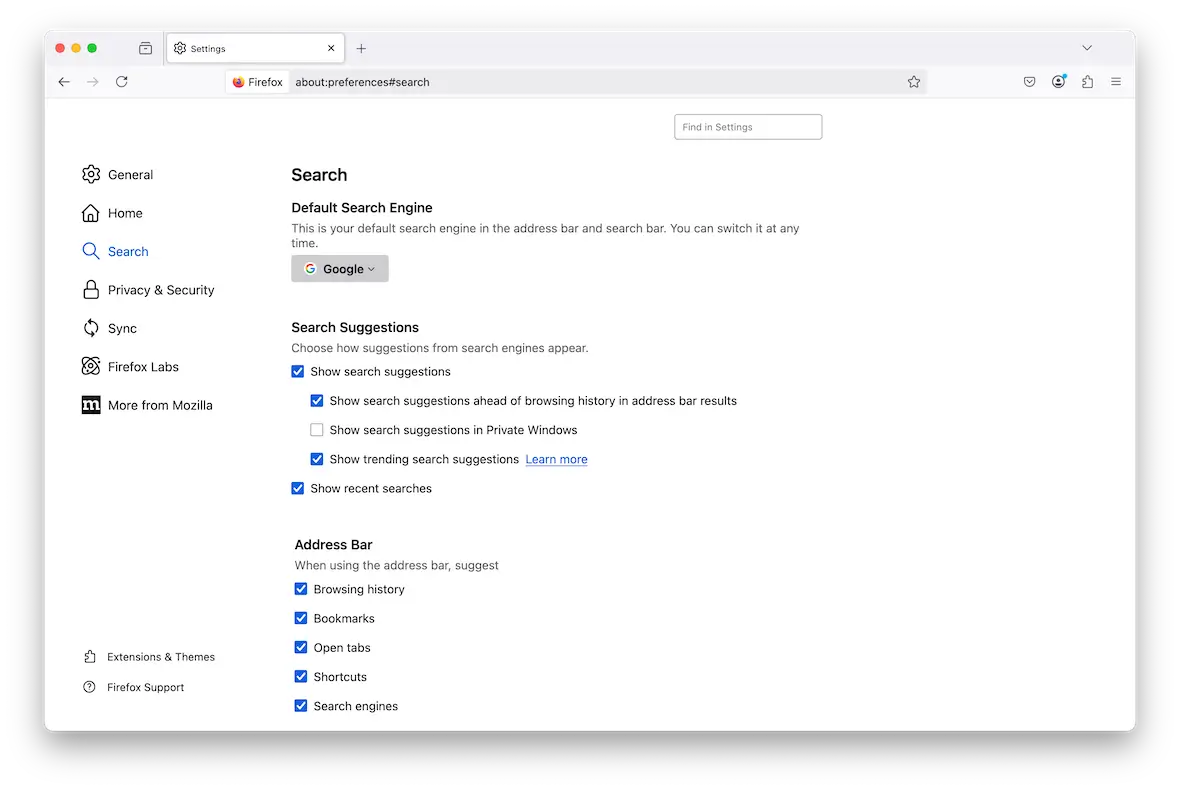
Firefox
- Go to Add-ons and themes > Extensions.
- Remove suspicious entries.
- Type about:support and click Refresh Firefox.
Additional steps if Search Alpha keeps coming back
If Search Alpha persists, it’s usually because something was missed.
Step 1: Check configuration profiles
- Navigate to System Settings > Privacy & Security > Profiles.
- Remove anything you don’t recognize.
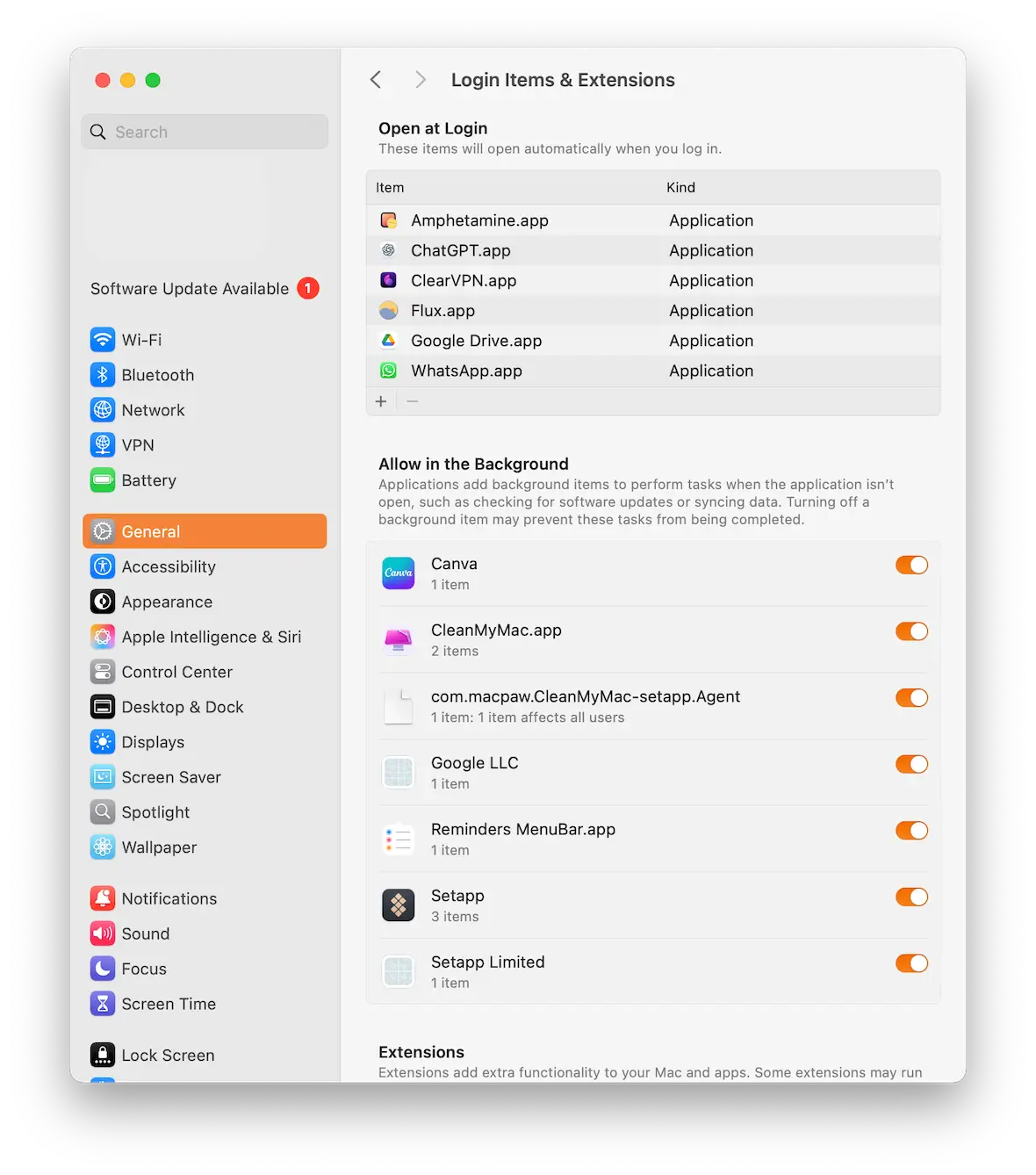
Step 2: Inspect Login Items
- Go to System Settings > General > Login Items.
- Remove unknown background items.
Step 3: Check Launch Agents
Look in:
- ~/Library/LaunchAgents
- /Library/LaunchAgents
Delete suspicious files.
Step 4: Review your Applications folder
Uninstall unknown apps.
Step 5: Re-scan with Moonlock
Persistence means something is still embedded. Run another scan.

How to reduce the risk of Search Alpha and other browser hijackers
Prevention is all about being realistic. Key practices:
- Avoid bundled installers. Always choose custom install and deselect extras.
- Don’t install “helper” extensions. If you don’t know the developer, don’t install it.
- Use real malware protection with dedicated tools like Moonlock.
- Keep macOS updated. Apple patches exploit paths regularly.
- Be skeptical of pop-ups. No legitimate site will tell you your Mac is “infected” in a browser window.
Search Alpha is not a glitch, a bug, or “just an annoying redirect.” It’s a browser hijacker with persistence logic designed to monetize your activity and expose you to further risk, and the longer it stays on your Mac, the more damage it does to both performance and privacy.
If you want to remove Search Alpha from Mac, stop browser hijackers, and protect against future infections, the fastest, cleanest route is a dedicated macOS security tool like Moonlock.
With threats like this, manual cleanup is guesswork. Proper detection puts you in control.
This is an independent publication, and it has not been authorized, sponsored, or otherwise approved by Apple Inc. Mac and macOS are trademarks of Apple Inc.