For many years, a myth has persisted that Apple devices are immune to computer viruses. If you ask about it on an Apple forum or even pull someone aside at an Apple store, you may be told, “No! Don’t be silly! You don’t need an antivirus for your Mac! It isn’t a Windows PC!”
But are they right? The truth is, Macs can and do get malware, including viruses, adware, spyware, and trojans. How do we know? Apple itself wouldn’t be offering security researchers up to $2 million through its Security Bounty program if macOS was truly secure. The fact that Apple is paying bounties on vulnerabilities shows the threats are real and ongoing. It’s a moving target, and defenses need to keep pace.
Do you need an antivirus for your Mac?
Yes, Macs need antivirus software, but not because they lack security. Just because Apple has built one of the most secure digital ecosystems with strong native protections doesn’t mean that Macs are immune to viruses and other threats on the internet. These are myths that still persist today.
Like any endpoint device or operating system, Macs can get viruses. Attackers have found ways to infect them with different types of malware, such as spyware, annoying adware, and credential stealers. Phishing attacks are among the most common methods used to trick Mac users into clicking on malicious links, downloading infected files, or accidentally giving away credentials that give attackers access to accounts and steal sensitive data.
What makes this worse is how malware spreads now. According to Patrick Wardle’s 2025 research at Objective-See, most malware now works on a Malware-as-a-Service basis. The author sells the malware but doesn’t distribute it. Instead, traffic teams handle that, using fake software updates, malvertising, and ClickFix scams that trick you into pasting commands in Terminal.
MaaS kits for macOS can go for about $1,500 a month. That’s cheap enough that inexperienced attackers can afford it. You no longer need years of coding knowledge or millions in funding to target Mac users. The economics have completely shifted in the attacker’s favor.
The threat is real and growing fast. Moonlock’s 2025 Mac Threat Report shows that 66% of Mac users encountered a cyberthreat during the year. Backdoor malware alone increased 67% compared to 2024. These aren’t theoretical risks anymore, they’re happening to real Mac users right now. That’s why third-party antivirus software has become essential.
How an antivirus tool can fit naturally into the macOS ecosystem
As previously mentioned, the macOS ecosystem already has various security tools in place, such as XProtect, FileVault, Gatekeeper, and System Integrity Protection (SIP). So, how can a third-party antivirus and malware checker, such as Moonlock, fit seamlessly into that environment?
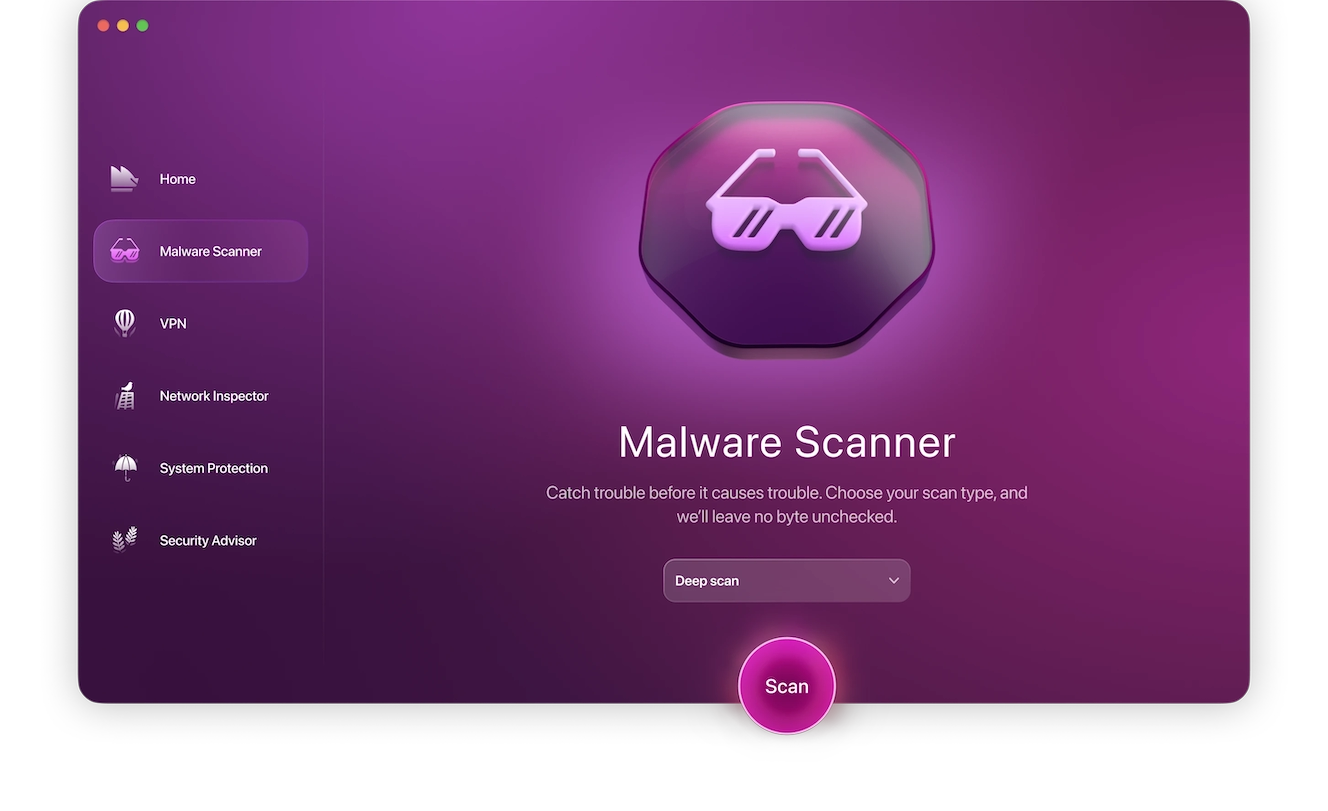
For a start, third-party Mac malware protection should not be seen as a replacement for your Mac’s built-in security tools. Instead, it acts as extra protection on top of what Apple gives you. It should also be lightweight and should integrate Apple’s APIs. Nobody wants their MacBook to slow to a crawl because a third-party malware tool is hogging CPU resources.
When all is going well, MacBook users will forget that the malware scanner is even running.
Does Apple advise using antivirus programs on Macs?
Early Apple advertising, such as the “I am a Mac, I am a PC” campaign, served to popularize the notion that viruses were primarily a Windows problem — and many users still believe it today.
This is no longer the case. In fact, Macs have become a much bigger target. In the case of Apple v. Epic Games, Craig Federighi admitted that macOS has “a level of malware we don’t find acceptable,” a direct admission that there are threats on the Mac.
Apple does not explicitly suggest the use of a third-party antivirus, but the company no longer denies the need for it. This shift in messaging is a complex issue. While built-in virus protection on a Mac is highly effective, it’s not as comprehensive as third-party protection. To identify the location of those gaps, it will be beneficial to investigate the functionality of the built-in security tools of Apple.
How does antivirus software work on a Mac?
Apple devices are constructed differently than Windows machines, which is why malware and viruses have a tougher time gaining a foothold on Macs. But at a time when cyber threats are rapidly rising and attackers are discovering clever ways to infect them, that advantage only goes so far. Virus protection on a Mac is essential – antivirus software routinely scans for threats, monitors behavior of different apps, and checks where your data is going.
These are common features offered in security tools that provide virus protection on a Mac:
- Signature detection: Matches files against known malware fingerprints already cataloged by researchers
- Behavior tracking: Flags suspicious actions, like an app trying to access system folders or record keystrokes
- Heuristic analysis: Identifies new or modified threats that haven’t been officially classified yet
- Web and download protection: Blocks malicious sites, phishing pages, and infected files before they reach your system
Without these protections, your Mac is vulnerable to malware, phishing attacks, and unauthorized access. With Macbook security software, you can add another layer of defense and real-time protection to keep your device and personal data safe from evolving threats.
Is antivirus software effective on Macs?
Due to two Apple security features — sandboxing and System Integrity Protection (SIP) — it is often argued that a third-party antivirus is not 100% effective, as it would be on a Windows PC.
This is true to a certain extent, but Apple’s built-in XProtect antivirus software is still a powerful resource (more on this later). There are still many reasons why it makes sense to put antivirus software on a Mac and why it is still effective.
The fact is, despite how well Apple’s built-in security tools perform, some malware still slips through. This means having a secondary layer of protection is paramount to catching anything which XProtect and Gatekeeper doesn’t. It’s still an extra layer of protection that can save your laptop from a determined malware attack.
With an antivirus software like Moonlock, you elevate your security measures far beyond Apple’s built-in protection. Moonlock is designed to fit in seamlessly with Apple’s design and is sure to catch anything that gets past Apple’s security. Advanced malware, coinminers, infostealers, and other threats stand no chance with Moonlock’s real-time protection.
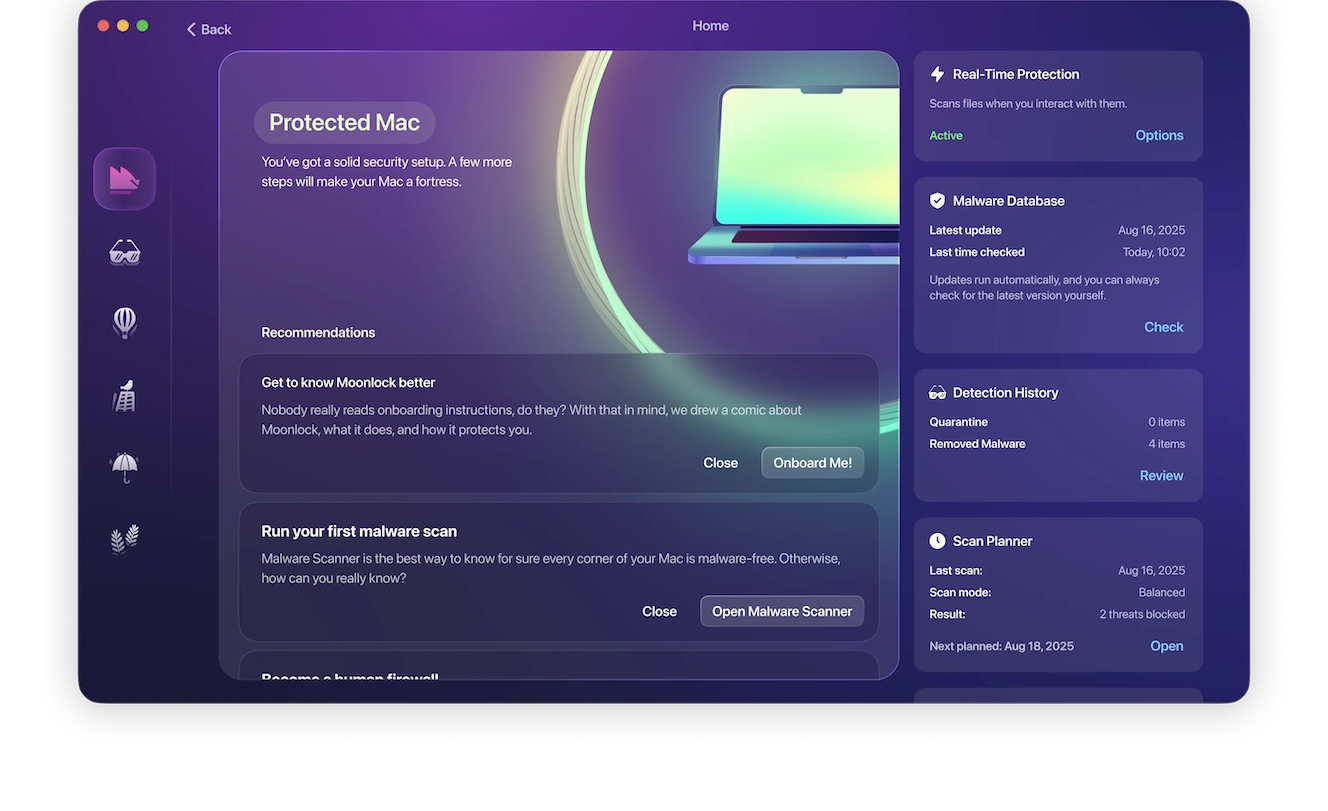
Getting started with Moonlock is simple:
- Sign up for your free trial and download Moonlock.
- Open the app, find the Malware Scanner, and run a Deep Scan.
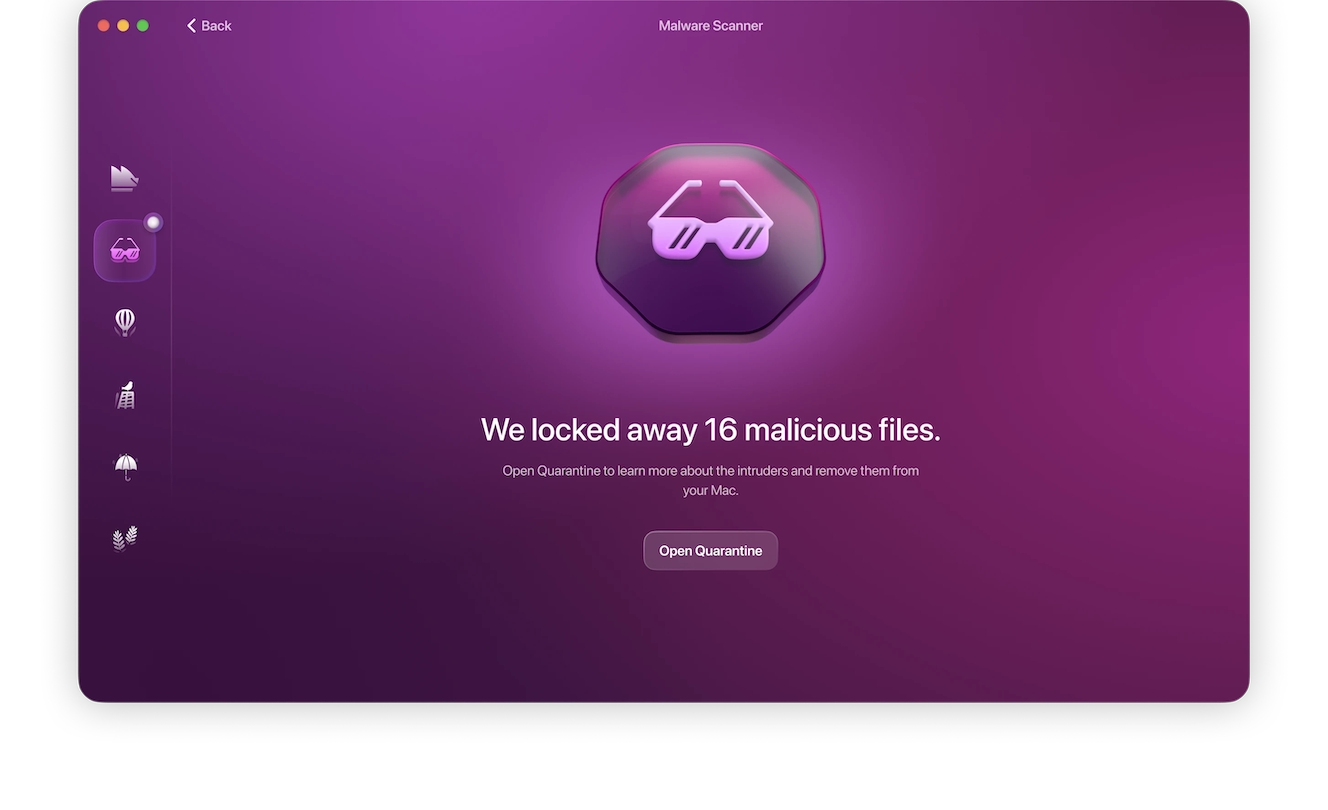
- Review the results in Quarantine and delete everything the scan found.
- Enable real-time protection and utilize Security Advisor for tips going forward.
Try Moonlock today to get ahead of malware!
Can Mac antivirus software impact performance?
Any software that requires a monitoring process will impact system performance to some degree. That’s normal, unavoidable, and just part of how these programs work.
The aim is to minimize the number of running programs on your Mac and disable anything that doesn’t need to be running all the time. That way, when the antivirus runs in the background, it won’t bring your Mac to a screeching halt.
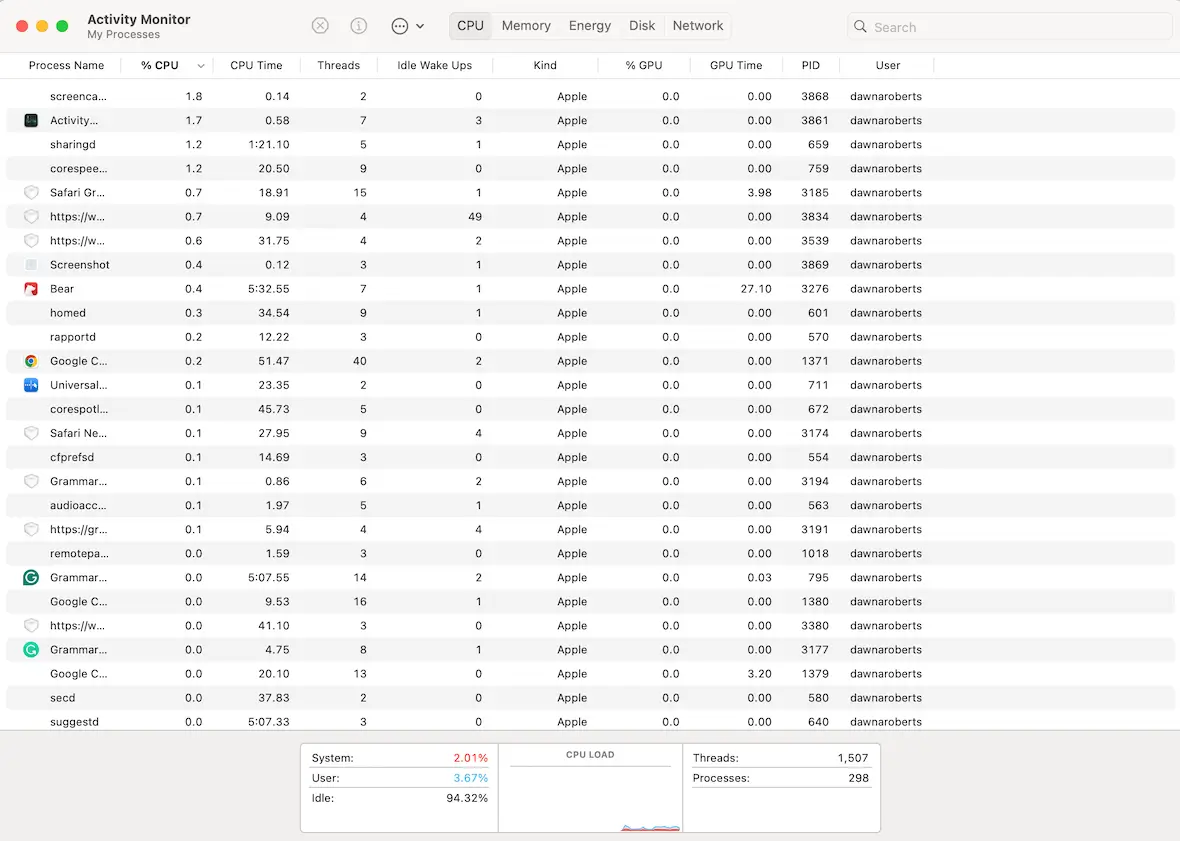
Open Activity Monitor and identify the apps that use up a lot of CPU. Run a web search on any processes that aren’t immediately obvious. Try to only open the CPU-hungry ones when you really need them.
Is there a built-in antivirus software on Macs?
As we’ve mentioned, Apple Macs have built-in security tools to combat viruses and malware. None of them need to be installed — they work right out of the box. Let’s see how each of them works.
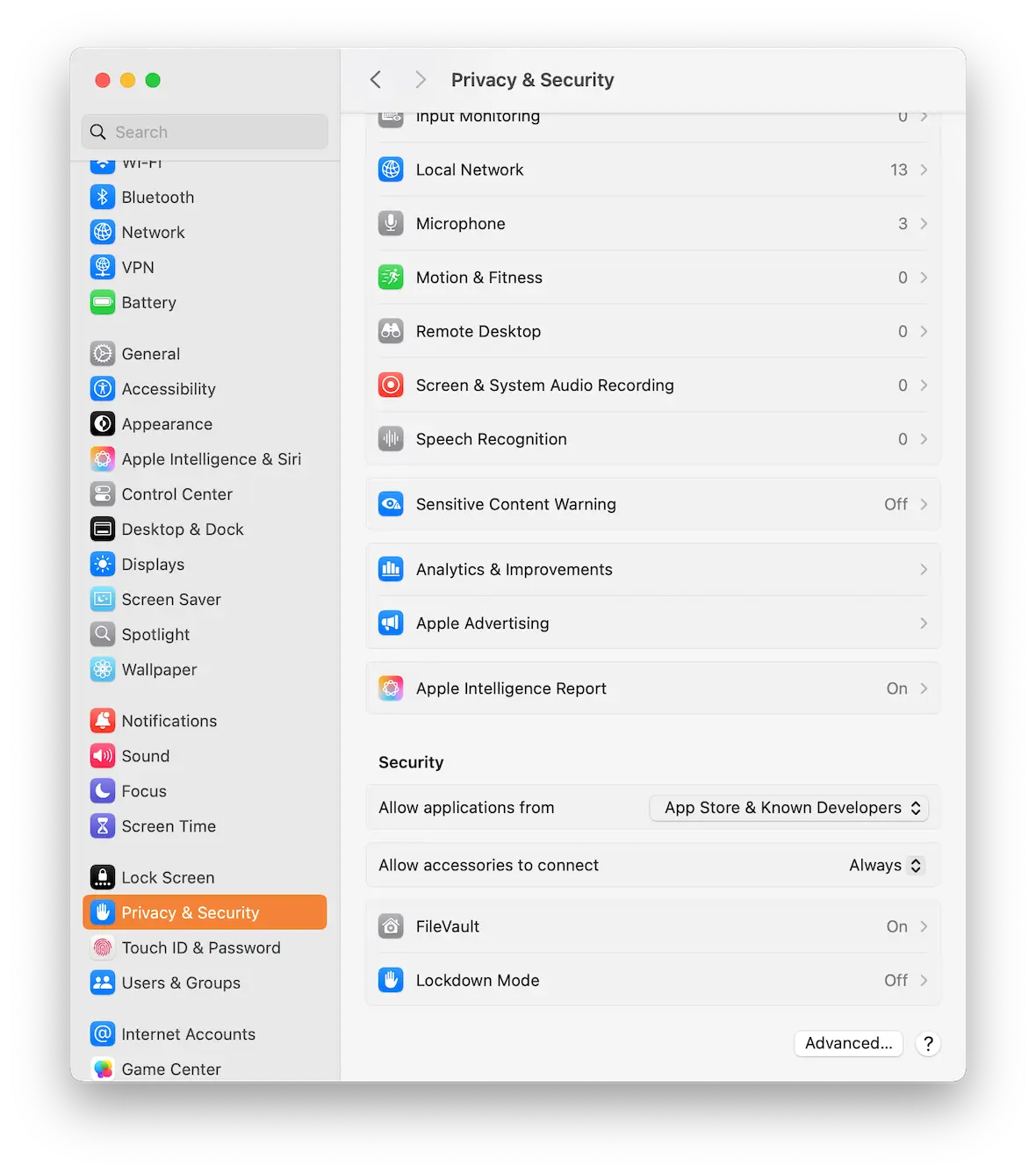
XProtect and XProtect Remediator
Apple has its own antivirus system. XProtect is integrated into the fApple has its own built-in antivirus system. XProtect is integrated into the file system – no dashboard, no setup, no user input required. It scans files against known malware signatures and eliminates the threats automatically in the background. The new XProtect Remediator automatically cleans infectious data and updates regularly.
Here are a few of its shortcomings:
- It does not alert the user about unsafe sites.
- It relies on responding to identified threats.
- It provides little visibility to users.
This renders it effective yet primarily reactive, as opposed to proactive.
Gatekeeper
Apple tries to reduce the risk of malware by keeping a tight leash on what gets into the App Store. Every App Store submission is checked thoroughly for malicious code. Apple then does its best to steer people toward the App Store for all their app needs.
However, there are other places where you can get top-tier Mac software. Setapp is a subscription-based platform that gives you access to a curated collection of secure, high-quality Mac apps.
Gatekeeper, as the name implies, stands guard as an app is downloaded. It checks to see if it is an approved app, and if not, it stops the installation and quarantines the app if it considers it to be unsafe.
If the app is quarantined, you can easily take it out of quarantine by going to the Privacy & Security section in System Settings. Just be sure that the app is safe before you do so.
Lockdown Mode
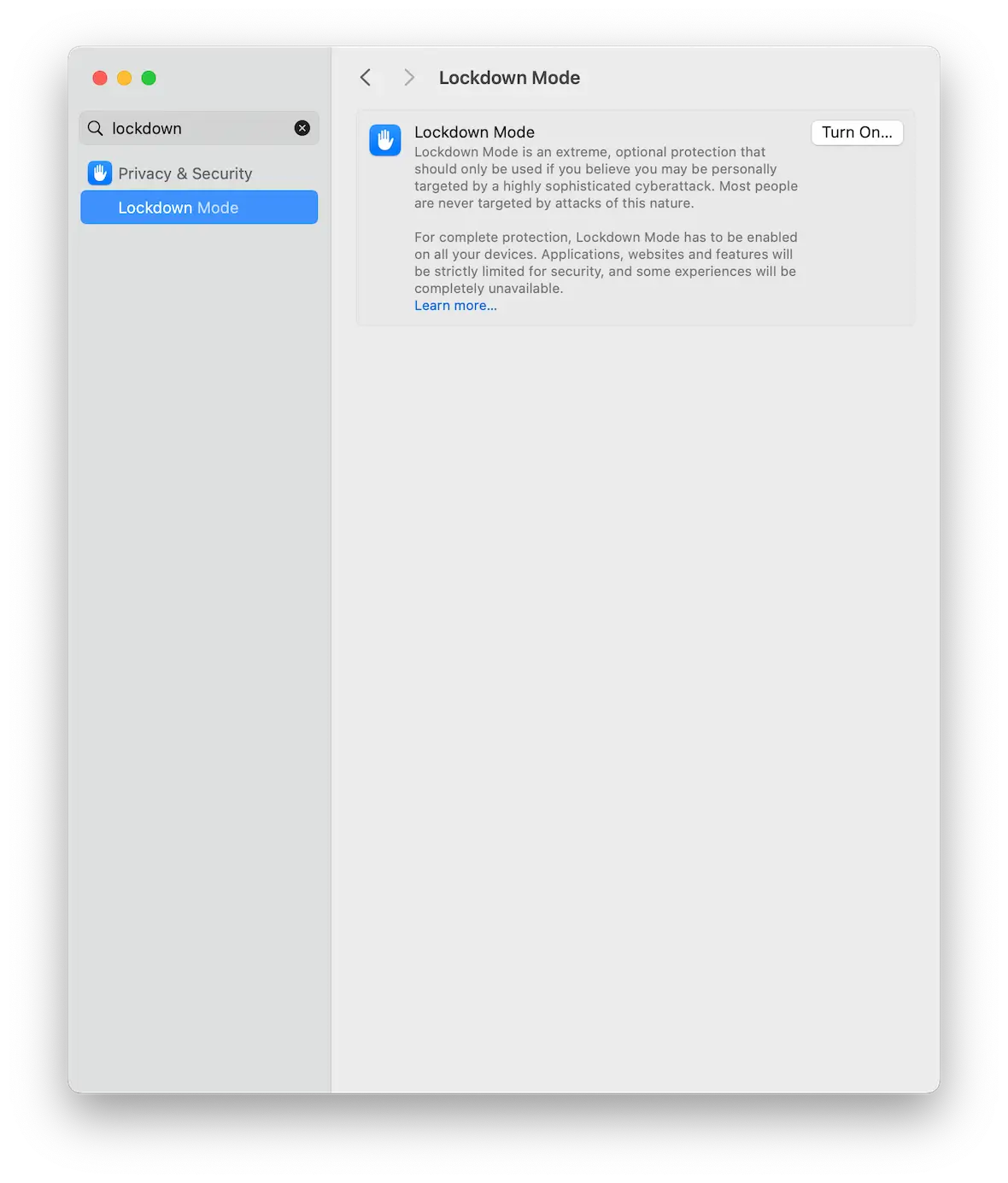
Lockdown Mode is the cybersecurity “nuclear” option. If you find yourself in the high-risk category for targeted attacks (government officials, journalists, activists), it may come in handy.
The name is self-explanatory. When you activate Lockdown Mode, it:
- Limits FaceTime calls to contacts and disables file sharing
- Prevents your web browser from being configured
- Blocks all external devices from connecting to your Mac (hard drives, USB sticks, etc.) other than keyboards, mice, and monitors
- Prevents your Mac’s system settings from being changed, stopping attackers from inserting malware such as rootkits
You can find Lockdown Mode in the Privacy & Security section in System Settings. But Lockdown Mode is not really necessary unless you are in a precarious position with people actively trying to penetrate your Mac.
FileVault
FileVault encrypts your disk as a whole. In the event of loss or theft of your MacBook, your data remains locked and inaccessible without your password. It is among the best safeguards that Apple provides when it comes to storing files.
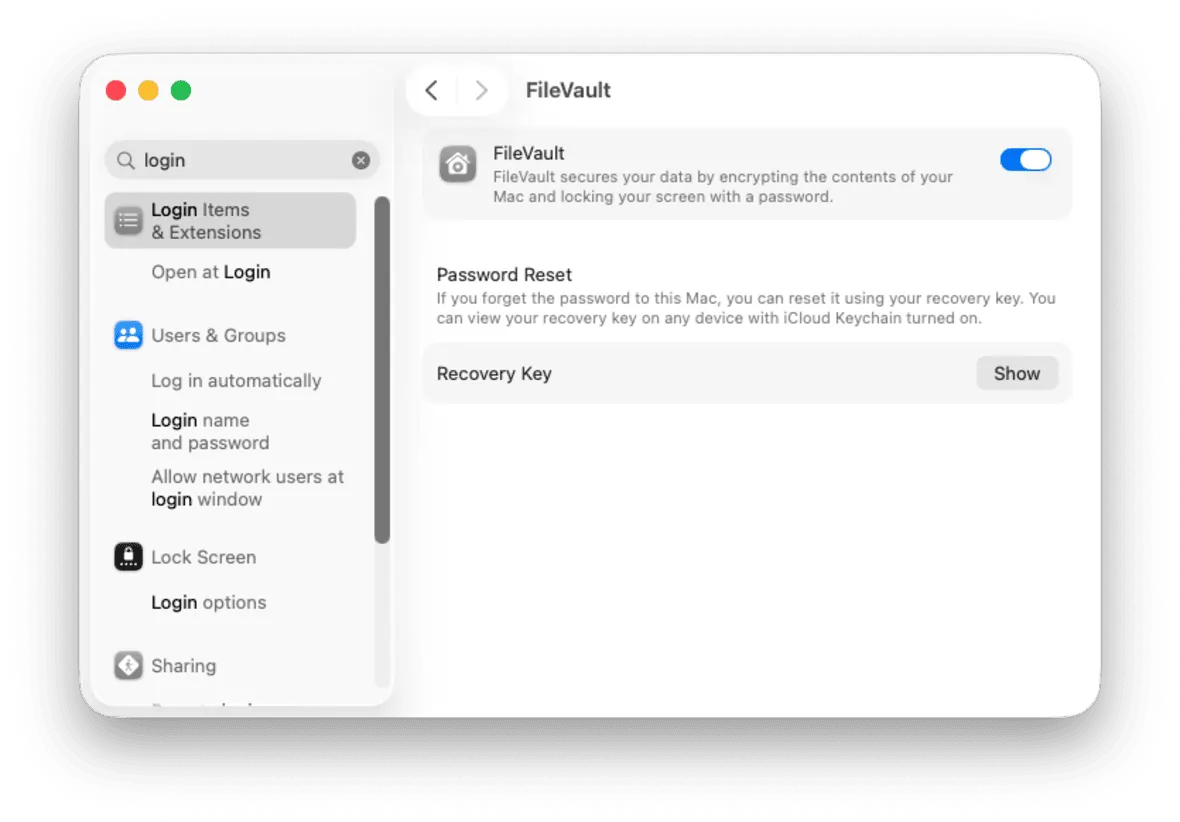
However, FileVault doesn’t stop malware or online threats. It will not stop malicious downloads, spyware, keyloggers, or phishing attacks that attempt to steal your credentials. In simple terms, FileVault protects your data at rest, not while you’re actively using your Mac.
When built-in protection isn’t enough: Scenarios where you may still need an antivirus on your Mac
Anyone reading up on Mac’s built-in security tools may tell themselves they are adequately covered. But this is not strictly true. Sure, those tools are efficient and do an excellent job. But they don’t cover everything, which makes third-party malware protection on a Mac imperative.
Let’s first take the example of zero-day exploits, when a malware threat is unknown, and there is no patch for it. Apple has a malware database that it constantly updates. But what if they don’t update it fast enough?
That is when an antivirus solution, acting in a supporting role, can pick up the slack, checking for malware that has fallen through the cracks.
Antivirus software can also protect users from malicious websites, as it will likely offer real-time scanning while web browsing. It will also warn the user as soon as threats are detected. This is something Apple’s tools do not do.
Other features offered by antivirus solutions not available from Apple’s built-in tools include the following:
- Blocking drive-by downloads: If malware attempts to download itself onto your computer without your input or permission, a third-party antivirus solution can stop it.
- Catching infected sideloaded apps: You should always restrict your app downloading to the App Store or recognized third-party developers. If a user decides to sideload an app from another site, it could be infected. An antivirus solution can scan those and remove the malware.
- Defending against social engineering tactics: If human error or a scam results in malware infecting a target computer, antivirus software can quickly pick up on it and mitigate and/or reverse the damage.
- Detecting advanced persistent threats (APTs): When malware deeply embeds itself inside a device or a network and remains there for extended periods of time, it can go undetected by conventional security tools. Real-time Mac virus detection tools can pick up on their presence and alert targets sooner.
Mac malware in 2026: What’s actually happening?
Mac attacks aren’t imaginary anymore. They are organized, standardized, and more lucrative. Some of the changes include:
- More macOS malware families: Security researcher Patrick Wardle reported an increase of 8 families in 2021 to 21+ in 2024.
- Reduced entry barrier: The cost of malware-as-a-service kits has dropped to about $1,500 a month, and attacks are now affordable to smaller players.
- User-driven infections: The fake update notifications, the broken applications, and installer packages lure users into self-infection.
- Website-based delivery: WordPress sites that have been compromised continue to be a significant point of entry into the system by virtue of their size.
- Move toward data theft: In 2026, modern malware shifted further toward stealing credentials, hijacking browser sessions, and accessing financial data rather than causing obvious damage.
If you want a clearer picture of where things are heading, this breakdown of macOS malware trends in 2026 shows how these attacks are evolving and why they’re harder to detect.
AI-powered threats targeting Macs
With the emergence of AI, attackers are using it to automate attacks on Mac devices. AI can assist in the creation of malicious code, thus making it more convenient to attack Macs on a large scale. The following are some of the major examples of AI-powered threats:
- Polymorphic malware: Self-rewriting code that changes its structure each time it runs, making it harder for traditional detection tools to recognize
- Highly convincing phishing: Email and login screens that are nearly identical to actual services
- Automated vulnerability scanning: Bots crawling through systems, looking for vulnerabilities
- Synthetic identity attacks: Deepfake messages or audio to manipulate users into providing access.
These aren’t fringe cases anymore. They’re part of active campaigns that affect not only Mac users but also organizations and businesses, too.
Signs that your Mac may be infected
Mac malware usually tries to stay hidden, but it still leaves patterns. You don’t need to memorize a long checklist. Focus on a few high-signal changes that feel off. The most common ones:
- Performance drops out of nowhere: Your Mac suddenly feels slow, its fans spin harder, or its apps lag without a clear reason.
- Strange pop-ups or browser behavior: You notice fake alerts, redirects, or your homepage changing on its own.
- Unknown apps or processes: You notice software you don’t remember installing, or Activity Monitor shows unfamiliar activity.
- Security settings are being altered: The firewall is disabled, permissions are changed, or warnings are disappearing.
- Unusual network activity: Your Mac is sending or receiving data in the background, even when you’re not actively using the internet.
- Frequent crashes or system instability: Apps freeze, your computer crashes, or the system behaves unpredictably without a clear cause.
- Unexpected account or login activity: You’re logged out of accounts without your request, you see login alerts, or you notice changes you didn’t make.
If you experience more than one of these problems at the same time, don’t ignore them. The issue requires investigation right away. Ignoring these symptoms can allow a problem to escalate exponentially. This quick guide on how to check if your Mac is infected walks you through what to do next without overcomplicating it.
The most common malware threats for Mac users
Many forms of malware are rearing their ugly heads on Macs these days. The following is a rundown of the most common malware threats.
Spyware
Spyware runs in the background, logging keystrokes to steal account login details, listening to your microphone, watching you through your camera, and generally scooping up as much personal data as possible. EvilQuest, a notable Mac threat, includes keylogger functionality alongside ransomware and data theft capabilities.
Adware
Adware puts pop-up ads on your computer in an effort to coerce you into taking some sort of action. This can be something ironic, like warning you about your computer being infected, so you need to buy their antivirus software immediately. Shlayer and AdLoad are common examples that hijack browsers and inject ads into web pages.
Stealers
Stealer malware goes after the personal data in your machine, such as:
- Credit card details
- Login credentials
- Banking data
- Crypto wallets
- Autofill information
- Files in Finder
One example is the Atomic Mac Stealer (AMOS), a stealer that is rented out by its owners. Newer variants like Banshee and Poseidon specifically target cryptocurrency wallets and two-factor authentication tokens. It is specifically designed for macOS (unlike other malware, which also targets Windows PCs).
Browser hijackers
This is another highly common form of malware. Fortunately, it is easily removed when found, but until then, a browser hijacker will run riot inside your browser, altering security settings, changing your homepage and default search engine, and taking anything it can find.
Backdoor
As the name implies, a backdoor malware gives the malware secret access to a network or a software app, which bypasses the usual security measures. It’s basically a secret door which lets them in via the ‘back’. Silver Sparrow uses this approach, establishing persistence to check for and deliver payloads on demand.
Trojans
Named after the trojan horse in Greek mythology, a trojan is a malware that disguises itself as something legitimate or harmless to put down the guard of the device owner. Once the trojan is activated, the malware starts to spread throughout the device.
Phishing
This one is an oldie, but hackers like to go with what works. Phishing has a high success rate. For many users, not a day goes by without an email landing in their inbox from someone claiming to be a representative from PayPal, a client with an invoice, or the lottery informing you you’ve won $100 million. Clicking the link, however, will lead to malware or a fake site built to relieve you of your login details and other sensitive information, such as your credit card number.
Ransomware
This is the nightmare of many businesses. If an employer accidentally clicks on a malware-infected link, it could down their entire network and hold the server’s files for ransom. For example, EvilQuest encrypts files and demands ransom while also stealing data.
Cryptominers
A common threat found on pirate download sites as well as sketchy third-party software, a cryptominer turns your MacBook into a crypto-mining machine for hackers. The process consumes vast amounts of battery power and causes your MacBook to heat up like a barbecue grill.
Infected apps
Downloading from pirate sites is still a thing, and cracked software is a highly risky malware threat. Users may think they’re getting a free copy of Photoshop, but what they’re actually getting is a malware-infected version.
Essential tips for protecting your Mac from malware
Of course, prevention is much better than any cure. Instead of being a malware victim, observe the following cybersecurity practices to prevent becoming one.
Don’t install apps from untrusted sources
Try as much as possible to confine your app buying to the Mac App Store. CleanMyMac and Setapp can be obtained through the App Store.
If you want to install something from outside of the App Store, use your best judgment and be aware that Gatekeeper is going to quarantine it first.
Enable the firewall
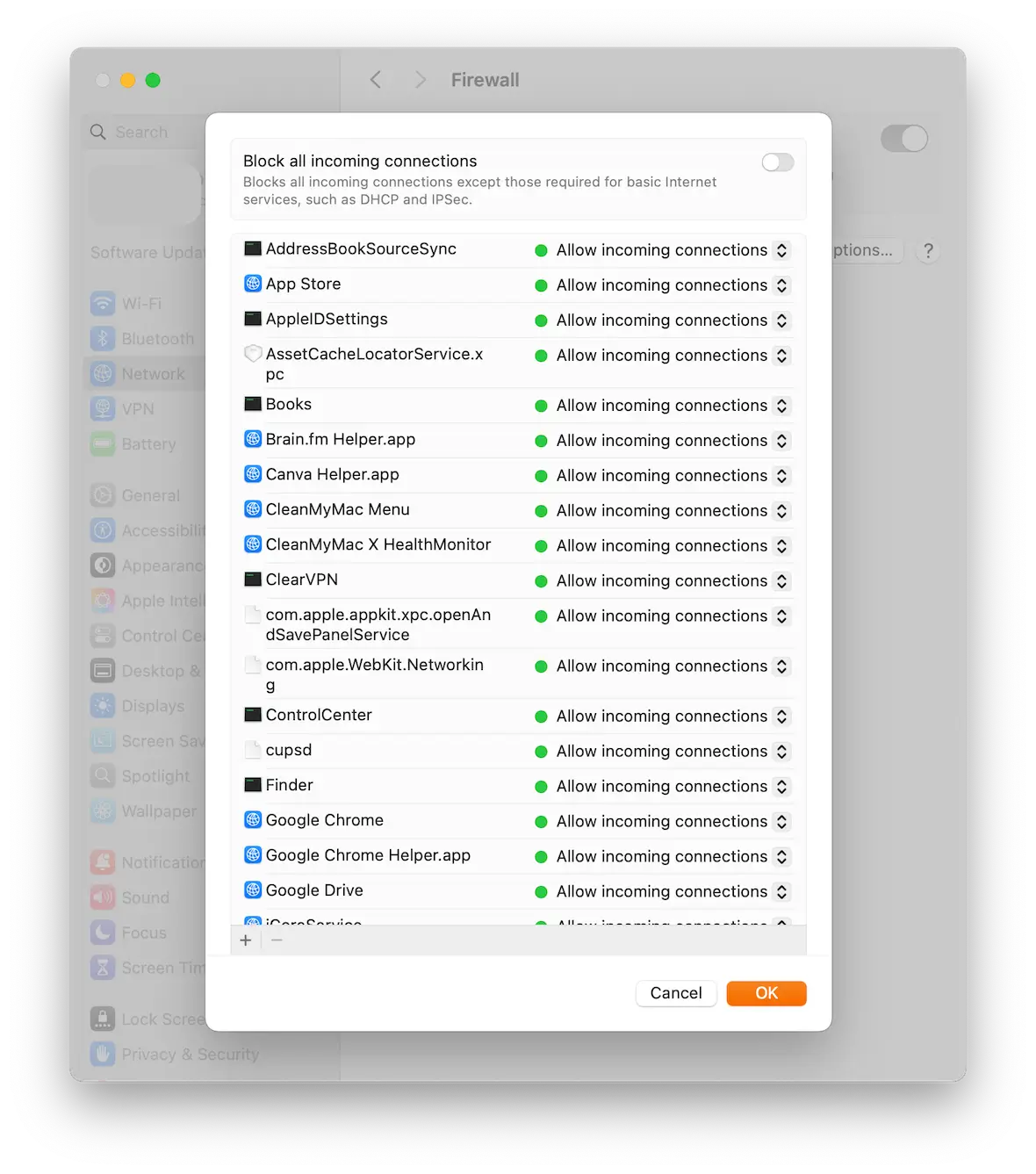
Your Mac has a built-in firewall, but unlike the other security tools, you have to enable it first.
This firewall is essential. When malware tries to take control of your Mac, it relies on connecting to external servers as a place to store your personal data and send more malware back. The Apple firewall stops that from happening.
You can enable your Mac’s firewall by going to System Settings > Network.
Don’t click email or SMS links
If you take only one thing away from this article, let it be this. Never click links inside emails or SMS messages. Unless the sender is a trusted friend, but even then, verify that it is indeed that friend and not somebody impersonating them.
The easiest route for malware to get onto your Mac is through infected weblinks. All it takes is for a hacker to send you a link and trick you into clicking it. For them, this is low effort, high reward. By refusing to click those links, you’re making things much harder for cybercriminals.
Use a VPN
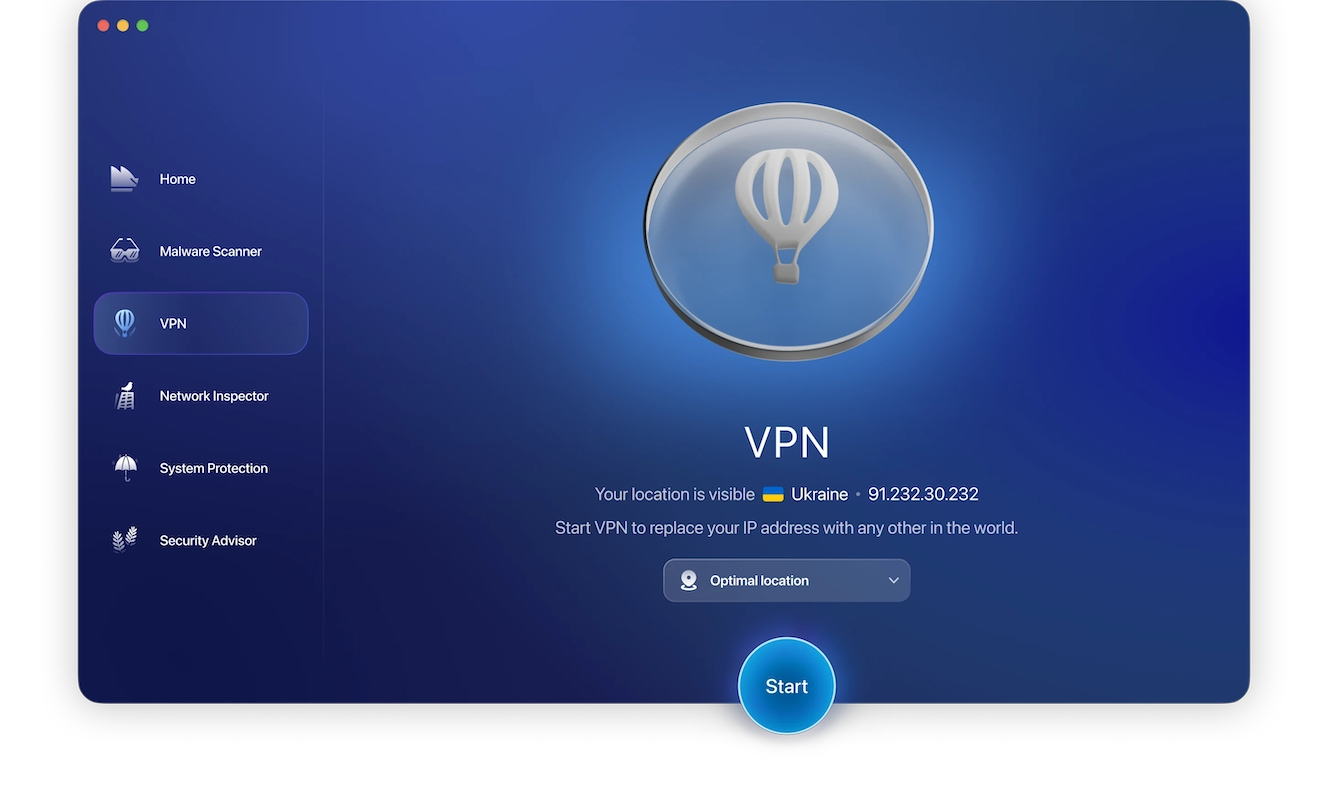
Using a VPN can put a serious dent in a hacker’s plans. While it doesn’t guarantee that your Macbook won’t ever be the victim of malware, a VPN does ensure that it’s one more thing protecting your device from external threats – and that’s never a bad thing.
We recommend our own VPN. Moonlock’s VPN will encrypt your web traffic and provide peace of mind.
Install all macOS updates and app updates
It’s difficult to keep up with all the latest threats out there, but Apple and app developers do their best by bringing out updates as often as possible.
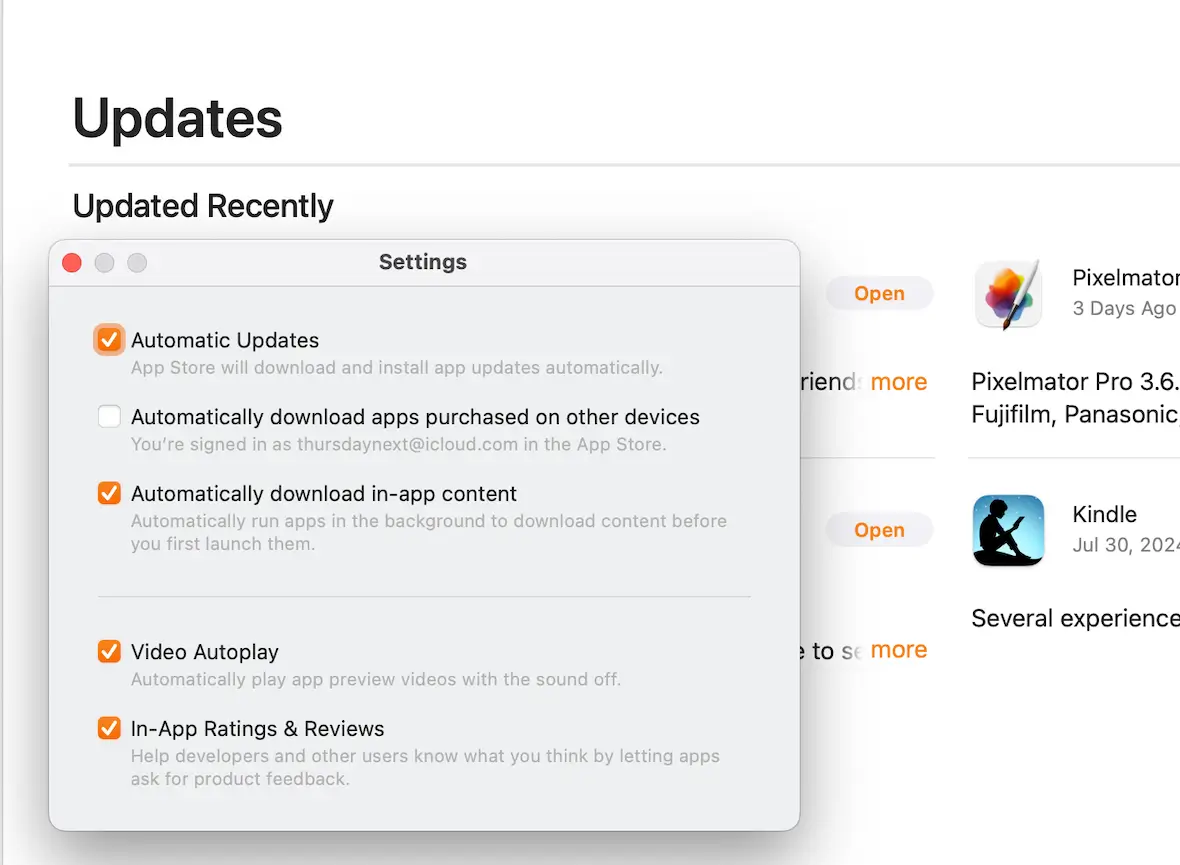
You should download and install these updates as soon as you’re aware of them. You can check for macOS updates via System Settings > General > Software Update.
For installed apps, go to the App Store updates and enable Automatic Updates.
So, do MacBooks need antivirus software? Whether or not you need an antivirus will ultimately depend on your online habits, your knowledge of threats and how to avoid them, and your risk level.
However, with 66% of Mac users encountering threats last year and attacks becoming cheaper to launch, Apple’s built-in protections alone aren’t enough anymore.
In practice, most Mac users click email links they mostly trust, download from various sources, and work from coffee shops. That’s just how people use their Macs. And in that real-world scenario, antivirus software becomes essential.
If you’re ready to protect your Mac, Moonlock offers real-time protection that catches threats before they can do damage. You can try it free for 7 days to see how it works with your actual workflow. No commitment, no credit card required. The days of “Macs don’t get malware” are a long time ago. Protect yourself accordingly.
This is an independent publication, and it has not been authorized, sponsored, or otherwise approved by Apple Inc. Mac and MacBook are trademarks of Apple Inc.